

- Create or bulk create resources, shop products, events, benefits, and guides.
- Duplicate an existing resource, shop product, event, or benefit.
- Edit an existing resource.
Create or duplicate an item
- Open Lem AI top left and start a chat.
-
Tell Lem AI what you want to achieve using one of these methods:
-
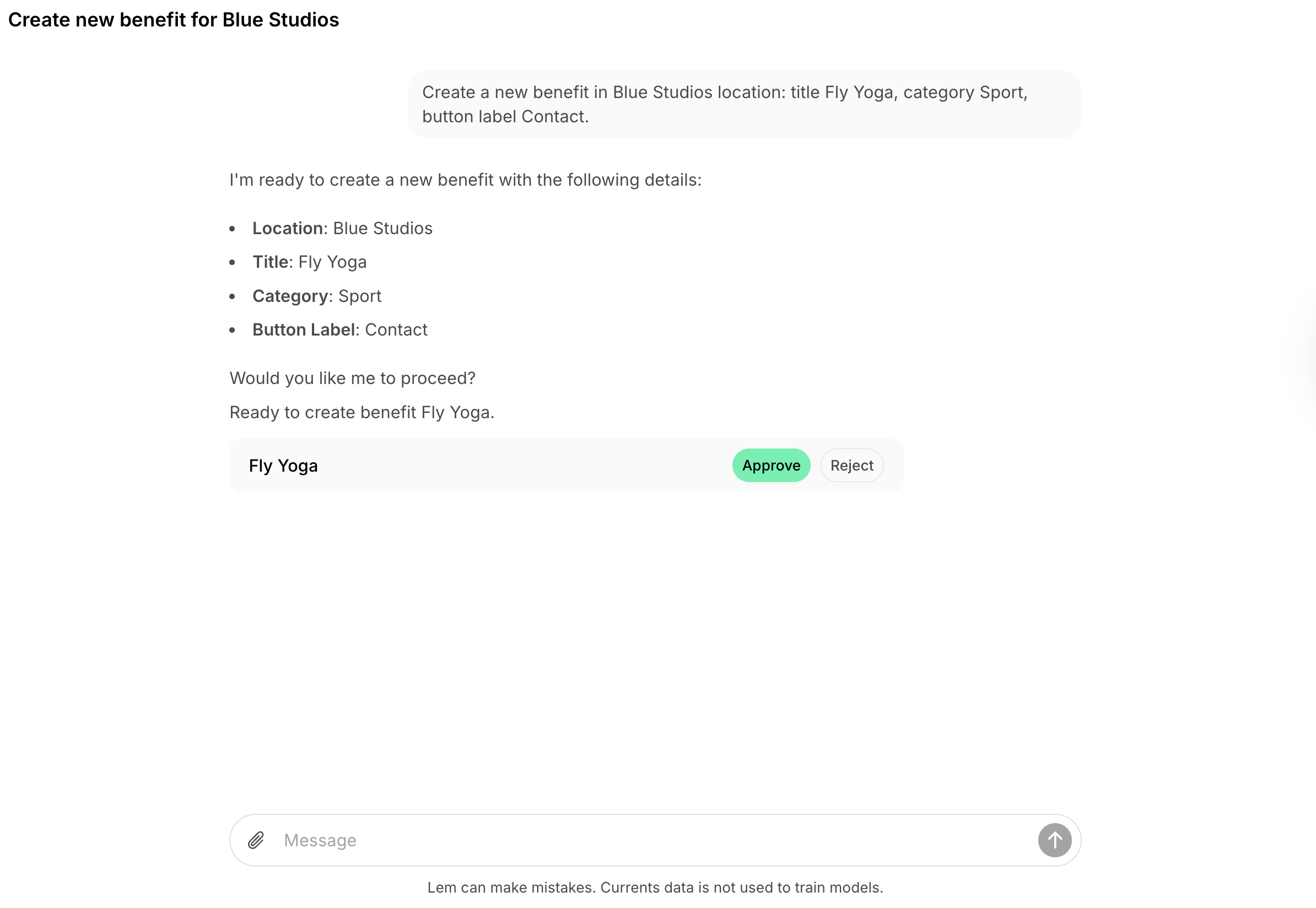
To create from scratch: Ask Lem AI to create one or multiple resources, shop products, events, benefits, or guides. Specify details like name, description, price, visibility, dates or schedule (e.g., exact dates or “every Tuesday from April to August”).
-
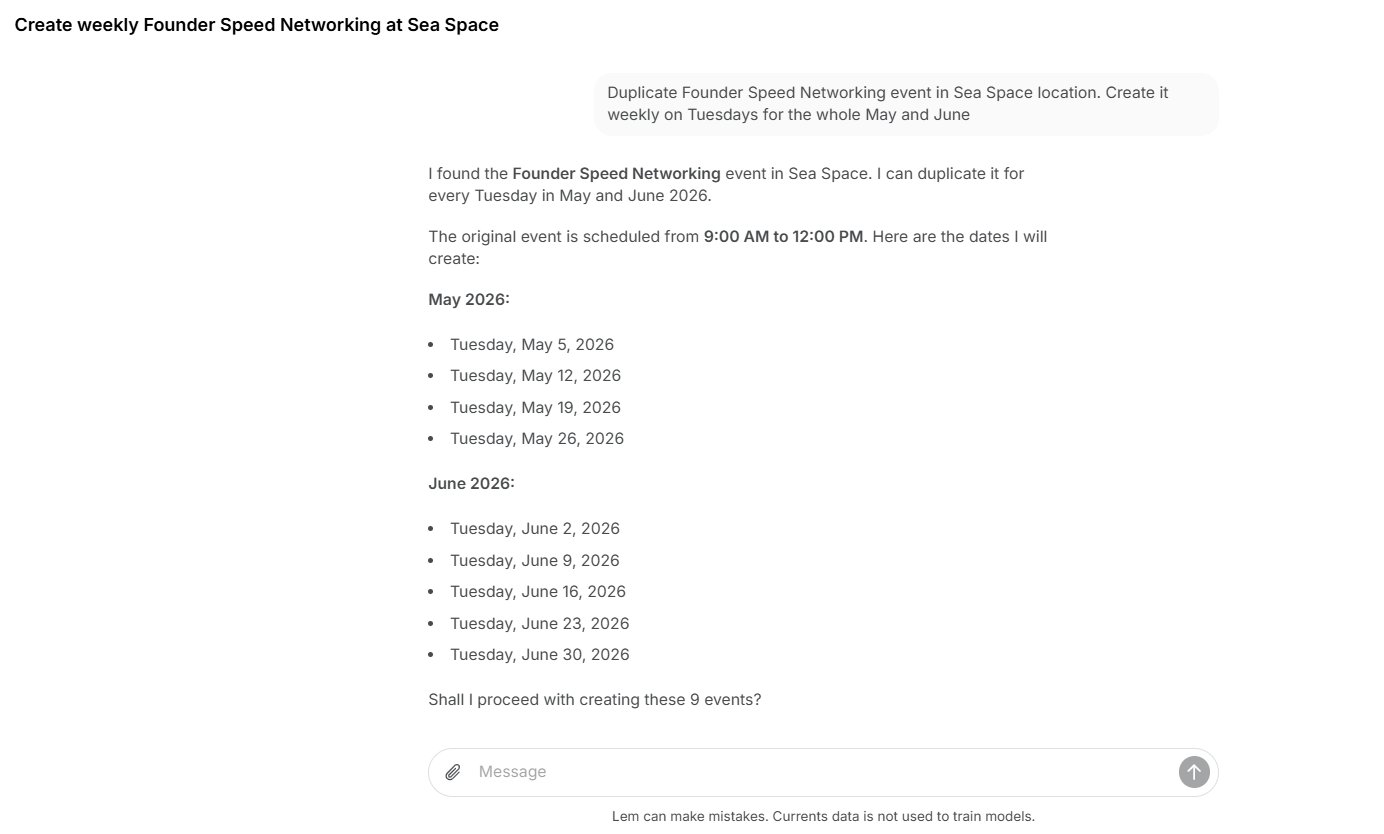
To duplicate an existing item: Create one item manually first (e.g., a desk on the Desks page), then ask Lem AI to duplicate it. Specify how many duplicates you need, their new titles, and if any specific settings should change or remain identical.
-
To create from scratch: Ask Lem AI to create one or multiple resources, shop products, events, benefits, or guides. Specify details like name, description, price, visibility, dates or schedule (e.g., exact dates or “every Tuesday from April to August”).
- Provide any additional settings or details Lem AI asks you for in the chat.
-
Lem AI will prepare the items and list them for your review. Review them and click Approve or Reject next to each item.
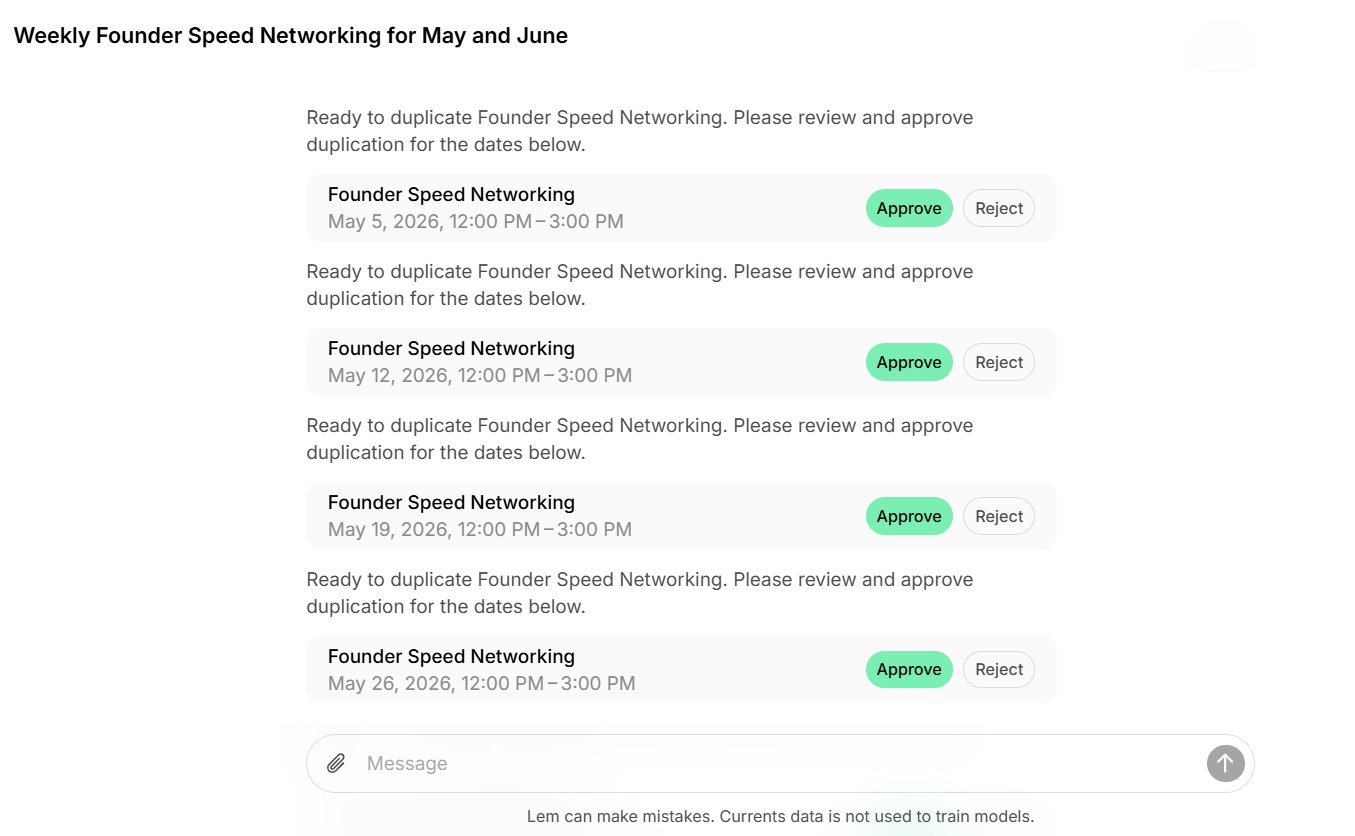
- Once confirmed, Lem AI will create all approved items and notify you in the chat.
Edit a resource
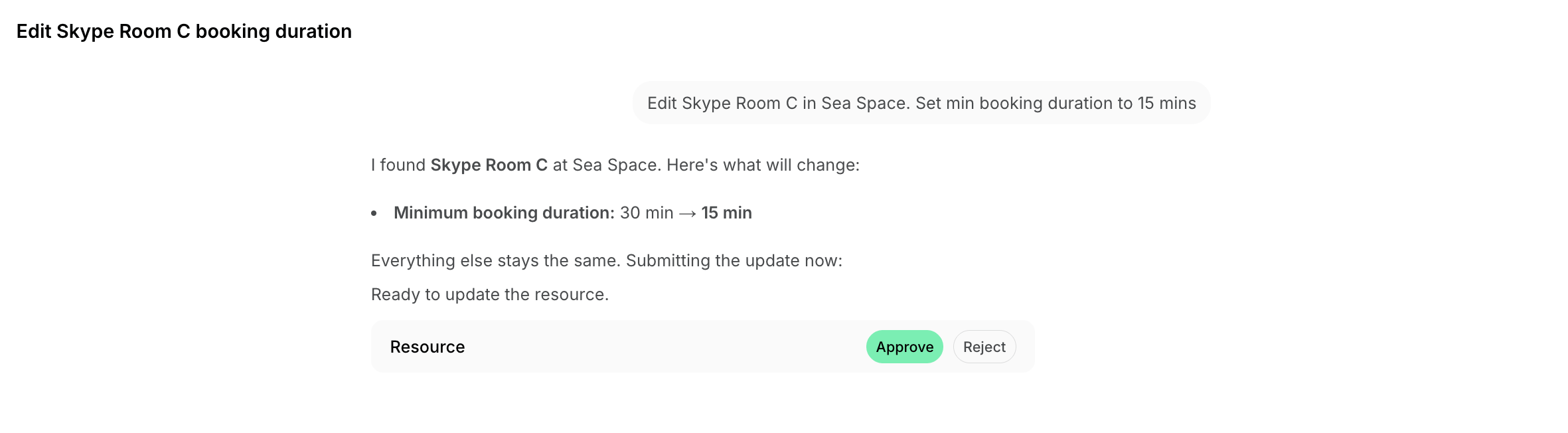
Instead of opening a resource to change its settings by hand, ask Lem AI to update it for you.- In the chat, tell Lem AI which resource to update and what to change. Be specific with the resource name and location, and describe the new values — for example, its name, description, capacity, pricing, or visibility.
- Lem AI will prepare the update and show it for your review. Click Approve to apply the change, or Reject to cancel it.
- Once approved, Lem AI will update the resource and confirm it in the chat.
It is not currently possible to set an item’s image through Lem AI when creating, duplicating, or editing it. Duplicates keep the original item’s image automatically. For new or edited items, add the image directly on the item’s page.