

Start a chat with Agent
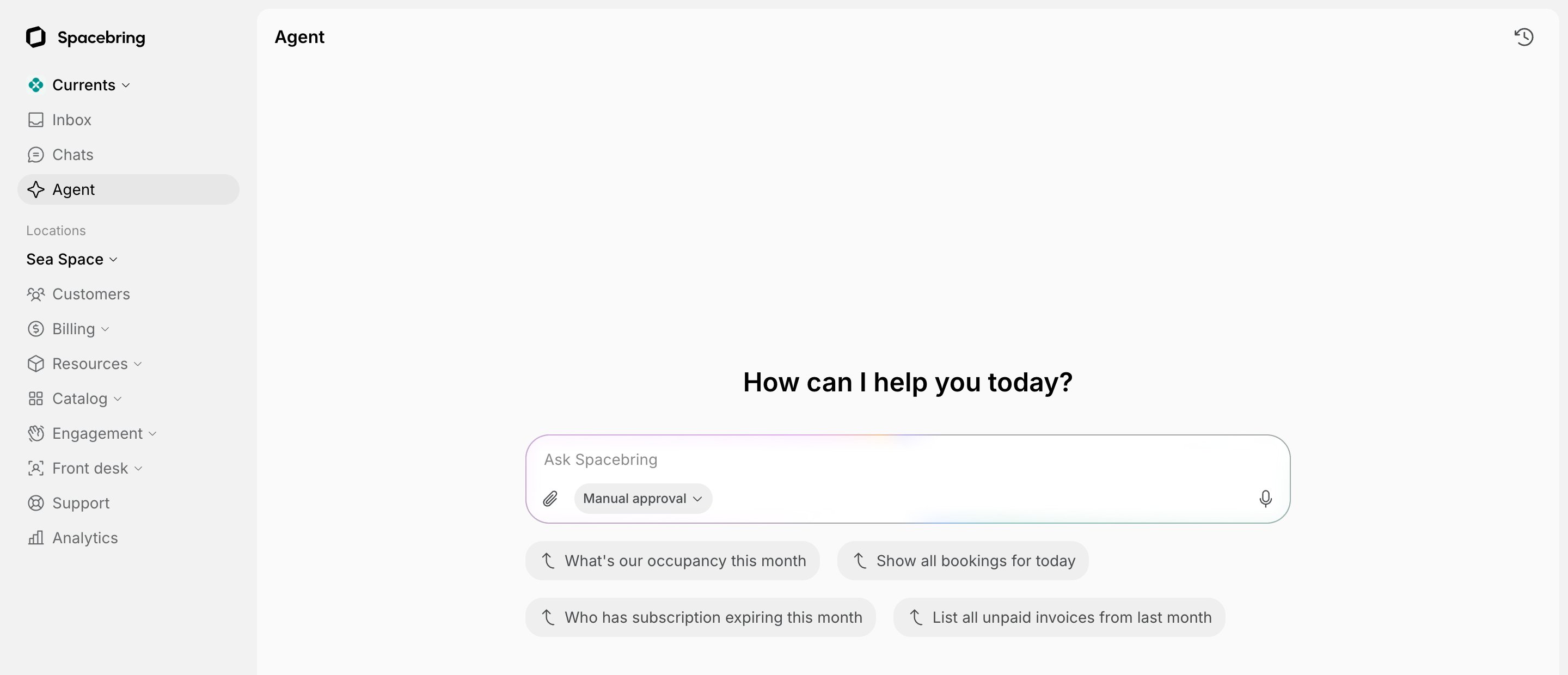
You can start a conversation with Agent directly from your admin dashboard:- Click Agent at the top of the left-side panel. It shows while the Spacebring Agent switch is on in Network settings > AI & Agents.
- Type your question or command into the message field or choose one of the suggested prompts. To dictate it instead, click the microphone icon, speak, and click it again when you’re done.
- Agent processes your request and provides the data, lists, or summaries you need right in the chat for you to review.
.csv, .docx, .json, .log, .md, .odt, .pdf, .pptx, .rtf, .txt, .xls, .xlsx, and .xml. You can attach several files to one message, such as a spreadsheet of rooms along with their cover photos. Each image can be up to 5 MB and each other file up to 20 MB.
Agent can make mistakes. Ensure to double-check the information provided.
Agent generates all data and responses in the language of your message.
Ask about the page you’re on
Agent knows which page you ask from, so you can say “this user” or “this invoice” instead of naming it.- On any page of the admin web portal, click the Ask Spacebring icon in the top right corner to open the Agent panel.

- Type your question, for example, “Does this user have unpaid invoices?”, or choose a suggested prompt.
Continue a previous chat
- On the Agent page, click the history icon in the top right corner.
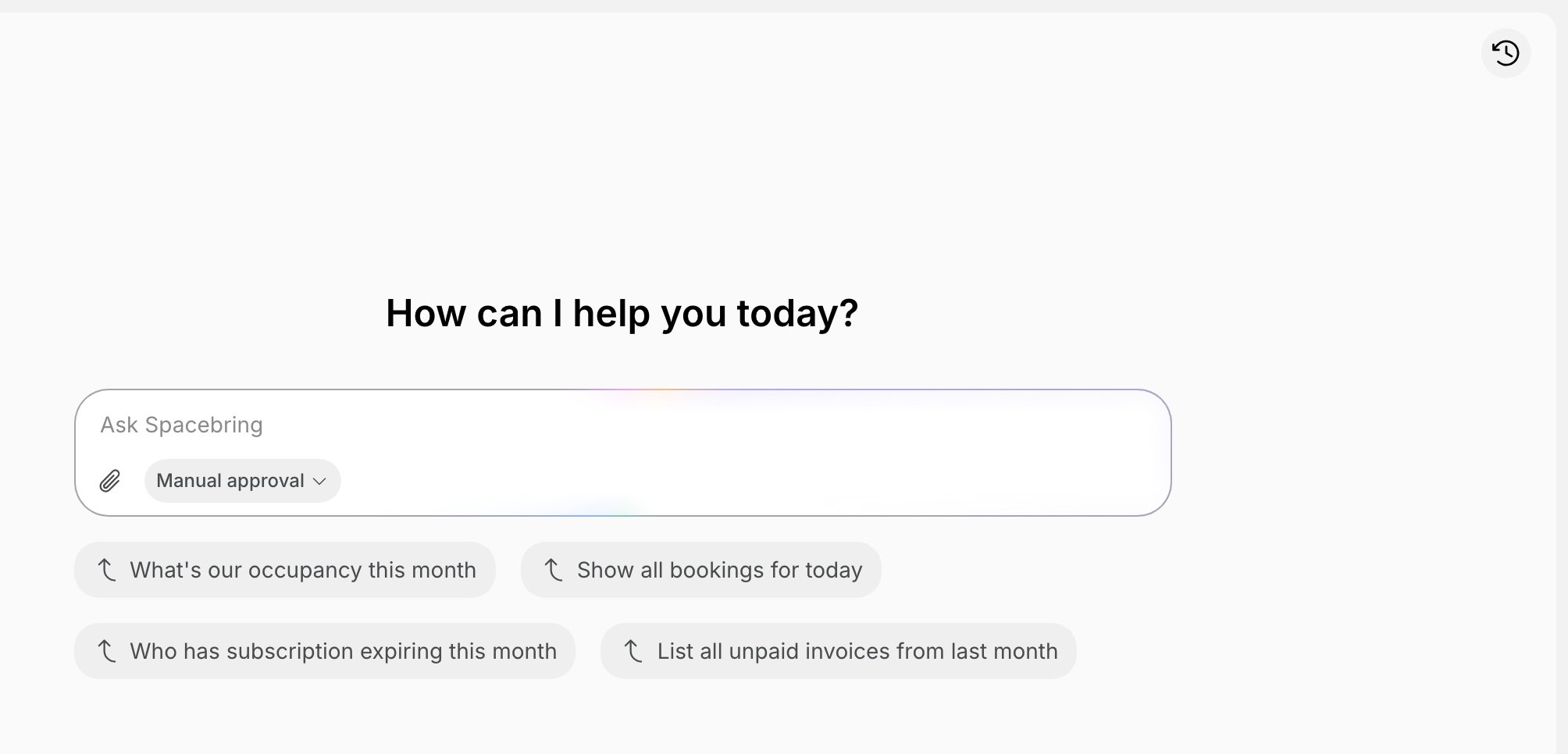
- In Chat history, choose the chat you want to open.
- Review the conversation, or send a new message to continue it where you left off.
Delete a chat
- On the Agent page, click the history icon in the top right corner.
- In Chat history, click the three dots next to the chat, then click Delete.
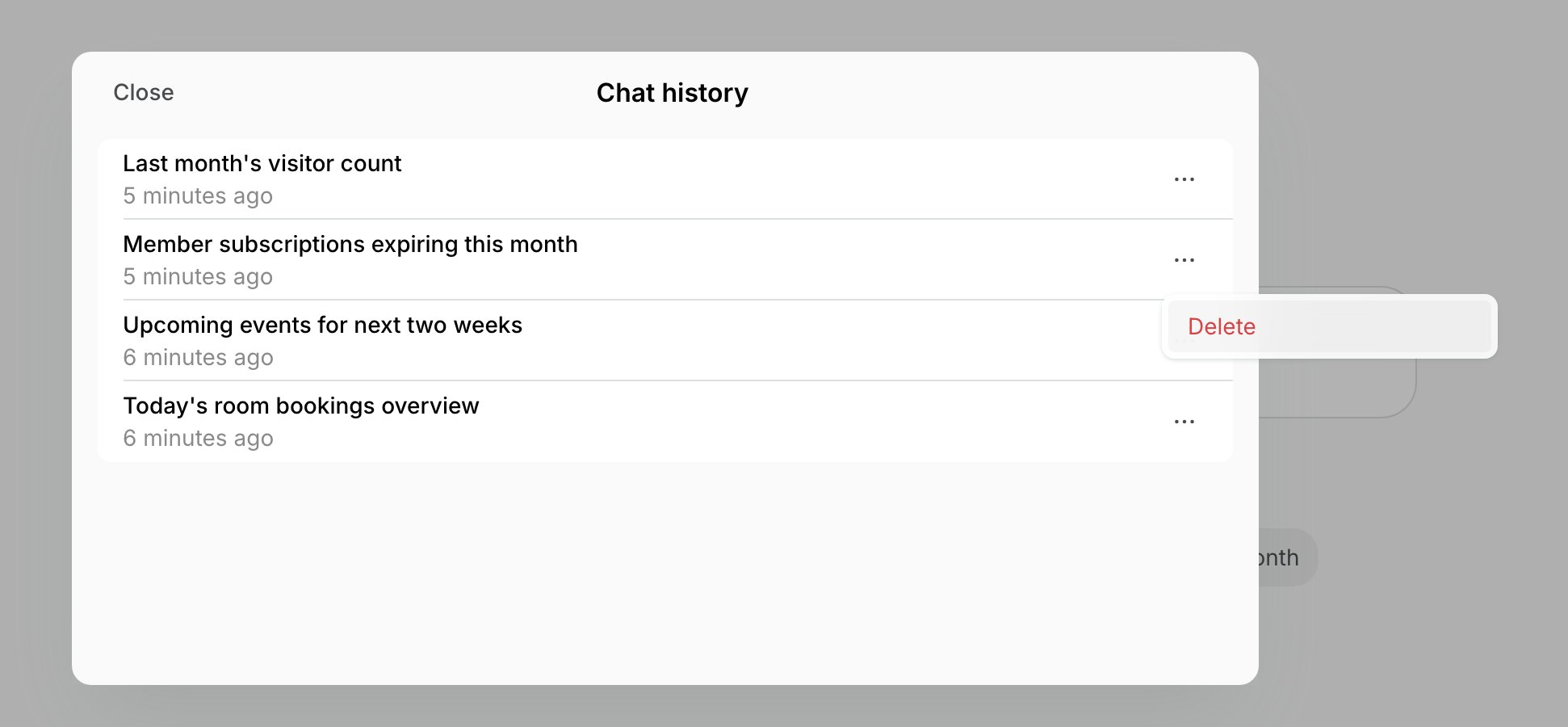
- Confirm. The chat and all its messages are deleted and can’t be restored.
/new.
What Agent can help with
To get the best results, be specific with location names, date ranges, and formats.Bookings & resources
Check rooms, desks, or equipment availability without opening the calendar, or a location’s workspace occupancy for any period, with its busiest and quietest days.Members, companies & contracts
Quickly pull up customer profiles or check the status of subscriptions and contracts. Agent can also tell you a person’s role in your network and which locations and areas an admin manages. Owners and super admins can ask about anyone, including who all your admins are. Admins of all locations can look up any one person, and other admins the customers of the locations they manage. Only owners and super admins see another admin’s permissions.Invoices, payments & subscriptions
Track revenue and payments by asking about invoices and their items, credit notes, a subscription’s upcoming invoice, or money, credits, and day passes transactions — a single transaction, or a customer’s or location’s transactions for a period. Agent also reads the activity log of a customer, invoice, or subscription, so it can tell you who changed, paused, or canceled something and when.Events & community
Monitor event attendance, community feed activity, and your chats, cancel or copy events, or ask Agent to write a feed post for you.Support & visitor management
Track support tickets, visitor logs, check-ins, and the emails sent to your customers, and check people in or out.Data formats & capabilities
Depending on your request, Agent can provide data in several helpful formats:- Summaries — get a high-level overview of complex data. For example:
- Structured lists and tables — Agent organizes data into easy-to-read lists and tables within the chat.
- CSV files — when you ask for a file or an export, or a table has more than 100 rows, Agent writes a CSV file you can download from the chat. For example:
- Pie and bar charts — Agent creates different charts based on the retrieved data. For example:
Agent can also make changes for you: create and edit items, change your settings, message your customers, write feed posts, and handle support tickets.
Connect other apps
Connect another app, such as your CRM, so Agent can work in it in your chats: look up a deal, read a page, or create a task. An app connects through its MCP server. The apps you connect are yours: Agent uses them only in your chats in Spacebring, and other administrators don’t see them.Ask Agent to connect an app
- In a chat with Agent, ask it to connect the app, for example “Connect Notion”.
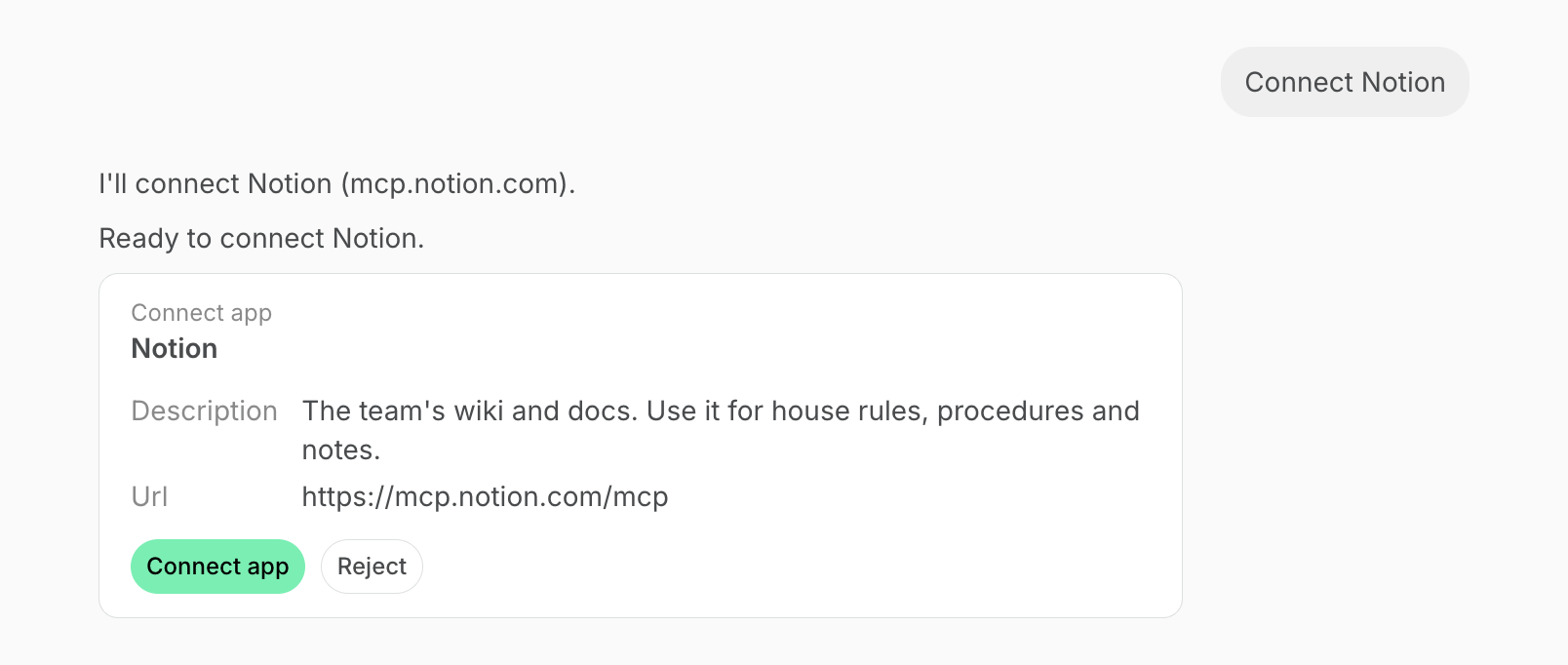
- Click Connect app.
- If the app asks you to sign in, click Sign in and allow access on the app’s page. You come back to Spacebring when it’s done.
- If the app needs an API key, Agent says how to get one and links to Agent personalization. Add the key there, never in the chat.
Connect an app from your account
- Click the network name in the top-left corner and select Account.
- Click Agent personalization.
- In the MCP servers section, click Connect MCP server.
- Fill in the form:
- Name — the app’s name as you want to see it in the list, such as “Notion”.
- URL — the address of the app’s MCP server, which you find in the app’s help center, such as
https://mcp.notion.com/mcp. It must start withhttps://. - Description — optional. Tell Agent what the app is for and when to use it, such as “Our CRM. Use it for leads and deals.”
- Authentication — how Spacebring gets access to the app:
- API key — enter a key you created in the app’s settings.
- API key in a custom header — for an app whose help center names a header for the key. Enter the Header name, such as
X-API-Key, and the API key. - OAuth sign-in — you sign in to the app on its website, so there’s no key to enter. Leave Client ID and Client secret empty unless the app asks you to register Spacebring yourself. Then enter the client ID and secret the app gave you.
- No authentication — for an app that needs no sign-in or key.
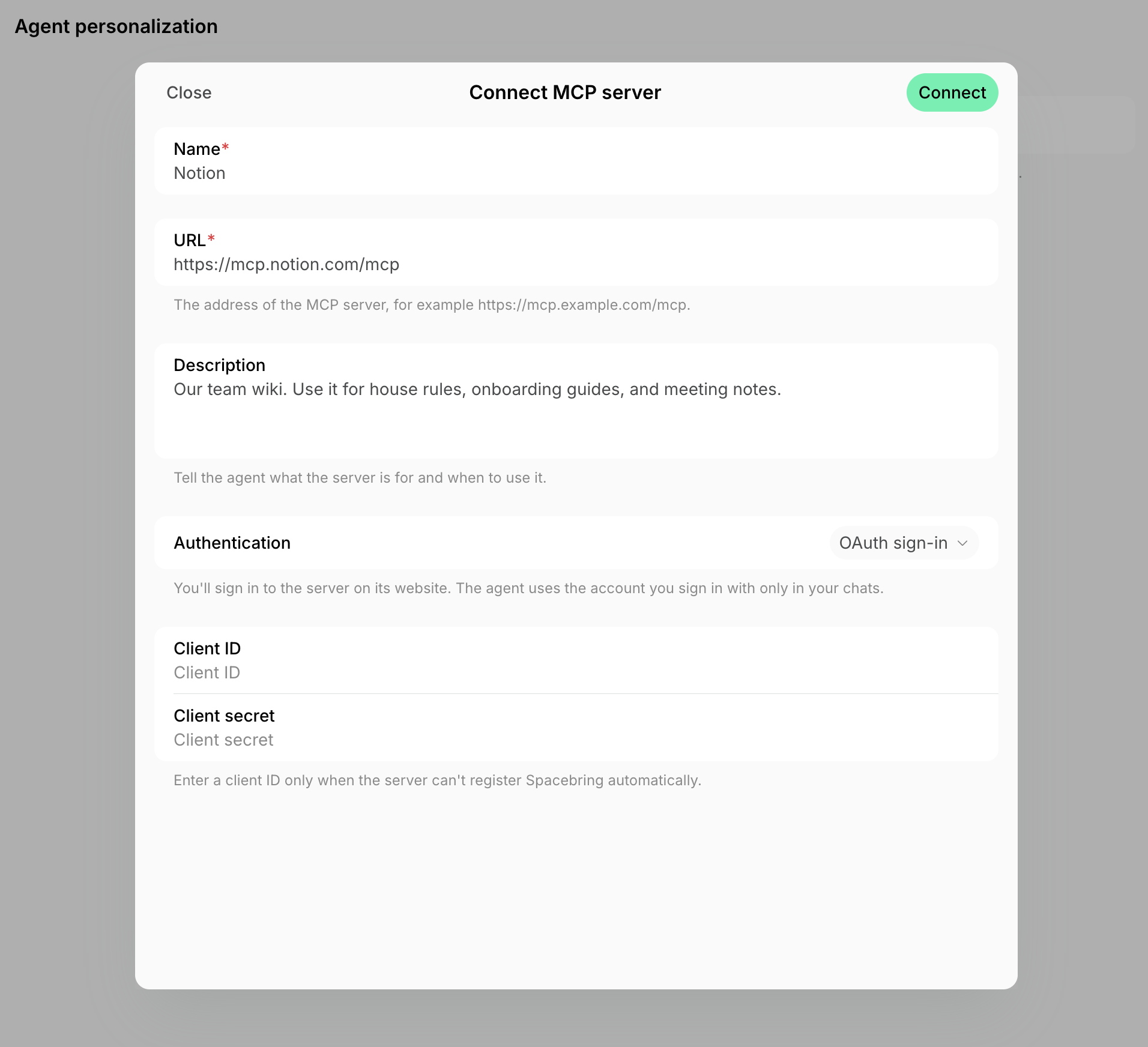
- Click Connect. For OAuth sign-in, sign in to the app and allow access, and you come back to Spacebring.
Manage connected apps
- Click the network name in the top-left corner and select Account.
- Click Agent personalization.
- In the MCP servers section, click the (…) menu next to an app and select an action:
- Disable — Agent stops using the app in your chats. To turn it back on, click Enable.
- Edit — change the app’s name, URL, description, or authentication. To change the URL or authentication, enter the API key again. For an app connected with OAuth sign-in, you can change only the name and description.
- Delete — remove the app with its sign-in or API key. This cannot be undone.
Tips for chatting with Agent
- Be specific. Instead of “show me bookings,” try “show me all bookings for ‘Meeting Room A’ between Oct 1 and Oct 5.”
- Refine your search. You can follow up on Agent’s answers. If Agent gives you a list of invoices, you can say, “Now only show me the ones issued on March 5th.”