Assign tickets automatically
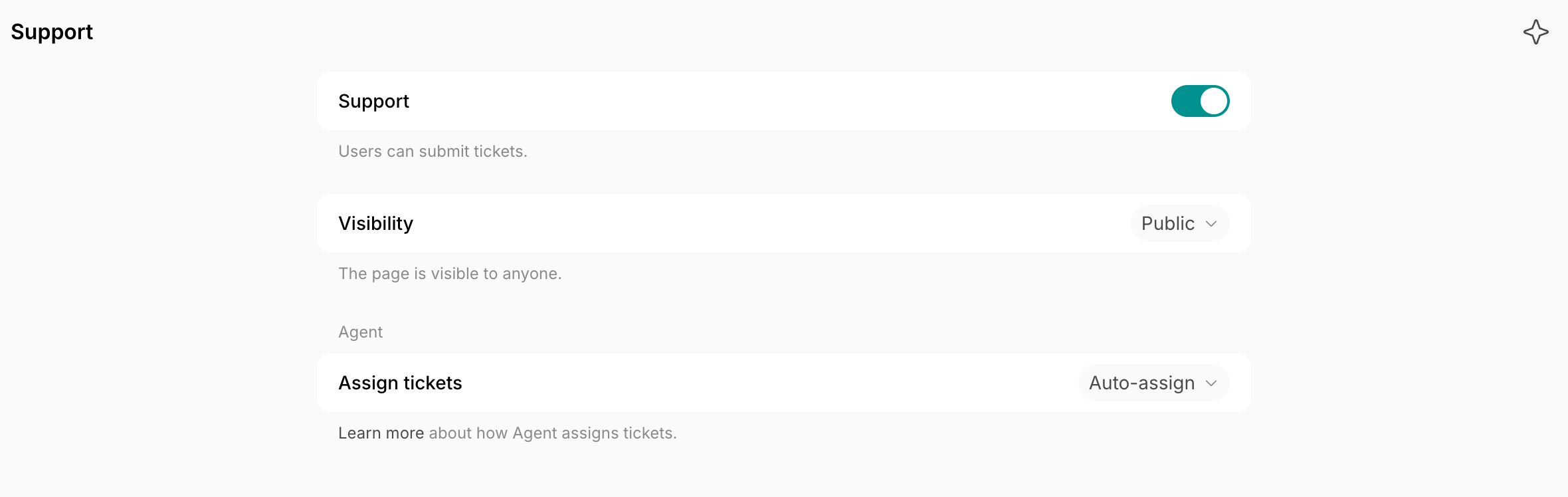
- On the left-side panel, click the (…) next to your location name.
- Go to Location settings > Support.
- In the Agent section, set Assign tickets to Auto-assign. It’s No action by default.
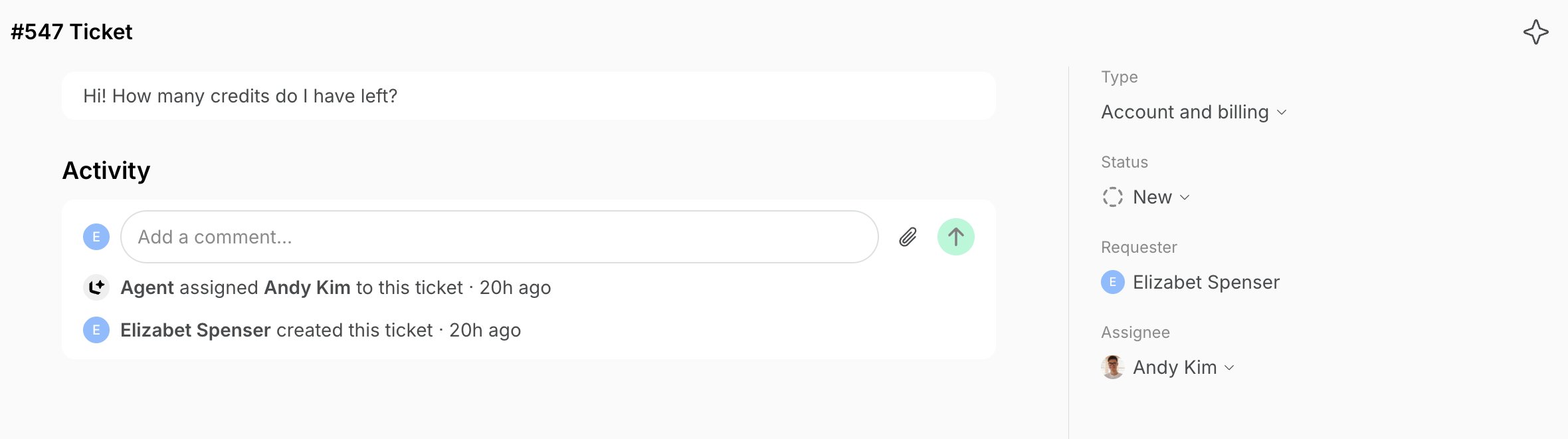
- Tickets of the same type as the new one count five times as much as others.
- Recent tickets count more than older ones.
- Agent assigns the ticket only when one administrator has at least 80% of these tickets, counted this way.
Reply to tickets with an agent
An agent can reply to members’ support tickets for your team at any time of day, using your guides and past ticket resolutions.Create a support agent
- Create an agent, for example named “Lem AI”.
- Under Triggers, keep When something happens and select Support ticket created and Support ticket comment created in Events.
- Turn All locations off and select the location whose tickets it answers.
- In Instructions, ask it to reply to members on their support tickets, and add your tone of voice and how to handle different situations.
- Under Permissions, turn on Support.
- Keep Enabled on, then click Create.
Check the agent created from Auto-reply
Each location that had Auto-reply on in Location settings > Support now has its own enabled “Lem AI” agent, with the location’s former Guidance in its instructions.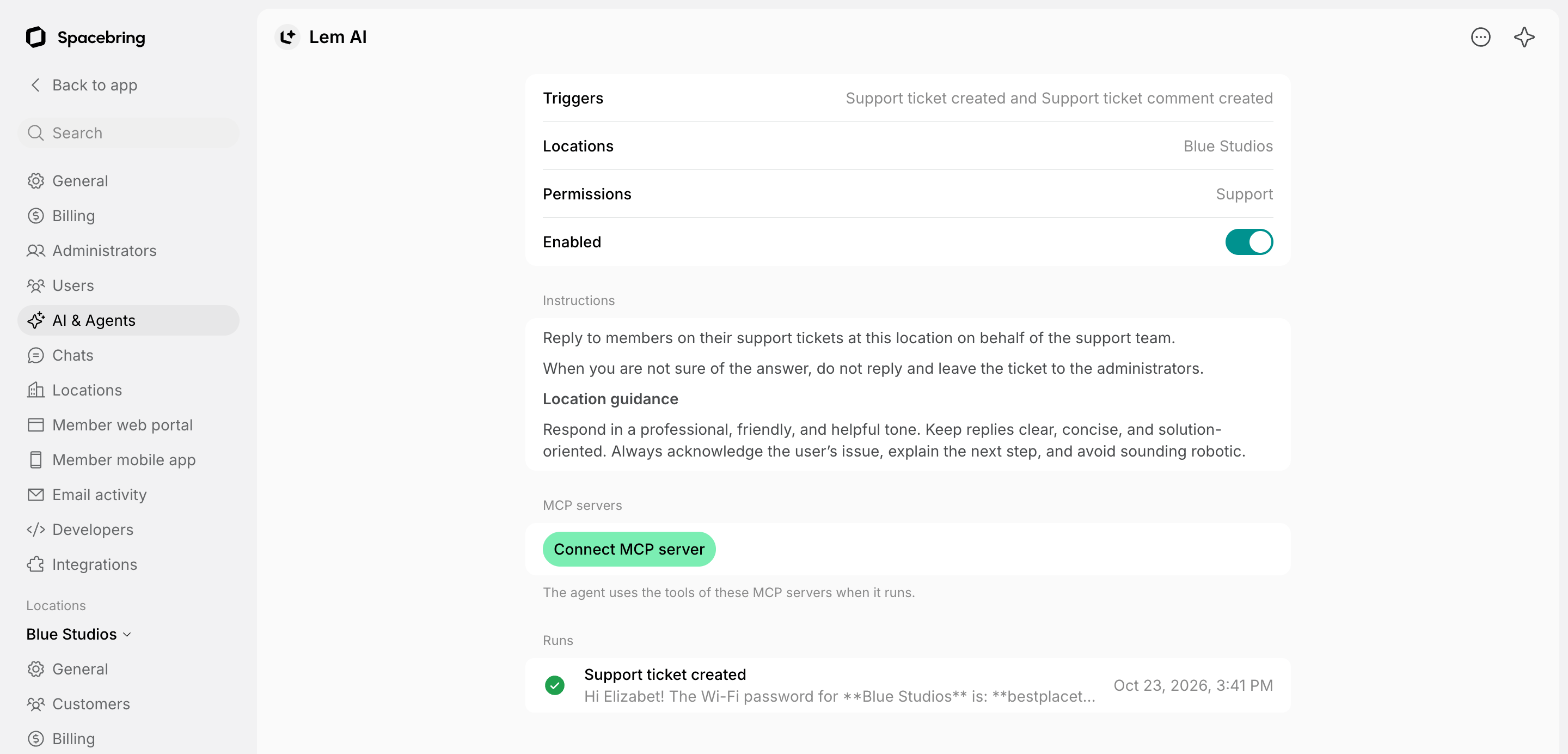
- Go to Network settings > Agents.
- In the Agents section, find “Lem AI”. A network with several such locations has one for each of them.
- Click its (…) menu:
- Edit to change its instructions, triggers, or permissions.
- Disable to stop its replies.
The agent runs each time a ticket is created or commented on. Like any other agent, it’s charged to your network balance for each run, also when it decides not to reply.
Train the support agent
To get the most out of the support agent, remember that its replies reflect the quality of your guides. The agent can make mistakes, so training it with high-quality data is the best way to ensure smart, reliable support for your space.- Add your tone of voice, preferred response style, and how to behave in different situations to the support agent’s Instructions.
- Add common information and FAQs to your location guides, and keep them up to date. This allows customers to find answers independently via the member portal, while also ensuring the agent has access to the data to provide accurate responses.
- Make sure your team’s replies are complete before you close a ticket. The support agent learns from them to improve future answers.
- Regularly review the agent’s replies and runs, and identify frequent questions from your customers. Use these insights to update existing guides or create new ones to fill information gaps. If a reply is not accurate, you can delete it just like a regular comment.
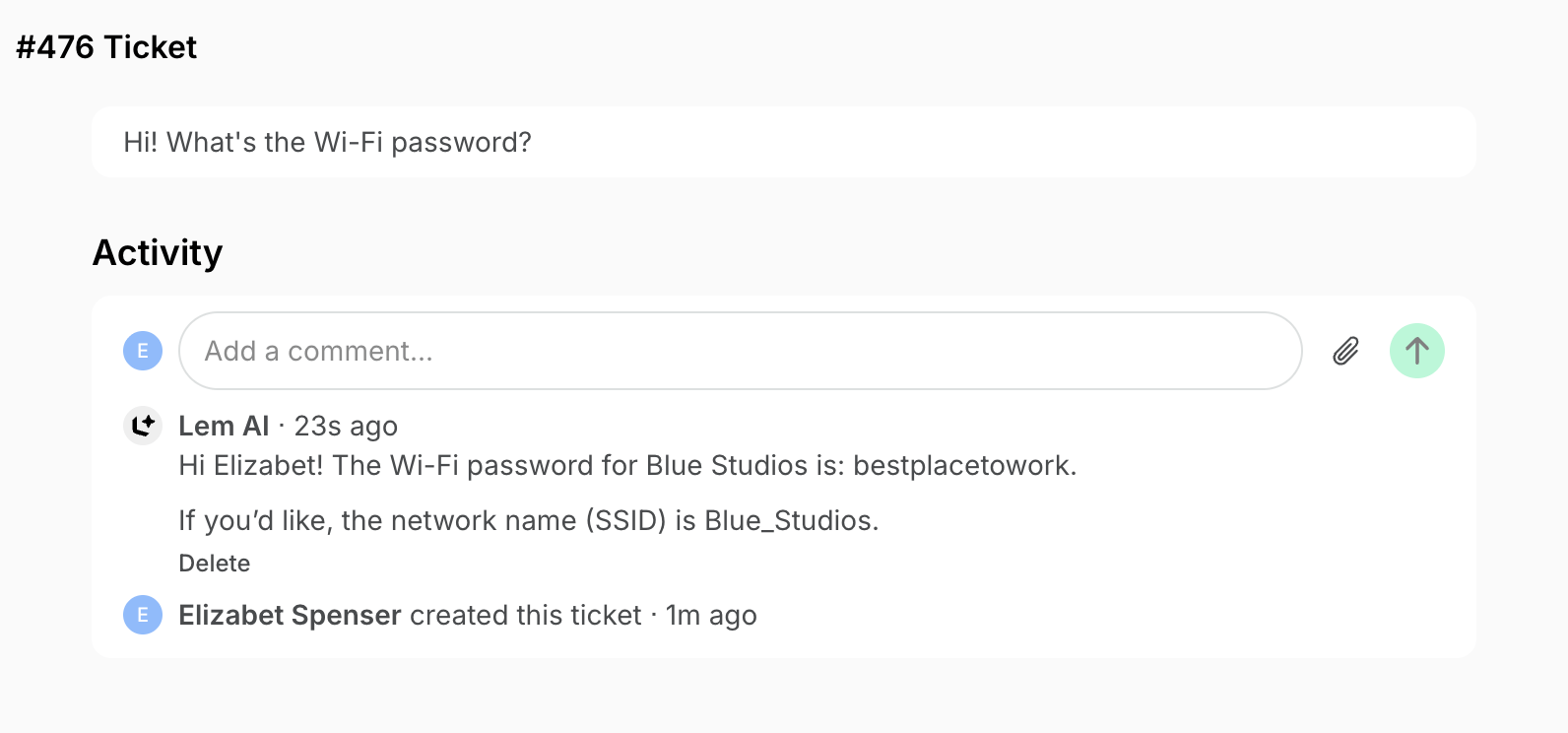
How the support agent replies
When a customer submits a ticket or comments on it, the support agent attempts to provide a timely response. It answers common questions about how the member portal works — such as bookings, subscriptions, and payments — and also draws on your Solved and Canceled tickets (learning how your team handles similar questions), location guides, and the member’s own subscription or membership data. The support agent only responds if it is confident it can help accurately. If it lacks confidence, it remains silent and leaves the ticket for your team to handle manually. It also stays silent after an administrator has replied, so it does not interrupt human support. While your network balance is empty, it doesn’t run, and tickets wait for your team. The support agent replies in the language of the member’s latest message; if it cannot recognize the language, it answers in English.