Enable Shop and create categories
- Click the menu (…) near the location name on the left-side panel.
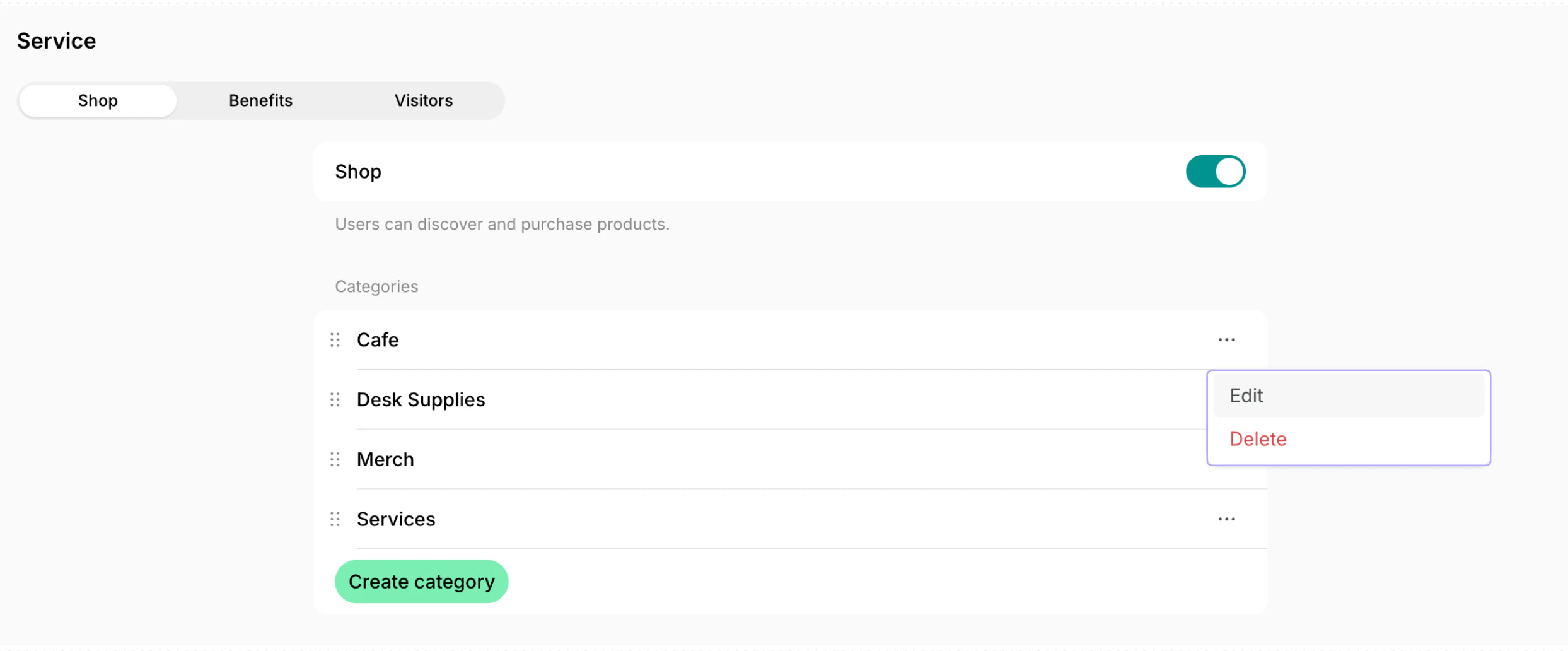
- Go to Location settings > Service > Shop.
- Enable the Shop switch.
- Under Categories, press Create category to group your products by type.
- Enter a title for the category (for example, Cafe, Merch, or Services) and save it.
By default, shop categories are sorted alphabetically by title. Drag and drop categories to rearrange their order.
- Enable the Order confirmation email switch and customize your confirmation email template.
Users automatically receive the customized order confirmation email text after each order.

Add products
- Go to Service > Shop > press Add product in the top right corner.

- Configure the product details:
How Shop works
- Customers can explore and purchase products on the Shop page. Understand how users order products.
- Administrators can create an order for a customer, for example when the customer asks at the front desk.
- Administrators can also add any shop product as an item to a customer’s invoice, contract, or subscription.
- Use the Promote feature to create a feed post about the product and attract more customer attention to it. It’s a great way to announce new products available in your space or re-engage interest in existing ones.

Manage product availability
You can flexibly control and update the availability and quantity of your shop products and product options for orders.Set Limited quantity
Setting Limited quantity is ideal for products like merchandise, where you have a specific number of items in stock.- Go to the Service > Shop page.
- Create or edit a shop product.
- Open a specific product option within the product.
- Enable the Limited quantity switch and enter the number of units you have available.

The Limited quantity option only appears when the Available for order switch is turned on for this product option.
- The system will automatically track sales for this product option and update its availability.
- When only 2 or 1 item is left from the quantity you set, a badge will appear for users indicating “2 Left” or “1 Left.”
- When the entire stock quantity has been purchased, the product option will show an Out of stock badge.

- When an order is canceled, its items return to the available quantity automatically.
- You can restock a product option at any time by editing its quantity, and users will be able to continue ordering it.
Disable orders for a certain product option
If a particular product option (like a specific salad variation) is temporarily unavailable, you can disable just that option within the product at any time.- Go to the Service > Shop page.
- Create or edit a shop product.
- Open a specific product option within the product.
- Disable the Available for order switch.


Disable orders for the entire shop product
To temporarily stop selling an entire product, you can disable orders for it.

You can make the product option or product available for order again at any time.
You can also temporarily hide a product from all users by changing its Visibility to Administrators.
Export a products report
On the Shop page, apply the necessary filters, then click (…) in the top right corner > Export products as CSV or Export products as XLSX to download a report on the filtered products. The report includes each product’s title, subtitle, description, category, price, and create date.Edit or delete a product
- Go to Service > Shop.
- Hover over the product > press the menu (…) next to it > Edit or Delete.
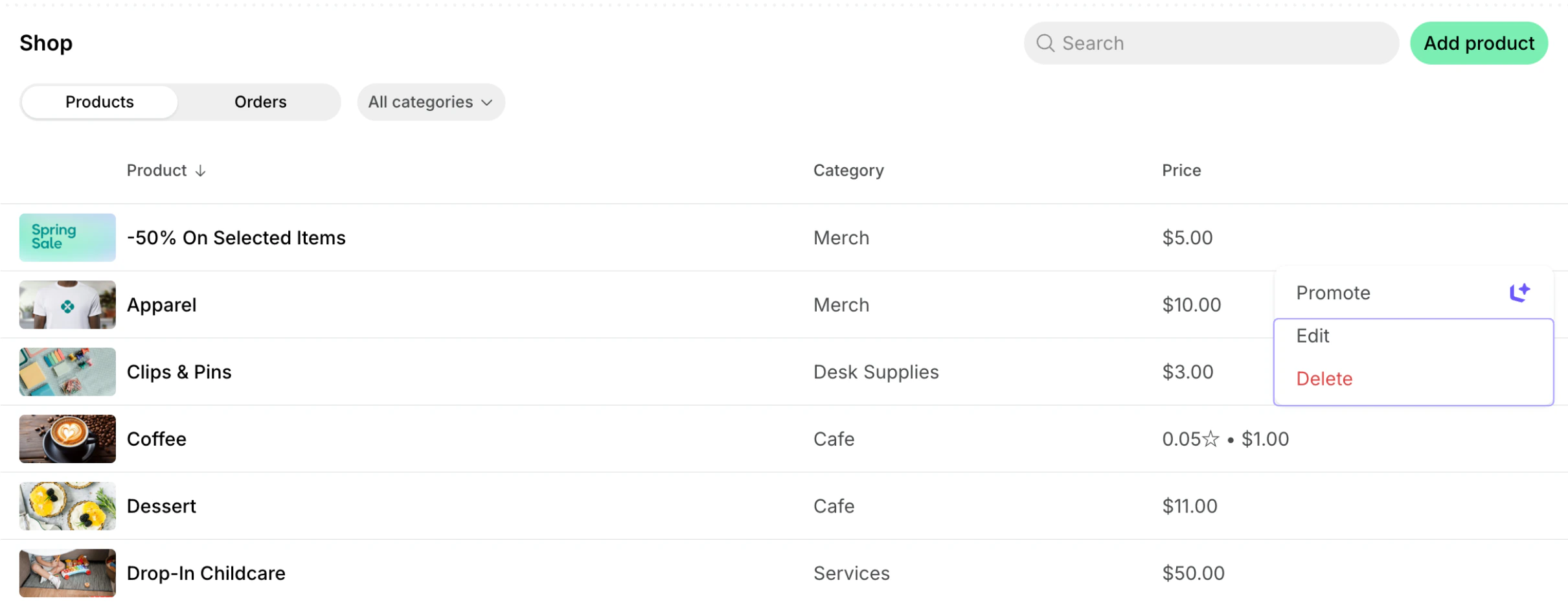
If you update a product, users will be notified with a red notification dot on the Shop button. The product will appear at the top of the category on the Shop page.
Editing the refund policy applies only to future orders made after the administrator’s changes.
Edit or delete a product category
- Go to Location settings > Service > Shop.
- Press the menu (…) next to the necessary category > Edit or Delete.