

Create a virtual office membership
Automate your virtual office subscriptions and invoicing by creating a dedicated membership:- Navigate to Catalog > Memberships and click Create membership.
- Enter the membership title (e.g., Virtual Office Gold), price, and a clear description of included services (e.g., business address, weekly mail scanning, etc.).
- When creating the membership, toggle Sign-up switch on and select the desired sign-up type.
Handle deliveries
Once the Virtual office membership subscriptions are active, you can manage your customer’s physical mail using the support ticketing system. This keeps a digital paper trail of every delivery and action taken. Firstly, ensure that the Support page is enabled.- When mail or a package arrives, go to Support > Tickets.
- Click Create ticket and select the type Mail and packages.
- Choose your virtual mail member in the Users section and type a message.
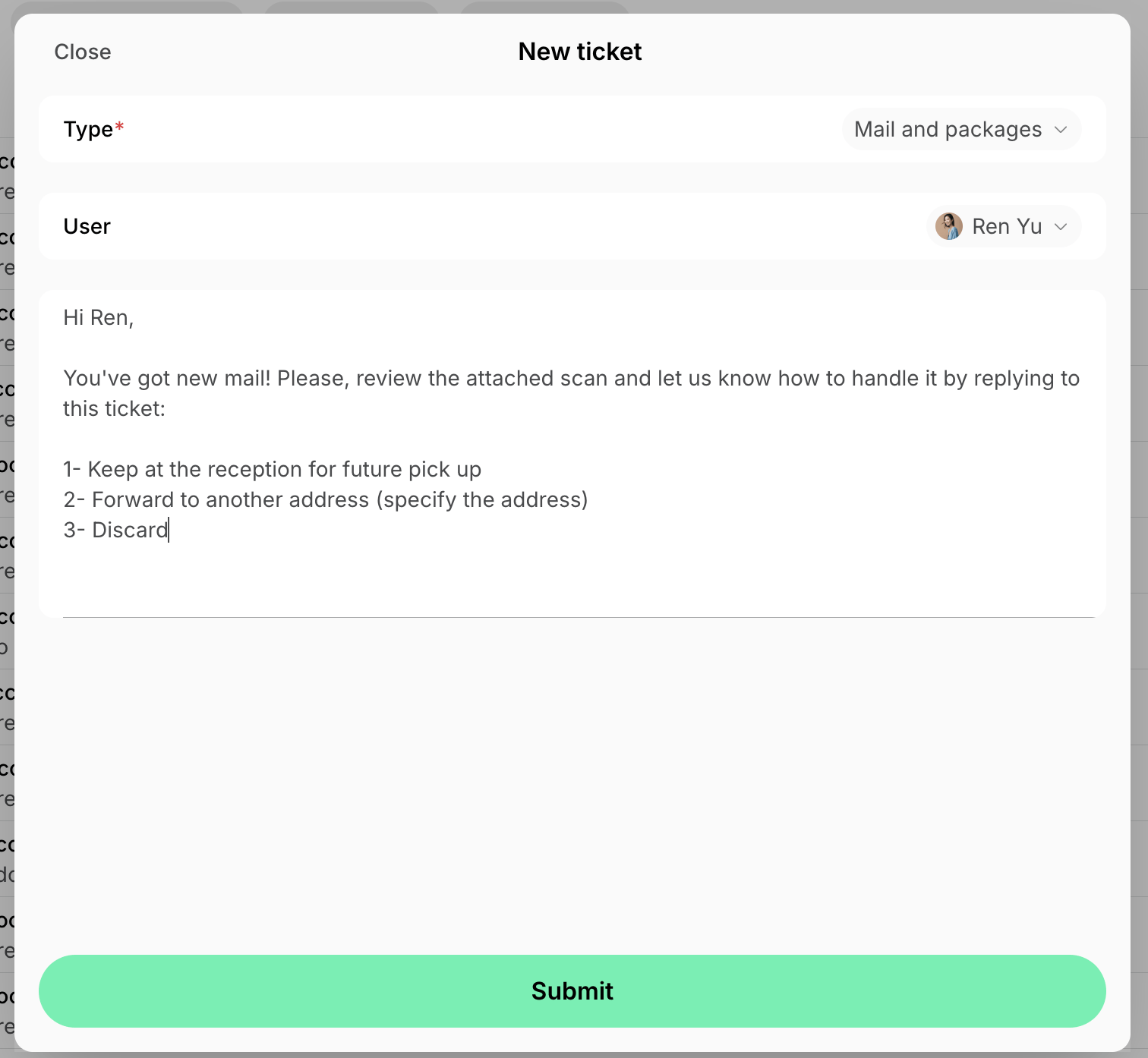
Only the selected user and administrators will see the ticket and its activity. Learn more about our security practices on our website.
- Use the Attachment icon (or paste an image) to upload a photo of the envelope or package label. This informs the member exactly what has arrived.
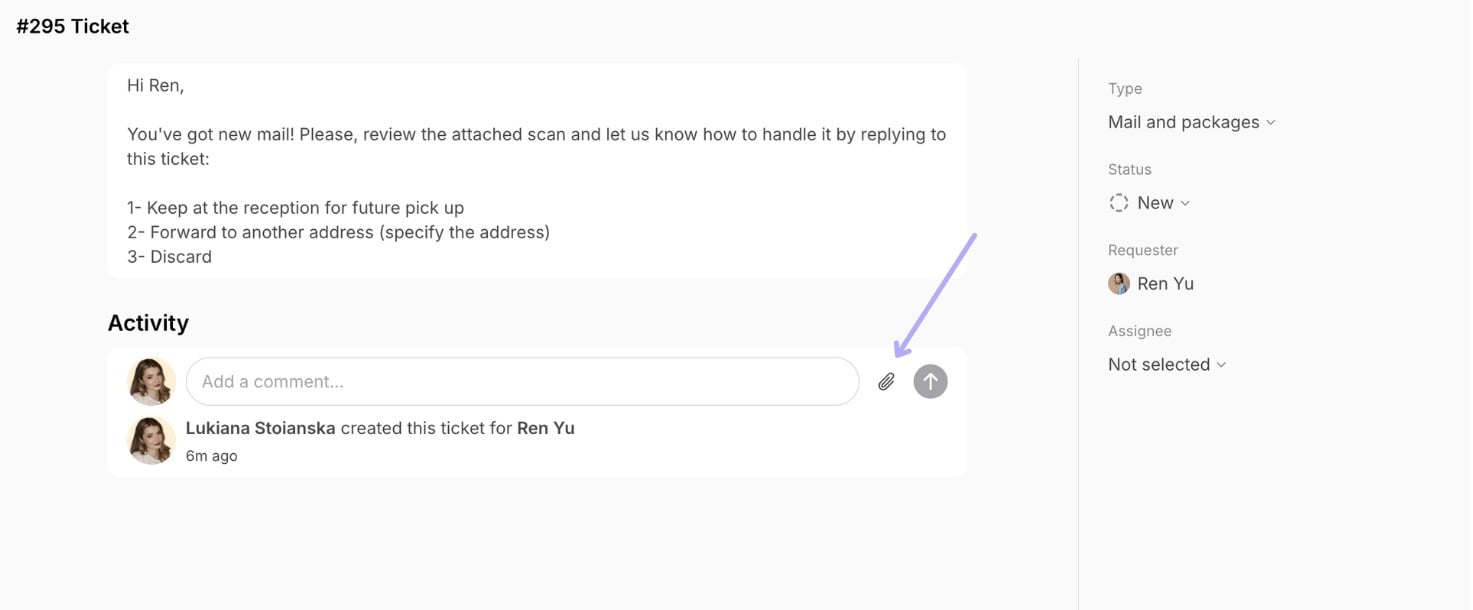
- By default, members receive push and email notifications for all new tickets and comments. They can provide delivery instructions at any time by replying in the comments.
- Once you have processed the request, change the ticket status to Solved.