

Offer products with bookings
- Add the products on the Catalog > Products page, such as a coffee break priced per person.
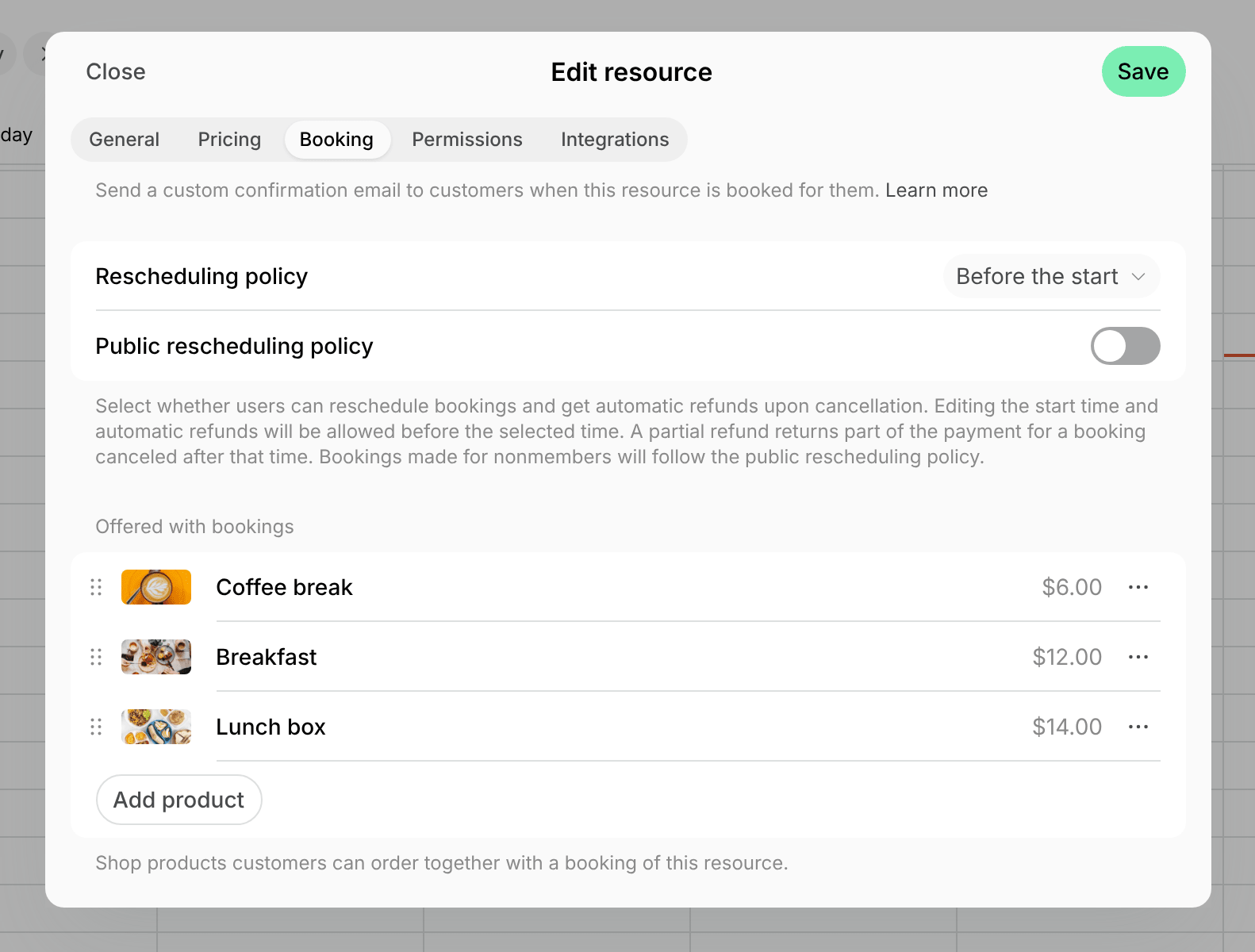
- Create or edit the room, desk, or other resource, and open its Booking tab.
- Offered with bookings shows only while the resource has a Money or Credits booking rate on its Pricing tab.
- Under Offered with bookings, click Add product and select the products. A resource can offer up to 25 products.
- The list shows the location’s products with the Order switch on.
- Users see a product only when its Visibility lets them see it.
- Drag the products into the order users see them in, and click Save.
How users add products to a booking
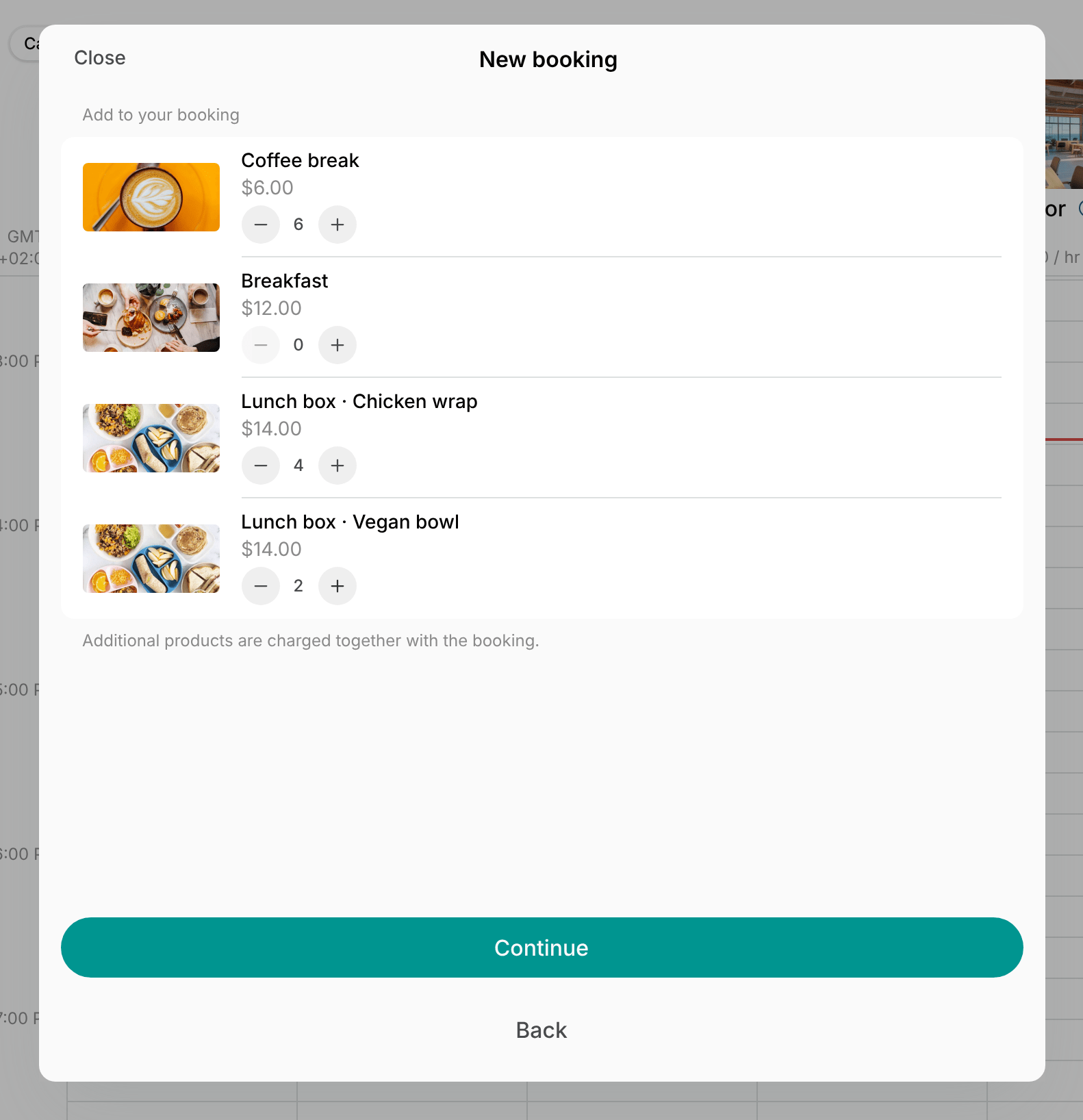
In the member web portal or mobile app, users:- Fill in the booking and select Continue.
- Under Add to your booking, set the quantity of each product they need and select Continue.
- Choose the payment method. Its price includes the products.
- Products are paid with credits, an invoice, or a card. Company credits or a company invoice pay for them only when the company’s payment method permissions let the user use them for shop products.
- to a recurring booking
- to a booking that needs approval
- to a free booking, or one paid with day passes
- after the booking is made
Add products to a booking for a customer
- Create a booking for the customer.
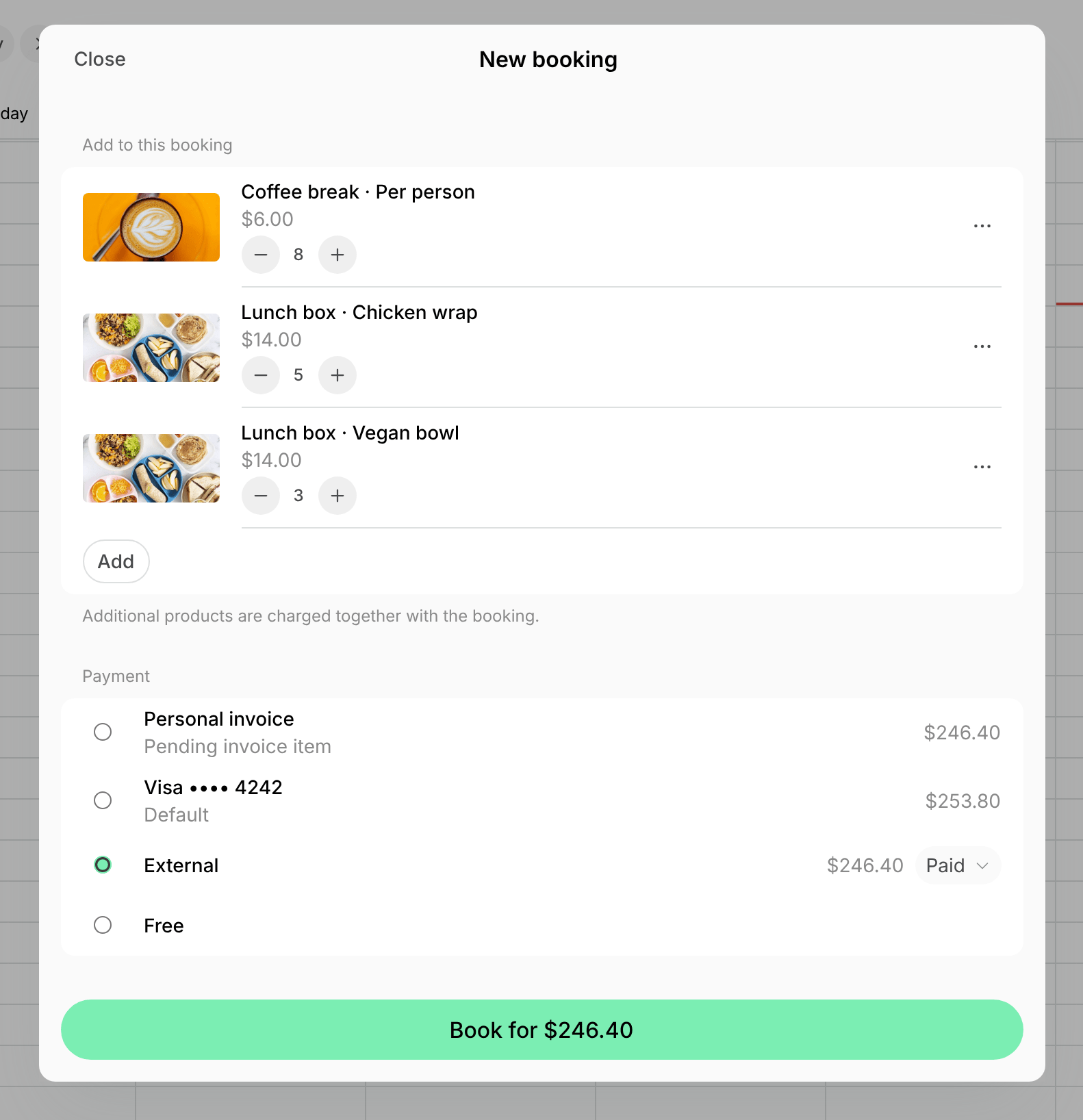
- Under Add to this booking, click Add, select a product option and its quantity, and click Save. Repeat for every product.
- Choose the payment method. Its price includes the products.
- With Free, the products are free too.
Prepare the products
Products added to a booking become a shop order of the booker, which you get notified about and process like any other order:- The order shows on the Catalog > Products > Orders panel. Its Open booking button shows when and where to deliver the products.
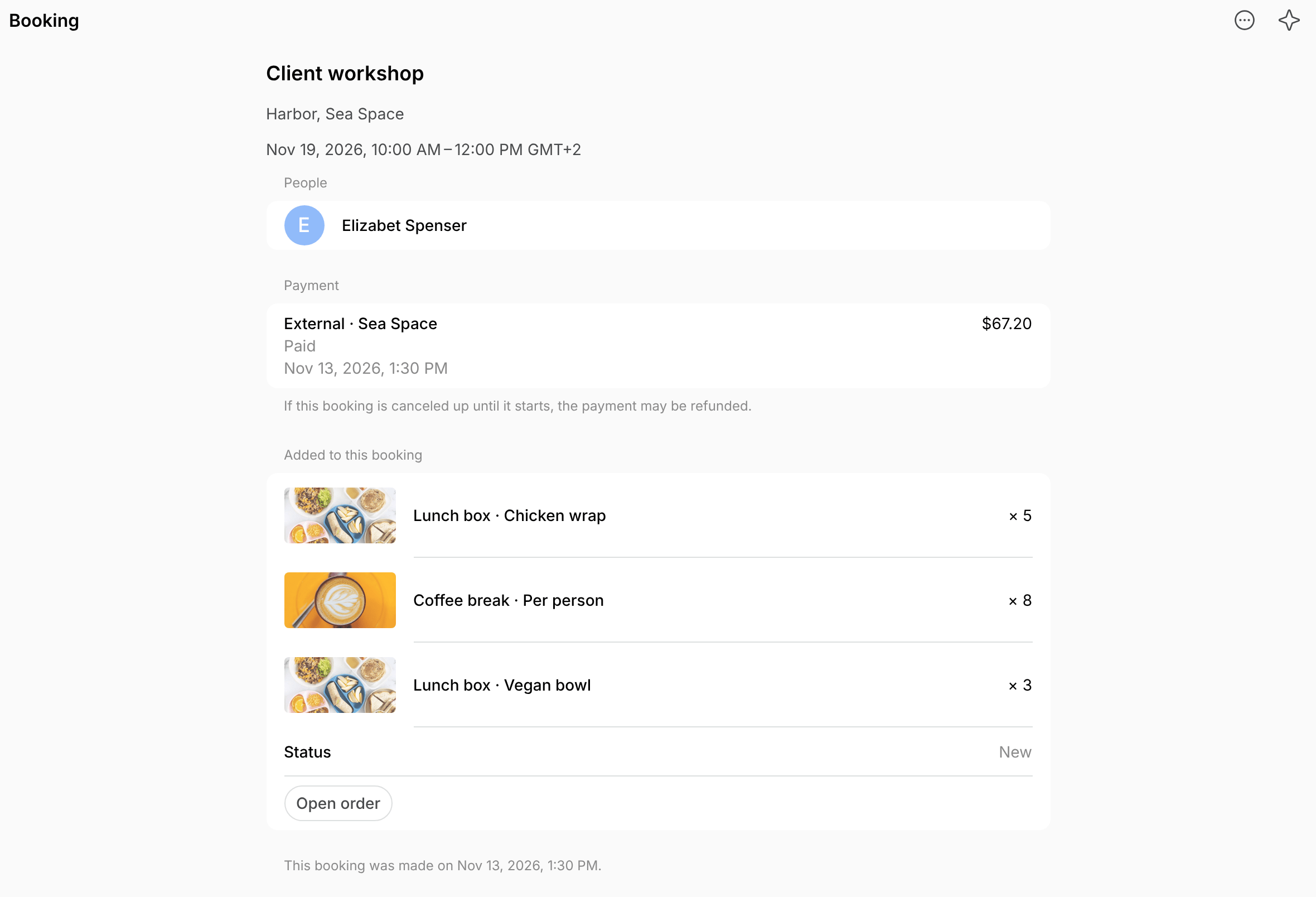
- The booking’s page lists the products under Added to this booking, with the order’s status and an Open order button.
Cancel or refund products
Canceling or refunding a booking doesn’t cancel or refund its products. The exception is a booking paid with credits that haven’t been charged yet, such as one in a later subscription period: canceling it cancels its products too. To cancel the products, cancel their order. Its refund depends on how it was paid:- Credits or invoice — refunded when you confirm the refund, as for any other order.
- Card or External — not refunded when you cancel the order. To refund it, refund its amount from the booking’s transaction on the Billing > Transactions page.
FAQs
Can I offer a product only with bookings and not in the Shop?
Can I offer a product only with bookings and not in the Shop?
No. A product offered with bookings also shows on the Shop page to the users its Visibility lets see it. To set such products apart there, put them in a category of their own, such as Meeting extras.