

Upload your logo and logotype
- Go to Spacebring as an owner.
- On the left-side panel, click your network name top left > Network settings.
- Go to General > Branding.
-
Click Logo and upload a square image, 512 × 512 px (1:1 ratio), in JPEG, PNG, AVIF, or WebP.
The logo always appears on the login page, the browser tab favicon, the member web portal shortcut icon, web push notifications, and the emails Spacebring sends. Avoid text or small details, since the favicon shrinks it to 16 × 16 px, and leave room around important details, since a border radius of up to 100% applies in some places.
- Click Logotype and upload a wider image, with a recommended height of 256 px (width scales automatically), in the same formats. The logotype replaces the logo in the member web portal header and on invoice, credit note, and receipt PDFs. Leave it empty to show the logo in those places instead.
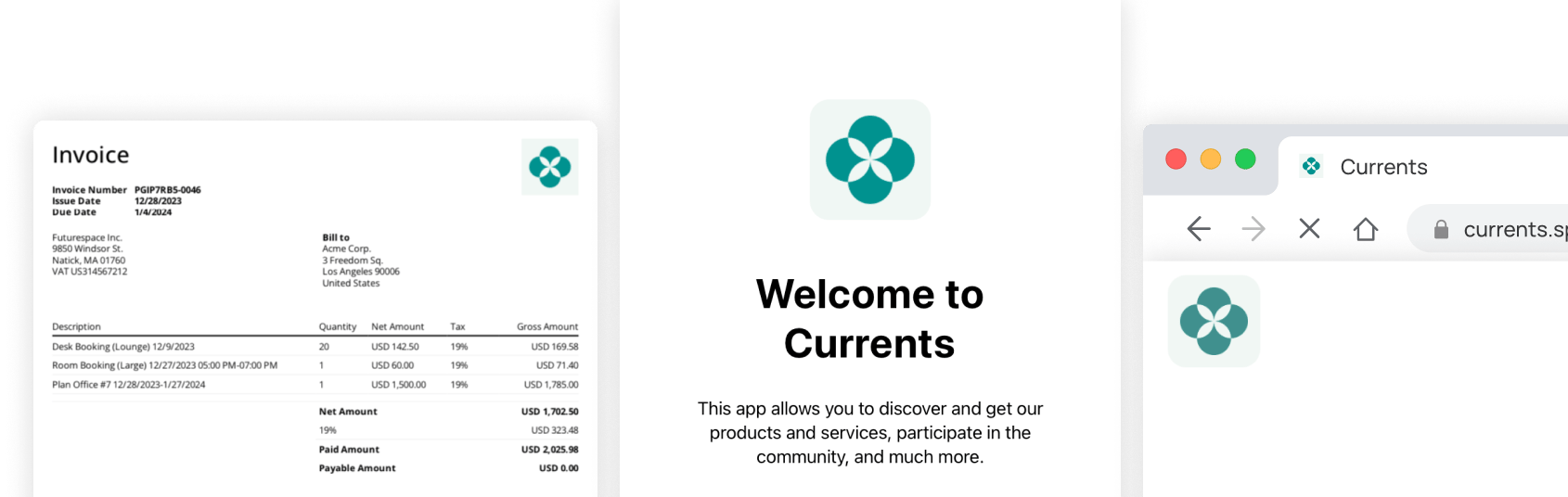
The member mobile app uses neither your logo nor your logotype. It has its own app icon, which you upload separately as an SVG foreground graphic.
Set the theme
- Go to General > Branding and click Theme.
- Change each setting. Each change appears in the preview immediately.
- Switch the preview between Landing page and Portal pages, and between Light and Dark, to check every result.
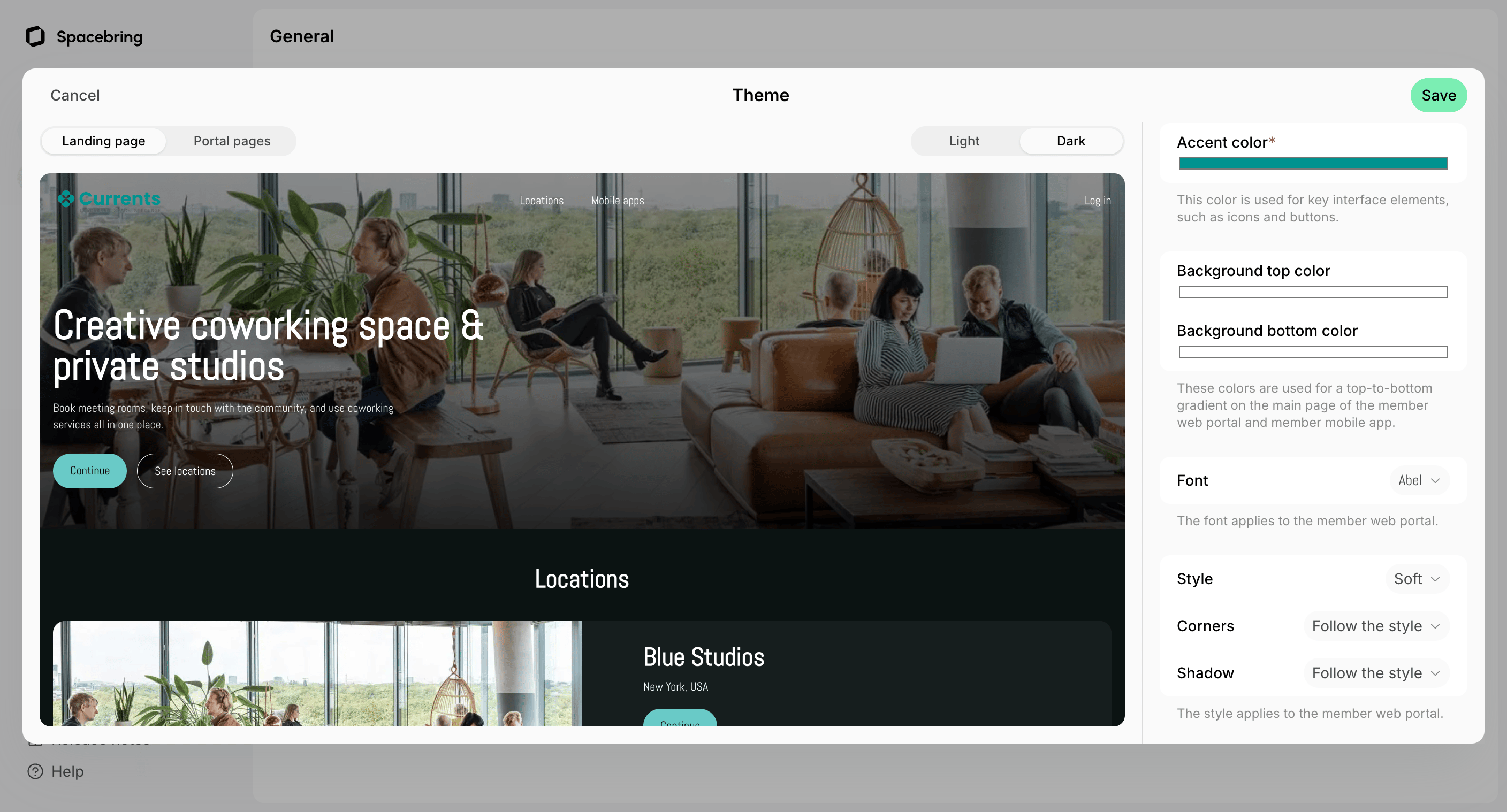
- Accent color — the color of key interface elements, such as icons and buttons. Applies to the member web portal, the member mobile app with its next release, and the emails Spacebring sends. In the portal and the app, buttons keep the exact color you pick and get black or white text, whichever reads better. Text, icons, and outlines in your accent color darken on a light background, or lighten on a dark one, just enough to stay readable.
- Background top color and Background bottom color — the gradient behind the main page. Set both or neither, or click Reset to default for a white background with dark text. Apply to the member web portal and the member mobile app.
- Font — the font of all text. Pick System to use each reader’s own device font, or one of more than a thousand Google Fonts. Applies only to the member web portal.
- Style — how much of your accent color the interface uses, and where. Leave it on None to keep the standard Spacebring look. Applies to the member web portal. In the emails Spacebring sends, it changes only the shade of your accent color, to match the portal.
- Corners — how rounded buttons, cards, and images are. Follow the style keeps the corners of your style. Applies to the member web portal and the emails Spacebring sends.
- Shadow — how far cards and panels stand off the page. Follow the style keeps the shadow of your style. Applies only to the member web portal.
- Click Save to apply all changes at once, or Cancel to discard them.