What should terms of use include
Terms of use should:- Describe who is allowed to use and how users can use member web portal and mobile app.
- Define objectionable content (pornography, terrorism, violence, hate speech, drugs, fake news).
- Clearly state that users cannot share objectionable content on Feed and other pages.
- Outline how to alert administrators about violations. You can recommend users go to the Support page and report an issue.
- Include any other rules and regulations relevant to your business.
Create terms of use
Use a sample we suggest and include your network name there, or use any other resources to create your terms of use.Manage terms of use
- Go to Spacebring as an owner.
- On the left-side panel, click (…) next to your network name > Network settings.
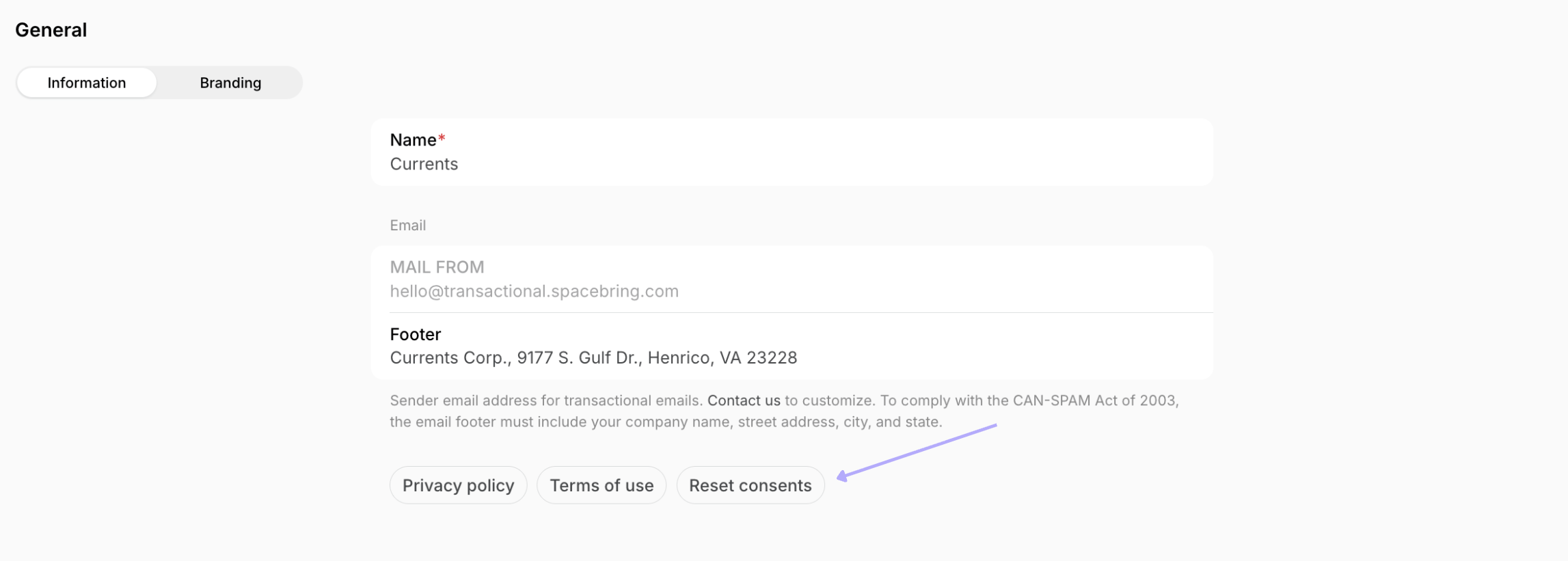
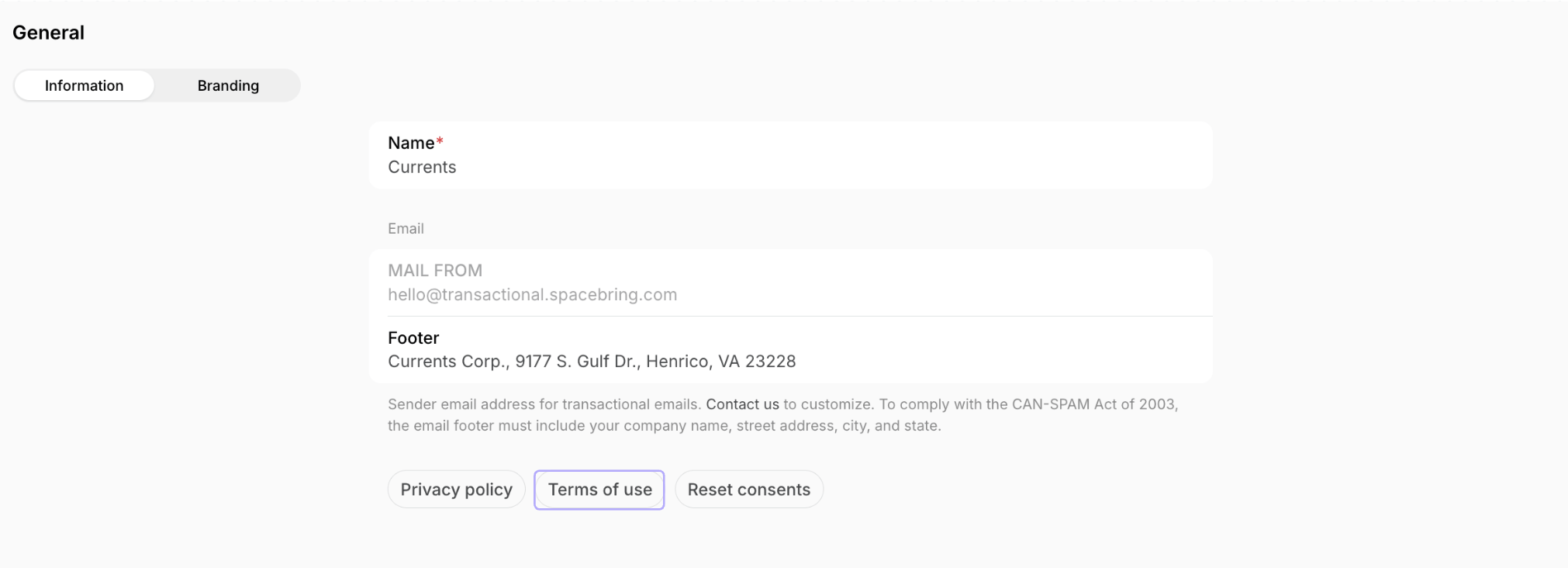
- Go to General > Information.
- Tap Terms of use.
- Paste the new text of your terms of use or edit the existing text, and press
Save. The changes apply immediately.
Where and how users accept your terms of use
The first time a customer proceeds with a booking, purchase, or any other action that creates a mutual obligation, they’re prompted to enter their name and accept your terms of use. Spacebring saves the date and time of their consent.
Terms of use acceptance is required for all actions that create mutual obligations or liabilities — bookings, product orders, and similar — even when no payment is involved.
- The Account page of the member web portal and mobile apps.
- Your Google Play Store listing.
- Your Apple App Store listing.
Copy the link to your terms of use
Your terms of use have a dedicated page in the member web portal that anyone can open without logging in. Copy its link to paste into a contract template or share it anywhere else you need it.- Click Member web portal at the bottom left corner of the admin dashboard.
- Go to the Account page.
- Click Terms of use.
- Copy the link from your browser’s address bar.
Where administrators can check a user’s consent
When a user accepts your terms of use, Spacebring records the date and time of their consent. Administrators can access this information at any time if needed.- Go to the Customers page.
- Hover over next to the user’s name at the top of the page and click the
>icon.

- In the user’s profile, check the log confirming acceptance of terms of use.
- Hover over the timestamp next to this log to view the exact date and time of the user’s consent.

Prompt users to reaccept the updated terms of use
If you’ve updated your terms of use and need users to review and accept them again:- On the left-side panel, click (…) next to your network name > Network settings.
- Go to General > Information.
- Click Reset consents and confirm the action.