

Odoo is a distinct company not affiliated with Spacebring. For any inquiries regarding Odoo’s solutions, services, or pricing, reach out to Odoo directly. We do not have the authority to provide information or support on behalf of Odoo.
Prerequisites
- Have your Odoo instance ready, with a user login and an API key created in that user’s account security settings.
- Make sure the Accounting app is enabled in your Odoo instance, since that’s what Spacebring syncs invoices and credit notes into.
- If your Odoo instance is on Odoo Online, ensure you’re on the Custom plan. It’s required for API access.
Connect the Odoo integration
- Click the menu (…) next to the location’s name > go to Integrations.
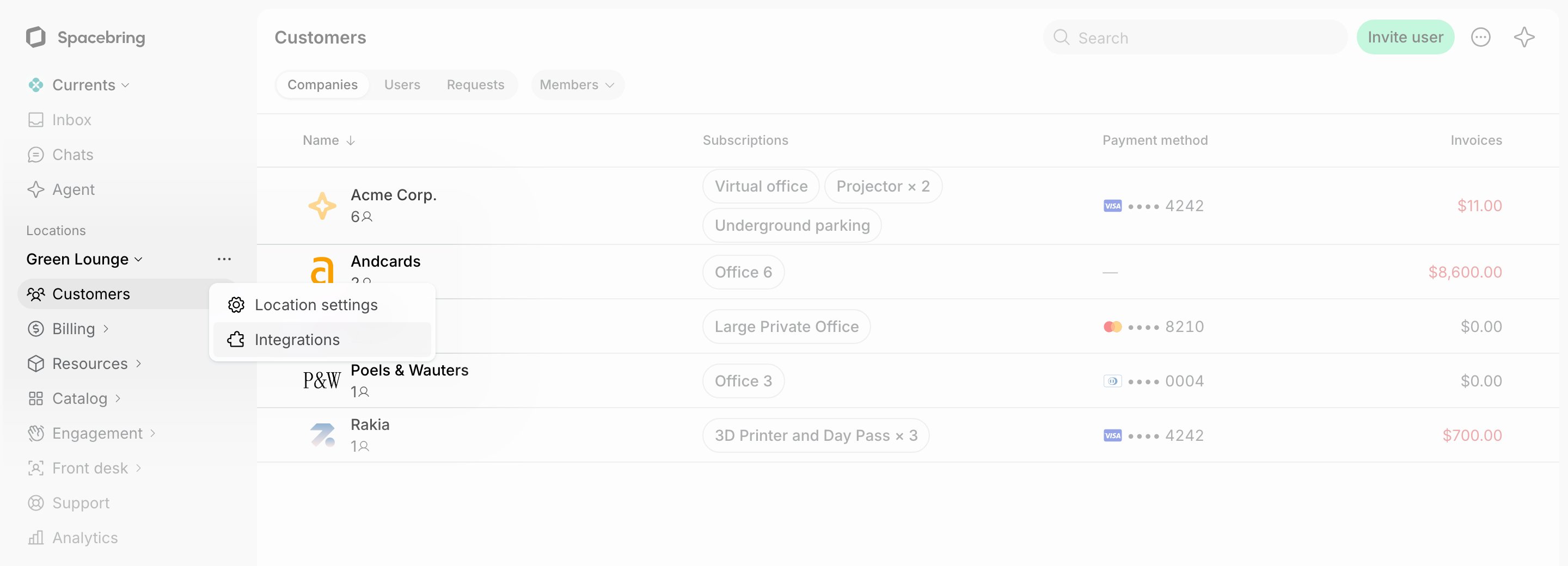
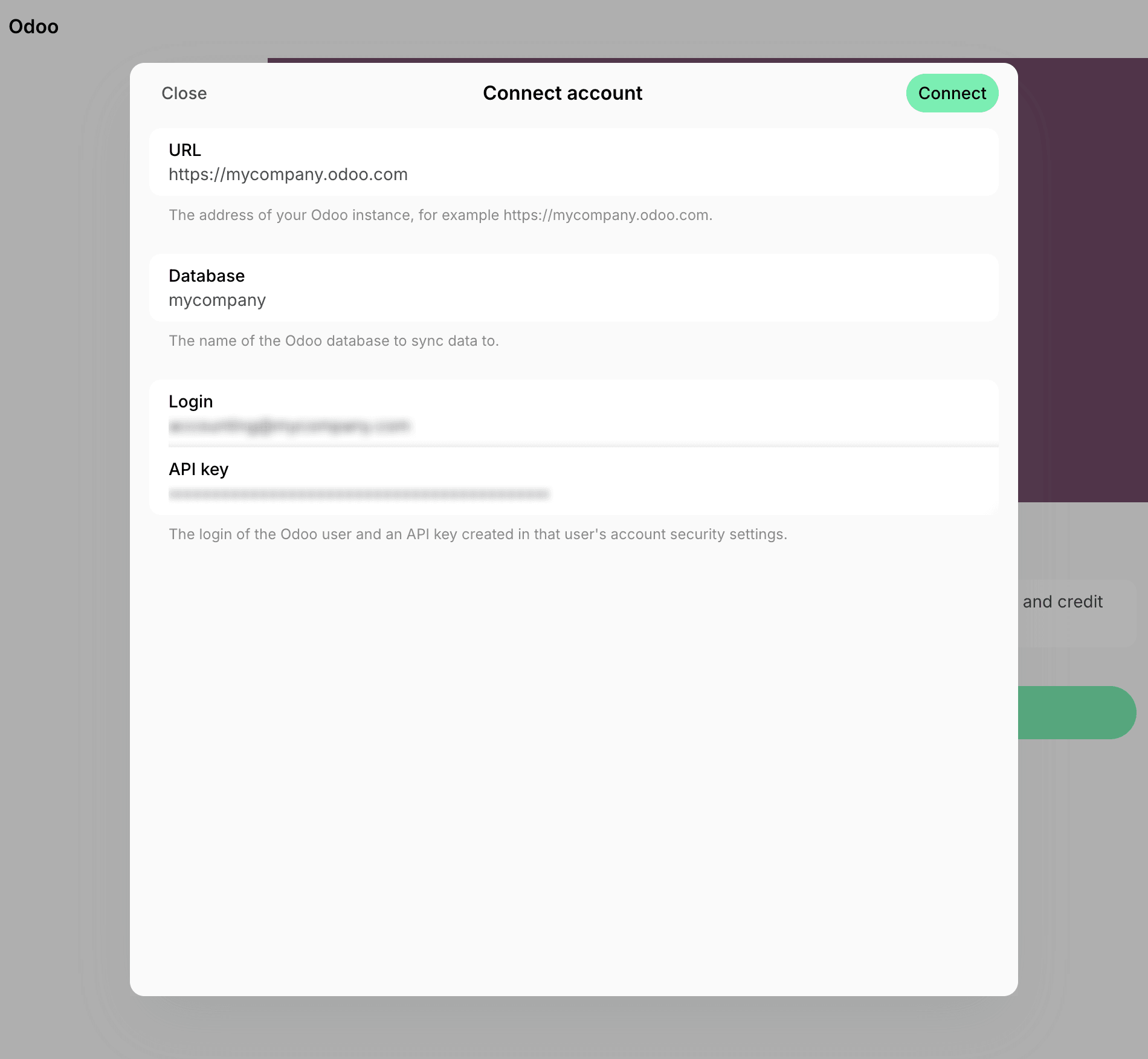
- Open the Odoo integration page and click Connect.
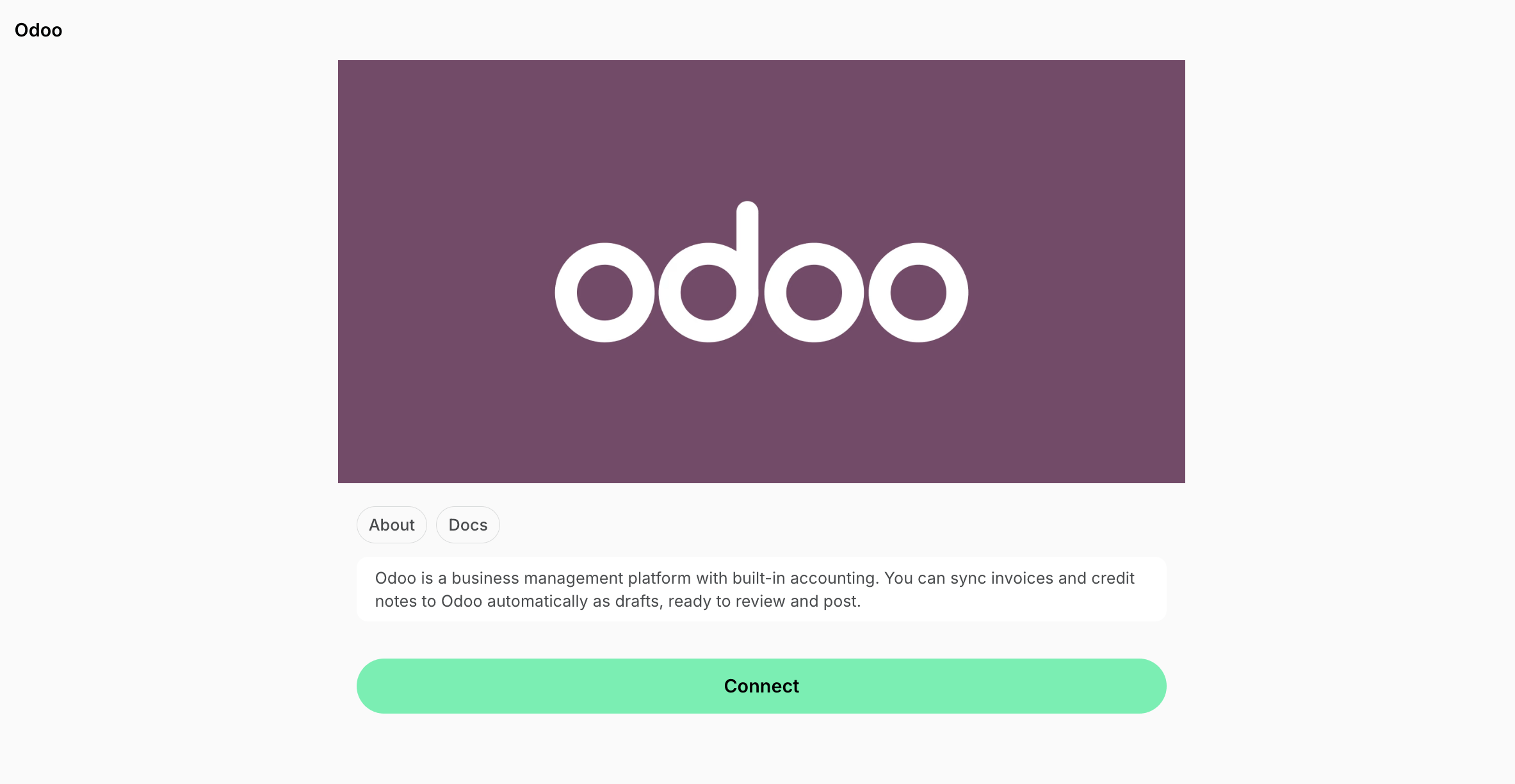
- Enter your Odoo instance URL (must start with
https://, for examplehttps://mycompany.odoo.com), Database, Login, and API key, then click Connect.
- Select an Odoo Sale journal where Spacebring should create invoices and credit notes.
How Odoo integration works
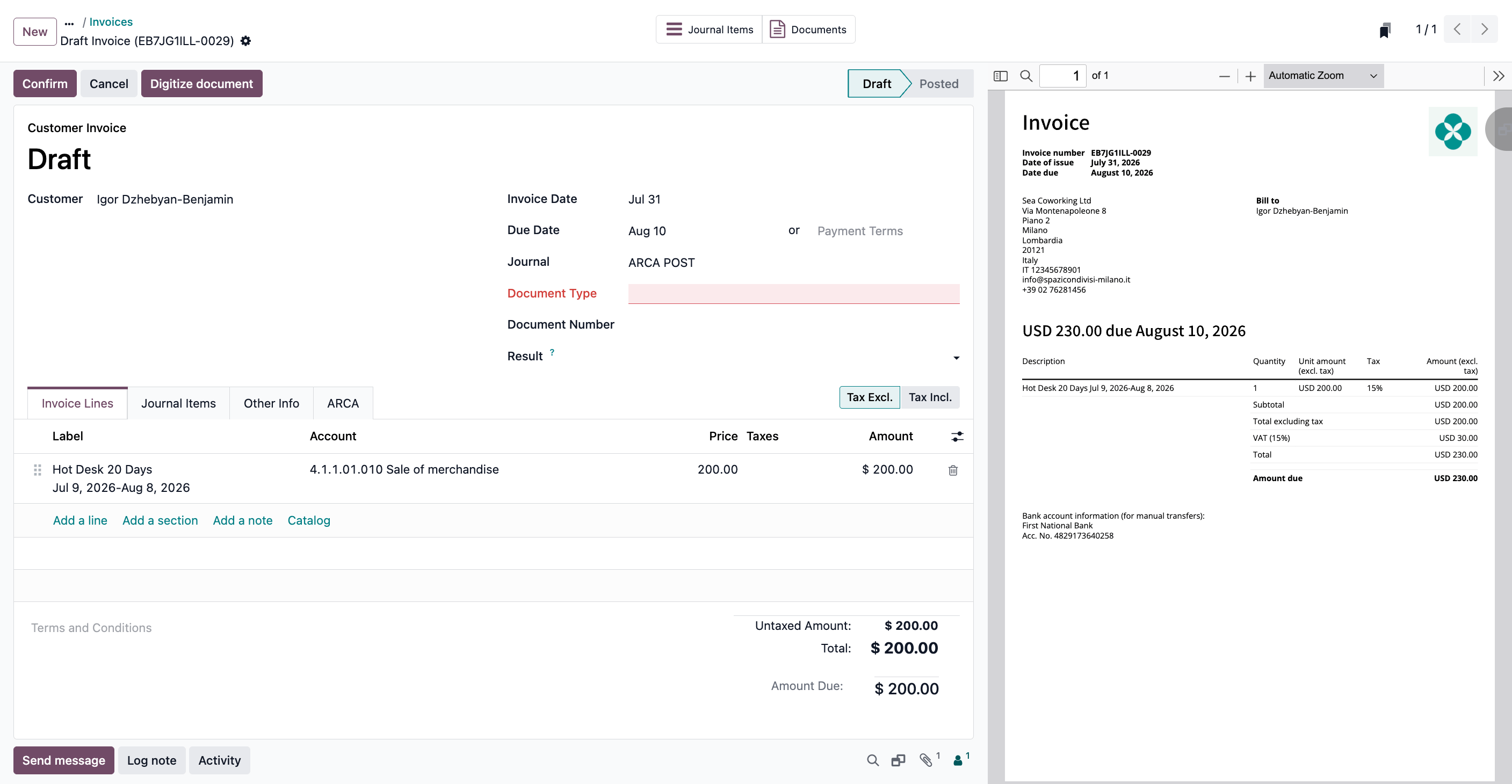
Once connected, Spacebring automatically syncs issued invoices and credit notes for unpaid invoices to Odoo as drafts, in real time.Voiding an invoice in Spacebring doesn’t sync to Odoo — the synced invoice stays in draft. To correct an invoice, issue a credit note in Spacebring, which will sync to Odoo and link to that invoice.
How invoices sync
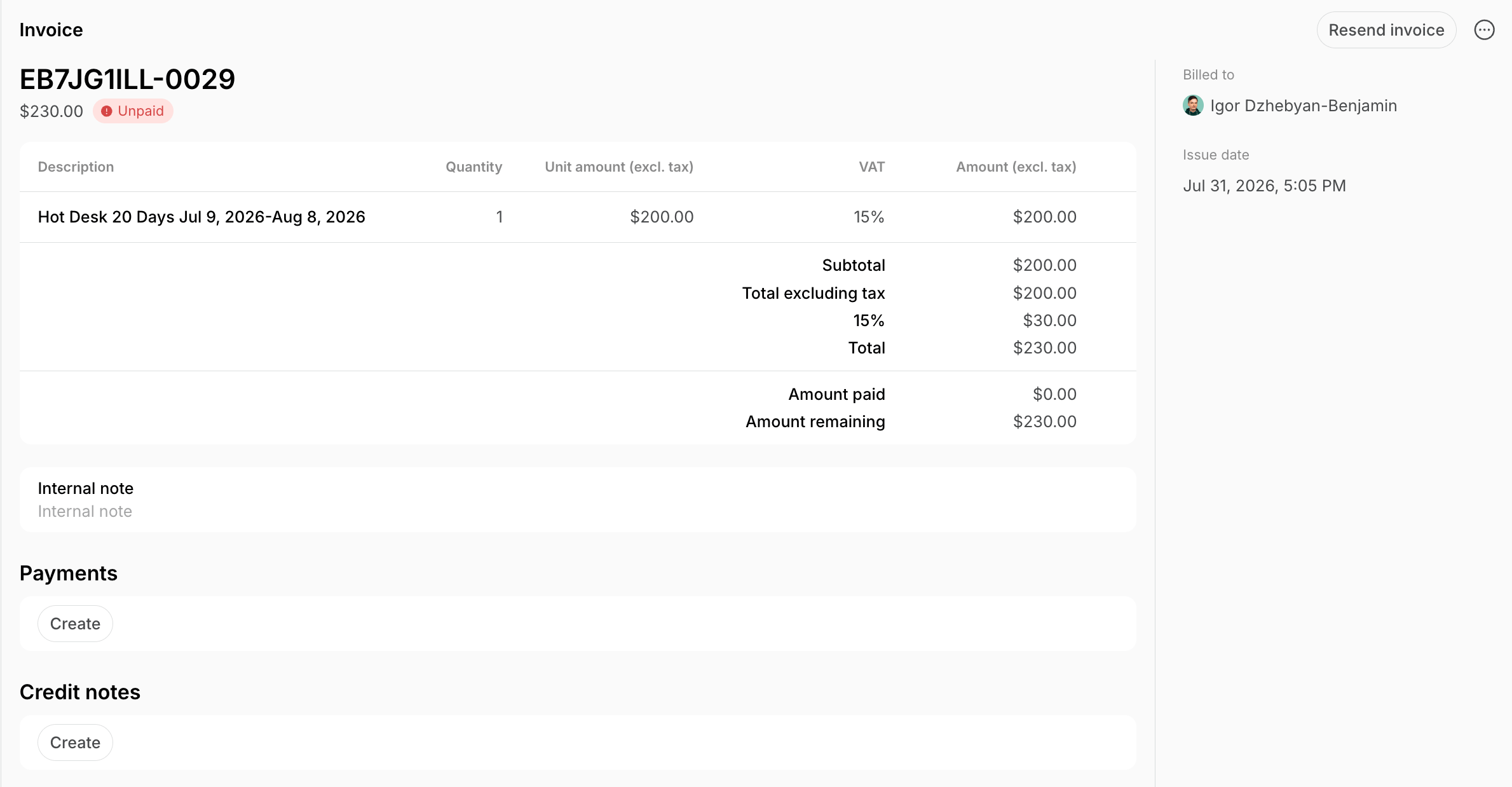
Invoices sync to the Sale journal you selected when connecting. The integration maps Spacebring invoice data to Odoo as follows:
Invoice in Spacebring:
How credit notes sync
Spacebring syncs credit notes issued in Spacebring for unpaid invoices to Odoo as draft credit notes, with their items, quantities, and prices. Each draft credit note links to the original invoice in Odoo.Disconnect the Odoo integration
- Click the menu (…) next to the location’s name > go to Integrations.
- Select Odoo > press Disconnect and confirm your choice.