

Moloni is a distinct company not affiliated with Spacebring. For any inquiries regarding Moloni’s solutions, services, or pricing, reach out to Moloni directly. We do not have the authority to provide information or support on behalf of Moloni.
Prerequisites
- Have your Moloni account ready, with access to the company you want to connect.
- Make sure you invoice in EUR. Invoices and credit notes in any other currency don’t sync.
- In Moloni, set up a document series for invoices and one for credit notes, and communicate each to the Portuguese tax authority (AT) for that document type.
- Create the products in Moloni that Spacebring should use for invoice items. You can use the same product for several invoice item types.
- To sync tax, set up the same tax rates in Moloni as in Spacebring.
Connect the Moloni integration
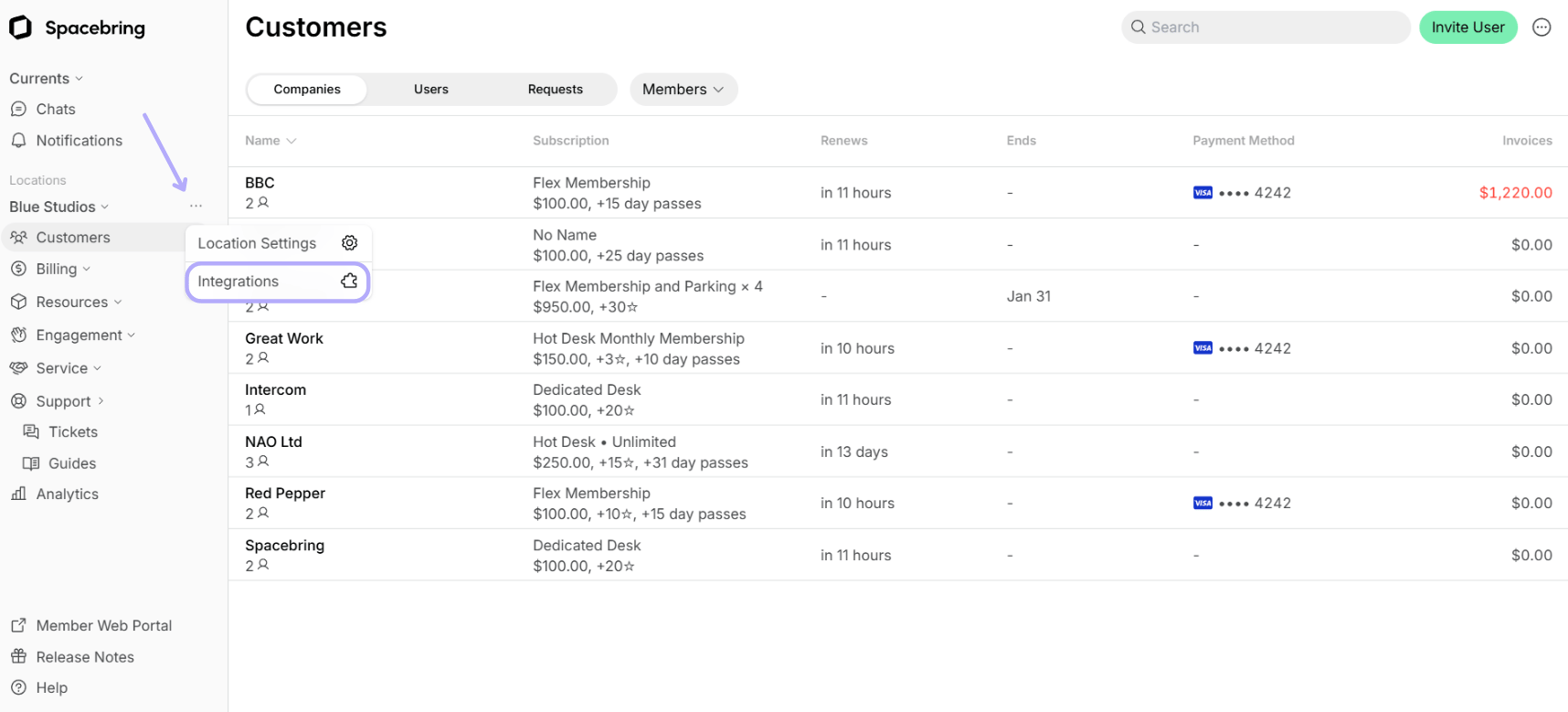
- Click the menu (…) next to the location’s name > go to Integrations.
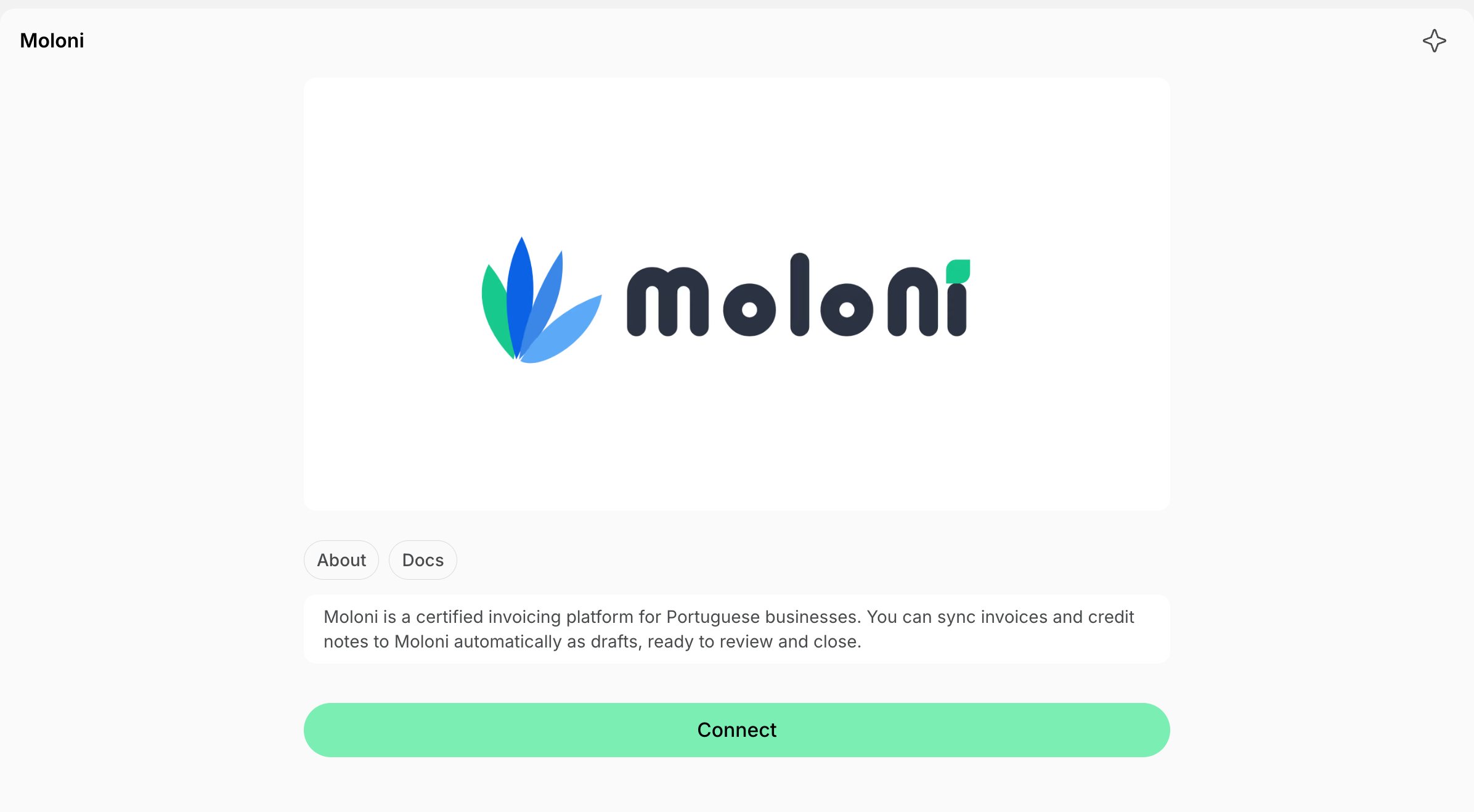
- Open the Moloni integration page and click Connect.
- Log in to Moloni and authorize Spacebring. You return to the Moloni integration page in Spacebring.
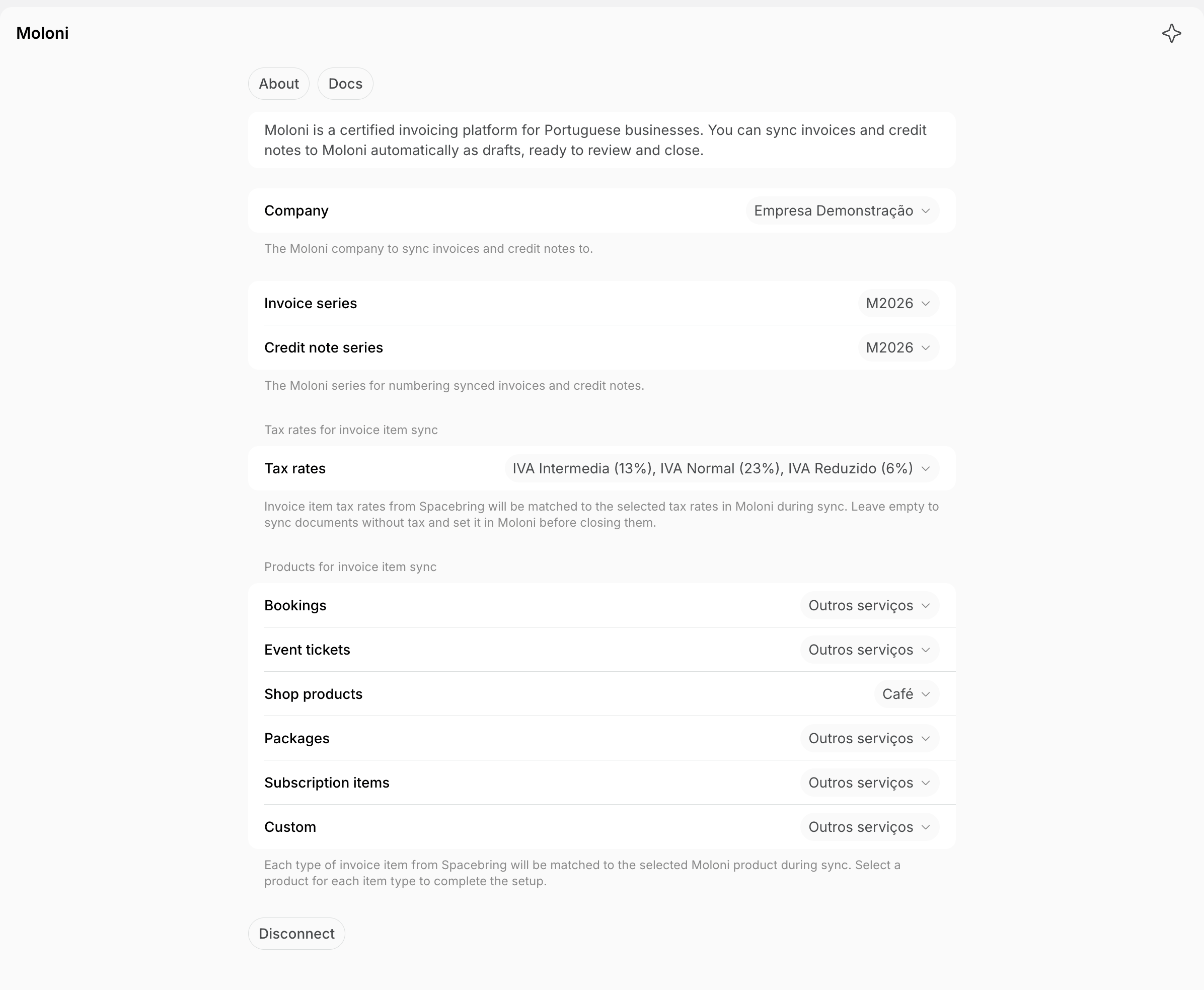
- Company — select the Moloni company to sync to, if it isn’t selected already.
- Changing the company later clears the series, tax rates, and products you selected.
- Invoice series — select the Moloni series for numbering synced invoices.
- Credit note series — select the Moloni series for numbering synced credit notes. Credit notes don’t sync without it.
- Tax rates for invoice item sync — select the Moloni tax for each tax rate you charge in Spacebring.
- Leave it empty to sync documents without tax and set the tax in Moloni before closing them.
- You can’t select two Moloni taxes with the same percentage.
- Products for invoice item sync — for each invoice item type, select the Moloni product that Spacebring should use: Bookings, Event tickets, Shop products, Packages, Subscription items, and Custom.
How Moloni integration works
Once connected, Spacebring syncs newly issued invoices to Moloni in real time as drafts. Credit notes for unpaid invoices sync as drafts once you have closed the invoice in Moloni.Voiding an invoice in Spacebring doesn’t sync to Moloni. To correct an invoice, issue a credit note in Spacebring, which syncs once the invoice is closed in Moloni.
How invoices sync
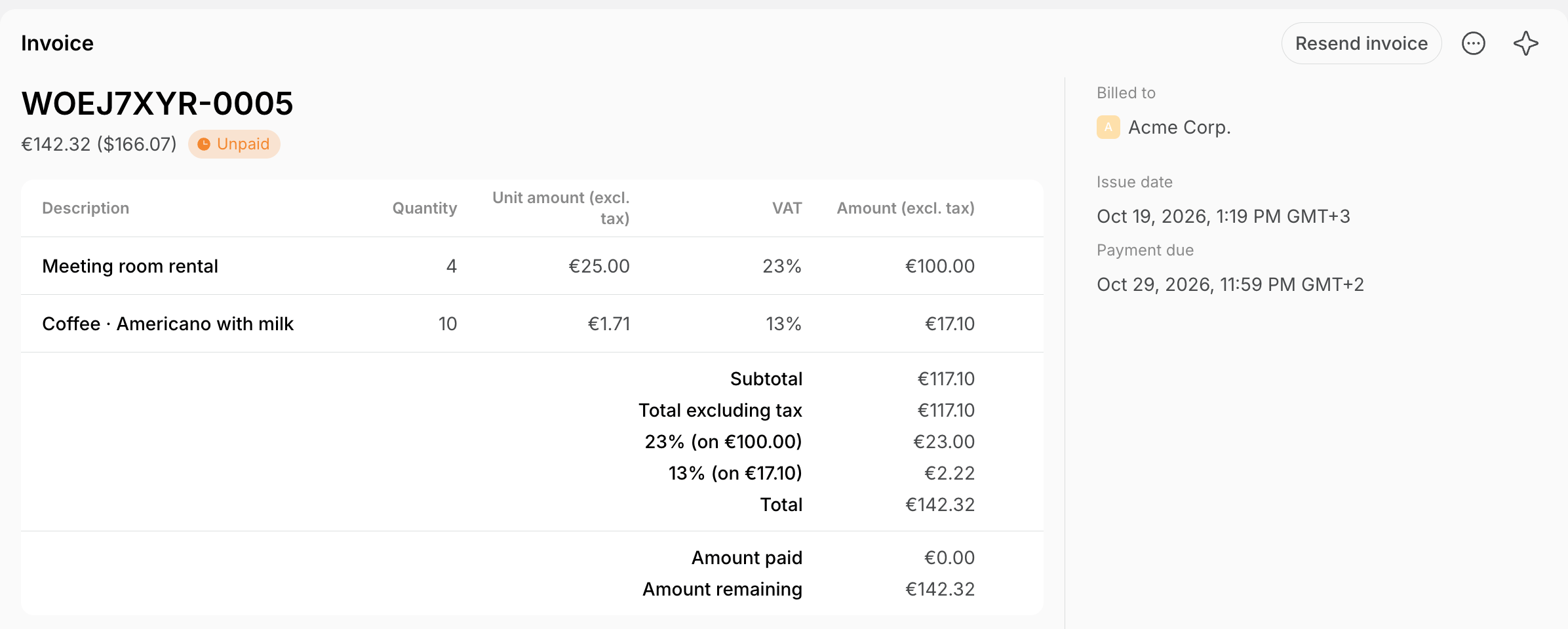
The integration maps Spacebring invoice data to Moloni as follows:
An issued invoice in Spacebring:
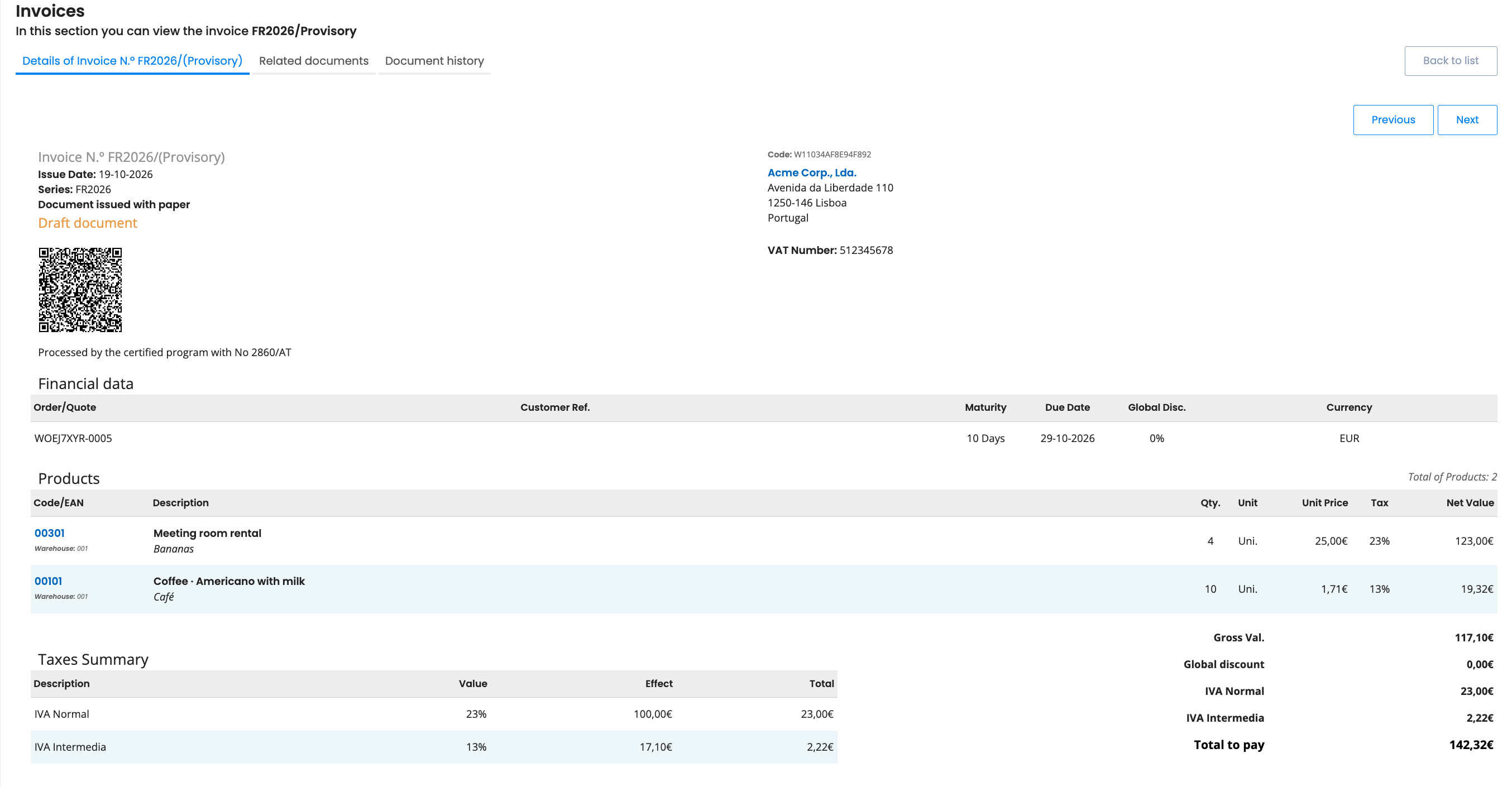
How credit notes sync
Spacebring syncs a credit note issued for an unpaid invoice as a draft credit note in Moloni, linked to the invoice. The credit note syncs only when all conditions hold:- A Credit note series is selected on the Integrations > Moloni page.
- The invoice is already closed in Moloni, since Moloni can only credit a closed invoice. Otherwise the credit note fails to sync and doesn’t retry. Create the credit note in Moloni yourself.
- Each credited item has a line with the same name on the Moloni invoice. Keep the line names when you review the draft invoice in Moloni.
When Moloni rejects an invoice or credit note, a setting it needs is missing, or the Moloni authorization has expired, administrators get a notification that names the cause.
Disconnect the Moloni integration
- Click the menu (…) next to the location’s name > go to Integrations.
- Select Moloni > press Disconnect and confirm your choice.
Disconnecting stops the sync but doesn’t revoke Spacebring’s access in Moloni. To revoke it, remove Spacebring’s authorization in your Moloni account.
FAQs
Why is nothing syncing after I connected Moloni?
Why is nothing syncing after I connected Moloni?
The connection stays incomplete, and nothing syncs, until you select a Company, an Invoice series, and a product for every invoice item type on the Integrations > Moloni page. Missing even one product stops invoices syncing, including item types you don’t sell. Invoices issued before the setup is complete don’t sync afterwards, so create them in Moloni yourself.
Why did an invoice fail to sync to Moloni?
Why did an invoice fail to sync to Moloni?
The notification names the cause. A failed invoice doesn’t sync again, so fix the cause and create the invoice in Moloni yourself. The most common causes are:
- The invoice isn’t in EUR. Only invoices in EUR sync to Moloni.
- An invoice item uses a tax rate with no Moloni tax selected. Select the Moloni tax for that rate in Tax rates for invoice item sync.
- A Moloni product isn’t selected for an invoice item type. Select one in Products for invoice item sync.
Why can't I find my series in the Invoice series or Credit note series list?
Why can't I find my series in the Invoice series or Credit note series list?
Each list shows only the Moloni series communicated to the AT for that document type. Communicate the series to the AT in Moloni, then open the Integrations > Moloni page again.