

You can easily manage your payment and invoicing information for subscription to Spacebring. For example, change a credit card for payments, update the email for receiving bills, or add a VAT number.Documentation Index
Fetch the complete documentation index at: https://www.spacebring.com/docs/llms.txt
Use this file to discover all available pages before exploring further.
Update billing details
The owner follows these steps:- Click the network name in the top left corner > Network settings > Billing page.
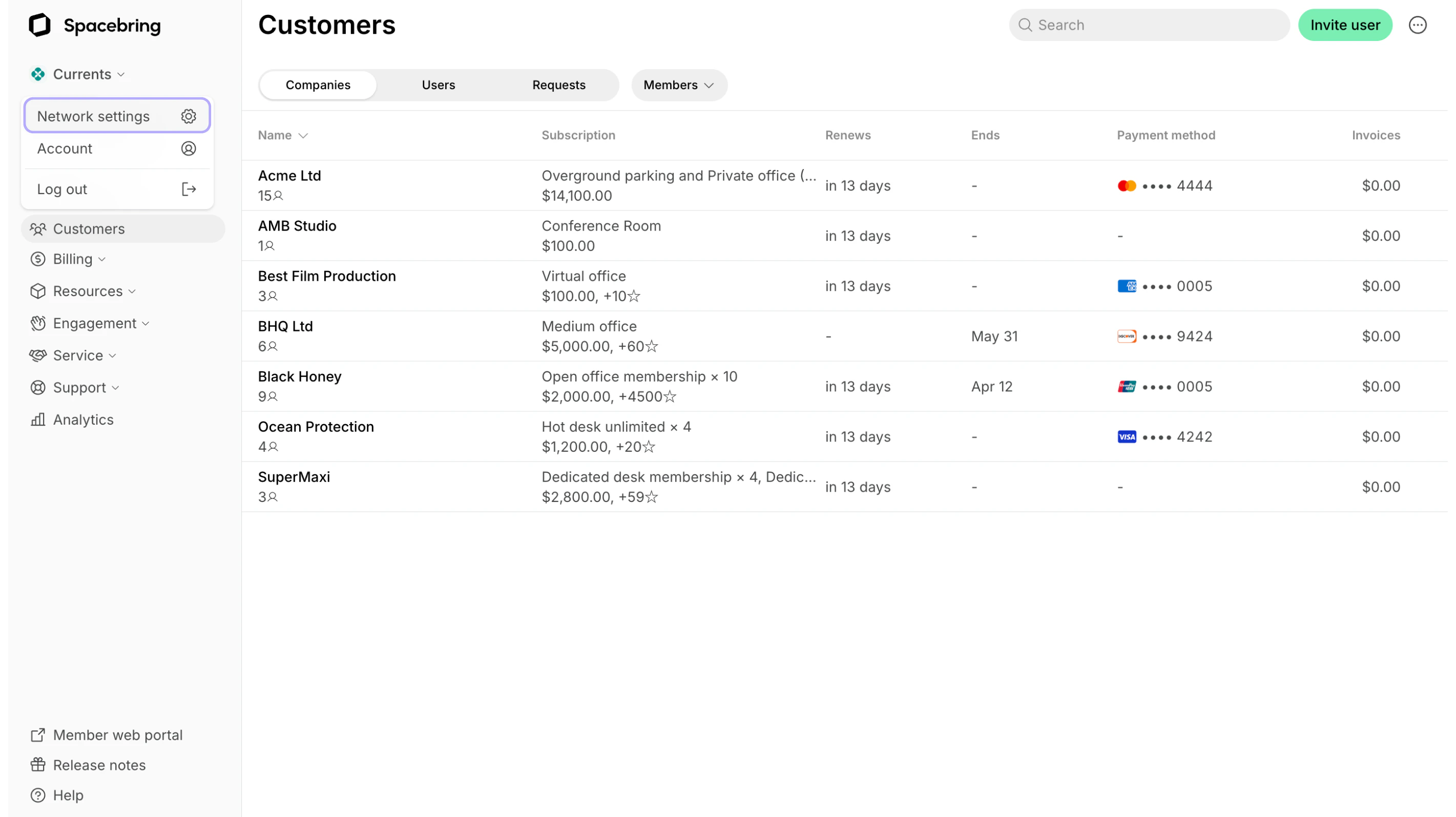
- In the “Billing details” section, click
Edit.
- Proceed with the necessary updates
- Update your default payment method
- Change billing address
- Update the email address to receive invoices and notifications
- Update your Tax ID, which appears on invoices.
View and pay invoices from Spacebring
The owner follows these steps:- Click the network name in the top left corner > Network settings > Billing page.
- Find the “Invoices” section.
- Locate the necessary invoice.

- Click the invoice title to pay it.
- Click the “Download” button in the “Invoice PDF” column to download it.
If the payment attempt for your Spacebring subscription fails, the system will automatically retry the payment up to 4 times within 1 week.
Where can I find a link to payment for Spacebring subscription?
Where can I find a link to payment for Spacebring subscription?
To complete the payment for your unpaid invoice for the Spacebring subscription, the owner needs to follow these steps:
- Click the network name in the top left corner > Network settings > Billing page.
- Find the “Invoices” section.
- Locate the unpaid invoice and click its title to make the payment.
The
Download button and specific billing periods are unavailable for initial invoices or those generated via a plan upgrade.