

- Express check-in – when a member preregisters the visitor and they use their visit code.
- Self-registration – when a visitor was not preregistered and submits a visit request on the Reception tablet.
- Admin registration – when an administrator registers the visitor and submits a visit request on their behalf upon arrival.
Express check-in for preregistered visitors
Video- When a member registers a visitor, the visitor gets a visit invitation email with the visit details and a 6-digit visit code.
- When the visitor arrives at the space, they see the following information on the Reception tablet.

- They click
Check inand confirm that they have a visit code.

- Enter the code.

- If the visit code is valid, their visit is confirmed, and the host gets a notification that their visitor has arrived.

Self-registration for unregistered visitors
Visitors who were not preregistered can register themselves at Reception to request visit from their host.- On the Reception tablet, visitors select “No” when asked if they have a visit code.
- Proceed to create a visit request. Fill in the required details:

- First name
- Last name
- Phone number (optional)
- Search for and select the host (by name, email, phone, or company name, based on your “Host search” settings)
- Once submitted, the host gets a notification that they have a visitor and can approve or reject the visit request.

Admin registration for unregistered visitors
If a visitor cannot self-register, an administrator can assist them: create a visit request on their behalf upon arrival from the admin web portal.- Administrators go to Service > Visitors page in the admin web portal.
- Click
New request, top right.

- Enter the visitor’s contact details and select the host member.
- Click
Request. - After submission, the host receives a notification about the visit request. They can approve or reject it.
How visitors check out
If “Check out” is enabled in the Visitors module settings, visitors can check out at the Reception by entering the visit code. Checking out adds a timestamp to the visit and lets you track visit durations.
Troubleshoot issues with visitor check-in
If a visitor encounters an issue while checking in with a visit code on the Reception app, most typically they will see “The code is not valid or expired” error message. Here’s what may be going wrong and how to fix it.1. Unstable Internet connection
1. Unstable Internet connection
The check-in might not be successful due to a poor internet connection. Try reconnecting your tablet to Wi-Fi or switching to a different network.
2. Wrong location selected in the Reception app
2. Wrong location selected in the Reception app
If your network has multiple locations, you might have mistakenly selected the wrong one when logging in to the Reception app. To fix this: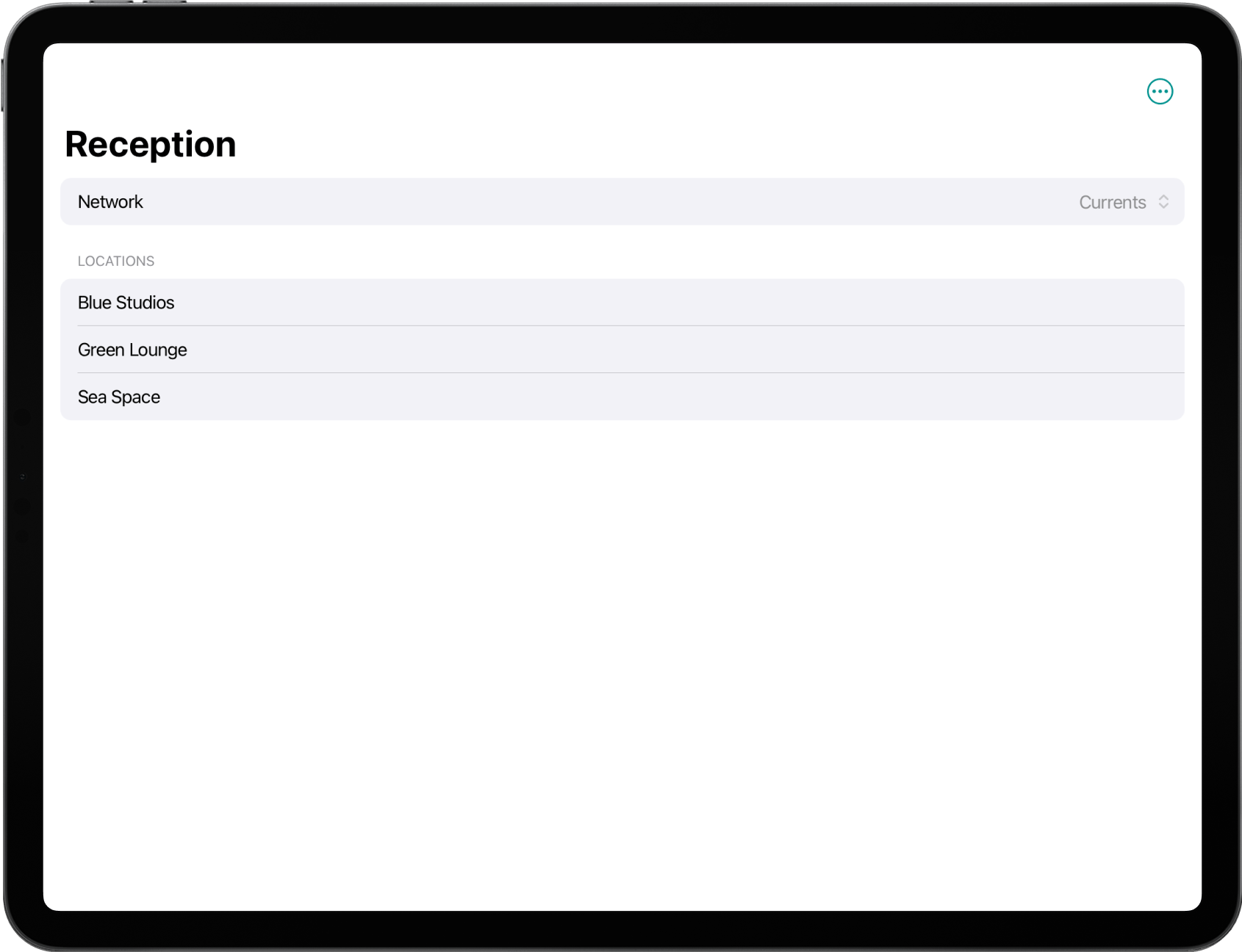
- Close Reception by swiping it up and off the screen.
- Reopen it, log in again, and select the correct location from the dropdown menu.
3. Visitor has already checked in
3. Visitor has already checked in
Firstly, once a visitor has used their code to check in, the code becomes invalid as their visit was already recorded.Secondly, if the visitor was not preregistered and requested a visit via Reception and was approved by the host, the check-in happens automatically with approval — the visitor doesn’t need to enter the code. The code that a visitor receives will be used only for check-out.To check if the visitor has already checked in: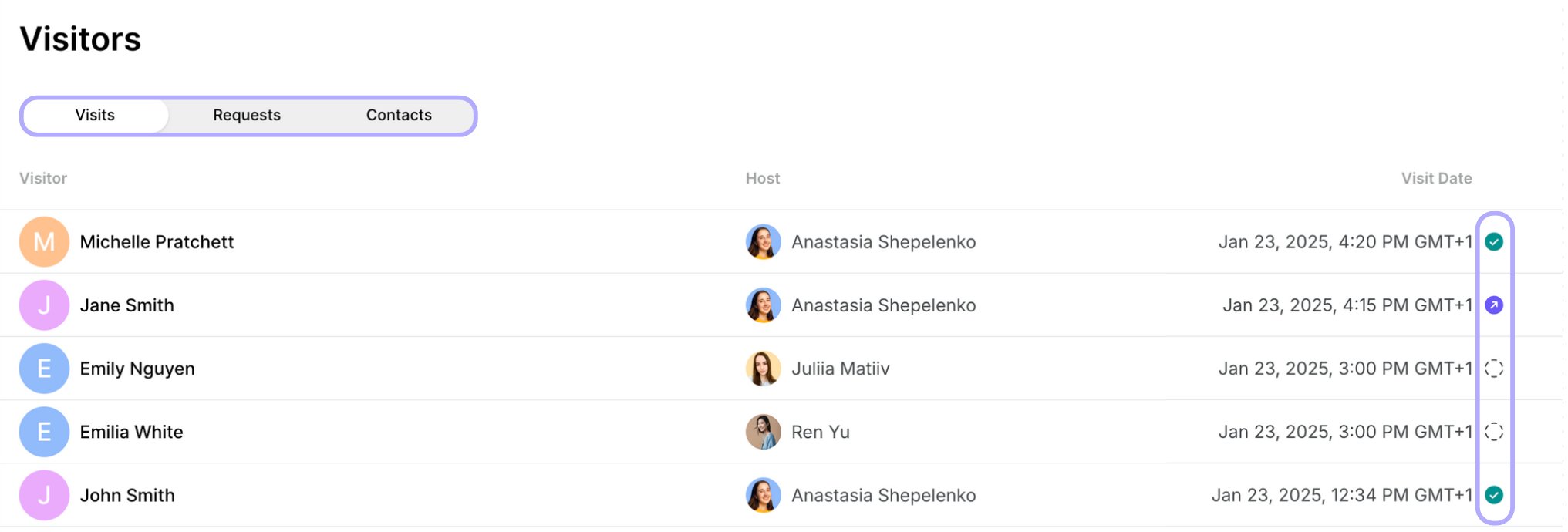
- Go to Spacebring > Service > Visitors.
- Find the visit and check its status next to the visit date:
- Empty circle - the visitor hasn’t checked in.
- Green circle - visitor has already checked in.
- Purple circle - visitor has checked in and checked out.
4. Visit is created for another date or future time
4. Visit is created for another date or future time
Checking in with the visit code only works for the chosen date and time. If the visit was registered for a different date or a future time, the check-in code will not be valid yet.If necessary, ask the host to go to the Visitors page > edit this visit and adjust the date or time.
Does the check-in code expire?
Does the check-in code expire?
The code is for one-time use and is valid on the visit day until the end of the day. When the visitor receives an email, it will include the details about the expiration date and time of the code. If the visit code is invalid or expired, the Reception app shows an error message on the tablet.
Do visitors agree to privacy policy?
Do visitors agree to privacy policy?
Each user who receives an invitation email receives a link to the member web portal. Once the link is opened, the user can see a welcome page and can press
Continue. After that, the user can read the data and privacy information and press Continue which is considered as their agreement.