

Create visits
Usually members preregister their visitors in advance, or visitors self-register on the Reception tablet when they arrive. If a visitor needs help with that, an administrator can assist them and submit the visit request on their behalf:- Go to the Service > Visitors page.
- Click New request top right.
- Enter the visitor’s contact details and select the host member.
- Click Request.

Track visits
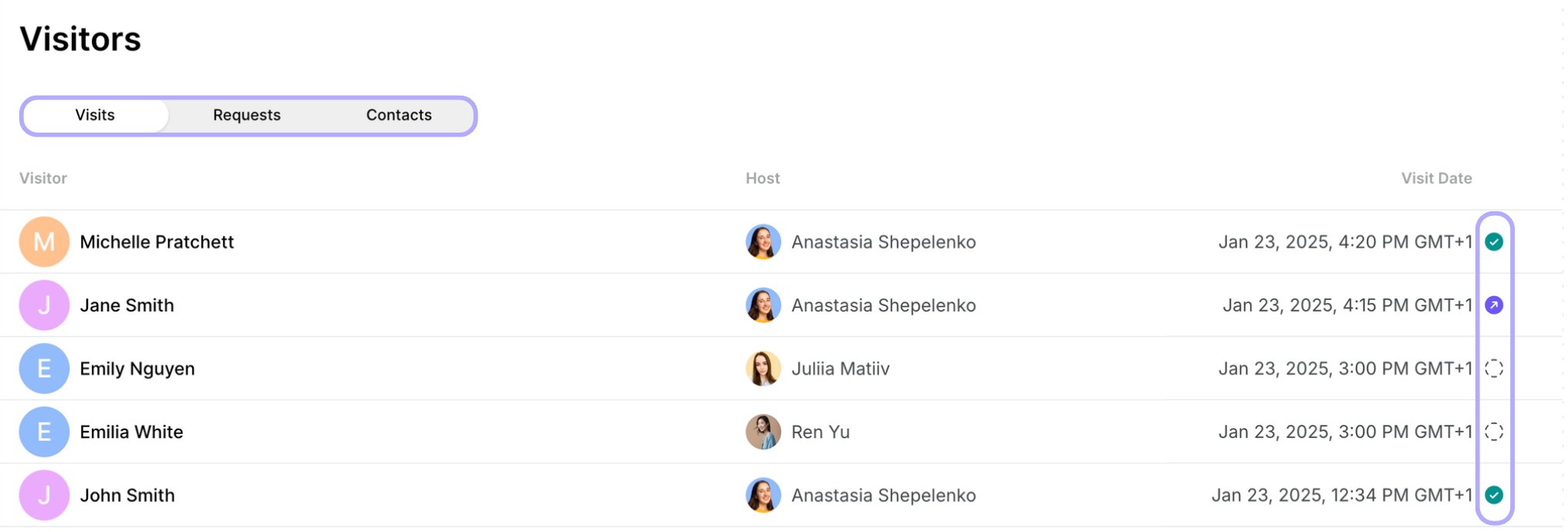
- Administrators can see all the visits, visit requests, and contacts on the Service > Visitors page in Spacebring. Each visit shows the visitor’s name, host’s name, visit date, and visit status at a glance:
- Empty circle - visitor hasn’t checked in.
- Green circle - visitor has checked in.
- Purple circle - visitor has checked in and checked out.
- Enable notifications to get alerted when a visitor checks in with a visit code or leaves a new contact on Reception.
- The page opens on today’s visits. Filter by Date to see another ready-made period, such as Tomorrow or Next 7 days, or click Custom to set an exact date or range.
- Filter by Create date to see visits created in a ready-made period, or click Custom to set an exact date or range. On the Requests tab, you can filter visit requests by Create date the same way.
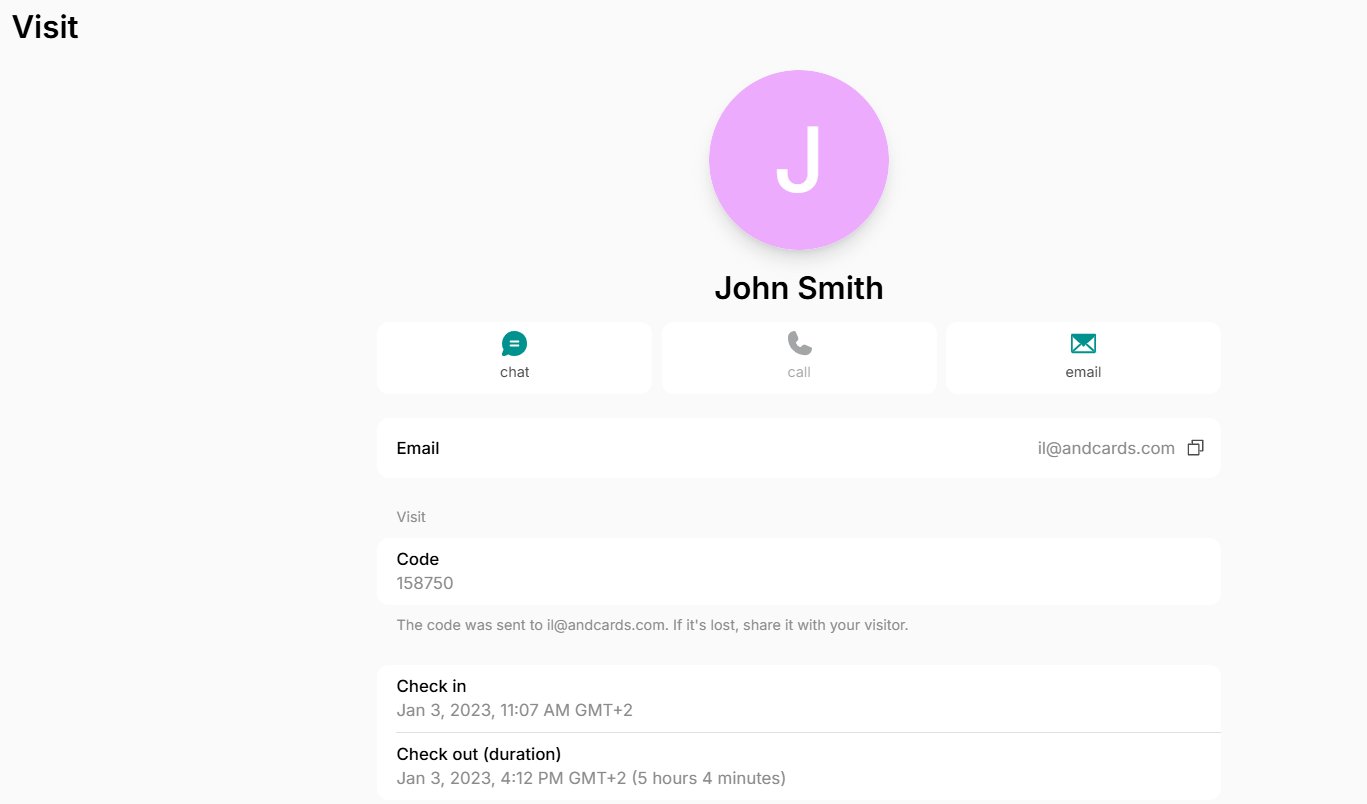
- Click on any visit to view more details, such as the visit code, check-in/out time, visit duration, or to contact the host or visitor.
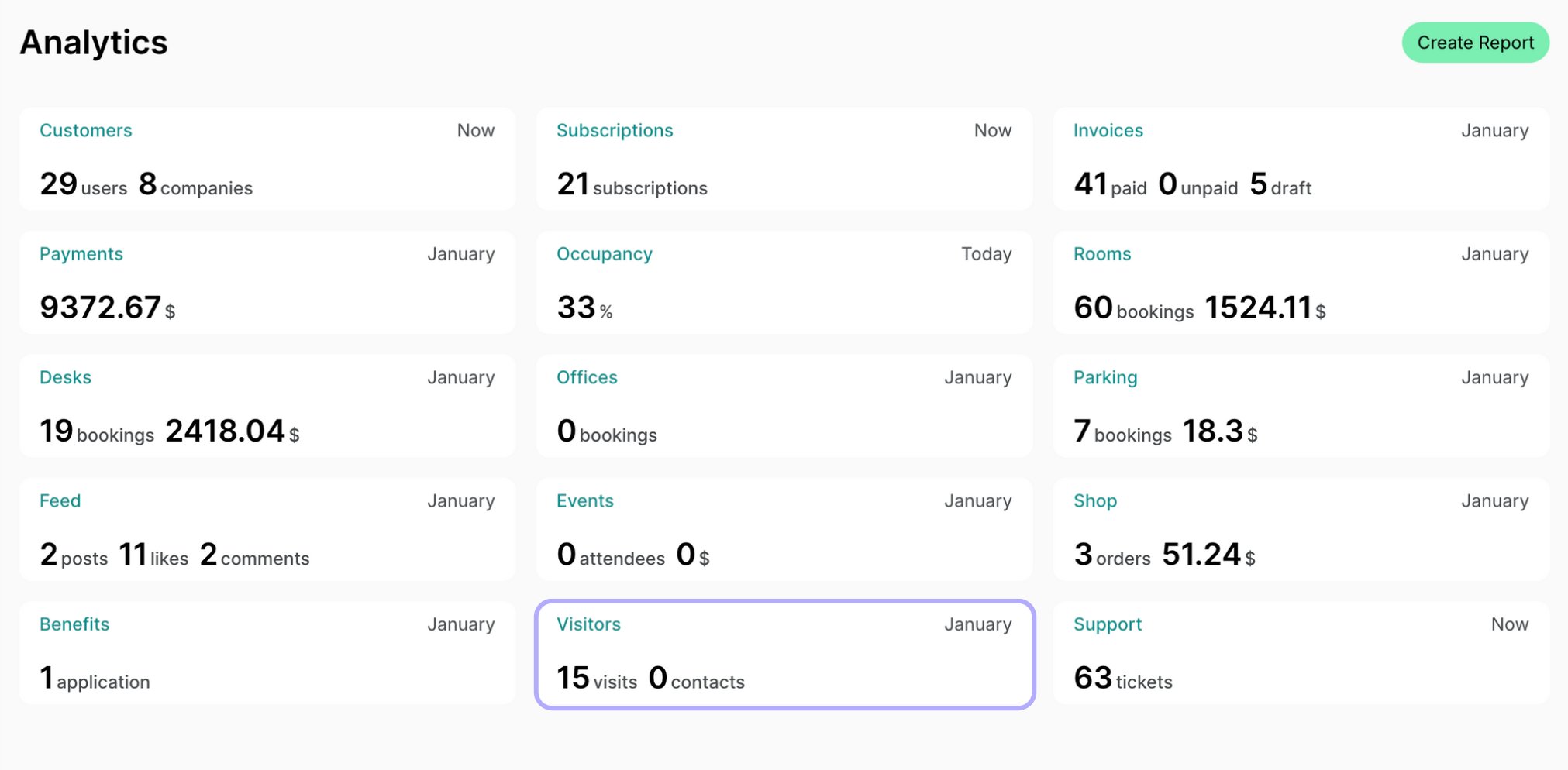
- Administrators can check the visit statistics on the Analytics page > Visitors dashboard.
Export a visits report
On the Visitors page, apply the necessary filters, then click (…) in the top right corner > Export visits as CSV or Export visits as XLSX to download a report on the filtered visits. The report includes each visit’s scheduled date, check-in and check-out time, its duration in hours and minutes, any comment left, the visitor’s contact details, and the host’s contact details and company. The Duration column is empty when a visit has no check-in or check-out time. On the Requests tab, the same menu has Export requests as CSV or Export requests as XLSX instead. That report includes each request’s create date, the visitor’s contact details, and the host’s name.Edit visits
If necessary, administrators can edit visits by following these steps:- Go to the Visitors page and open the necessary visit.
- Click on the menu (…) top right > Edit to change the visit date or time or add an internal note.
Internal notes are only visible to your team of administrators.