

Who are visitors
A visitor is anyone a member invites to your space — typically for meetings or personal visits. We recommend setting a policy in your space that requires members to register all their visitors for better tracking and a smoother arrival experience. Common cases:- Guests attending a meeting with a member.
- Friends or family coming to see a member.
Prerequisites
- Have a supported tablet device:
- A minimum screen size of 7 inches.
- Support Google Play (for Android) or the App Store (for iPadOS).
- Android 8.0 or above, iOS/iPadOS 15.1 or later
- If you haven’t yet, sign up for the Visitors add-on from Network settings > Billing.
Set up the Visitors module
- Press the menu (…) near the location name > go to Location settings > Service > Visitors tab.
- Enable the switch and manage the visibility of the Visitors page.
- Invitation — enable if you want to customize the visit invitation email that visitors receive.

Set up the Reception app
Choose what Reception shows
- Press the menu (…) near the location name > go to Location settings > Reception.
- Host search — configure how unregistered visitors can find their host on the Reception tablet:
- Full name (mandatory)
- Email address
- Phone number
- Company name (if the host is a member of any company)
- Check out — enable if you want users to check out when they leave, so you can track how long they stayed.
- Leave contacts — enable if you want to use the Reception app for collecting contacts of walk-ins, too.
Log in to and set up Reception
- Download the Reception app to your tablet by following these links:
- Open the app and press Log in.

- Log in with the account of an administrator for the location where you want to enable Reception.
- Select your network and relevant location.

- Once selected, the screen with the check-in and check-out options will appear for you to invite visitors for registration.
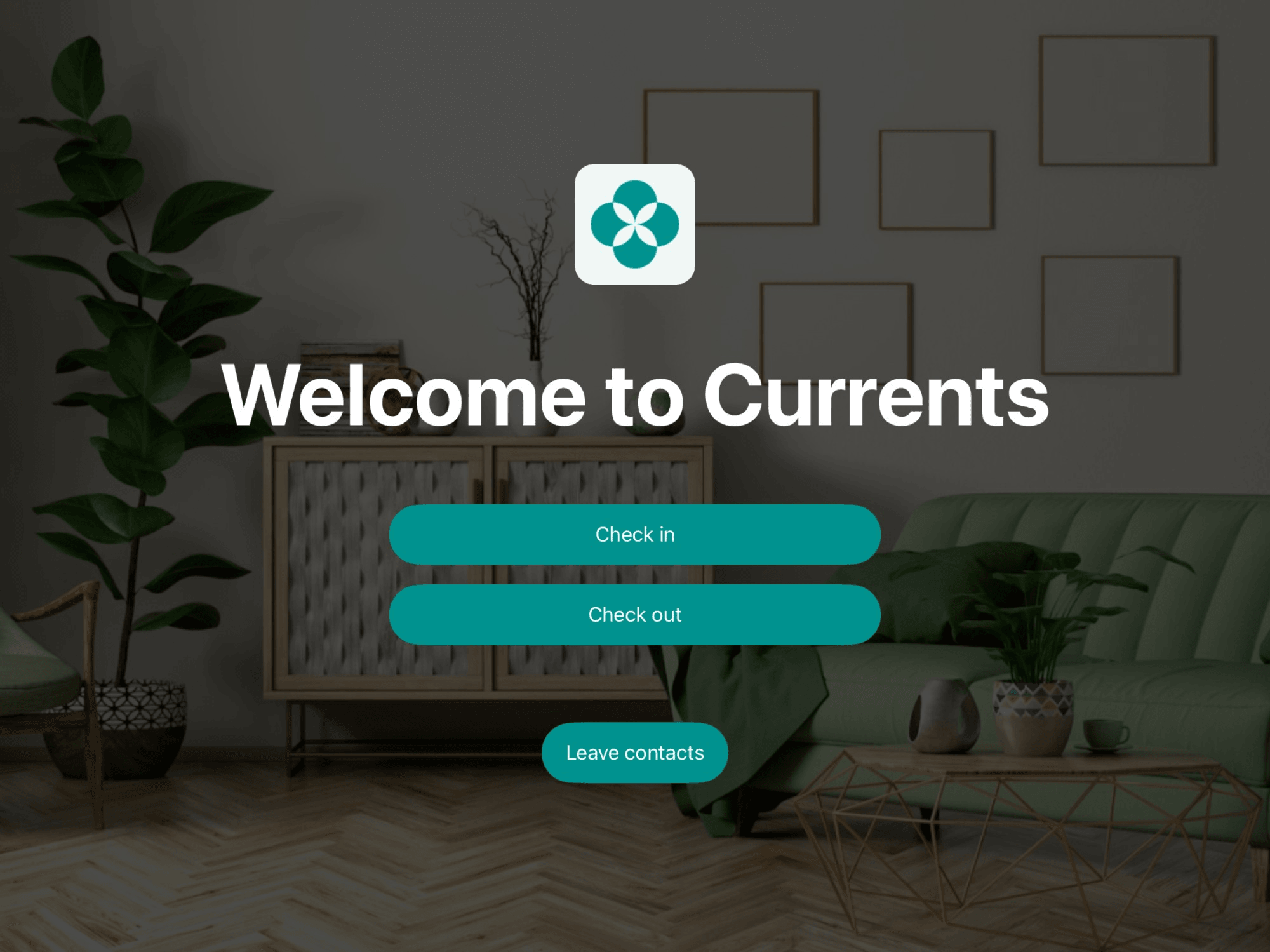
- To prevent strangers from shutting down the app and reopening your tablet, set up Guided access on iPad or Screen pinning on Android tablets.
Customize Reception
The Reception app automatically reflects your network’s branding to create a consistent and professional experience. The following branded elements are displayed:- The member web portal logo
- The member web portal name
- Accent color
- The last cover photo of the location where the Reception app is used
If no cover photo is uploaded for the location, background color applies instead.
- To change the name, logo, or accent color, the owner needs to go to Network settings > General > Information and Branding tabs.
Changes will apply to the member web portal and/or mobile app as well.
- To change the background of the Reception app, as an administrator, upload a new cover photo for the location where the Reception app is used.
Exit Reception app
Exit Reception app
- Turn off the Guided access on iPad or Screen pinning on Android.
- Close the app by swiping it up and off the screen.
Log out of Reception app
Log out of Reception app
To log out from your current account on Reception:
- Close Reception by swiping it up and off the screen.
- Reopen it.
- Tap the (…) button in the top right corner > Log out.
How Visitors solution works
- Preregistration of visitors and express check-in: Members can preregister their visitors via the member web portal or mobile app. Visitors receive an invitation with a visit code by email, with which they check in on the Reception app upon arrival.
- Self-service registration: Unregistered visitors can register themselves on the tablet and request a visit. This prevents reception bottlenecks and allows members to approve or decline the visit from their own device.
- Automated host notifications: When a visitor checks in or requests a visit, the host member receives an immediate push notification or email, ensuring they meet their guest promptly without a receptionist’s manual coordination.
- Visitor check-out and duration tracking: Visitors can check out through the Reception app, allowing you to track visit durations and enforce visitor limits.
- Lead generation for walk-ins: Apart from visitors, people interested in your space can leave their details using the Leave contacts feature on the Reception app. This helps you grow your lead base without relying on separate tools or manual follow-ups.
- Custom branded experience: The Reception app reflects your brand by displaying your logo and location photo, delivering a professional experience from the moment a visitor arrives.
Troubleshoot visitor check-in
If a visitor can’t check in with their visit code, the Reception app shows The code is not valid or expired. The usual causes:1. The visitor has already checked in
1. The visitor has already checked in
A visit code works once. It also isn’t needed at all when the visitor self-registered and the host approved the request — approval checks them in, and the code they received is only for checking out. Open the visit on the Service > Visitors page to see its status.
2. The visit is registered for another date or a later time
2. The visit is registered for another date or a later time
A code only works on the visit date, starting one hour before the scheduled visit time. Ask the host to change the visit, or edit it yourself.
3. The wrong location is selected in the Reception app
3. The wrong location is selected in the Reception app
In a multi-location network, Reception may be logged in to a different location than the one the visit belongs to. Close the app, log in again, and pick the right location.
Troubleshoot issues with access to Reception app
If you can’t enable or access the Reception app, here are the most common reasons and how to fix them:1. Poor Internet connection
1. Poor Internet connection
Try reconnecting your tablet to Wi-Fi or switching to a different network.
2. Logging in with the wrong email address
2. Logging in with the wrong email address
Make sure you’re logging in as an administrator for the location where you want to use Reception. Only administrators can choose a network and location when logging in.
3. Outdated Reception app version
3. Outdated Reception app version
Ensure you’ve installed the latest version of the Reception app from the Google Play Store or App Store.
4. Your subscription doesn't include the Visitors add-on
4. Your subscription doesn't include the Visitors add-on
Your network appears in the list after you log in, but no locations do, and the app says that the Visitors add-on is not enabled for this network. Sign up for the add-on from Network settings > Billing. The add-on also stops working when your subscription is no longer active, so check your subscription status as well.
5. Device doesn't meet technical requirements
5. Device doesn't meet technical requirements
Ensure your tablet meets the requirements for installing the Reception app.