

How members preregister a visitor
- Go to the Home > Visitors page.
- Tap Register visit top right.

- Fill in the visit details:
- First name
- Last name
- Email — used to send a visit invitation email with visit details.
- Phone number (optional)
- Visit date — a visit code is valid only for this date.
- Press Register.
- After registration, a visitor gets a visit invitation email with a 6-digit visit code. They use it for express check-in on the Reception app upon arrival at the space.

How members register a returning visitor again
Once a visitor has been registered once, their information is saved on the Visitors page for future use. To register a returning visitor, members:- Go to the Visitors page > select the previously registered visitor.
- Press the (…) menu top right > select Register again.
- Choose the new visit date and time and click Register.

How members approve visit requests
If a member hasn’t preregistered a visitor, the visitor can register upon arrival using the Reception app, or an administrator can register them.- If the visitor self-registers on the Reception app or the administrator registers a visit request, the member host gets a notification and is prompted to review the visit request.
- Pending requests appear in the Requests section at the top of the Visitors page, where the member clicks Approve or Reject right on the request. Opening a request, from the notification or from the section, shows the visitor’s contact details and the same two buttons.

- If approved, the visitor is checked in and receives an email confirming it.
- While Check out is on in the Reception settings, the email also includes a visit code. The visitor uses it to check out, and to check in again the same day.

Approving a request checks the visitor in straight away, so the visit appears as already checked in.
- If rejected, the visitor is notified by email, too.

- If the member takes no action, the visit request stays in the Requests section of the Visitors page.
How members view and manage their visits
Members see all their past and upcoming visits on the Visitors page, with pending visit requests in the Requests section above them. Opening a visit shows its details and the visit code, and lets them contact the visitor.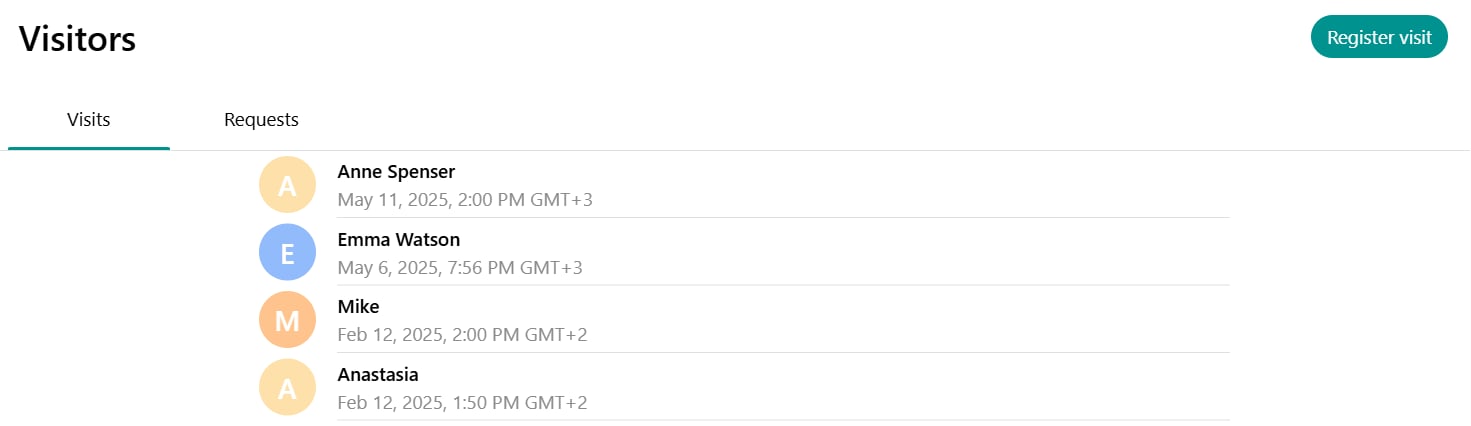
- Go to the Visitors page and open the necessary visit.
- Click the menu (…) top right > Edit to correct the visitor’s name, email, phone number, or the visit date.
- Or press Cancel at the bottom of the visit page to cancel the visit.
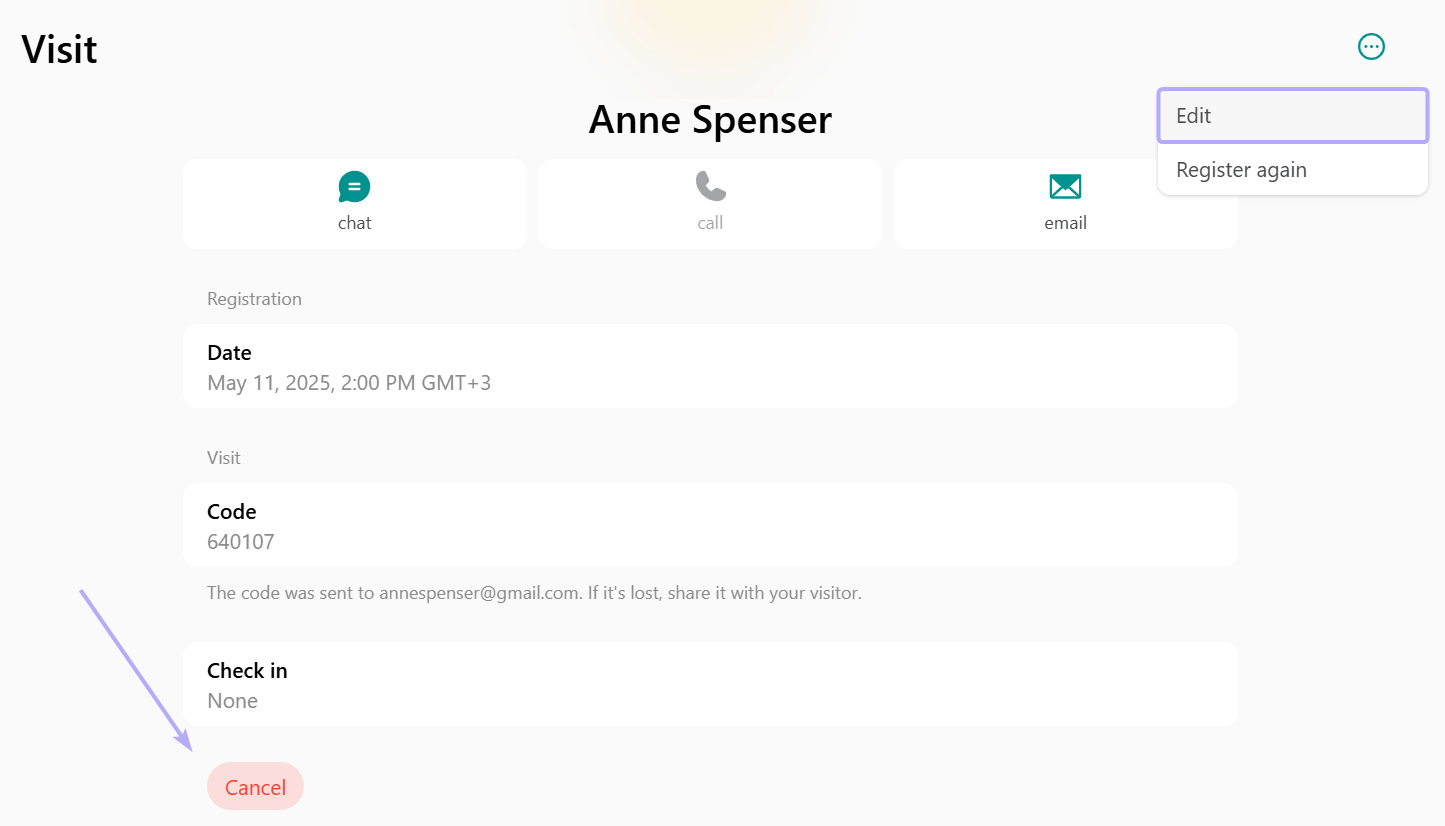
The visitor is notified by email whenever a visit is changed or canceled. Once the visitor has checked in, the visit can no longer be edited or canceled.
FAQs
Can I register a visitor using their phone number instead of an email address?
Can I register a visitor using their phone number instead of an email address?
Spacebring requires an email address for all user registrations, including visitors. The email serves as the unique identifier for each user and is used to send visit invitation and notifications about the visit update or cancellation to the visitor. Therefore, visitors cannot be registered without an email address.