

Enable Benefits and create categories
- Click the menu (…) near the location name on the left-side panel.
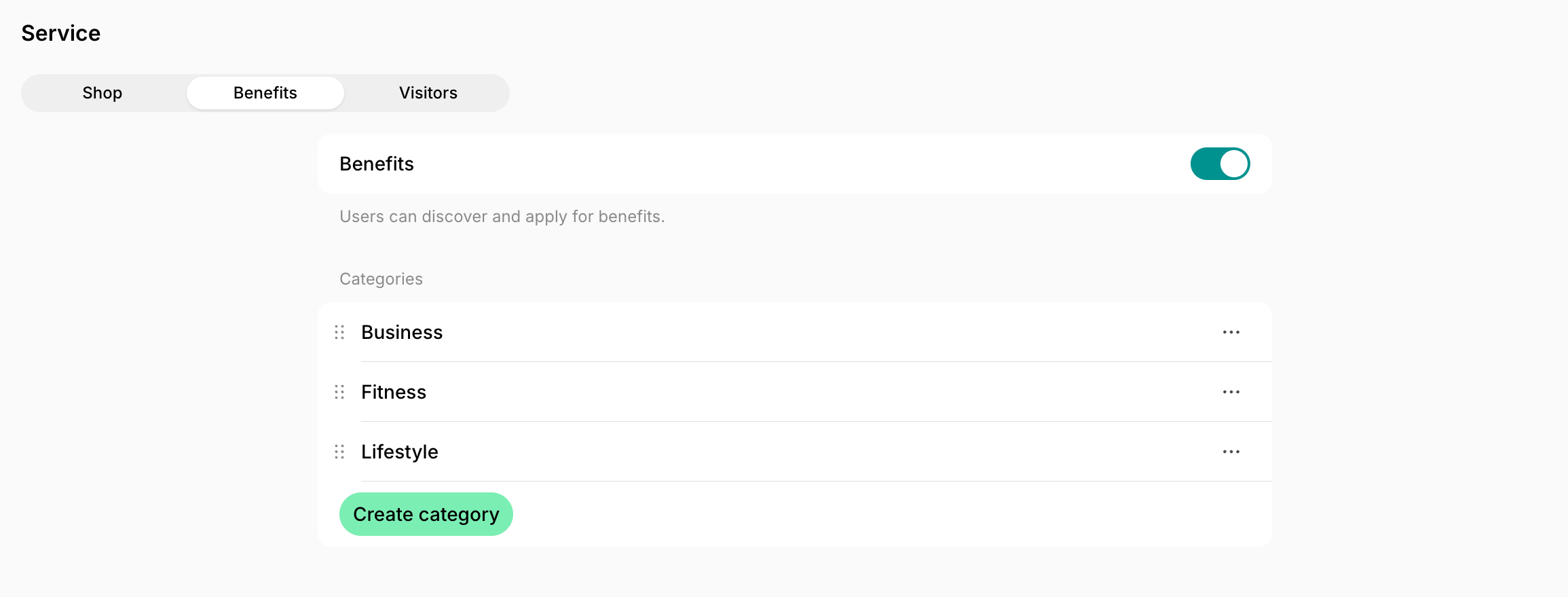
- Go to Location settings > Service > Benefits.
- Enable the “Benefits” switch.
- Under Categories, press Create category to group your benefits by type.
- Enter a title for the category (for example, Business, Fitness, or Lifestyle) and save it.
By default, benefit categories are sorted alphabetically by title. Drag and drop categories to rearrange their order.
Create a benefit
- Go to the Service > Benefits page.
- Press Add benefit in the top right corner and configure it:
Restrict a benefit to certain members
Set a benefit’s Visibility to Members with exclusive access to hide it from everyone except the customers you choose. Use this for perks you only want to offer on your higher-tier plans, or for a partner discount with a limited number of places. The setup works the same way as exclusive access to resources:- Go to Service > Benefits, open the benefit for editing, and set Visibility to Members with exclusive access.
- Grant access to all members on a plan: edit the plan or resource plan and select the benefit in the Exclusive access section > Exclusive benefits field. Every customer who subscribes to this plan receives access.
- Grant access to an individual member: edit the customer’s subscription > open a subscription item > select the benefit in the Exclusive access section > Exclusive benefits field.
How benefits work
- Customers can explore and apply for benefits on the Benefits page. Understand how users apply for benefits.

- Use the Promote feature to create a feed post about the benefit and attract more customer attention to it. This is a great way to announce a new member benefit or bring attention back to an existing one.

Export a benefits report
On the Benefits page, apply the necessary filters, then click (…) in the top right corner > Export benefits as CSV or Export benefits as XLSX to download a report on the filtered benefits. The report includes each benefit’s title, subtitle, description, category, and create date.Track benefit applications
View all benefit applications on the Service > Benefits > Applications panel. Applications are sorted from newest to oldest, and each has a sequence number (#1, #2, etc.). For every application, you can see the benefit title, sequence number, date and time, and the applicant’s name.
- Filter by Category to see applications for benefits in a specific category.
- Filter by Benefit to see applications for a specific benefit.
- Filter by User (applicant) to see all applications from a specific customer.
- Filter by Create date to see applications submitted in a ready-made period, such as Today or Last 28 days, or click Custom to set an exact date or range.

Export a benefit applications report
On the Applications panel, apply the necessary filters, then click (…) in the top right corner > Export applications as CSV or Export applications as XLSX to download a report on the filtered applications. The report includes each application’s sequence number and create date, the benefit it was submitted for, any comment left, and the applicant’s contact details.Edit or delete a benefit
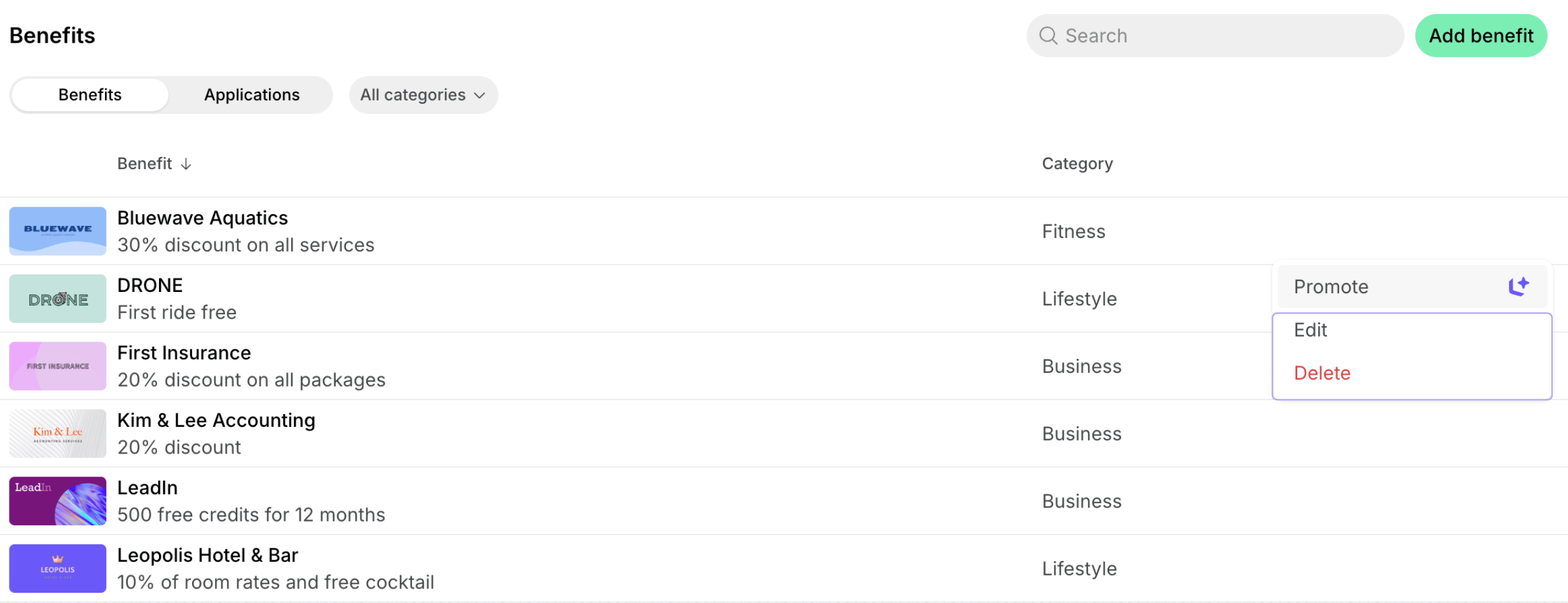
- Go to Service > Benefits.
- Hover over the benefit > press the menu (…) next to it > Edit or Delete.
Edit or delete a benefit category
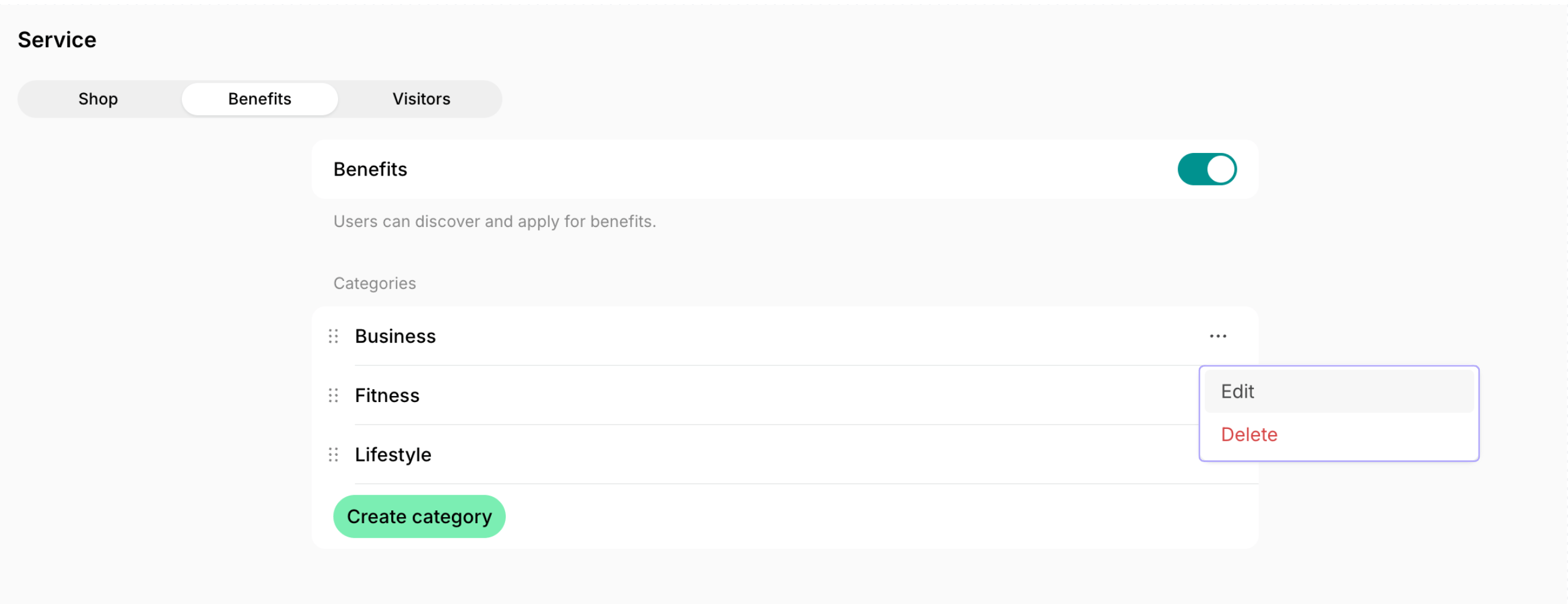
- Go to Location settings > Service > Benefits.
- Press the menu (…) next to the necessary category > Edit or Delete.
FAQs
Why can't I see the Benefits page as an administrator?
Why can't I see the Benefits page as an administrator?
The visibility of your Benefits page is directly controlled by the visibility settings of the individual benefits themselves. If the visibility of all your benefits is set to “Administrators,” only administrators will see them in Spacebring. It won’t be visible to anyone in the member web portal.To check and update benefit visibility, follow these steps.