

Receive real-time push alerts or emails to know what’s happening in your coworking space. Documentation Index
Fetch the complete documentation index at: https://www.spacebring.com/docs/llms.txt
Use this file to discover all available pages before exploring further.
Understand admin notifications
Admin notifications are alerts sent to administrators to keep them informed about location updates or other users’ actions that may require their attention. These notifications are divided into two main categories:- Activities related to other users’ accounts
- Integration errors and disconnections
- Administrators
- Location members
- Network members
- Nonmembers
Configure admin notifications
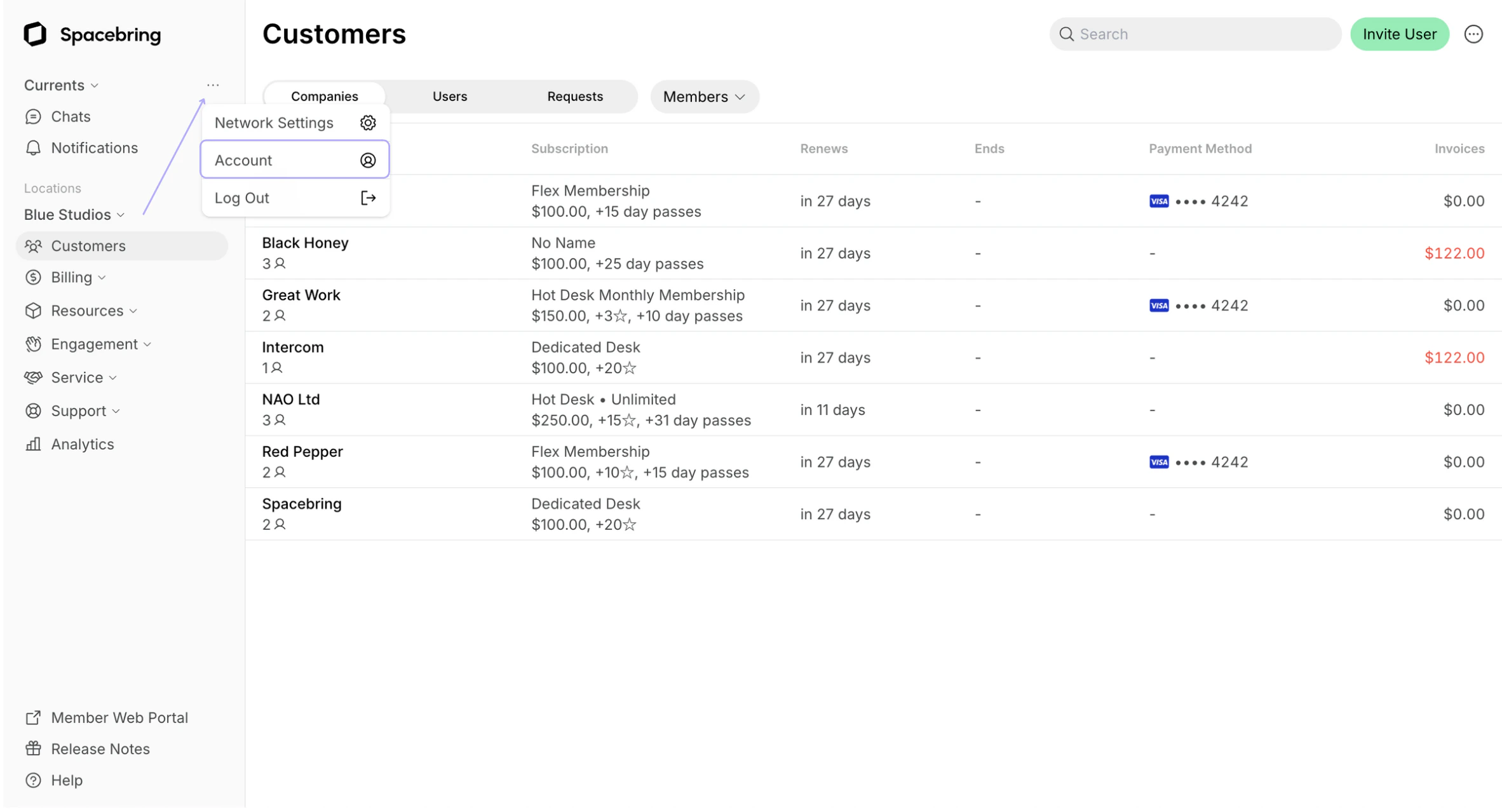
Administrators enable notifications they want to receive by following these steps:- Go to Spacebring > tap (…) menu next to the network name > Account.
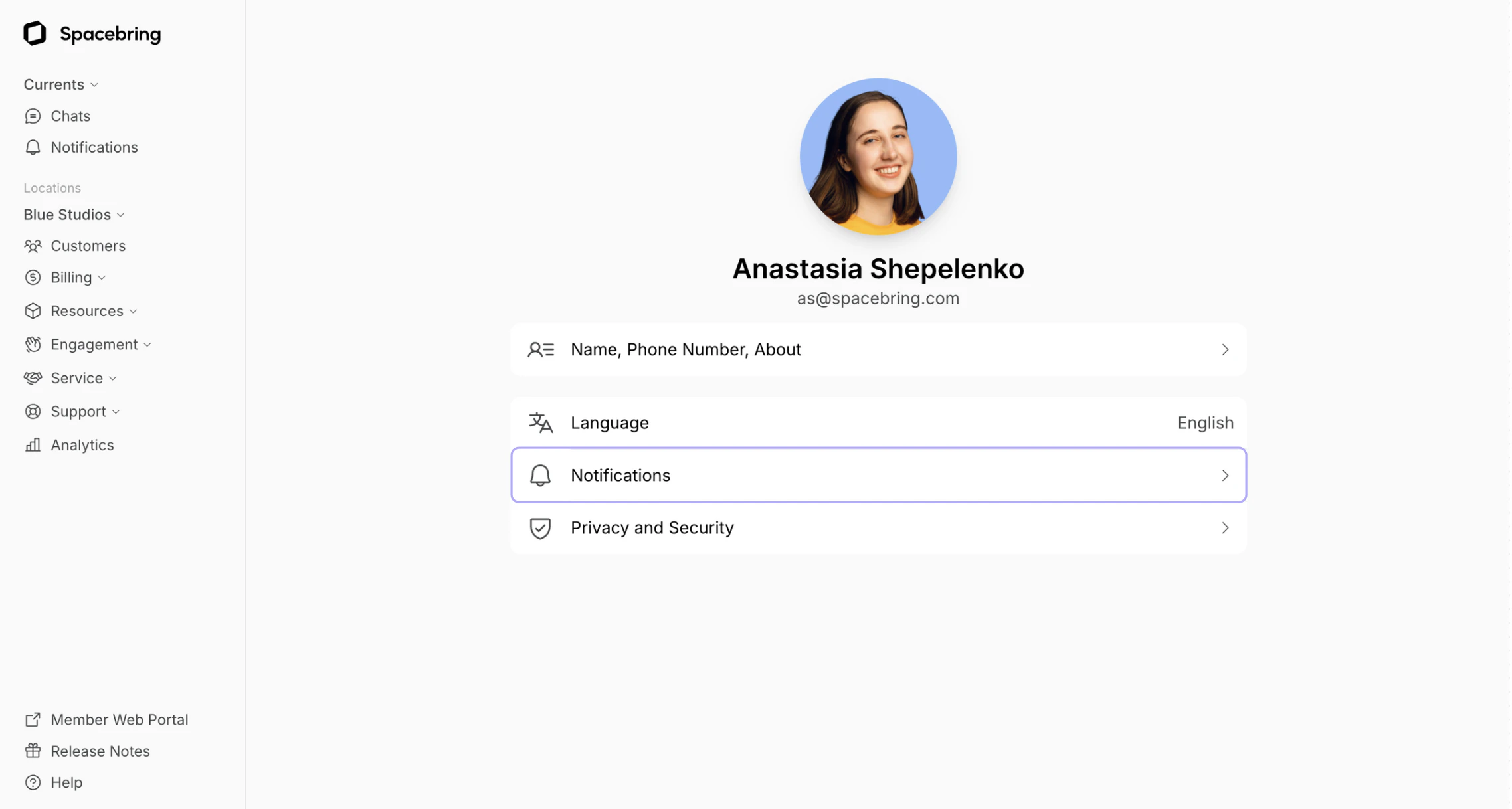
- Go to Notifications.
- Toggle the necessary switches.
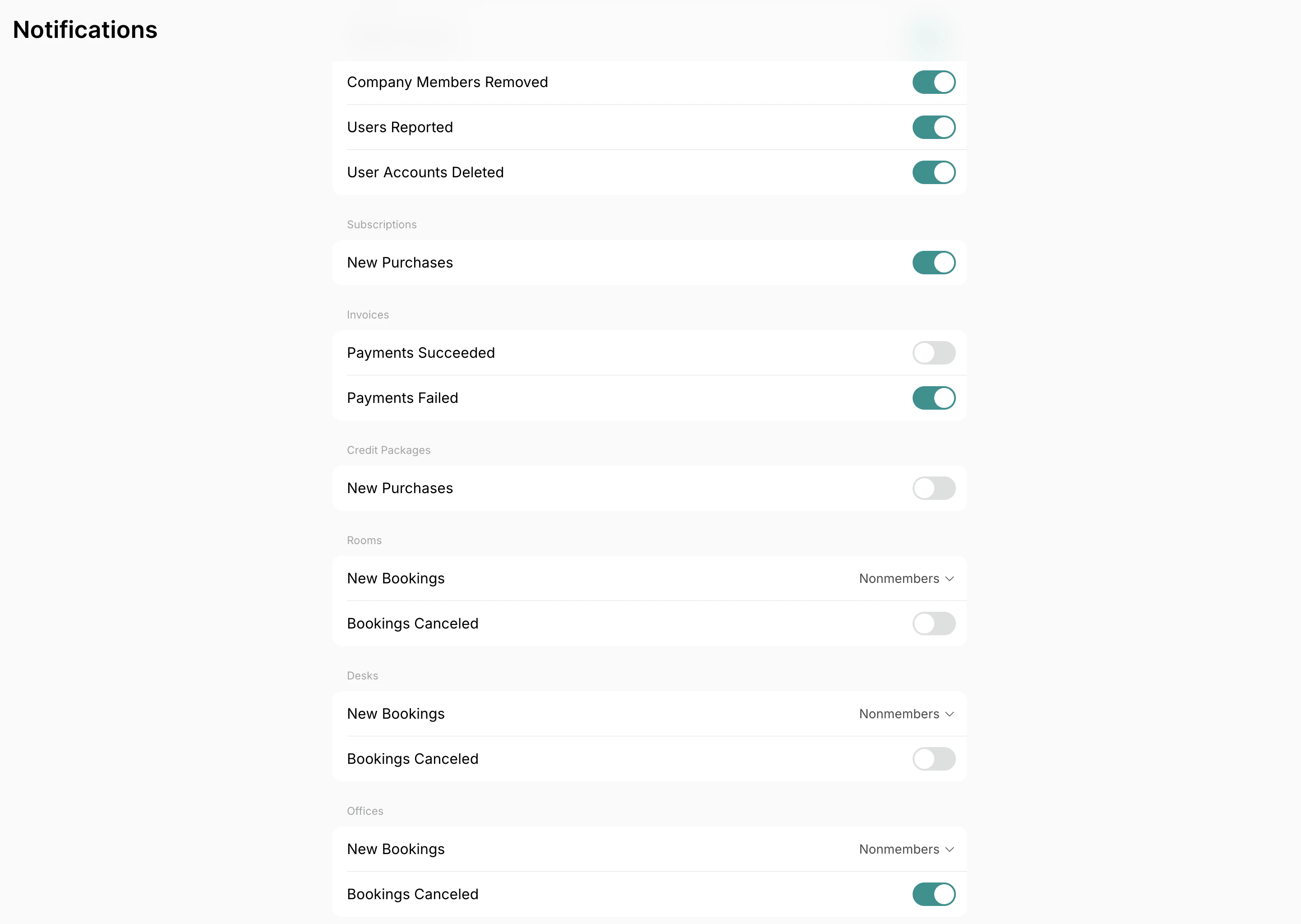
Nonmembers’ and invoice activity notifications are enabled by default.
Administrators receive notifications only about user activities they can manage according to their permissions.
Push notifications
All the enabled admin notifications always arrive as push notifications to admin web portal and mobile app. Receive push notifications Email notifications
Administrators can choose to receive all enabled admin notifications via email, in addition to push notifications. For this, they to Spacebring > tap (…) menu next to the network name > Account > Notifications > enable the “Emails” switch at the bottom of the page.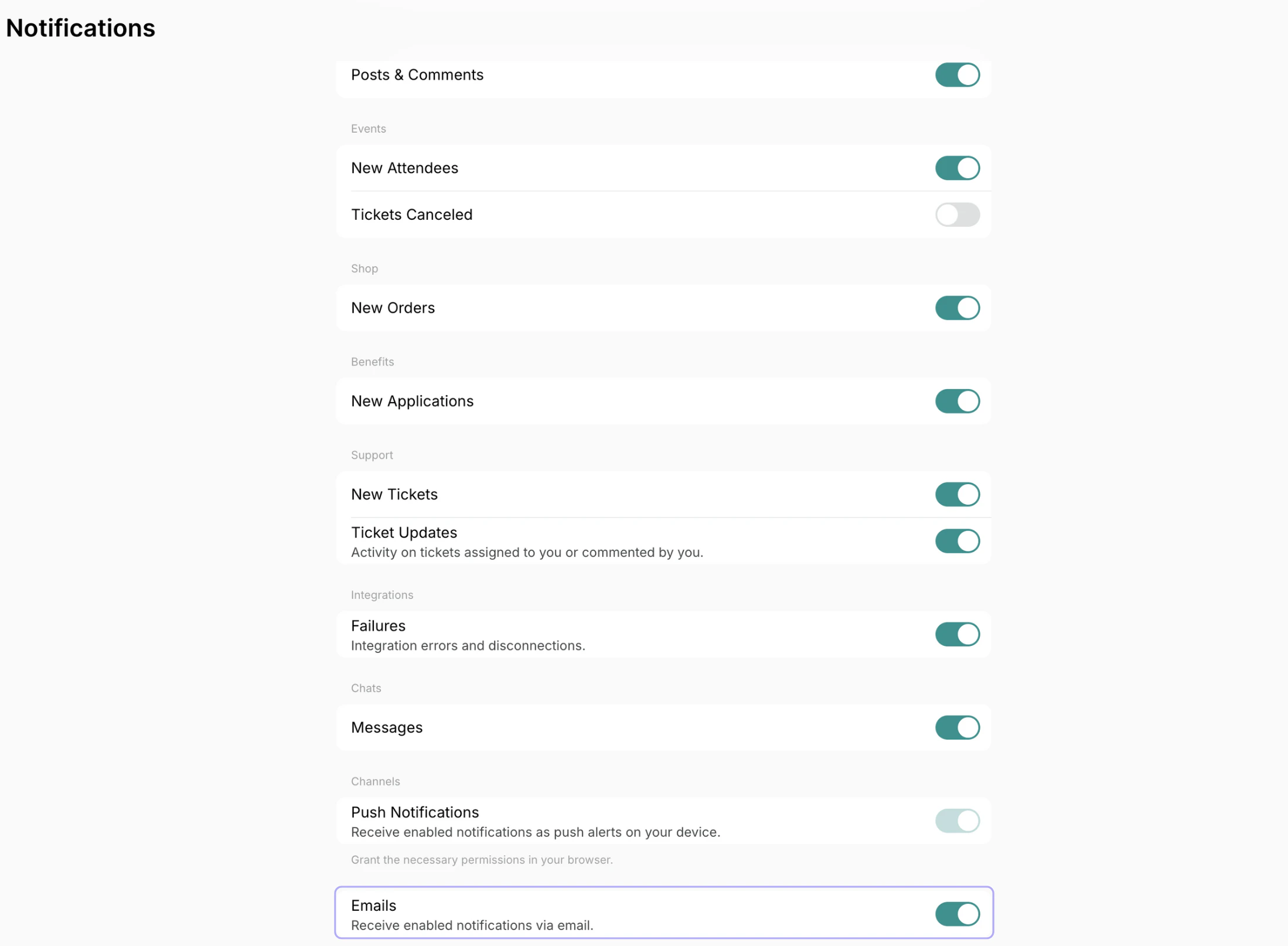
How administrators receive notifications
Admin notifications appear to administrators in Spacebring on the Notifications page.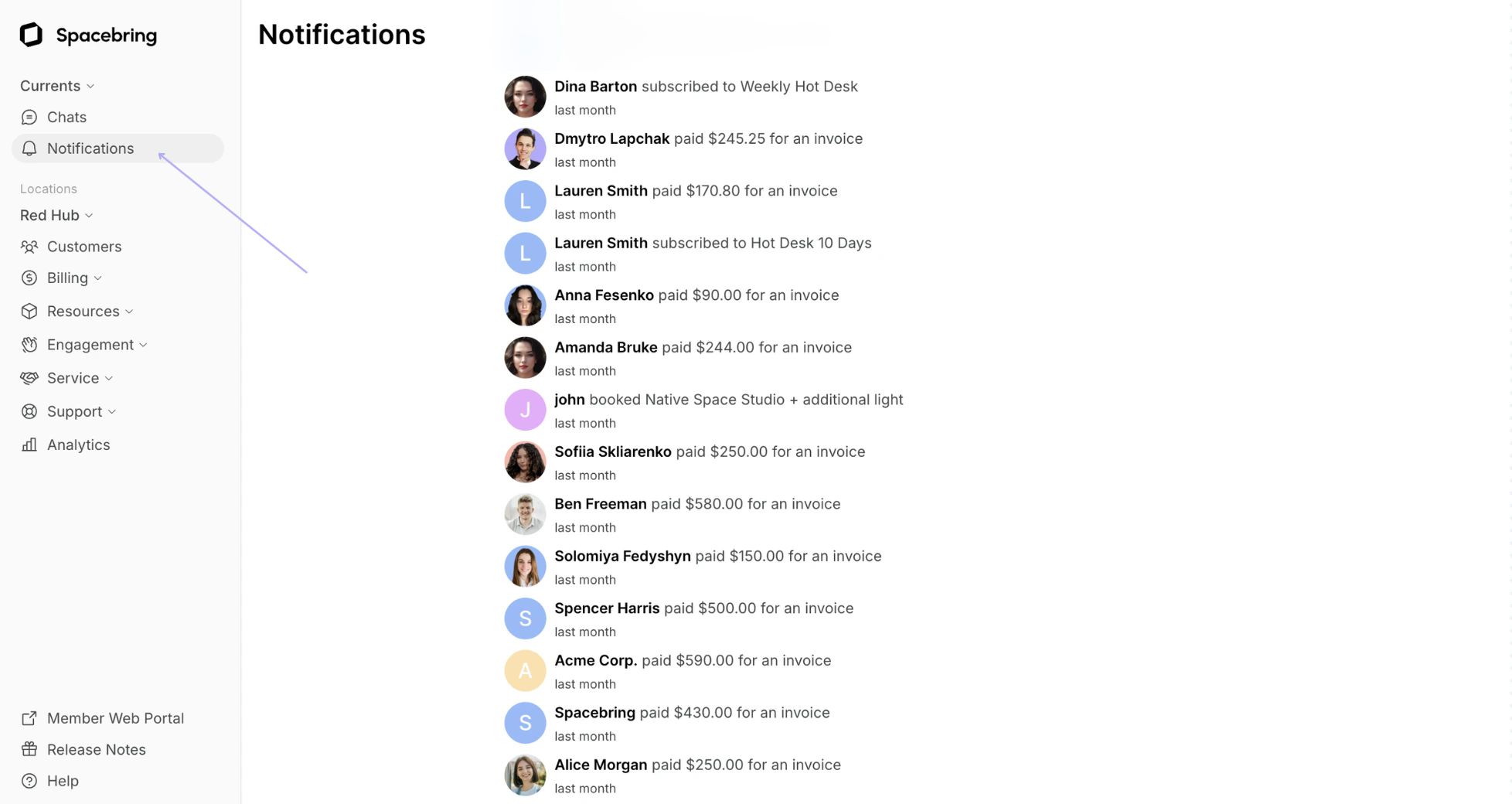
- The name of the user or company
- Description of the user’s action
- Name of the service in Spacebring with which the user or a company interacted (a resource, a plan, a product, etc.)
| Notification | Visible in Spacebring |
|---|---|
| New requests to join | Customers |
| New Feed posts | Feed |
| New Feed comments | Feed |
| New tickets | Support > Tickets |
| Ticket updates | Support > Tickets |
| Chats | Chats |
Administrators receive notifications only about other users’ bookings and actions. You won’t receive notifications about your own actions.
Best practices
Stay in the loop with users’ activity by following these tips:- Download Spacebring admin mobile app on iOS and Android, login as an administrator and enable receiving notifications. It’ll allow you to receive instant alers to your phone.
- Install Spacebring as a progressive web app to your desktop and enable push notifications.
I am not getting admin notifications about certain user activity. What should I do?
I am not getting admin notifications about certain user activity. What should I do?
- Check your notification settings:
- Click the (…) menu next to your network name on the left-side panel.
- Go to Account > Notifications.
- Ensure that notifications for the specific user activity and user group you’re interested in are enabled.
- Confirm you’ve allowed receiving notifications on the device where Spacebring is installed:
- For admin mobile app: follow guidelines by Google or Apple, depending on your device.
- For admin web portal: add the app to your home screen and allow push notifications via your browser.
- If you are not receiving email notifications, go to Account > Notifications page and enable “Emails” switch.
How to set sending notifications about specific user activity to a certain email address?
How to set sending notifications about specific user activity to a certain email address?
There are two ways to set sending notifications to a certain email address.If the employee whose email address you want to notify is an administrator of your space:
- Invite them as an administrator to Spacebring.
- Set their administrator permissions, as needed, if your Spacebring plan allows for this feature.
- Ask them to log in to Spacebring, navigate to the Account > Notifications page, enable the desired notifications, and then toggle on the “Emails” switch located at the bottom of the page.
- Create a Zapier automation designed to send emails.
- In the “Trigger” step, select Spacebring and choose the specific user activity event you wish to send notifications about.
- In the “Action” step, select your preferred email application (e.g., Gmail, Outlook) and enter the dedicated email address where you want to receive notifications.