

Administrators can invite an unlimited number of users to each location. Upon invitation, they can configure the invited user’s role: member or administrator. Understand user roles. There are several ways to invite a user to your location:Documentation Index
Fetch the complete documentation index at: https://www.spacebring.com/docs/llms.txt
Use this file to discover all available pages before exploring further.
- Send an individual invitation
- Approve a request to join a location
Prerequisites
To be able to invite a user to the location, make sure that you have enough permissions for this and have all the information:- Log in as an administrator of the location where you want to invite a user. If you are on the Pro or Enterprise plan, make sure that you have permission to manage the Customers page.
- Collect the following info: first name, last name (optional), email, and phone number (optional).
Send an individual invitation
By sending an individual invite, administrators can invite members and administrators. Follow these steps to send the invite:- Go to Spacebring > Customers page in the necessary location > press
Invite userin the top right corner.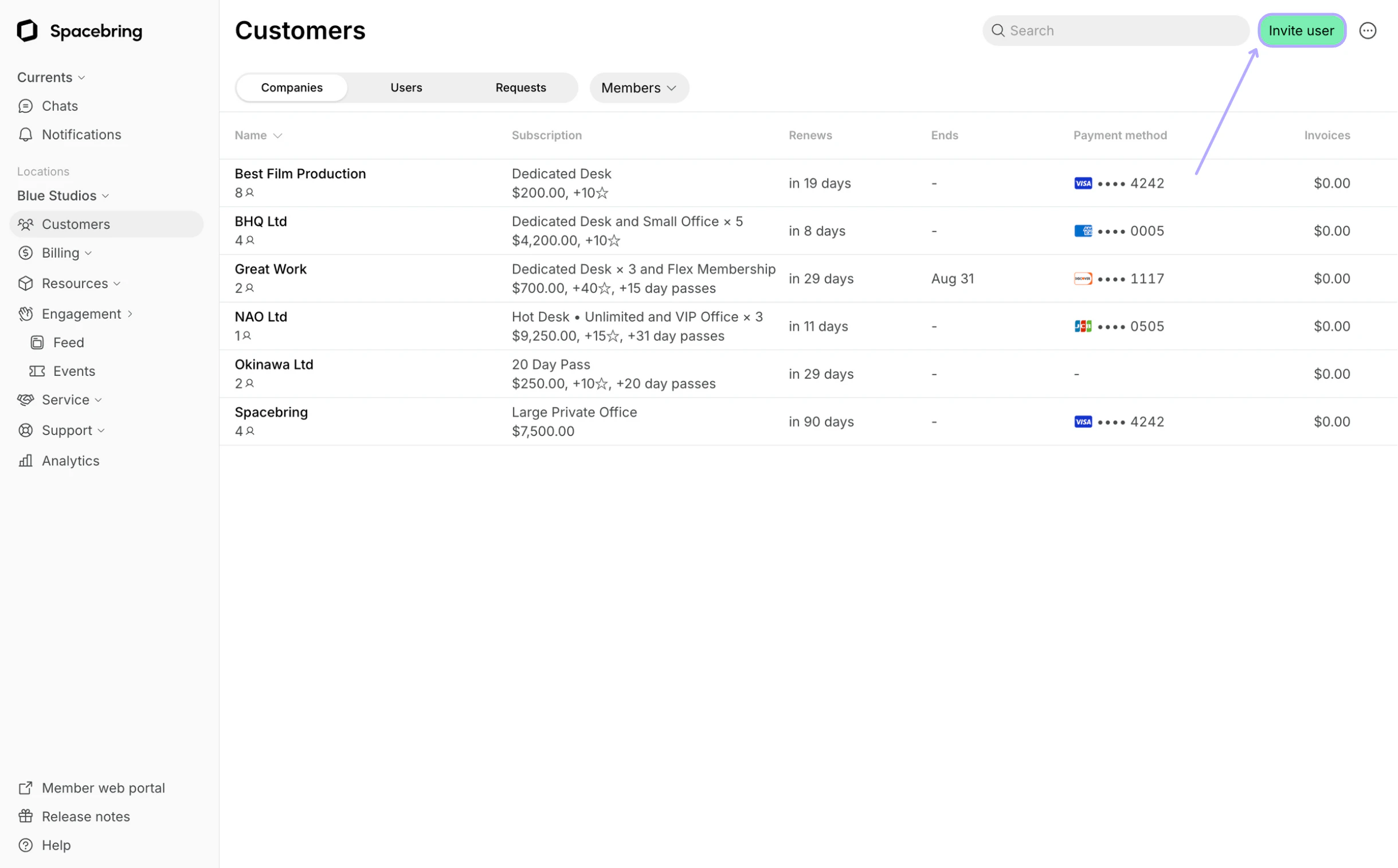
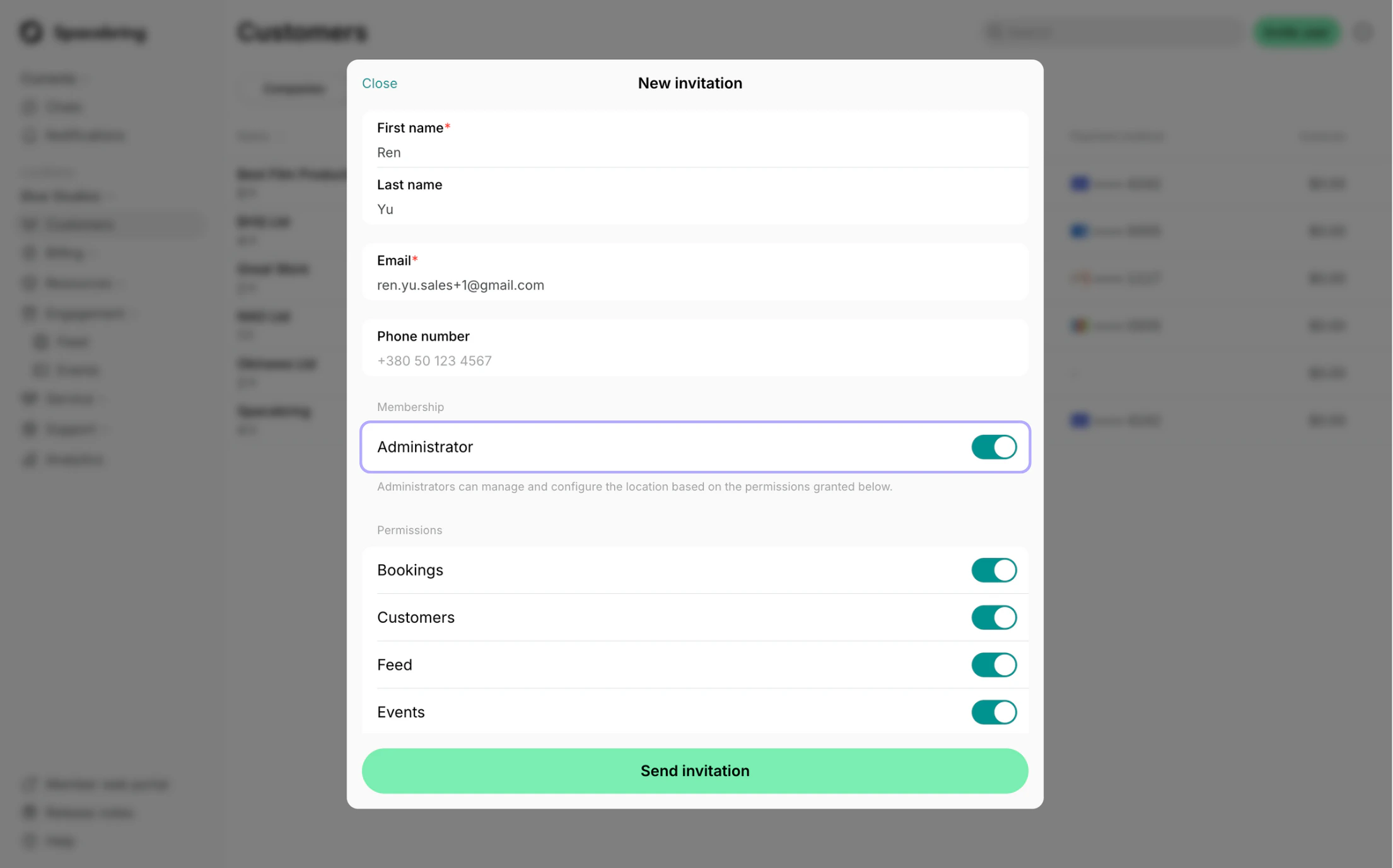
- Fill in the user details. Enable the “Administrator” switch to invite the administrator. You can also configure permissions for administrators.
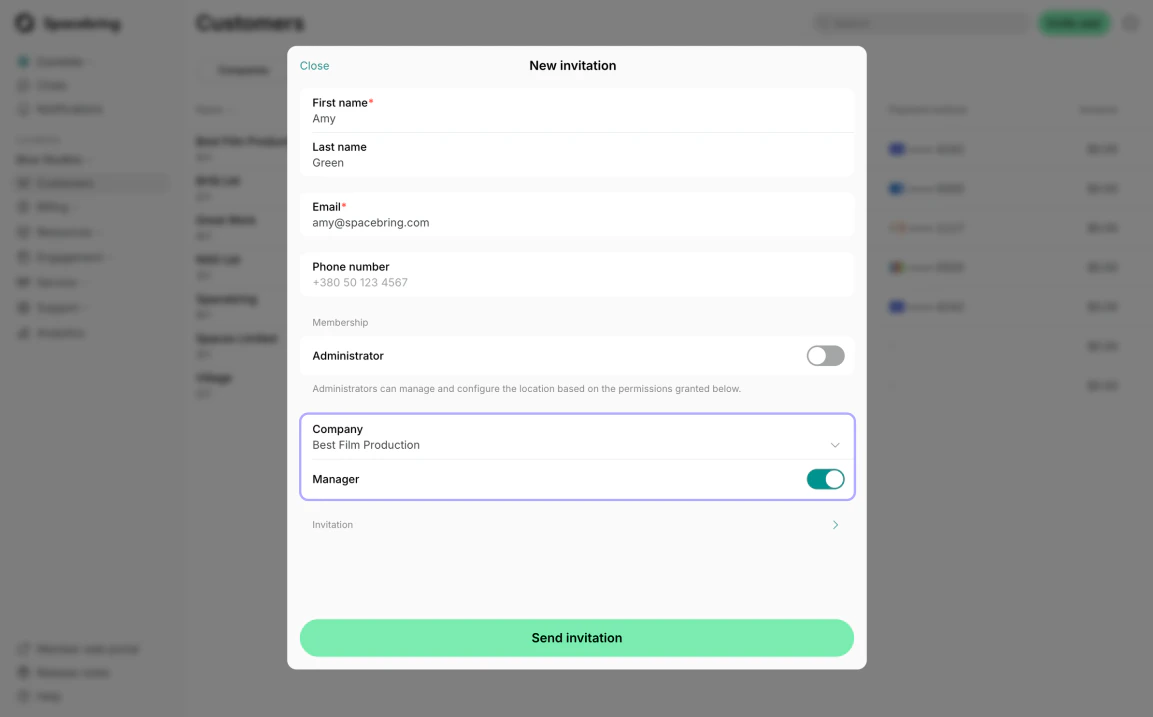
- If the user is a company manager, simply select the corresponding company and enable the “Manager” toggle.
- Press
Send invitation. The user’s creation date will always appear on its profile under the “Subscription” section.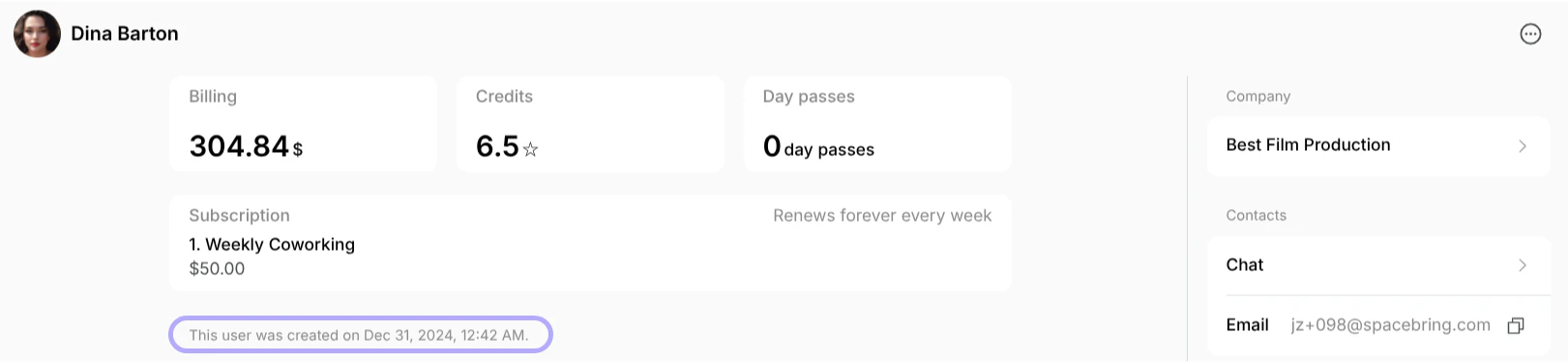
How a user gets an invitation
When an administrator sends the invitation or approves the request to join, the user receives either a default or custom invitation email to activate their account.
Get started button and is navigated to member web portal or member mobile app. If the user follows a link from the Get started button within 24 hours of the invitation time, they are logged in automatically without any verification required.
If users joins later, they are asked to proceed with the regular login procedure.
Users who haven’t activated their account within 3 days after being invited will receive a reminder—if the Invitation reminder is enabled.
What if I invited the user using the wrong email address?
What if I invited the user using the wrong email address?
You can remove the user profile and reinvite them again by stating the new email.
I invited a user with the wrong name. Why does the previous wrong name still show up after I remove and reinvite them with the correct name?
I invited a user with the wrong name. Why does the previous wrong name still show up after I remove and reinvite them with the correct name?
How can I transfer a member from one location to another?
How can I transfer a member from one location to another?
To invite a member from one location to another location, do the following:
- Go to the Customers page.
- Open the user’s profile.
- Hover next to the user’s name at the top of the page and click
>.
- Click (…) top right >
Invite as member...orAdd as nonmember...> select the necessary location. - The user will get an email inviting them to join the new location and will have member access to the new location under the same account immediately. They won’t need to log in again or take any other action to gain access.
- If the customer has a subscription in the first location, set the “End date” for their subscription to schedule its cancellation or cancel it immediately and create a subscription for them in the new location.
- Remove the user or company from the Customers of the previous location to make them nonmembers at that location.