You can easily invite multiple users at once and assign them to specific companies. This saves you a lot of time compared to manually inviting each user individually.Documentation Index
Fetch the complete documentation index at: https://www.spacebring.com/docs/llms.txt
Use this file to discover all available pages before exploring further.
Prepare your data
Before sending out mass invitations to users, gather all the necessary data for the invitation and create relevant content.Prepare companies data
Before inviting individual users, create companies and plans:Prepare user data
Prepare a spreadsheet with the following columns:| Column name | Required |
|---|---|
| First name | ✓ |
| Last name | |
| ✓ | |
| Phone number | |
| Company ID (if the user belongs to some company) | |
| Plan ID (if the user should have a subscription) |
To find the company ID, create the “Companies” report > locate the company > copy its ID.
To find the plan ID, log in to Spacebring > go to Location settings > Plans > press (…) and select “Copy public link”. The last part of the URL contains the plan ID. If your plan has the “Sign-up” option disabled, temporarily enable it to copy the link and then disable it.
- If you need to use credits, ensure that credits are enabled and all the relevant products have the correct price in credits (e.g., meeting rooms). How to use credits
- How to create plans
Send invitations
Invite individual users
To invite multiple individual users, do the following:- Log in to Spacebring > navigate to the Customers page > tap the (…) menu in the top right corner.
- Click on
Invite multiple users.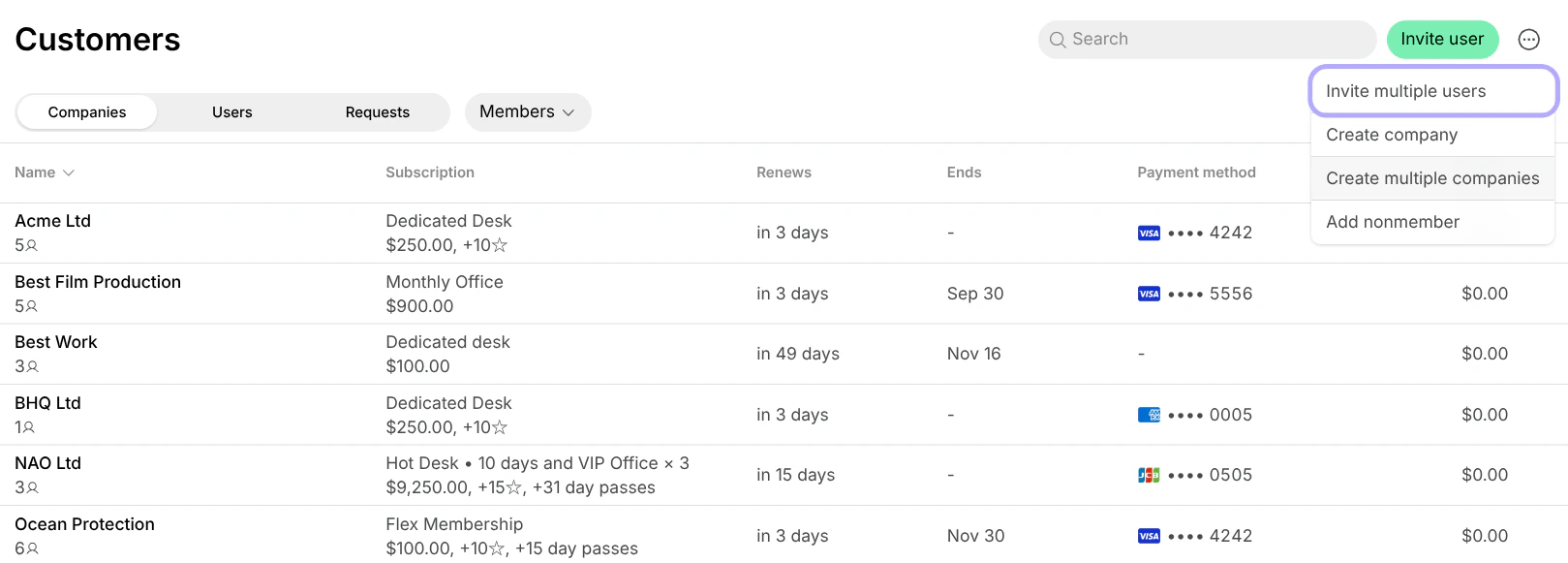
- Copy the information from your spreadsheet and paste it into the mass invitation window. Configure the other fields, such as the language of the invitation, the company, and the plan details, if necessary.
- Press
Invite.
Invite company users
To invite users to a particular company, do the following:- Log in to Spacebring > go to the Customers page and open the company.
- Tap the
Mass invitebutton located under the company name. - Fill in the required details, click
Invite. Your users will immediately receive invitations.
- Include the Company IDs in your spreadsheet with the users’ details.
- Go to the Customers page and tap the (…) menu in the top right corner.
- Click on
Invite multiple users.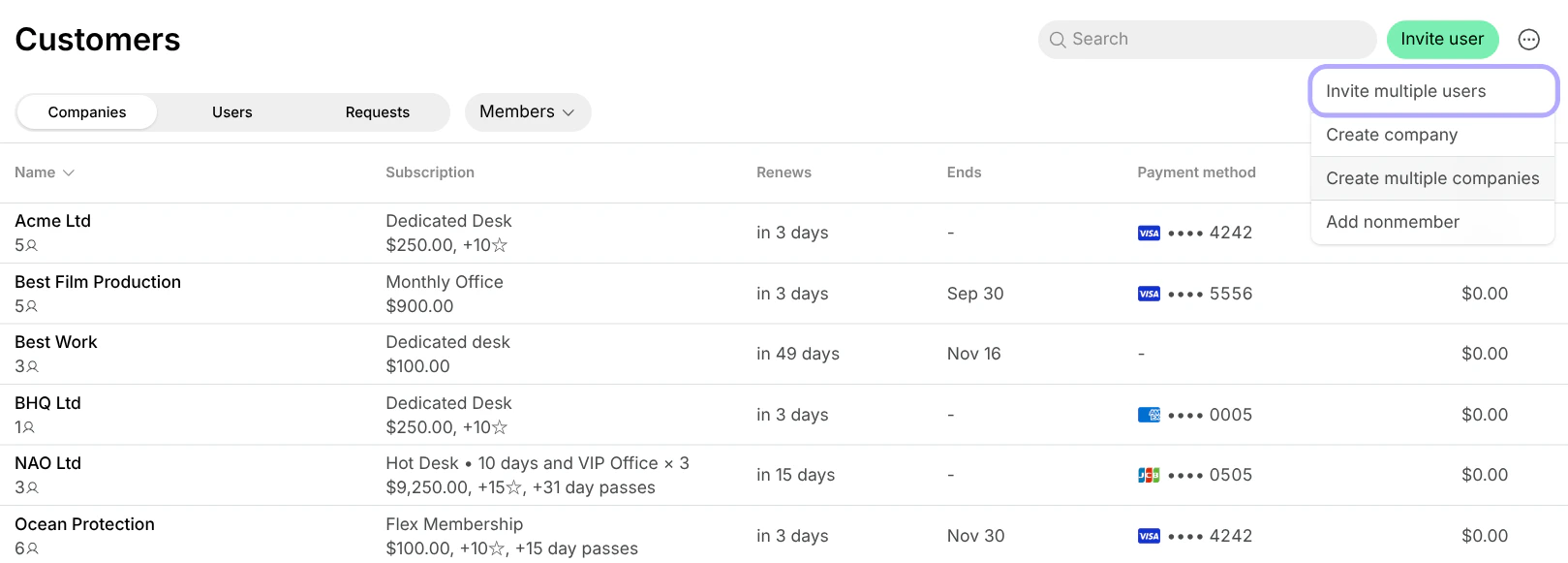
- Copy the information from your spreadsheet and paste it into the mass invitation window.
- Press
Invite.
Notes
- While inviting multiple users, you can create only personal subscriptions for users.
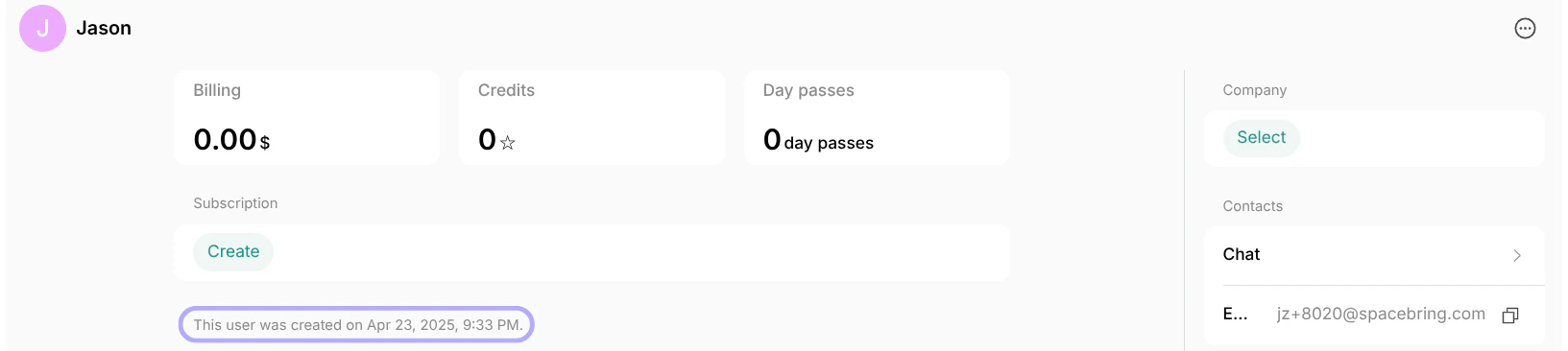
- The user’s creation date will always appear on its profile under the “Subscription” section.