Documentation Index

Fetch the complete documentation index at: https://www.spacebring.com/docs/llms.txt

Use this file to discover all available pages before exploring further.

Create a report

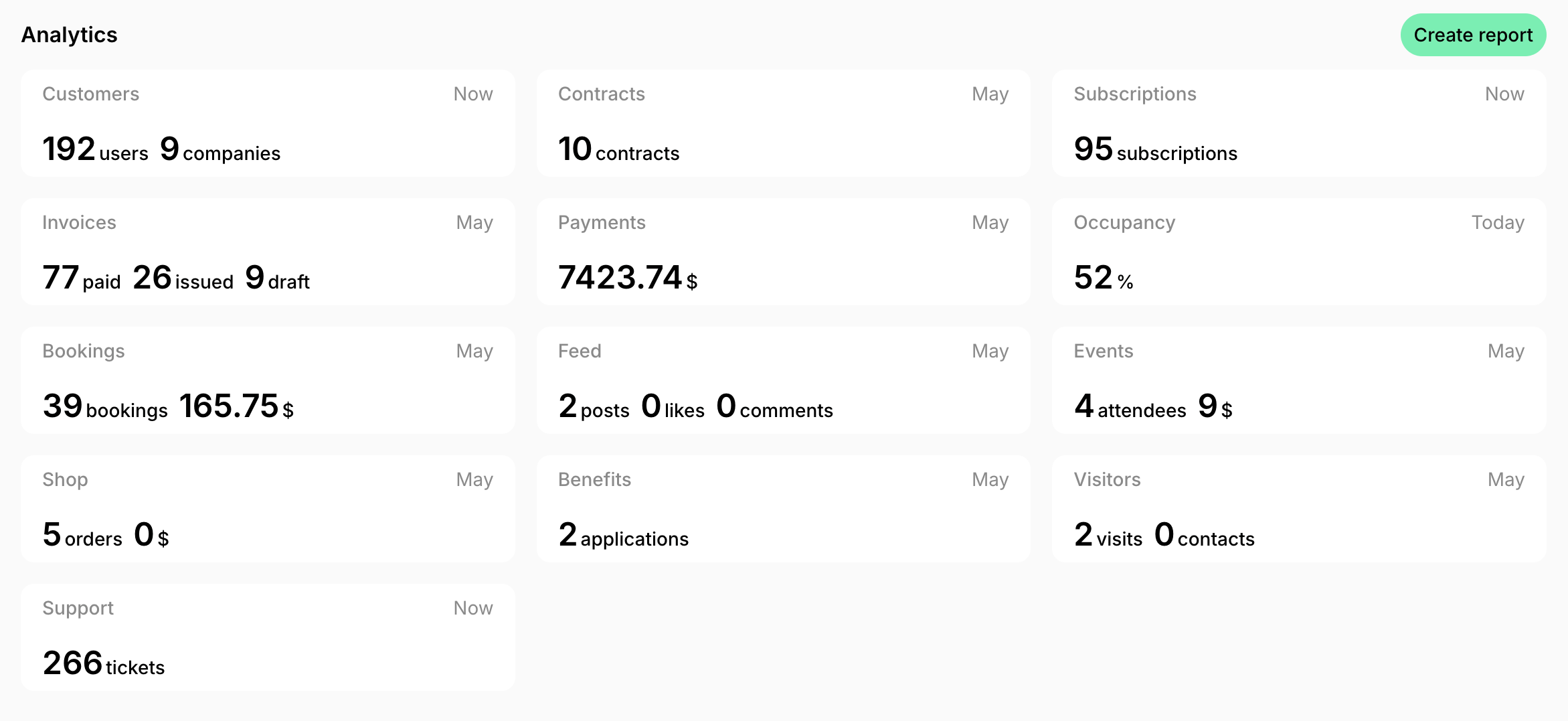
To download a custom report, go to Analytics > locate Create report top right and choose the report type.

Types of reports

Administrators can generate the following report types in CSV file format:
Report typeSubtypes (Filters)Usage
Users
  • Members
  • Nonmembers
Collects all users’ contact and billing information, their subscription details, company name, and role.
Companies
  • Members
  • Nonmembers
Retrieves a list of companies with their subscription and billing details.
Subscriptions
  • By status
Lists all customers’ past and active subscriptions with details on their plan, start, renewal, and end dates, total price, and the included credits and day passes.
Transactions
  • Credits
  • Money
  • Day passes
  • By start and end dates
  • By company
  • All customers
  • By status
  • By type
Collects all transactions with their date, type, description, total amount, amount refunded/disputed, payment details, customer details, and receipt PDFs.
Invoices
  • By the invoice issuance date
  • By the invoice creation date
  • By customer
  • By status
Lists all invoices, their numbers, internal notes, total and taxes amount, any applied balance, pre- and post-payment adjustments, status, creation/issuance/due/payment dates, customer details, and invoice PDFs.
Invoice items
  • By the invoice issuance date
  • By the invoice creation date
  • By customer
  • By status
Breaks down all invoice items by type, description, gross/net/tax amount, discounts applied, payment status, invoice creation/issuance/due/payment dates, and customer details.
Credit notes
  • By credit note create date
Lists all credit notes with their associated invoices, reason for issuance, total and tax amounts, pre- and post-payment adjustments, creation/issuance dates, customer details, and credit note PDFs.
Bookings
  • By the booking create date
  • By the booking start date
  • By type: Room, Dedicated Desk, Hot Desk, Office, Parking lot
  • By the specific resource
Retrieves bookings by resource type and title, with their create/start/end dates, duration, price, payment details, and customer details.
Event attendees
  • By the event joining time
  • By the specific event
Lists all event attendees who purchased tickets for a specific or any event within the selected time range with their contact details, event title, and information on ticket payment.
Orders
  • By the order creation time
  • By the specific product
Provides a list of the orders made on the Shop page with data about purchased products, options, prices, and user contact details.
Benefit applications
  • By the benefit application creation time
  • By the specific benefit
Lists applications made on the Benefits page for a specific or any benefit within the selected time range with application comment, benefits, and user contact details.
Visitors
  • Visits
  • Contacts
  • By the visit or contact registration time
Offers a list of visits and contacts registered with their dates, visitor, contact, and host contact information.
Support tickets
  • By the ticket creation time
Tracks support tickets created with the initial user’s question, ticket type, status, creation date, and information of requested and assignee.

Notes

  • The “Subscriptions” report includes all active subscriptions, as well as those that were canceled or ended after November 29, 2024, when this report was introduced. It also includes some data on canceled and ended subscriptions from a few months preceding its release. However, comprehensive historical data is captured and available in this report only for subscriptions canceled or ended after November 29, 2024.
  • The “Invoices” and “Invoice items” reports include invoices for all payments stating from December 9, 2025. Before that date, for immediate one-off payments such as bookings, shop orders, event tickets, etc. only receipts were generated.
FAQ
Download the “Users” report type from Analytics. It includes a list of all users along with their contact details, email addresses, and subscription information. You can choose to download a report that includes only members, only nonmembers, or both groups of users by using the “Members” and “Nonmembers” filters on the report creation page.
Download the “Subscriptions” report type from Analytics. Keep only the “Active” filter status enabled on the report creation page.
  1. Create a “Transactions” report with the necessary period. Select the “Paid” status to get only paid transactions result. Open the report in Google Sheets or Excel.
  2. Add all income from both members and nonmembers. You can use the formula =SUM() to calculate all the rows of the “Amount” column.
  3. Count all distinct individuals who made a purchase during that period by using the formula =COUNTUNIQUE(A:A).
  4. Divide the total revenue by the number of unique customers.
To check the rooms’ occupancy percentage, open the Analytics > Occupancy page. You’ll find the occupancy rate for rooms (and other resource types) as of today. Use the Occupancy pageAlternatively, you can calculate the rooms’ occupancy in % during work hours, you can follow this guide:
  1. Download the “Bookings” report (filtered for rooms, desired period).
  2. Open it in Excel or Google Sheets > filter and sum the booking durations. This gives you “Total booked hours”.
  3. Determine “Total available hours” for your rooms (Number of rooms x Work hours/day x Working days in period).
  4. Divide “Total booked hours” by “Total available hours” and multiply by 100.
This method provides the percentage of time your rooms were booked specifically during your operational work hours.You can also view overall usage statistics on the Analytics > Rooms page, where the number of bookings and revenue are displayed.
  1. Create the “Invoices” report for a summary of all invoices, or the “Invoice items” report for a more detailed breakdown of their purchase types.
  2. Filter it by “Customer”.
You can also view and download individual invoices and receipts directly from the Billing > Invoices or Transactions page. This allows you to access or print specific documents as needed.
Create the “Invoice items” report type on Analytics.
Create the “Invoice items” report type on Analytics and check the plan titles in the “Description” column.