Configure requests to join
- Click the menu (…) next to your location name > Location settings > Customers.
- Manage the Request to join switch:
- If enabled, public users see the Request to join button and can apply to become your member without booking anything or choosing a plan first.
- If disabled, the Request to join button does not appear, and public users start with something specific instead: they book a resource or sign up for a plan.
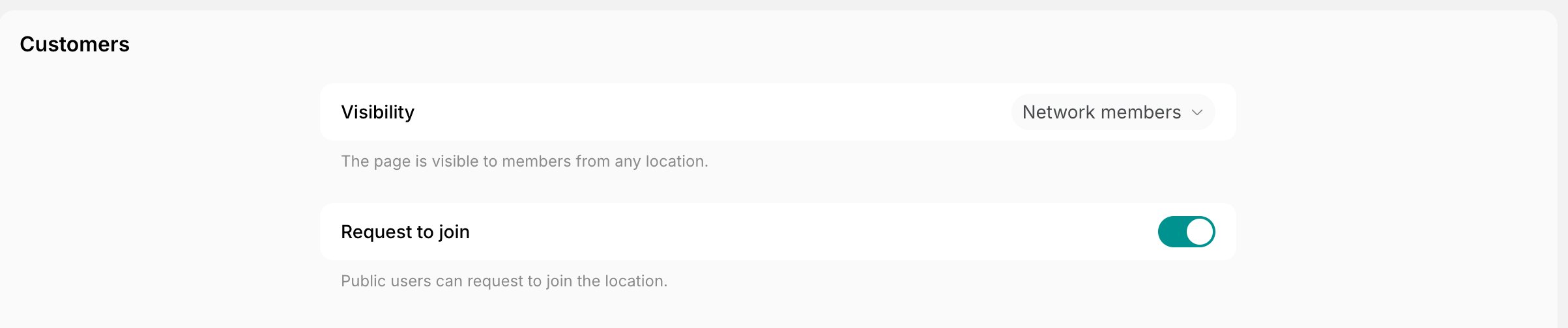
If you have multiple locations, you can enable Request to join for some locations and disable it for other locations. A location’s Home page shows the button only if that location has it enabled, and the request opened from the Locations page lists only those locations in its Location dropdown.
How users request to join
- Users who log in to the member web portal or mobile app see the Request to join button:
- On a location’s Home page, in the location’s card, if they aren’t a member of that location yet. In the web portal, users who aren’t members of any location also see it above the location’s menu on every page of the location.
- In the top right corner of the Locations page, if they aren’t a member of any of your locations yet.
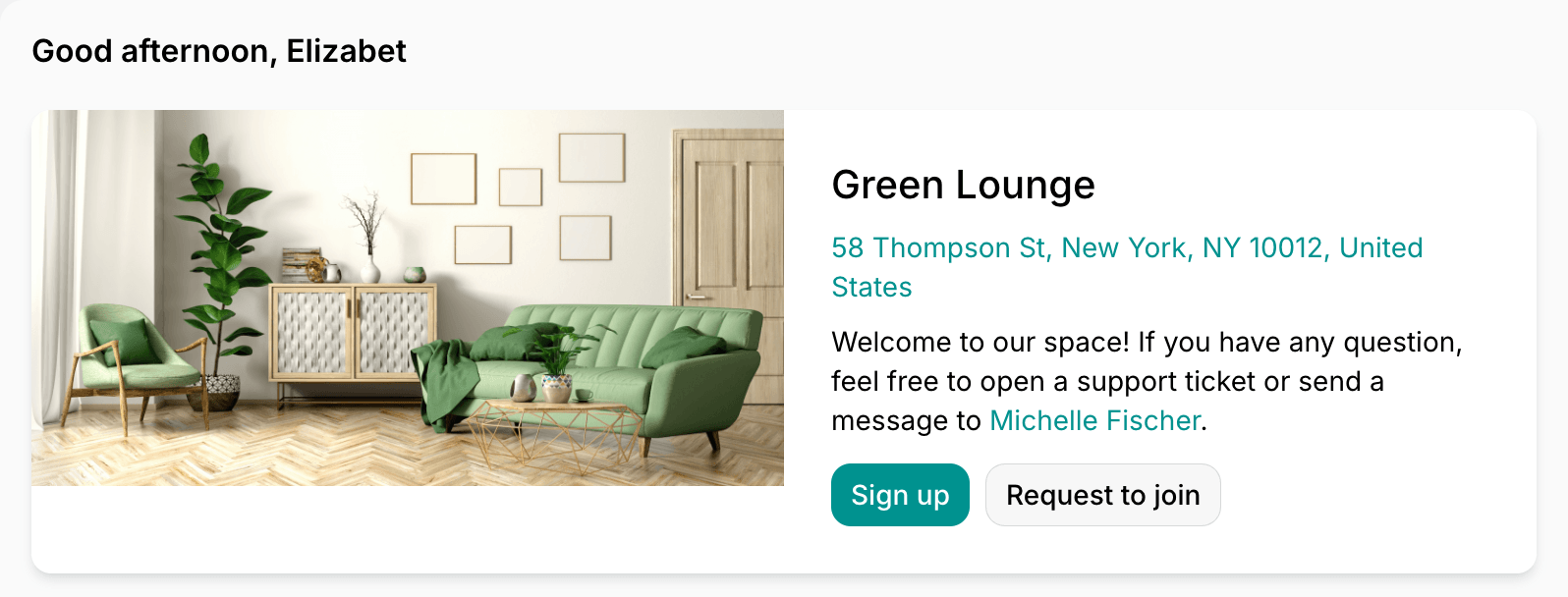
- Pressing the button opens a dialog window to capture more information about the user and their request, such as full name, location of interest, and self-introduction.

- When users press Request, a notification is sent to all location administrators.
Manage requests to join
- Administrators go to Spacebring and open the notification on the Customers > Requests tab to review and resolve all join requests.

- Administrators open the request and approve or reject it.

- The user gets a notification about approval or rejection. When the request came from a company member or manager inviting someone into their company, that person is notified about the outcome too.

- If the request is approved, the user becomes a member of your location and can have all member’s perks. Understand user roles
Export a requests report
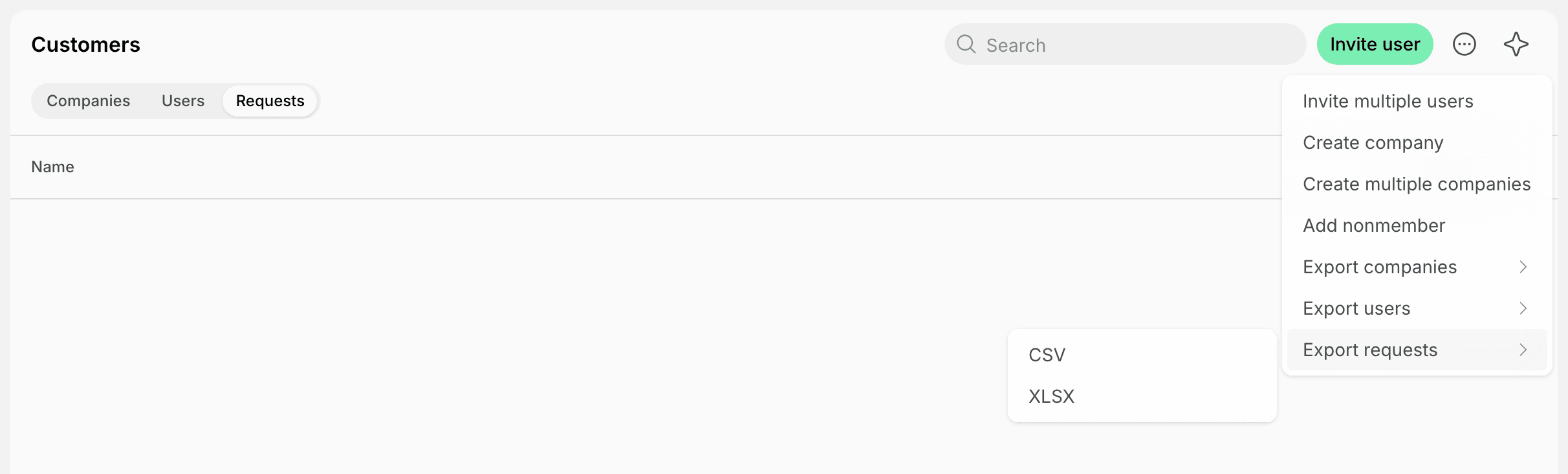
On the Customers page > Requests tab, click (…) in the top right corner > Export requests > CSV or XLSX to download a report on all requests to join.