

Mailchimp is a distinct company not affiliated with us. For any inquiries regarding Mailchimp’s solutions, services, or pricing, please reach out to Mailchimp directly. We do not have the authority to provide information or support on behalf of Mailchimp.
Prerequisites
To enable Mailchimp integration with Spacebring, make sure you’ve completed the following prerequisites:- Have an active Spacebring subscription.
- Have your Mailchimp account set up.
- Have permission to manage Settings in the location.
Connect the Mailchimp integration
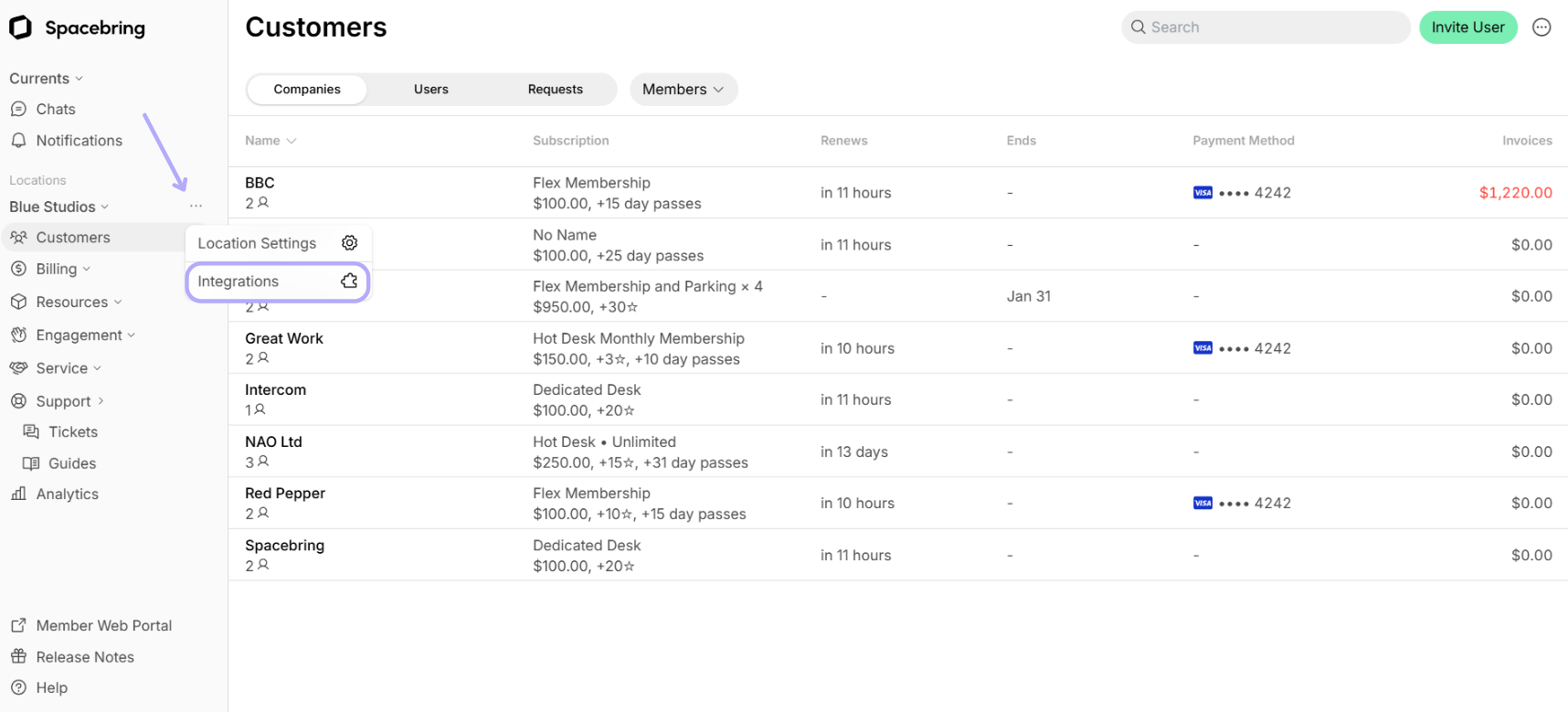
- Click the (…) menu next to your location name on the left-side panel > Integrations.
- Find the Mailchimp integration page.
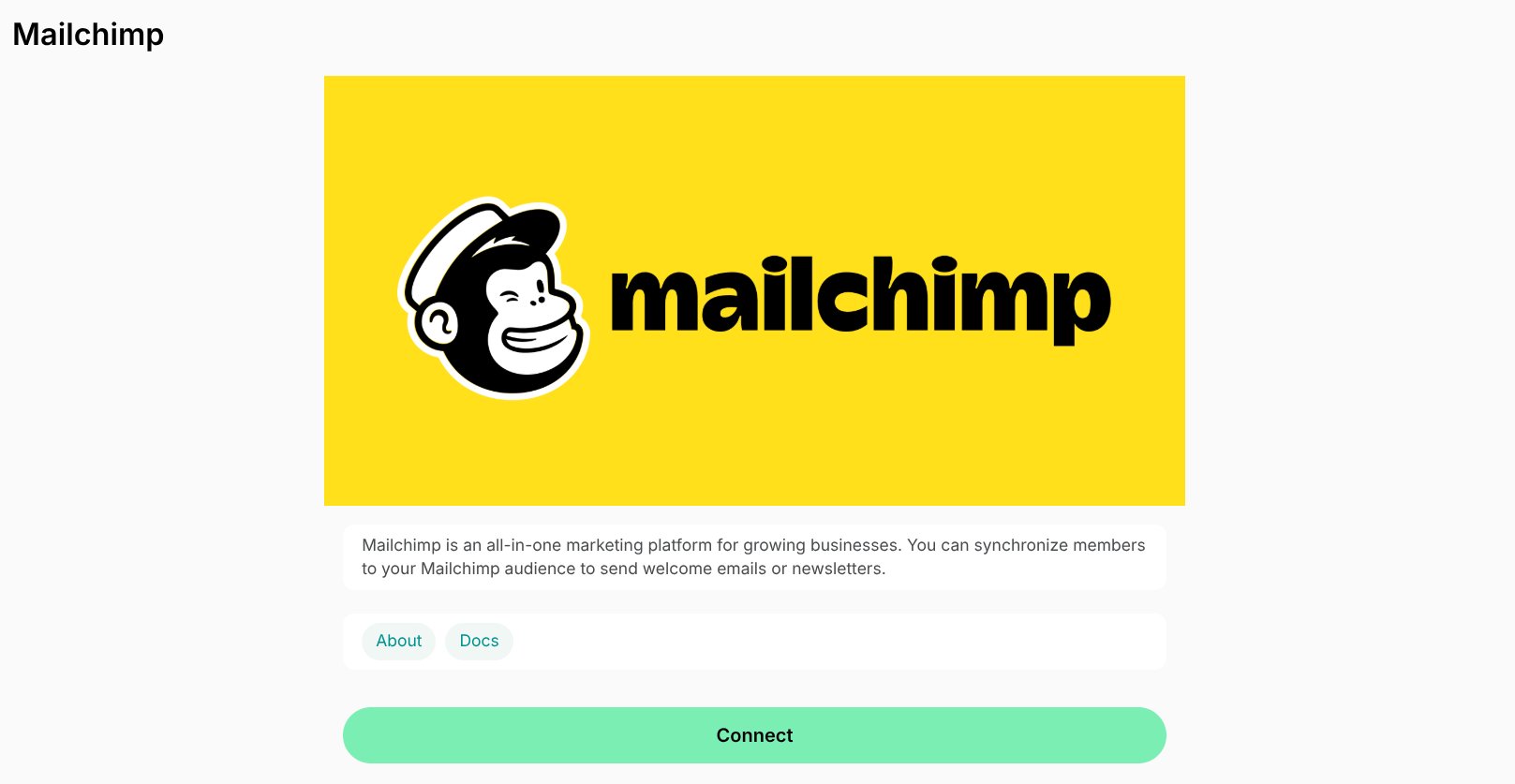
- Press Connect.
- Log in to Mailchimp and authorize Spacebring to access your account.
- Turn on Sync, then select the Audience to sync members into. The integration stays Incomplete until you select an audience, and it syncs nothing while Sync is off.
- In the Tags section, turn on the tags to add to each synced contact, so you can filter the audience for a campaign:
- Administrator — adds the
Administratortag to every synced administrator - Company manager — adds the
Company Managertag to every company manager - Company name — adds the company’s title as a tag to every member of that company
- Location — adds the location’s title as a tag to every synced contact
- Administrator — adds the
Changing the Audience or switching a tag on or off syncs every current member again, so the audience reflects the new settings.
How the Mailchimp integration works
Once you turn on Sync and select an audience, Spacebring adds every current member of the location to that audience as a Subscribed contact — not only the members who join later. Each contact carries:- Email address (user’s email address in member web portal)
- FNAME merge tag (user’s name in member web portal)
- LNAME merge tag (user’s surname in member web portal)
- Language (the user’s account language in Spacebring)
- Whenever a member is added in Spacebring (by an administrator’s invitation, an approved request to join, or an immediate sign-up to a plan), they are synced into the audience.
- A member’s contact is updated when they change their name, or when their company, company role, or administrator role changes.
- A tag that Spacebring added becomes inactive on a contact once it no longer applies — for example, when a member is no longer a company manager or when the location is renamed.
- If a contact with the same email address already exists in the audience, Spacebring updates that contact instead of adding a second one.
- If a member changes their email address, the new address is added as a new contact, and the contact with the old address stays in the audience.
- Contacts are never removed from Mailchimp. They stay in the audience after you remove the member in Spacebring, after they become a nonmember, and after you disconnect the integration.
Only members are synced. To bring nonmembers into the same audience, export a nonmembers report and upload it to Mailchimp. A lead you know only by name and email can be added in Mailchimp manually.
Disconnect the Mailchimp integration
To disconnect Mailchimp, follow these steps:- Click the (…) menu next to your location name on the left-side panel > Integrations > Mailchimp.
- Scroll down and press Disconnect. Confirm your choice.