

- Parking
- Lockers
- Coffee membership
- Office cleaning
- Fitness or yoga membership
Create recurring add-ons
To create a recurring add-on, follow the next steps:- Create a distinct plan with the name of the service you’re offering. For example, create a Parking plan.
- Disable the Sign-up option inside the plan.
How members get recurring add-ons
Members need to contact an administrator and specify which add-on they require. Administrators can include an add-on to the member’s subscription by following the next steps:- Navigate to the Customers page > open the user or company.
- In the Subscription section, press Create or open an existing subscription > tap Add.
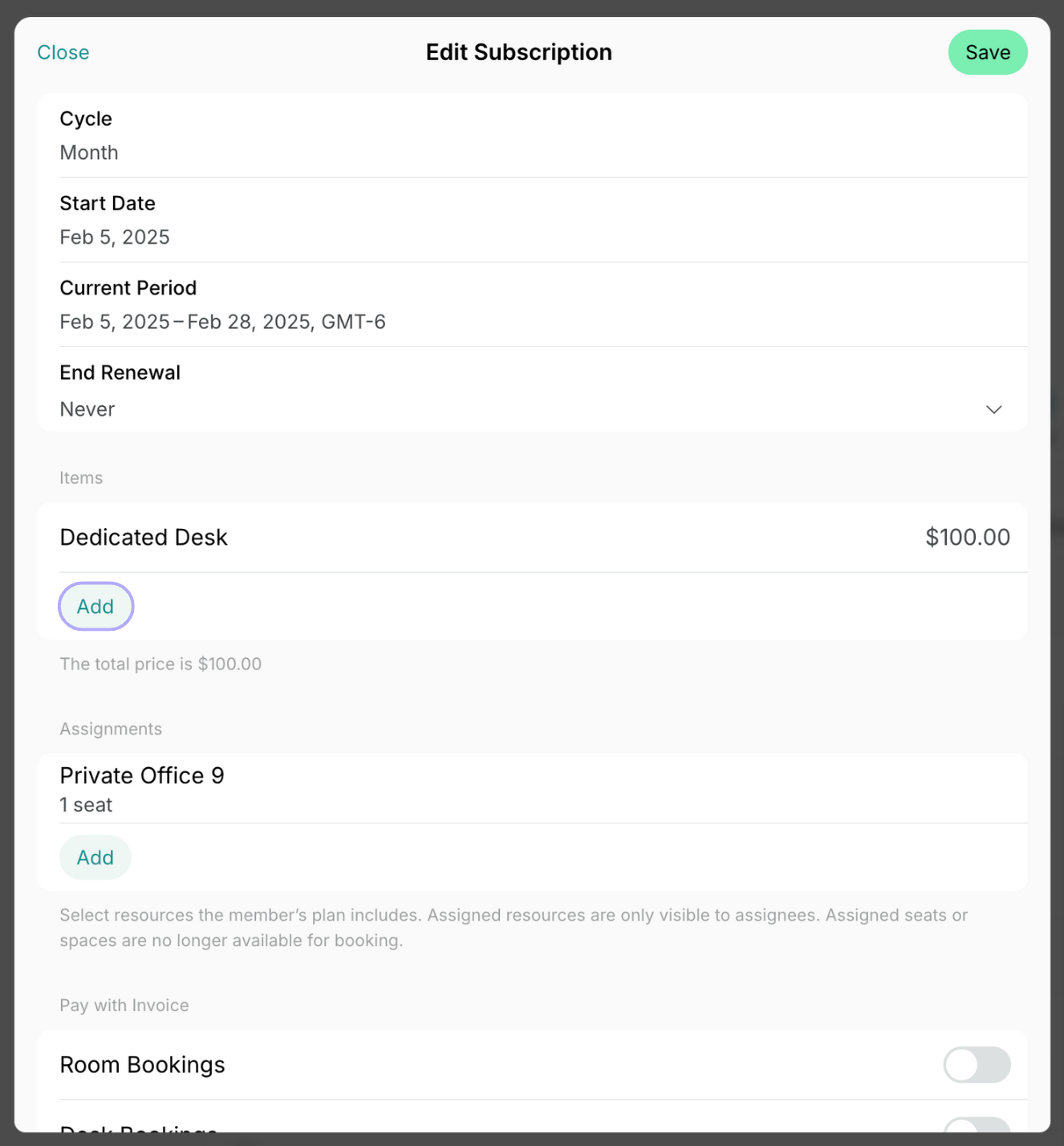
- Select a preliminary created plan or create a custom plan with the name of your service. Press Save two times.
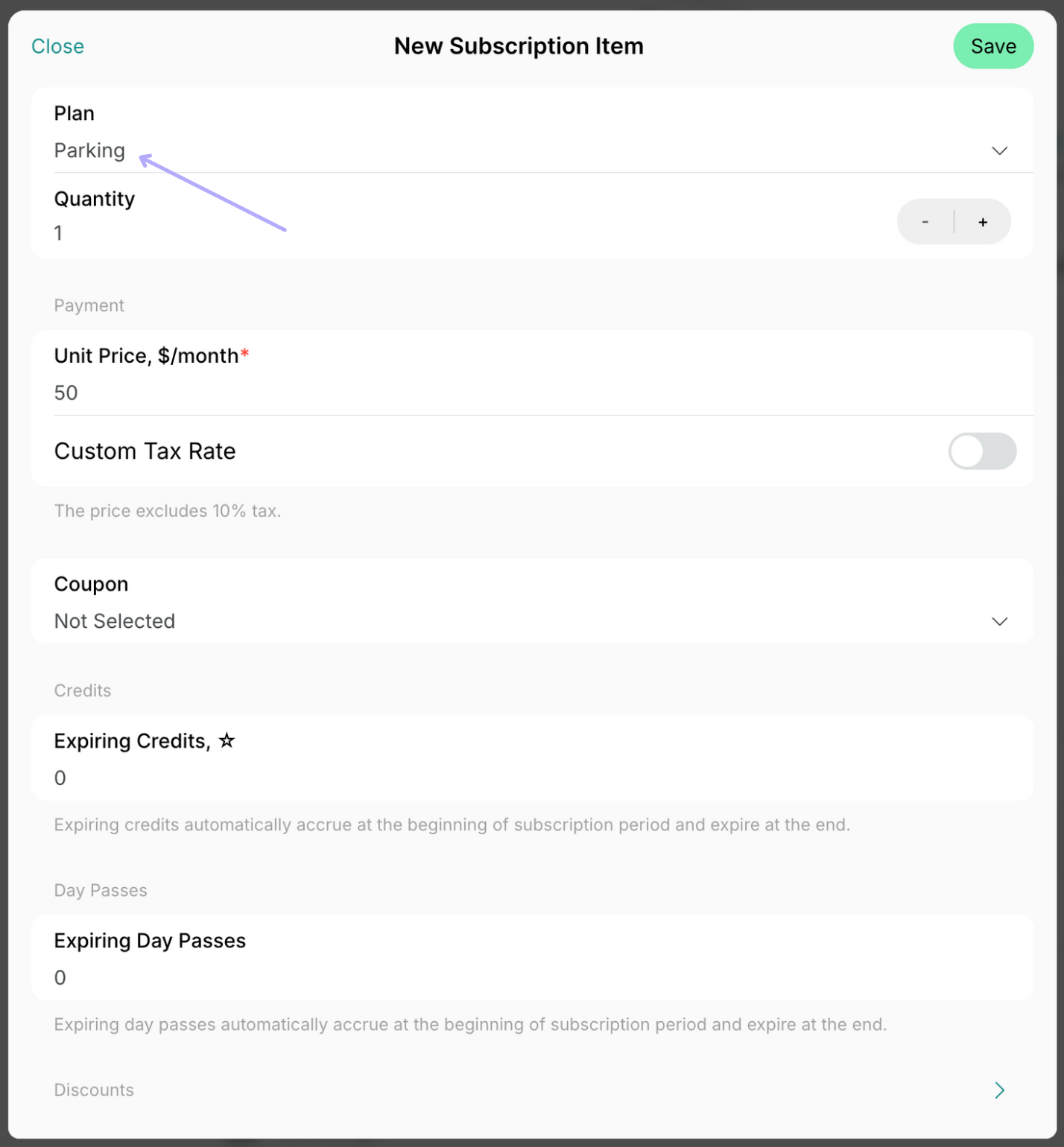
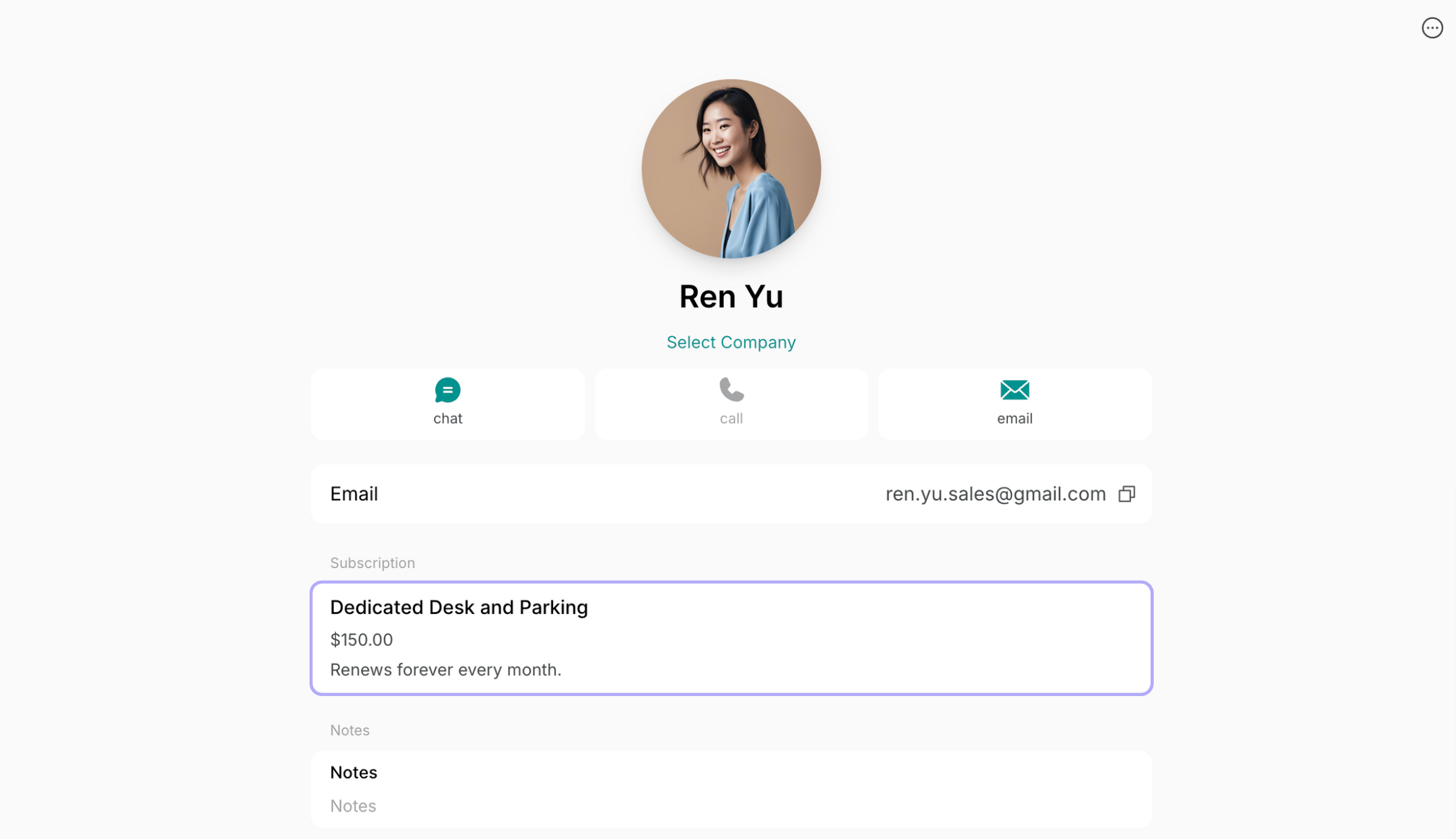
Adding subscription items takes effect with the next subscription renewal.
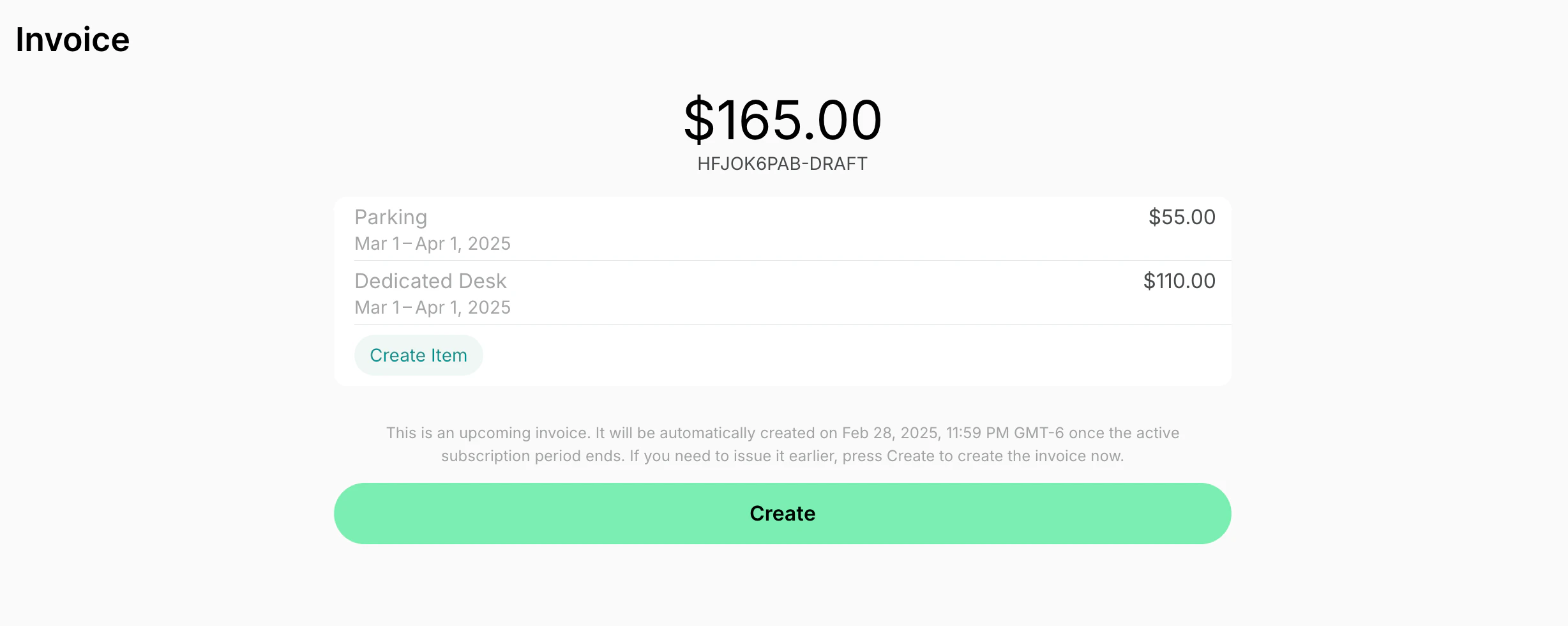
How to remove recurring add-ons
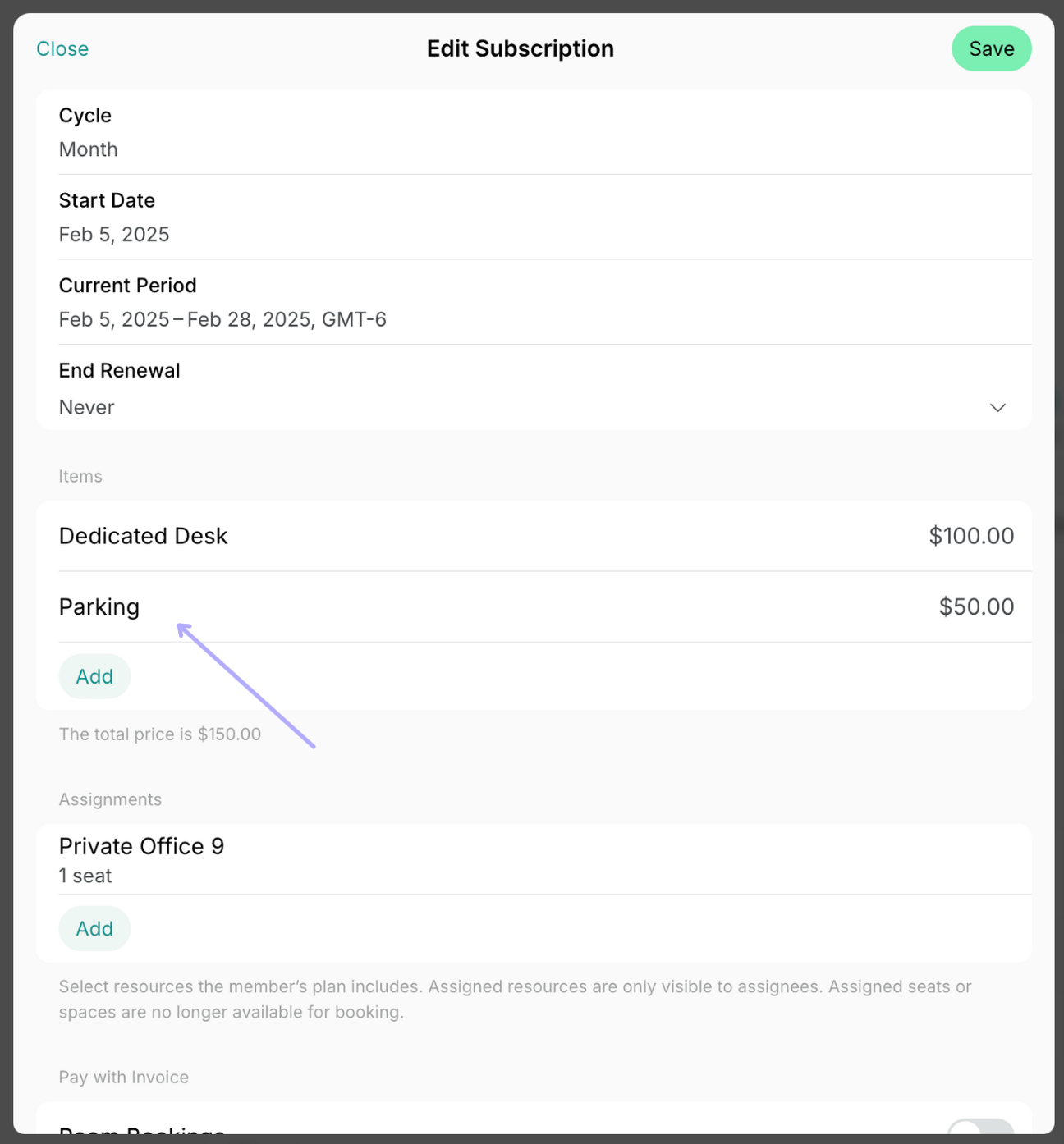
Only an administrator can edit the subscription, so if the member needs to cancel the add-on, they contact an administrator to remove the add-on from the subscription. For this, an administrator needs to follow the next steps:- Go to Customers > open the user or company > click on the subscription.
- Press on the necessary item.
- Scroll down and tap Delete. Press Save to save your changes.
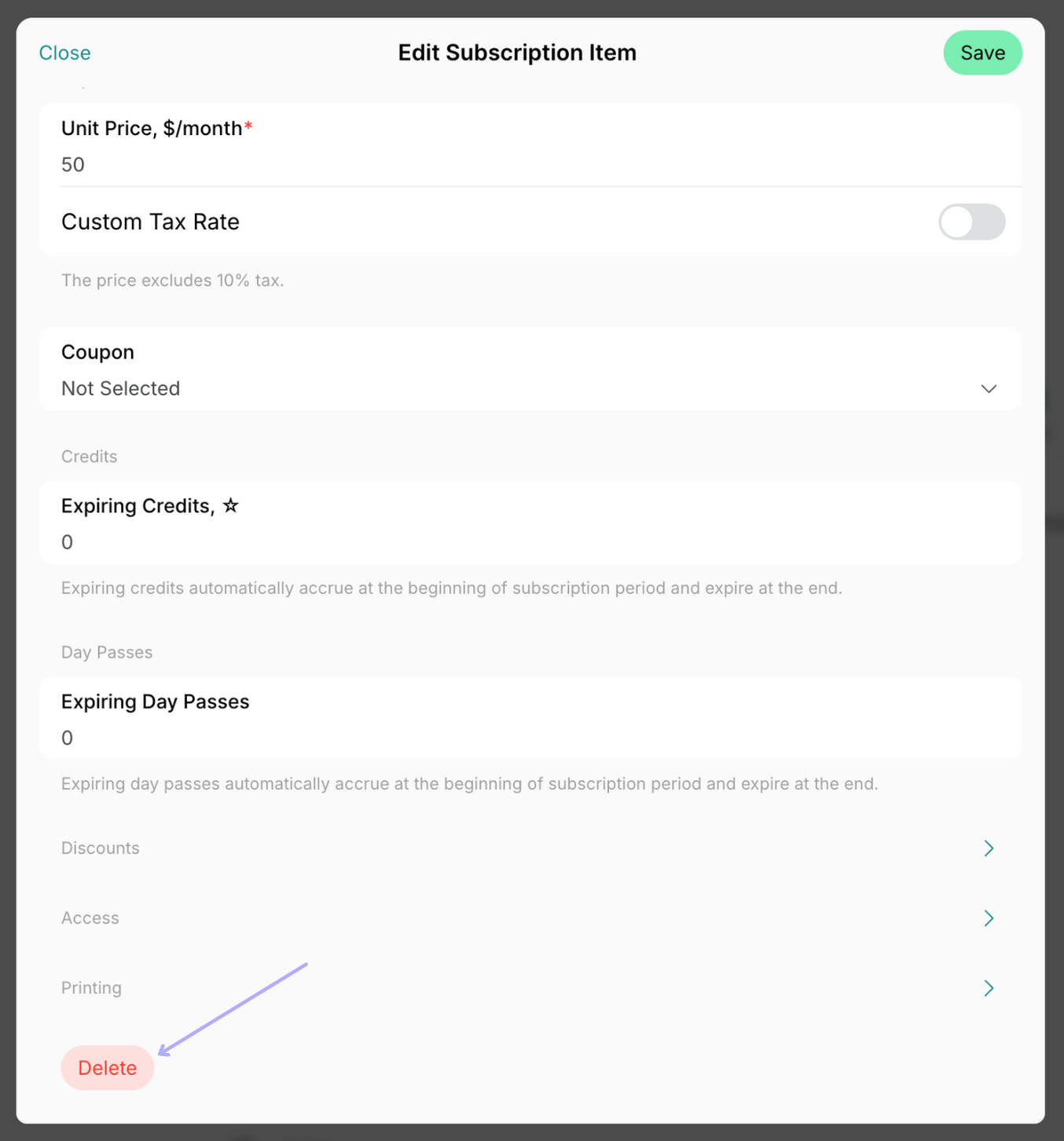
Removing subscription items takes effect with the next subscription renewal.