

- Room bookings
- Desk bookings
- Office bookings
- Equipment bookings
- Parking bookings
Why sync bookings
Syncing bookings between Spacebring and Outlook Calendar is useful if:- Your team plans the day in Outlook and wants to see room bookings next to their meetings.
- You are migrating from another platform and need to quickly recreate all future bookings from your previous software in Spacebring.
Prerequisites
For accurate booking sync with Outlook Calendar, make sure to complete the following:- Have an active Spacebring subscription.
- Sign in with a Microsoft account that has a mailbox: a Microsoft 365 work or school account, or an Outlook.com account. A personal Microsoft account that has never used Outlook has no calendar to sync.
- Each resource can sync with only one Outlook calendar. For example, a Meeting room resource can sync with a Meeting room Outlook calendar.
- Create separate calendars in your Outlook account and name them after your resources, for example Meeting Room 1 or Hot Desk A. Clear and consistent names make the calendars easy to tell apart.
- Bookings created in Spacebring should only be managed (edited, canceled) in Spacebring. Changes made to such bookings in Outlook won’t be reflected in Spacebring.
- Bookings created in Outlook Calendar can only be managed from Outlook.
Connect the Outlook Calendar integration
To connect the integration:- Go to Spacebring > Integrations page by pressing the menu (…) next to the location’s name > Outlook Calendar.
- Press Connect, sign in with your Microsoft account, and accept the permission to read and write your calendars.
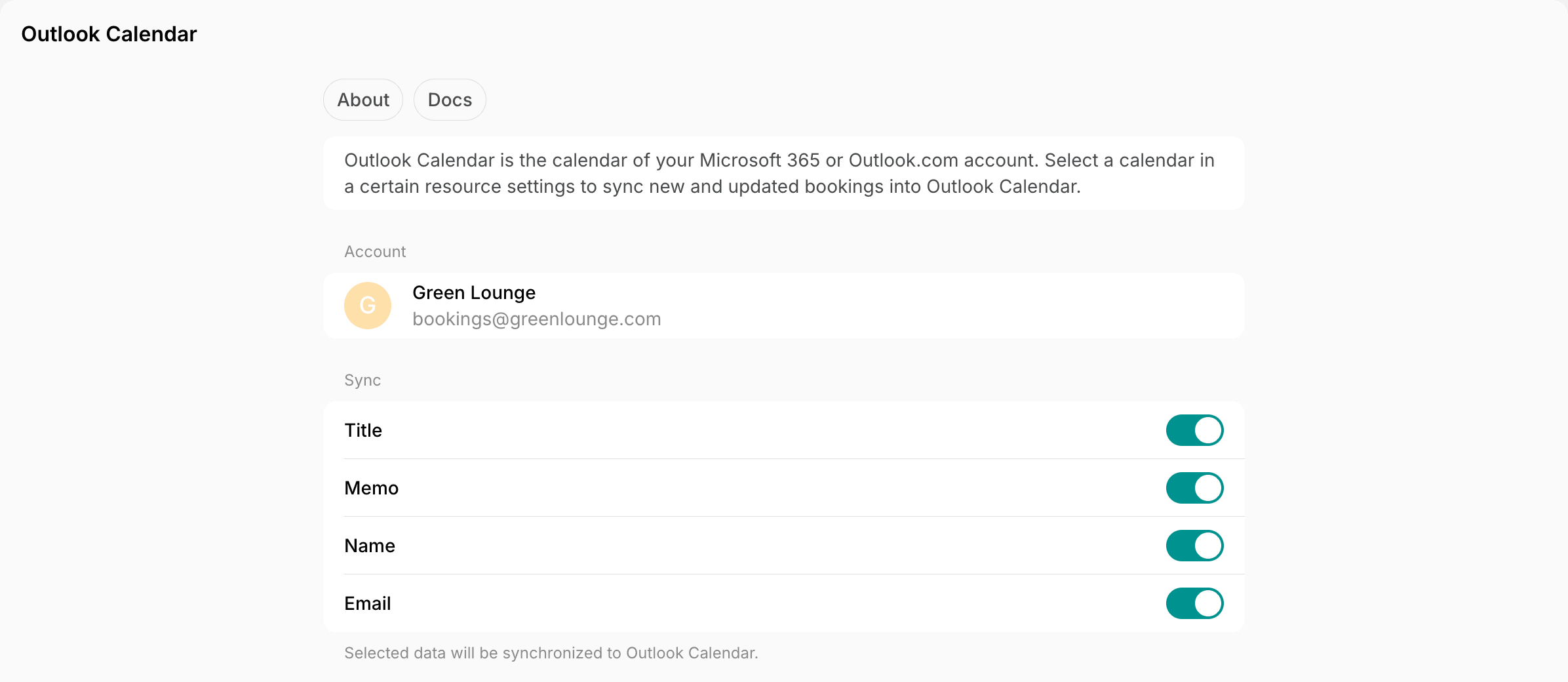
- In the Sync section, choose which booking details the calendar events show:
- Title and Name make up the event title: the booking’s title, the name of the user who booked, or both, such as Design review (Ada Lovelace). Turn on Name to see who booked each desk.
- When neither is available, the event title shows the resource and location names, such as Hot Desk (Central Hub).
- Memo, Name, and Email appear in the event description.
- The event location always shows the resource name and the location’s address.
Set up one-way sync
To only sync new and updated bookings from Spacebring to Outlook Calendar, enable one-way sync:- Go to Resources > Rooms, Desks, Offices, Equipment, or Parking.
- Select a resource > press the (…) menu next to it > Edit.
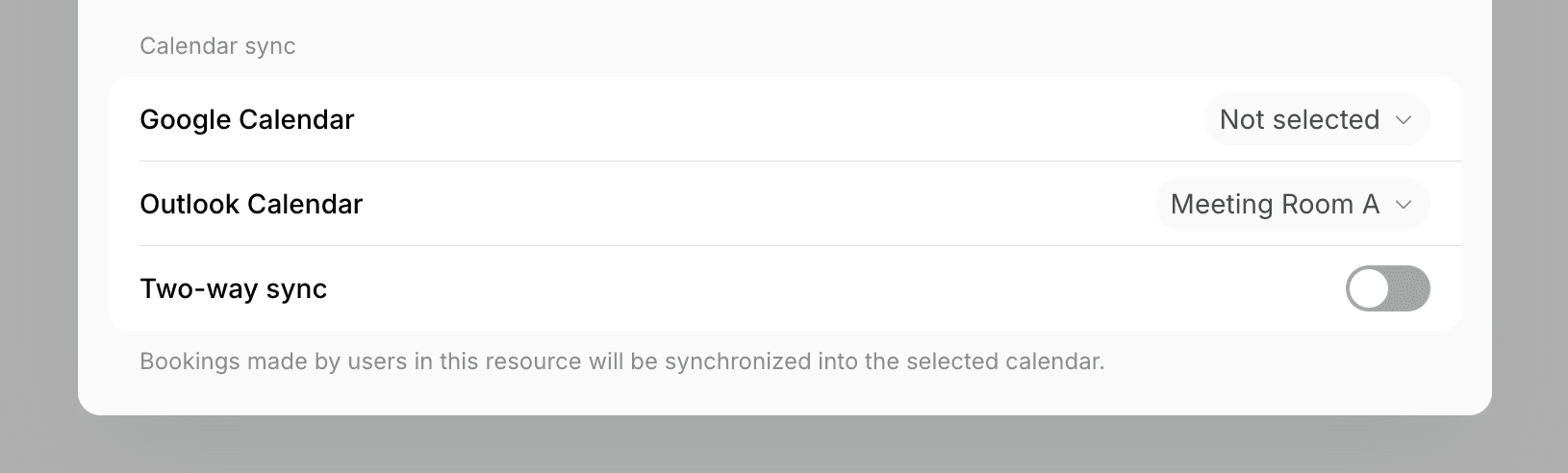
- On the Integrations tab, in the Calendar sync section, choose the Outlook Calendar to sync bookings with > Save.
How the one-way sync works
- All future, new, and updated bookings created for a resource in Spacebring sync to the selected Outlook calendar.
- Bookings made in this Outlook calendar won’t sync to Spacebring.
- Repeating bookings sync as a recurring series. A booking whose repeat rule Outlook cannot express, for example one that repeats every few hours, stays in Spacebring only.
Set up two-way sync
To sync bookings from Spacebring to Outlook Calendar and vice versa, enable two-way sync. For this:- Go to Resources > Rooms, Desks, Offices, Equipment, or Parking > select a resource > press the (…) menu next to it > Edit.
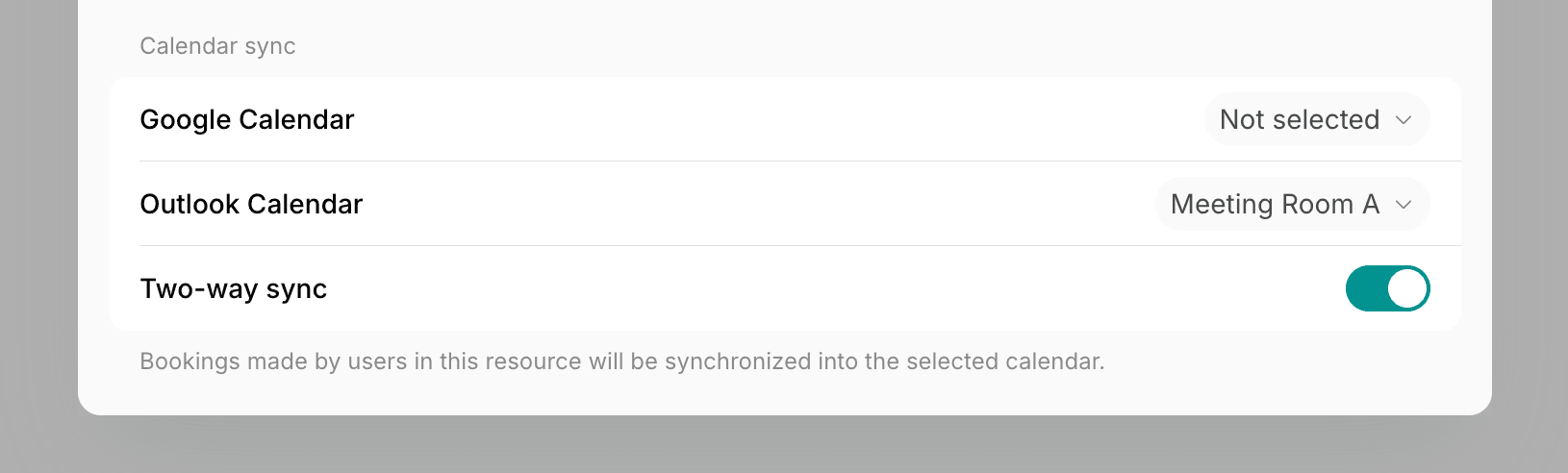
- On the Integrations tab, in the Calendar sync section, choose the Outlook Calendar to sync bookings with.
- Enable the Two-way sync switch next to it > Save.
How the two-way sync works
- All future, new, and updated bookings created in Spacebring sync to the selected Outlook calendar.
- All future, new, and updated events made in Outlook Calendar also sync to Spacebring as bookings. An all-day event books the resource for the working hours of that day.
- Recurring events in Outlook become repeating bookings. An occurrence moved or deleted in Outlook is moved or canceled in Spacebring too.
- For desk, office, and parking lot bookings, one event in Outlook Calendar books 1 seat in the corresponding resource in Spacebring.
Google Calendar and Outlook Calendar can be connected to the same location at the same time, and a resource can sync with one calendar of
each.
Disconnect the Outlook Calendar integration
To disconnect Outlook Calendar, follow these steps:- Go to Spacebring > Integrations page by pressing the menu (…) next to the location’s name > Outlook Calendar.
- Press Disconnect and confirm your choice.
Troubleshoot Outlook Calendar sync errors
Administrators get a notification from Outlook Calendar when an event can’t become a booking with two-way sync, or when the connection breaks.Failed to create a booking in [resource] because another one exists at [time]
Failed to create a booking in [resource] because another one exists at [time]
What it means: An event couldn’t become a booking in Spacebring, so it stays in Outlook only. This happens when:
- Another booking in Spacebring already takes the resource at that time, or all its seats for a desk, office, or parking.
- It’s an all-day event on a day the location’s schedule is closed.
- Open the event from the notification and move it to a free time.
- To keep the event’s time, cancel the other booking in Spacebring, then edit the event in Outlook so it syncs again.
Failed to create a recurring booking in [resource]
Failed to create a recurring booking in [resource]
What it means: At least one date of a recurring event clashes with another booking in Spacebring, so the series doesn’t sync.How to fix it: Do one of the following:
- Change the series in Outlook so that no date clashes.
- Cancel the other bookings in Spacebring, then edit the series in Outlook so it syncs again.
Was disconnected at [location] due to an error "The connection to your Microsoft account could not be refreshed. Please reconnect your account."
Was disconnected at [location] due to an error "The connection to your Microsoft account could not be refreshed. Please reconnect your account."
What it means: Microsoft no longer accepts the connection, for example because the password of the Microsoft account changed, the account was deleted, or an administrator revoked the sign-in. Spacebring disconnected the integration and cleared the calendar from every resource.How to fix it:
- Connect Outlook Calendar again.
- Choose the calendar again in each resource’s Calendar sync section.
FAQs
How to remove an event created in Outlook Calendar from Spacebring?
How to remove an event created in Outlook Calendar from Spacebring?
With two-way sync, manage all bookings created through Outlook Calendar directly in Outlook. If you no longer need the sync, disconnect
the Outlook Calendar integration, and all bookings created by Outlook Calendar are removed automatically.
Can users add bookings to their own Outlook calendar?
Can users add bookings to their own Outlook calendar?
Yes, users can add their bookings made in the member web portal or mobile app to their Microsoft 365 Outlook or Google Calendar right after making a successful booking, or later from the Account page > Bookings. This works without connecting the integration.