

Connect Spacebring in ChatGPT
1
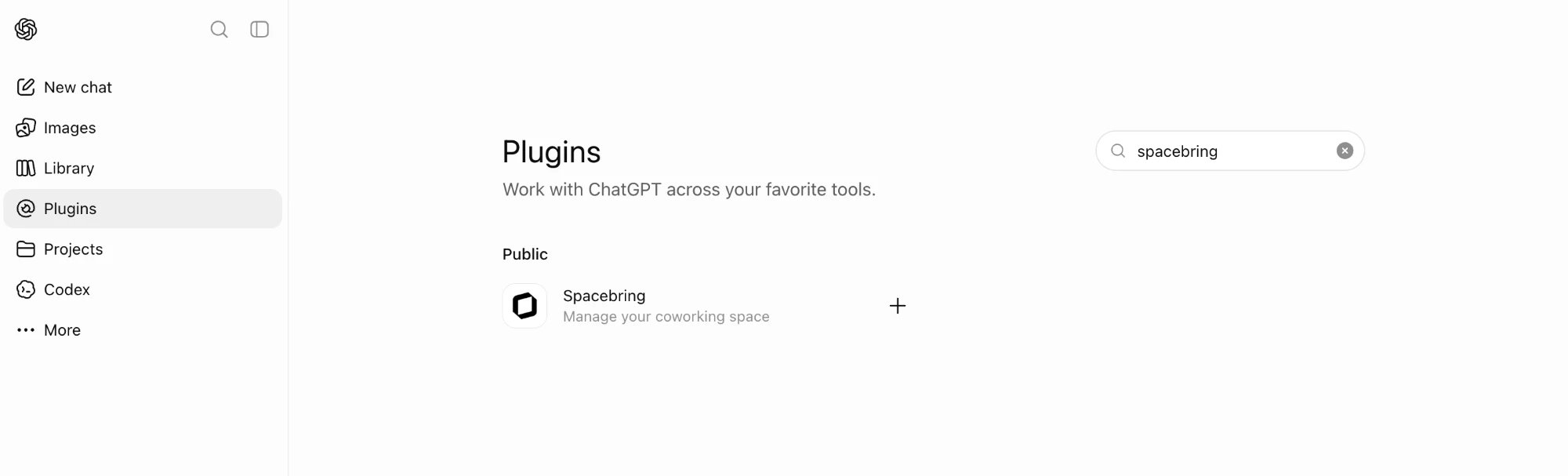
Open the plugin
- Open Spacebring in ChatGPT’s plugin directory.
- Alternatively, in ChatGPT go to Settings > Plugins and search for Spacebring.
2
Install
Click Install plugin.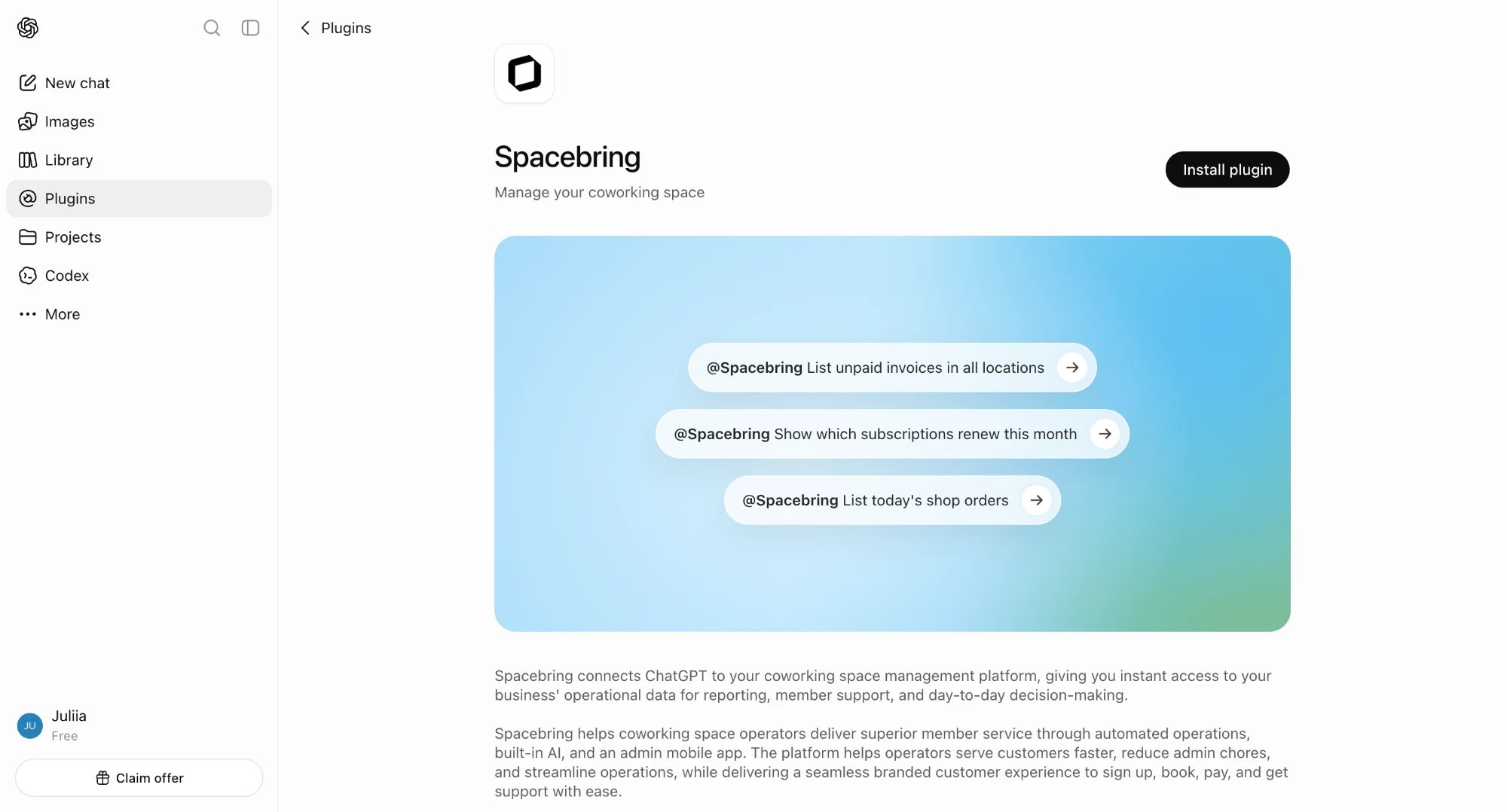
3
Authorize your network
When prompted, sign in and authorize access to your Spacebring network.
4
Start asking
ChatGPT can now access your Spacebring network. Just name what you’re looking for in plain language, and ChatGPT will answer.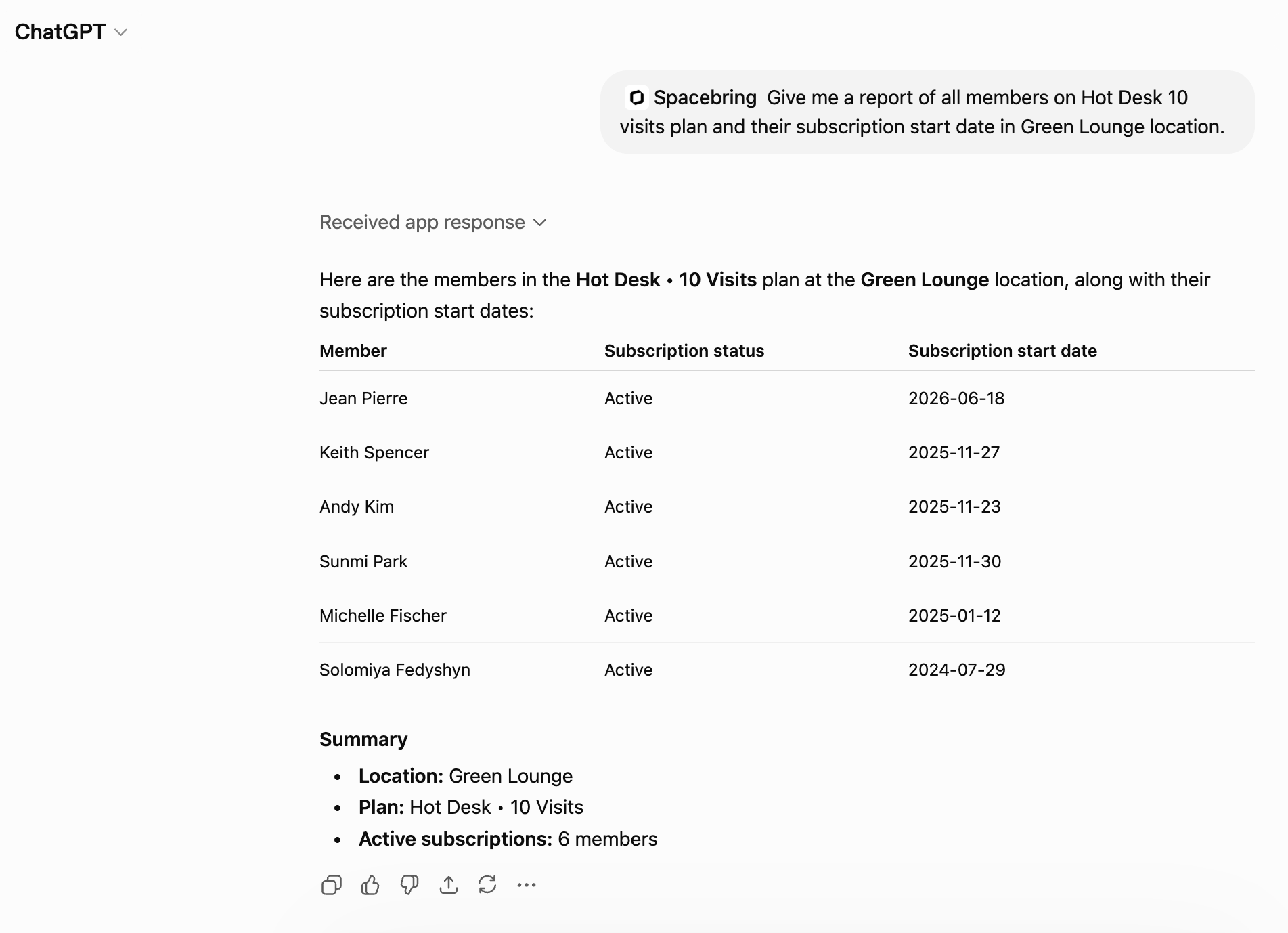
What you can ask ChatGPT
Ask about any of the following, in plain language, and ChatGPT finds the answer for you:- Network and locations
- Members and companies
- Plans and subscriptions
- Resources and bookings
- Invoices and contracts
- Shop products and orders
- Benefits and applications
- Guides
For the full list of tools ChatGPT can use, see Supported tools.
- Combine these in a single request — for example, ask for a member’s subscription, recent invoices, and bookings together, and ChatGPT pulls up all three
- Pass what it finds to your other plugins — for example, draft reminder emails for overdue invoices
Data security and privacy
Connecting Spacebring doesn’t open a new way into your Spacebring network. ChatGPT can only read the data your own Spacebring account can see, and only after you approve the connection.- ChatGPT can’t create, change, or delete anything in your Spacebring account.
- Spacebring checks your role and permissions on every request.
- Your data is stored on Spacebring’s secure servers.
- The data ChatGPT looks up becomes part of your chat. OpenAI handles it under its own terms and privacy policy.
- Your ChatGPT plan and settings decide, for example, whether your chats can be used to train OpenAI’s models.
For more on how Spacebring protects your data, see Data security and privacy.
Disconnect Spacebring from ChatGPT
You can remove the Spacebring plugin from ChatGPT at any time to end its access.1
Open Plugins
In ChatGPT, go to Settings > Plugins.
2
Find Spacebring
Locate Spacebring in your list of installed plugins.
3
Uninstall
Uninstall the plugin to immediately end its access to your Spacebring network.
The Spacebring plugin in ChatGPT is powered by the Spacebring MCP server. You can also connect Spacebring to Claude or another MCP-compatible assistant.