

- Link a large room to its two halves so booking the “Big room” blocks both halves, and vice versa.
- Automatically block individual rooms and desks when the entire space or an event hall is reserved.
Configure parent-child resources
To set up linked resources, first create each option as a separate resource and then define their relationship.- Create separate resources for every booking configuration you offer.
- Determine which room acts as the parent and which rooms or desks are the children.
| Scenario | Parent resource | Child resource(s) |
|---|---|---|
| Split room | Full room | Room half A, Room half B |
| Full space | Full space booking | Every individual desk/room inside |
Only a room can be designated as a parent resource.
- Open the settings for each child resource (e.g., a desk or a half-room).
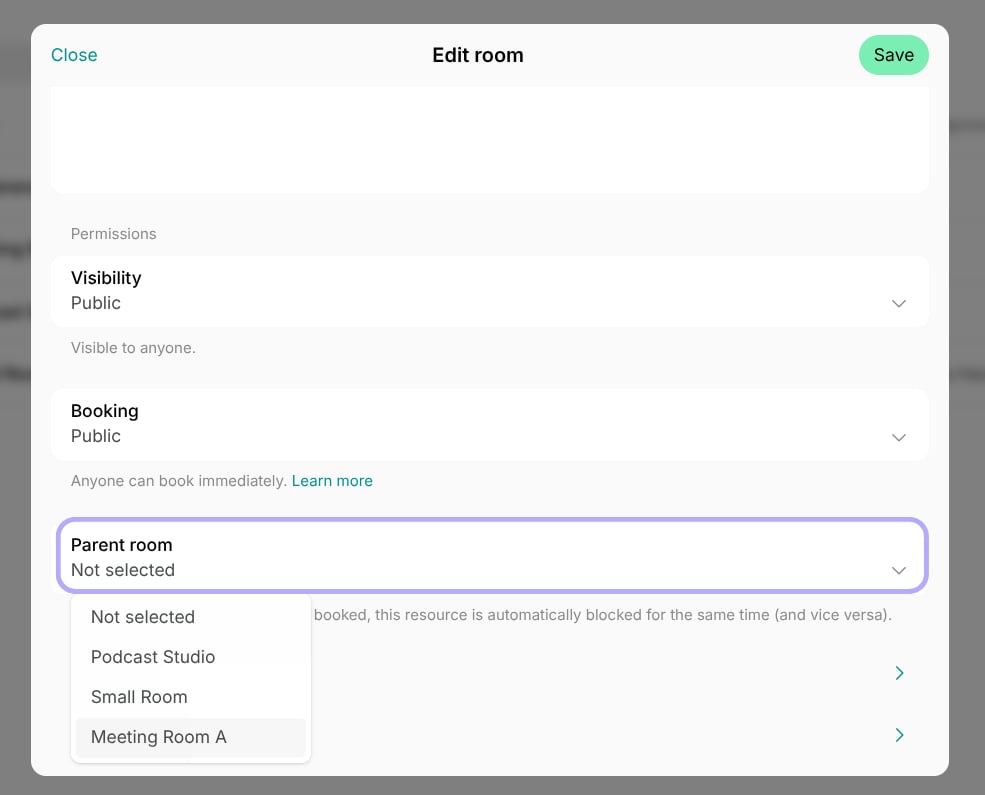
- Find the “Parent room” field and select the corresponding larger room from the dropdown menu.
How linked resources work
Once linked, Spacebring automatically synchronizes availability between the parent and child resources to ensure you never overbook a physical area.- When the parent room is booked, all of its linked child resources are automatically blocked for that specific date and time slot.
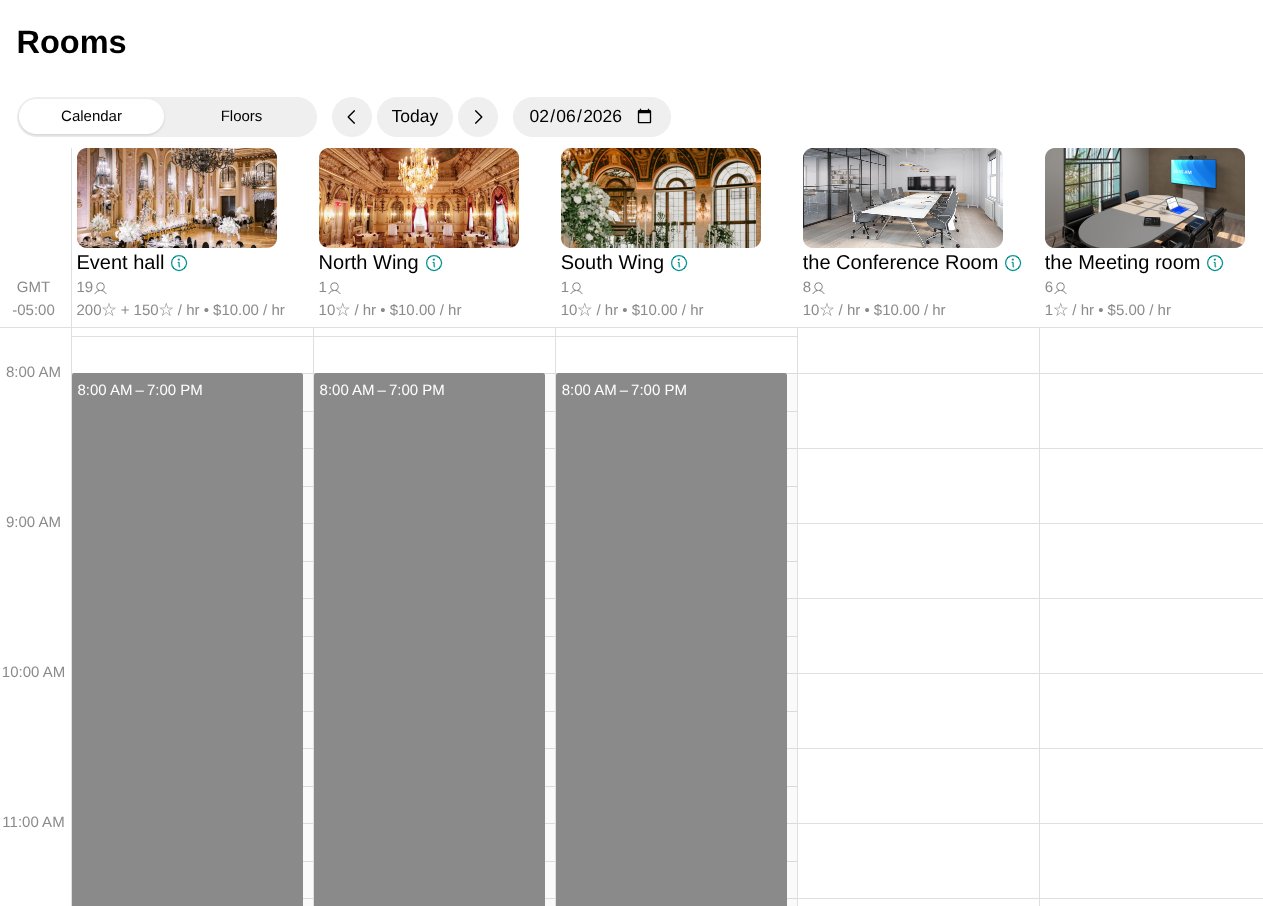
- When a child resource is booked, the parent room is automatically blocked. However, “fellow” child resources (other children linked to the same parent) remain available for booking.
- If the main booking is rescheduled or canceled, the associated blocks on the linked resources are updated or removed automatically, keeping your resource availability accurate in real-time.