

Assign resources to customers for rental
- Go to the Customers page.
- Open the customer’s profile.
- Create or edit their subscription.
- Add a subscription item.
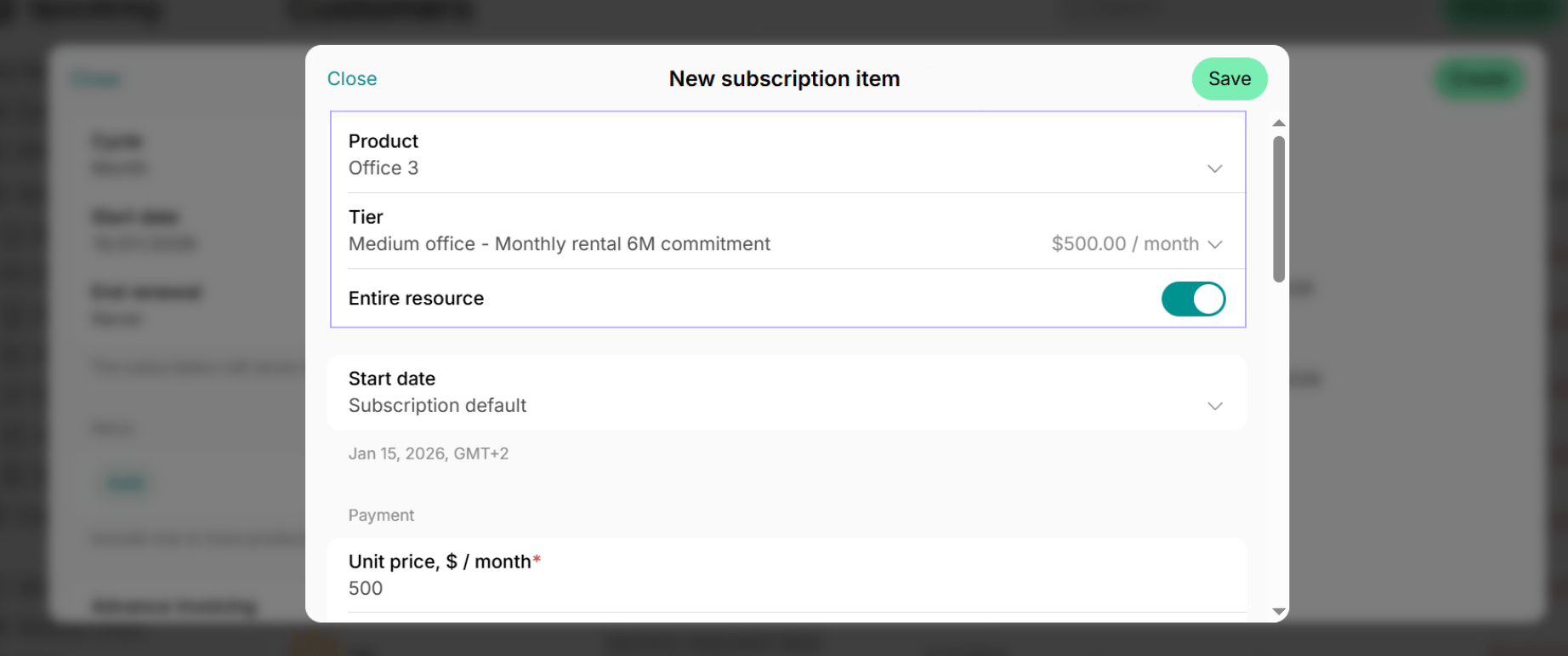
- In the “Product” field, select a resource (desk, office, etc.).
- In the “Tier” field, choose one of the tiers (pricing options) you added in this resource settings or choose “Custom” to set up the subscription details from scratch.
- Manage the “Entire resource” switch to choose the appropriate assignment type.
If you configured long-term rental pricing in resource settings, customers can also apply or sign up for a resource rental by themselves and be automatically assigned to the resource.
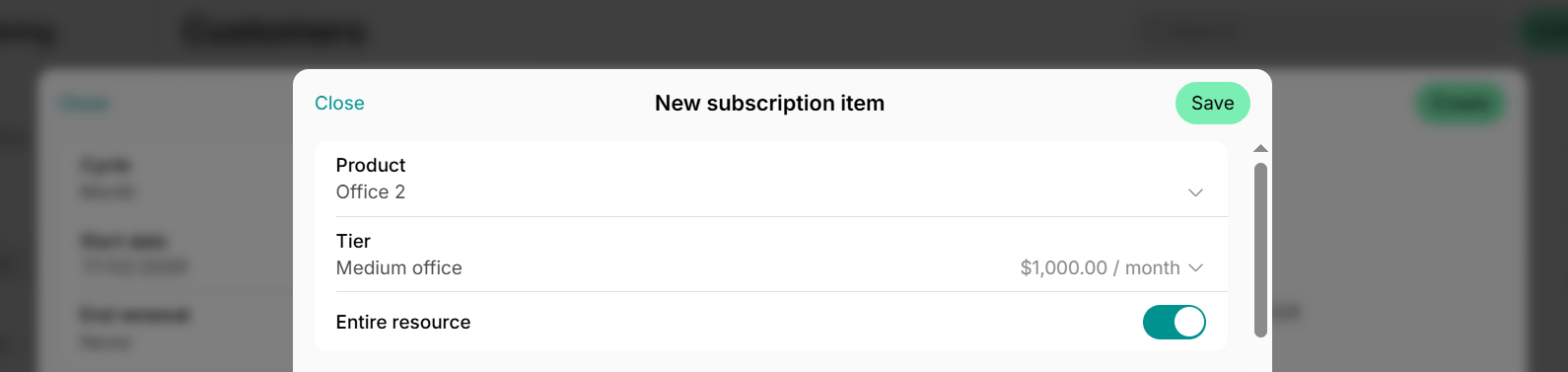
Entire resource
Use it when:- The customer rents the whole resource, such as:
- A private office
- A meeting room
- A parking lot rented entirely by one company
- A company rents a full resource (e.g., an office or desk), and their employees book seats internally (hybrid office setup).
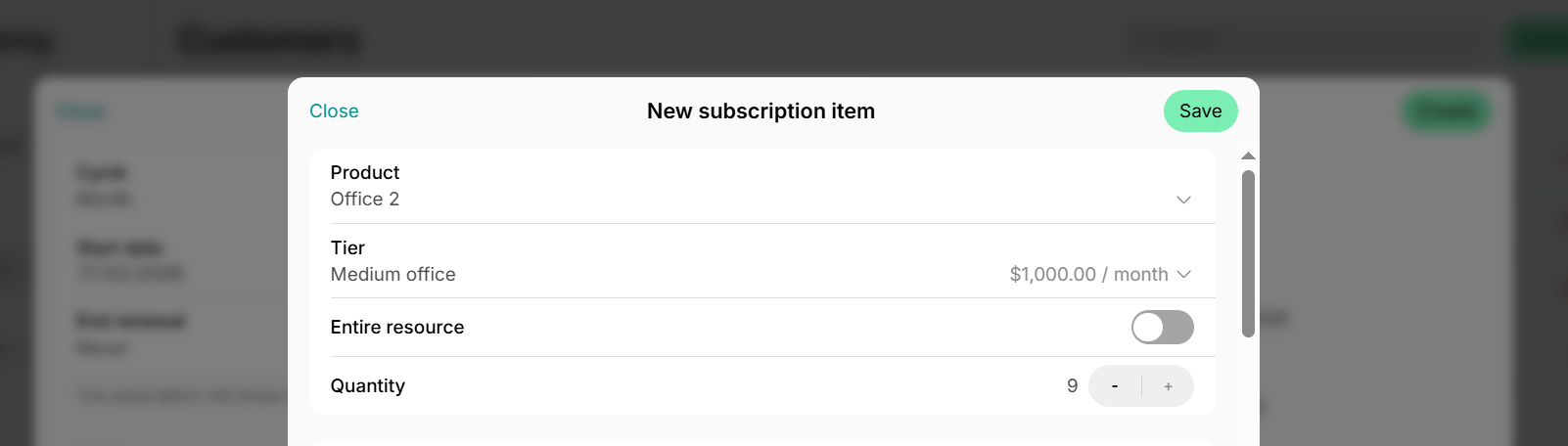
Quantity of seats/spaces/items
Use it when:- The customer rents part of a shared resource, such as:
- 1 dedicated desk in a 10-desk zone
- 3 parking spaces in a 20-space lot
With this assignment type, customers don’t book their seat(s) during their subscription period; they’re reserved for the customer.
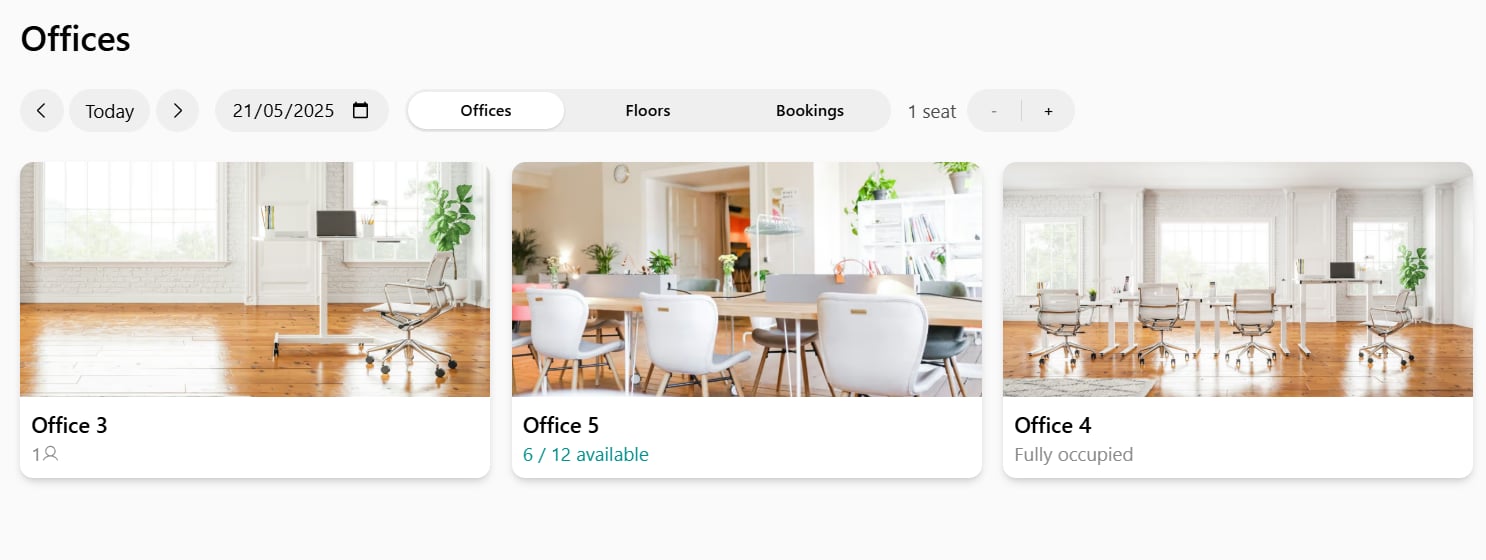
- You want the resource to remain visible to others even when fully occupied.
- In this case, leave the “Entire resource” option off and assign the maximum quantity instead.
- The resource will appear with the “Fully occupied” label, allowing others to express interest for future availability.
- Users see the the reduced resource availability (e.g., 7/10 available).
- When capacity reaches zero, it remains visible with a “Fully occupied” label.
Rooms can only be assigned entirely.
Track all rentals on the Assignments page
- Go to Resources > Assignments.
- The Assignments page gives you a consolidated overview of:
- Resources rented by customers
- Resources available for rental
How to read the Assignments timeline
Each resource appears with one or more bars labeled with customer names.- Thicker bars indicate entire resource assignments.
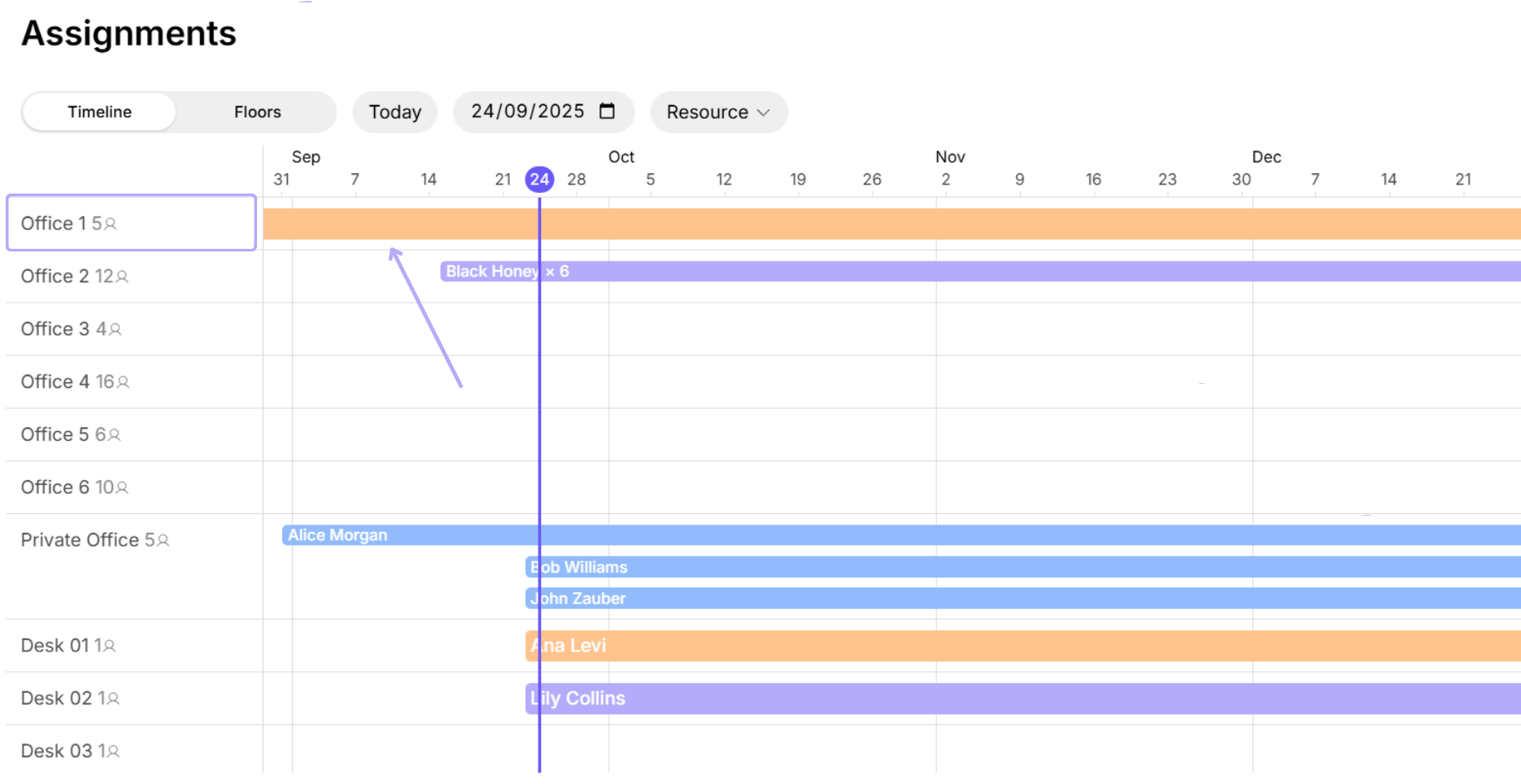
- Thinner bars indicate a partial assignments.
- The number of seats is shown next to the custome name
- If no seat count appeaars on the thin bar, it means 1 seat is assigned.
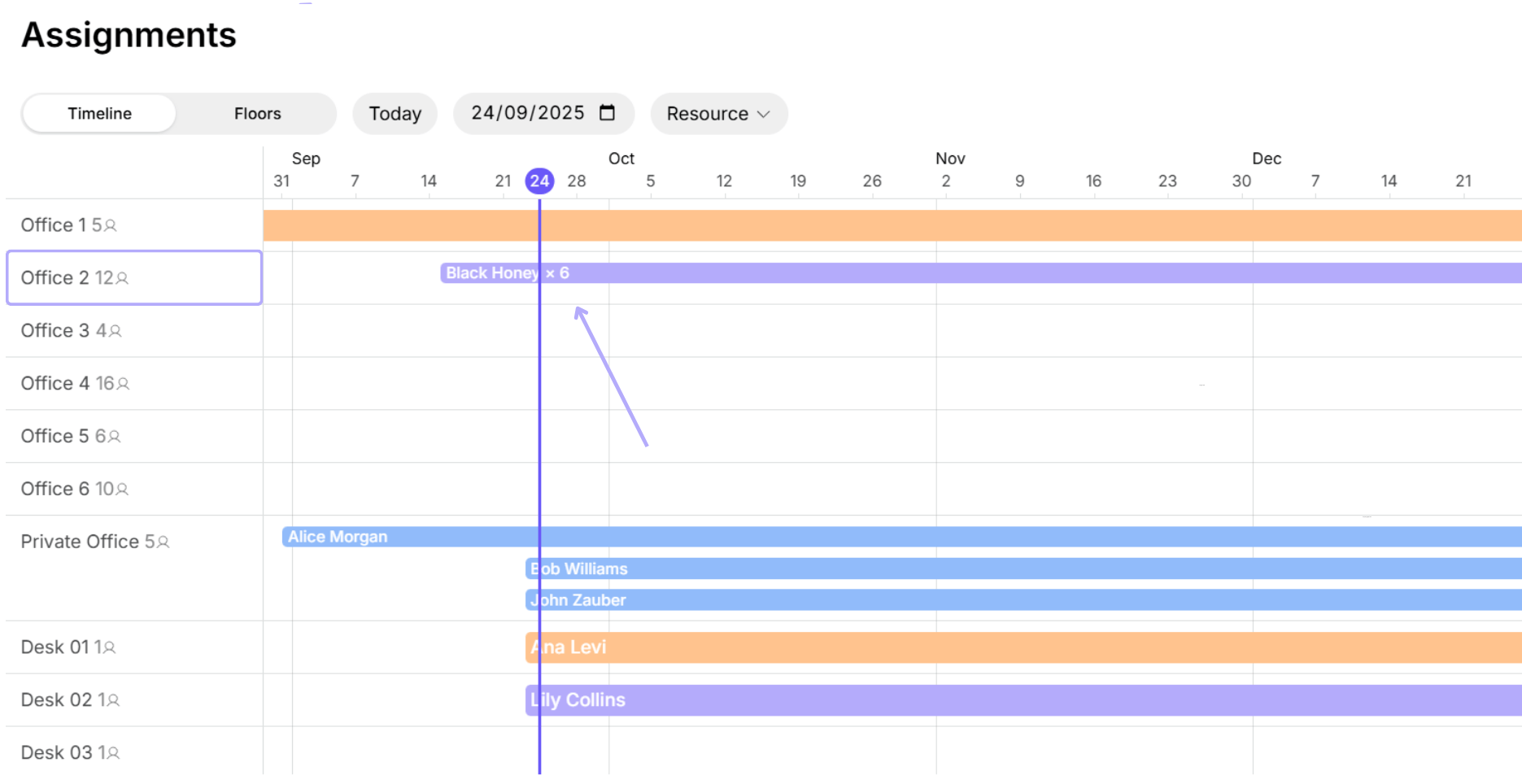
- Each resource shows its total capacity, so you can quickly assess remaining availability.
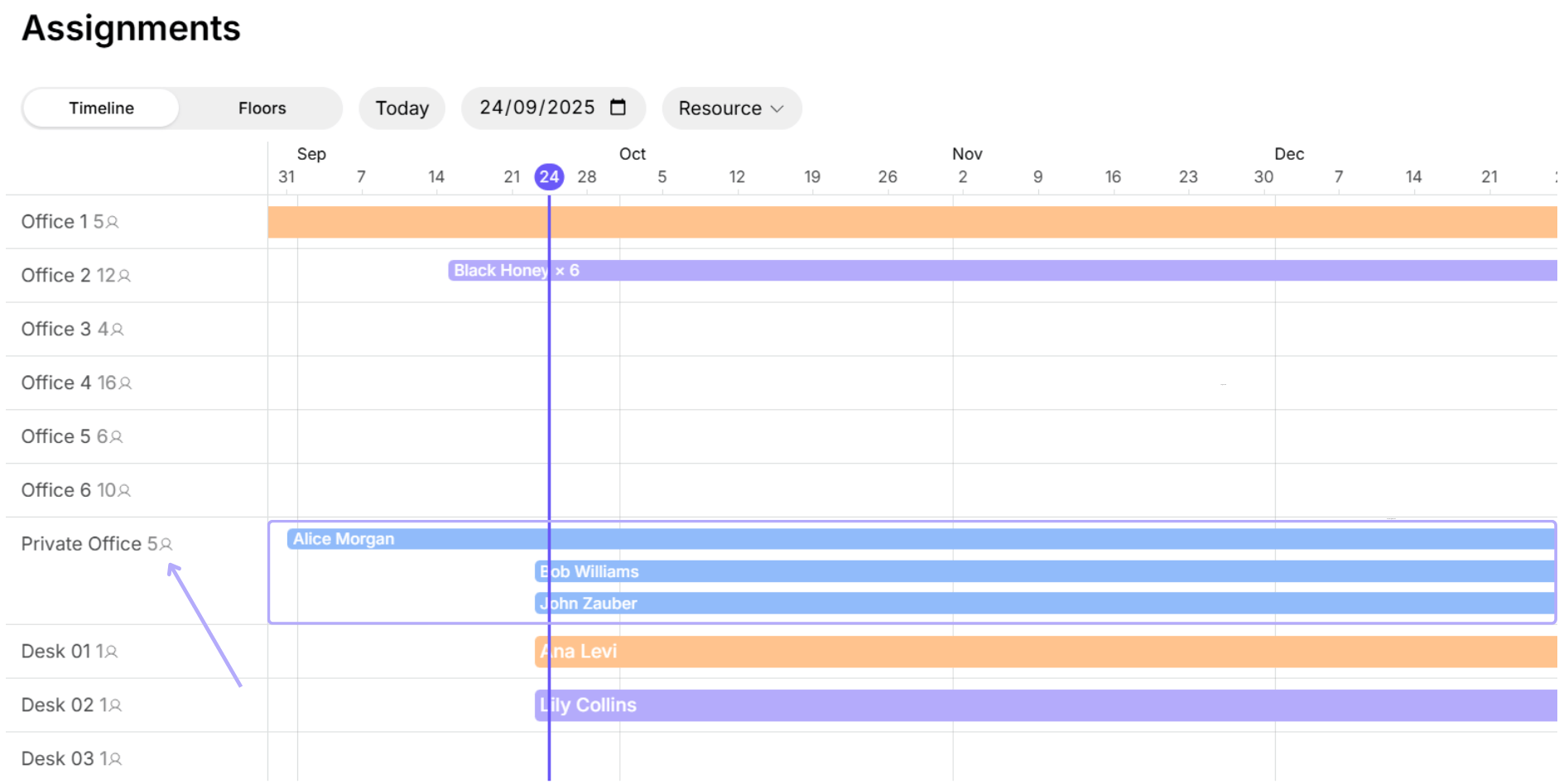
- Unassigned resources appear without any bars.
- Hover over a bar to see the rental period. It is shown based on the customer’s subscription item dates.
- For subscriptions with no end date set, the assignment shows as indefinite.
- Click a bar to open the customer’s profile and manage the resource assignment in their subscription.
- Click a resource to view its details.
- Use the date picker to check availability for a specific period.
- Use the “Resource” dropdown to view all resources or filter resource of a specific type.
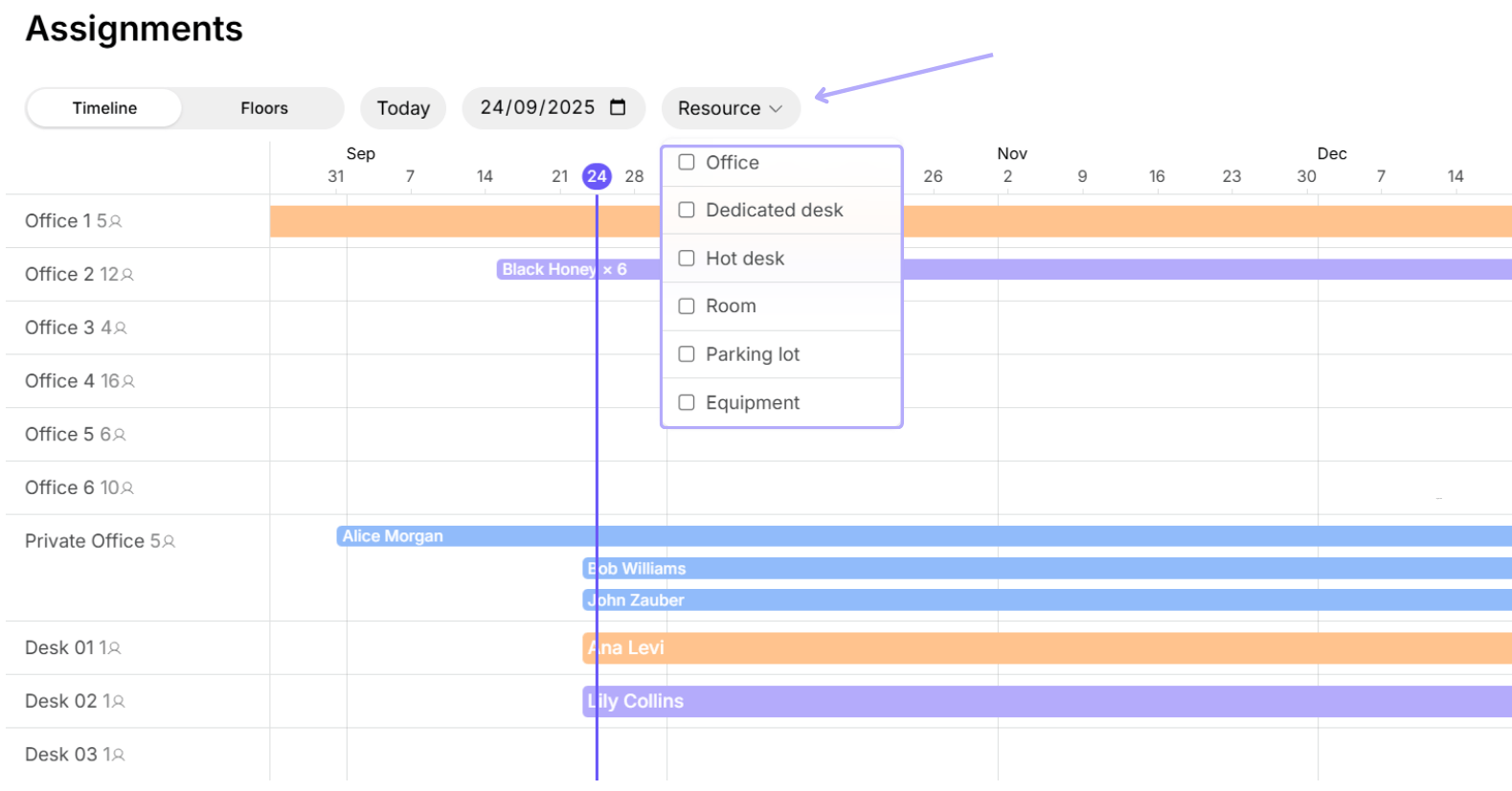
The Assignments page is for tracking long-term rentals only — it does not include bookings.
Floor plan view
- If you have the Floor plans add-on, switch to “Floors” to see the occupancy visually on floor plans.
- Use “Date” or “Resource” filters to check availability for a specific period or a specific resource type.
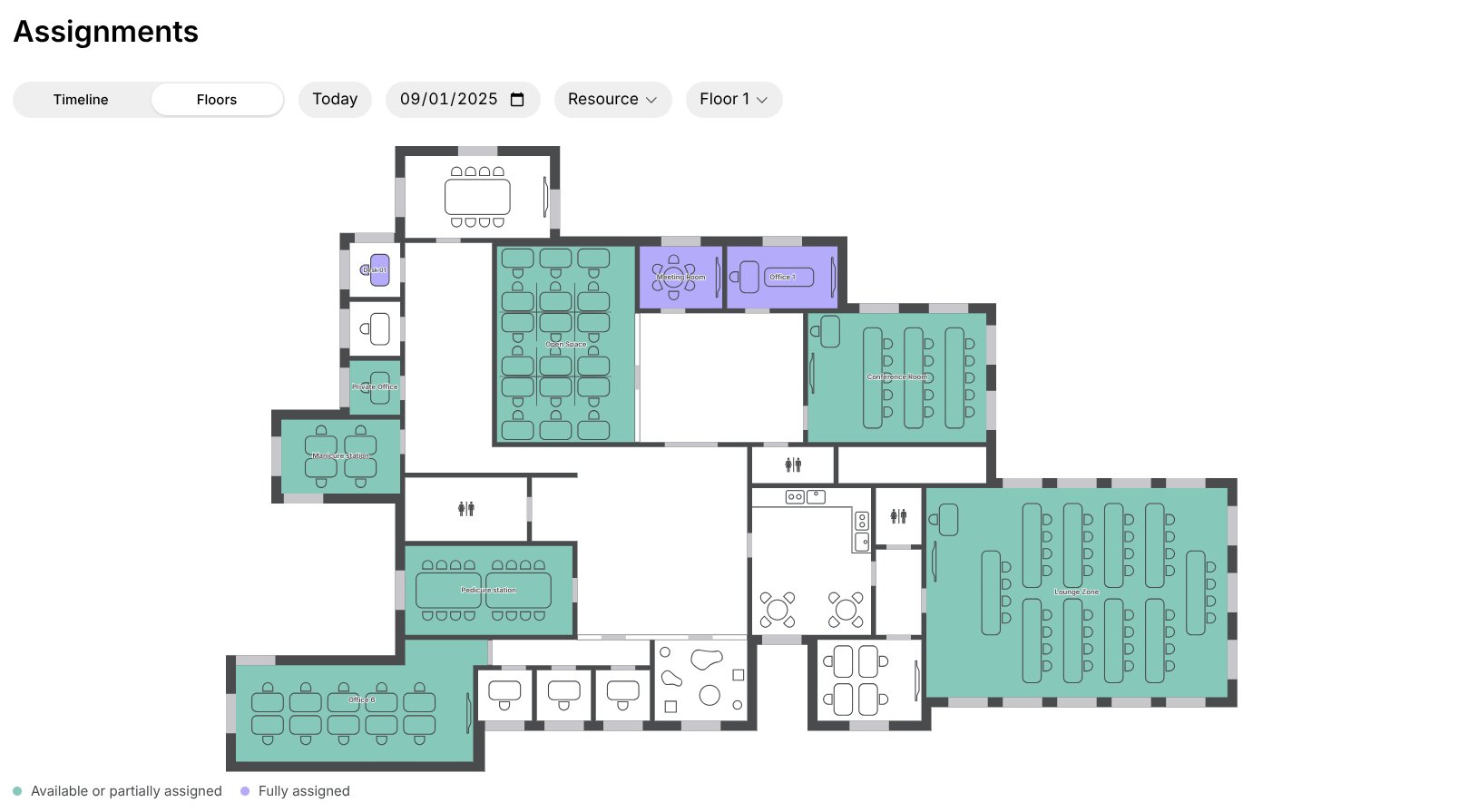
You can also view real-time availability and current assignments for each resource directly on the Resources pages.
Why do I see the error 'Assignments conflict with other assignments' when creating a subscription for the customer?
Why do I see the error 'Assignments conflict with other assignments' when creating a subscription for the customer?
There are several reasons why you see this error message:
- One or more resources you’ve added to the customer’s subscription are already assigned to another customer for the same dates or with a different assignment type (entire VS by seat).
- Go to Resources > Assignments.
- Find the resource in question to check:Tip:
- Which customer it’s assigned to
- The assignment dates
- The type of assignment
- Wide bars = Entire resource assignments
- Narrow bars = Assignments by seats
- To fix the conflict:
- Choose a different resource for your new customer.
- Go to the profile of the customer who currently rents this resource and remove this resource from their subscription items or adjust its dates.
- If the resource is assigned by seat, assign the resource to the new customer by seat as well.
How do I remove resource assignments?
How do I remove resource assignments?
- Go to the Resources > Assignments page or to Rooms, Desks, Offices, Parking, or Equipment pages.
- Find the resource in question to check which customer it’s assigned to.
- Go to the Customers page.
- Open the profile of the customer who currently rents this resource.
- Edit their subscription and remove this resource from their subscription items, or adjust the item’s rental dates to assign it to a new customer for other dates.
Can I view room and desk bookings on the Assignments timeline?
Can I view room and desk bookings on the Assignments timeline?
One-off bookings, used for short-term or day-specific use, are not displayed on the Assignments timeline. These can be tracked on respective resource pages or through analytics tools.
Can I assign a resource to the customer on specific weekdays?
Can I assign a resource to the customer on specific weekdays?
If a customer rents an office, desks, room, or other resource on specific days of the week (for example, only on Mondays and Tuesdays), you can:
- Create a recurring booking for that resource for the customer with the required schedule.
- Create a subscription to invoice the customer for rental.
- Do not select this resource as a subscription item — this would assign it to the customer every day.
- Instead, choose a plan or “Custom” option to set up the charge only.