

- Rooms
- Desks
- Offices
- Parking
- Equipment
Add your Skype rooms, phone booths, meeting rooms, conference rooms, or event spaces to the Rooms page. This gives customers a convenient calendar view to check availability and make bookings.

Enable Rooms
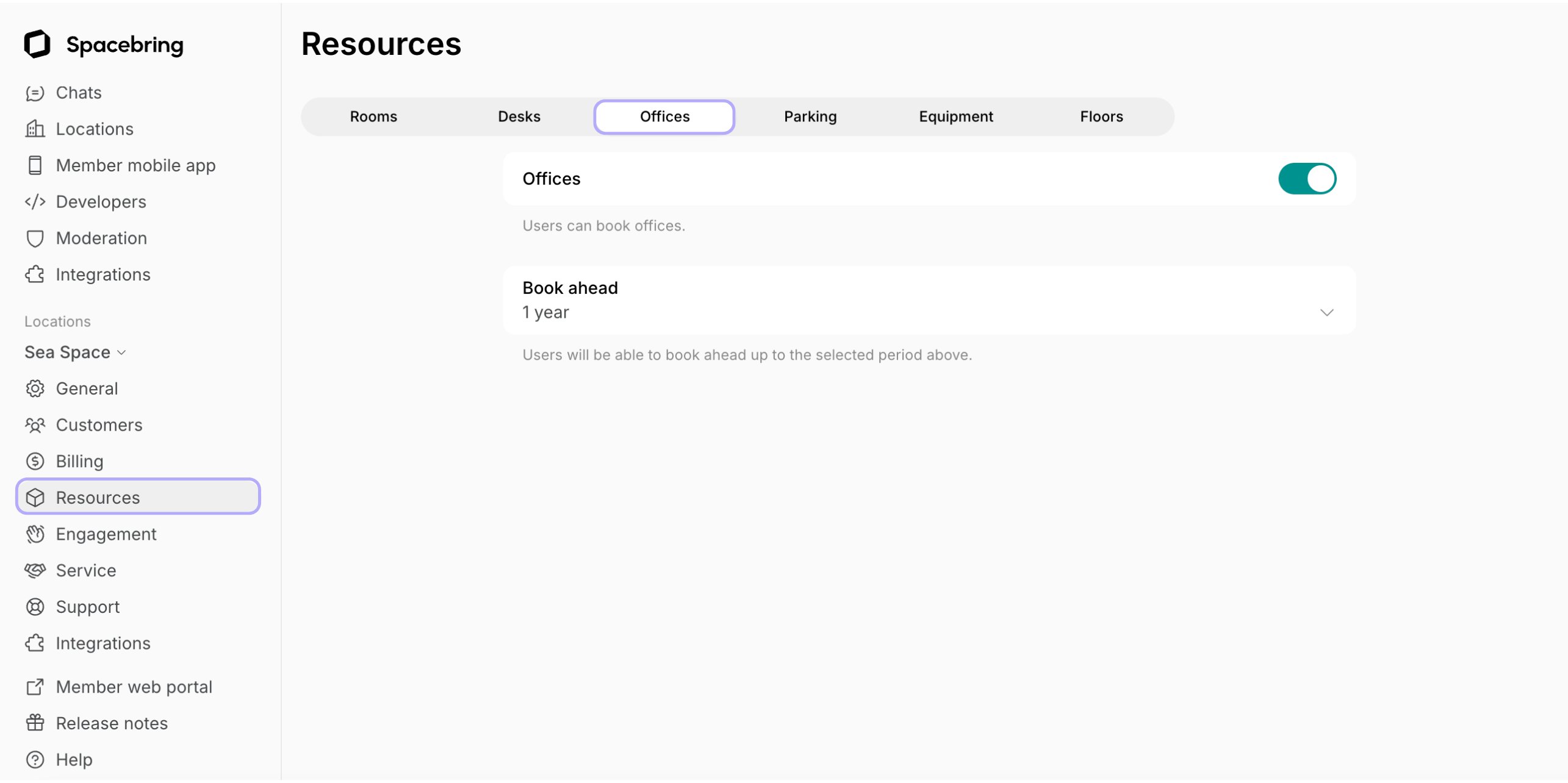
To start using the Rooms module:- In the left-side panel, click the menu (…) next to your location name
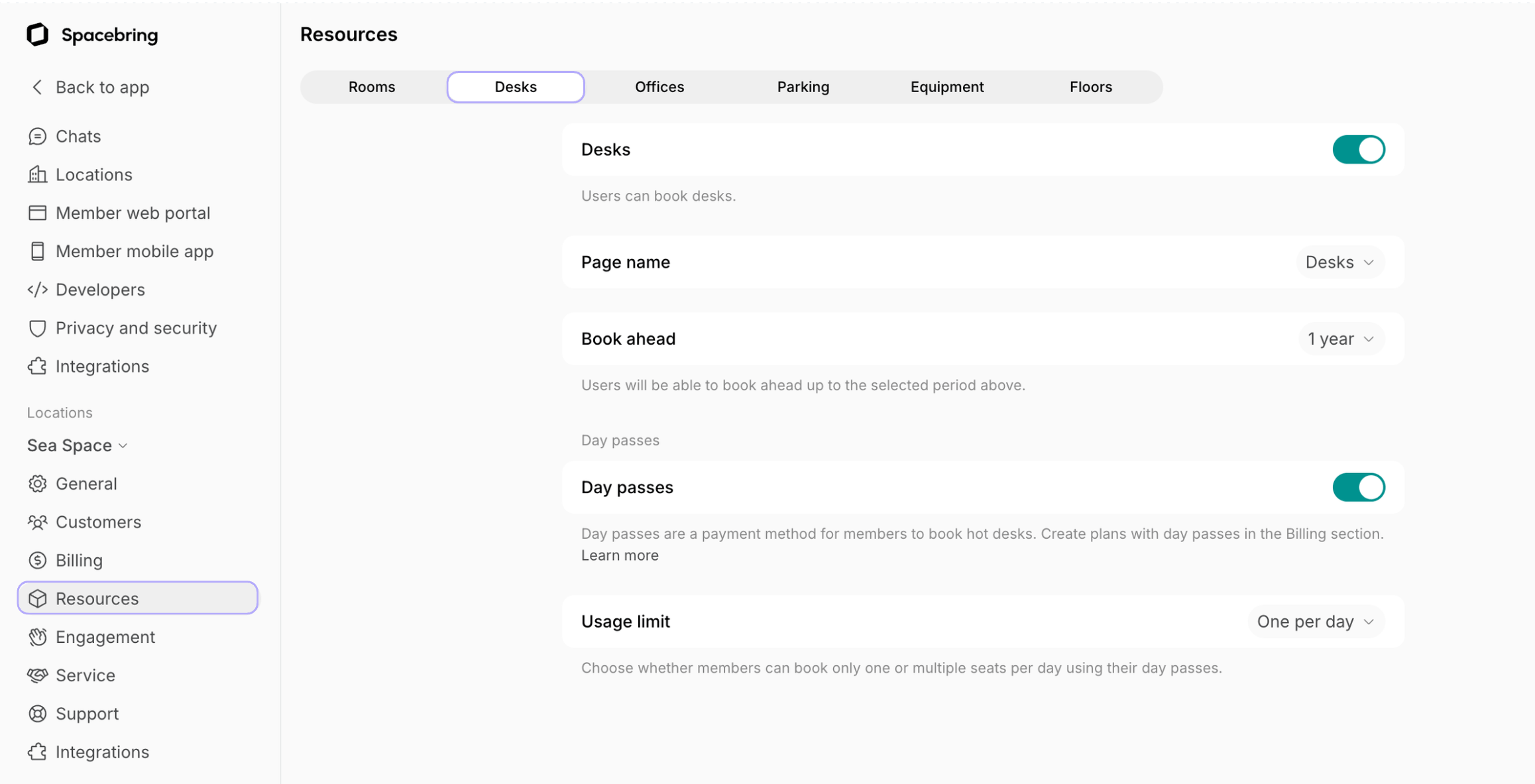
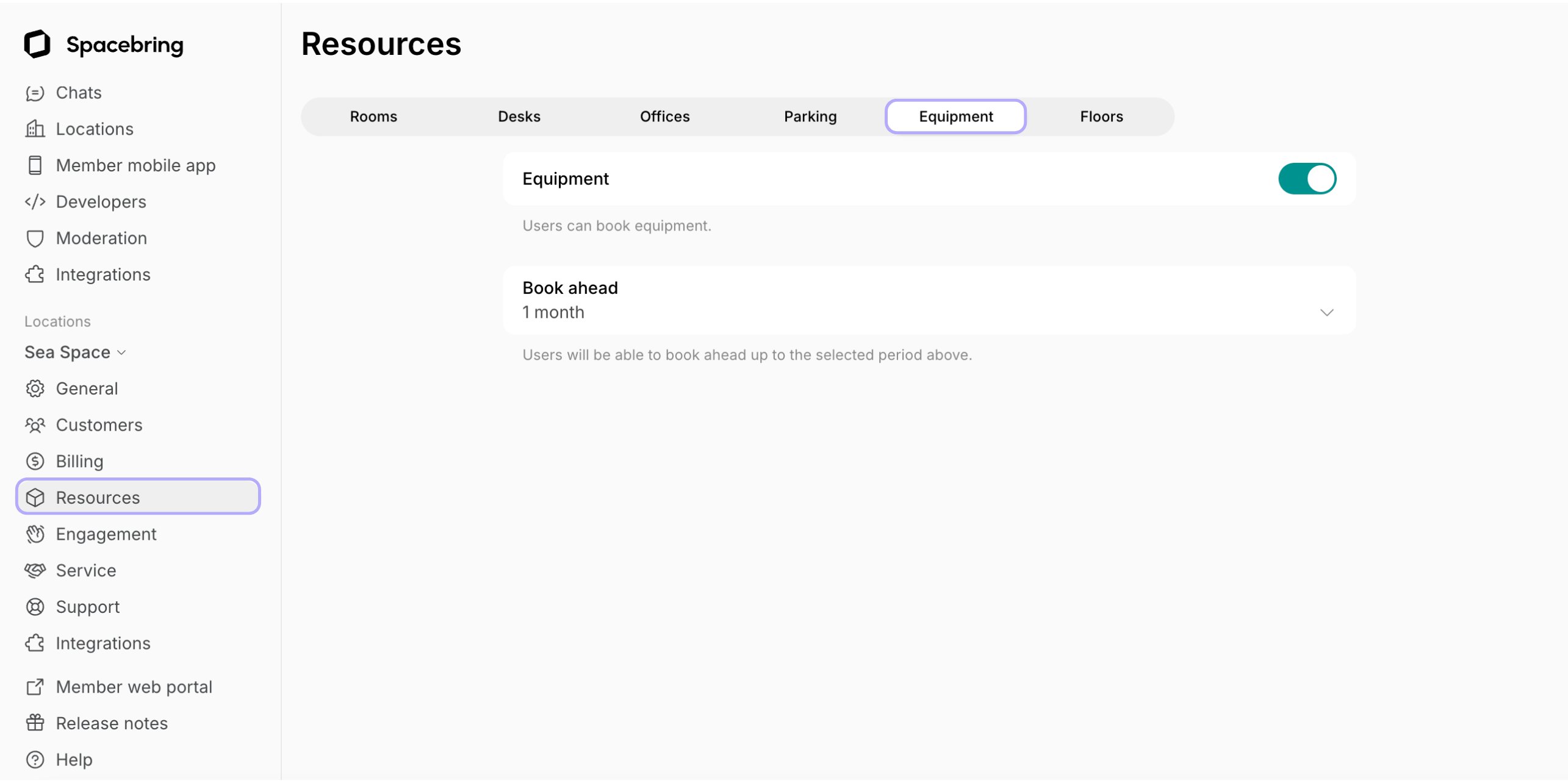
- Go to Location settings > Resources > Rooms and toggle the “Rooms” switch on.
- Page name — choose the best fit.
- Book ahead — set how far in advance users can book rooms.
- Book for free — limit how many free bookings a user can have scheduled at the same time, if you have free rooms.
- One active
- Two active
- Three active
- Unlimited
Add rooms
- Go to the Resources > Rooms page.
- Click
Add roomtop right.
- Fill in the room details.
| Section name | Meaning |
|---|---|
| Room photo | 2x1 format. |
| Type |
|
| Name | Room name and/or number. |
| Seating capacity | The number of people the room fits. |
| Description | Include any important information customers need to know. |
| Money | The monetary price for hourly/daily bookings in your location currency. Set up pricing for resources |
| Credits | The credit price for hourly/daily bookings. |
| Dynamic pricing (beta) | Automatically adjusts room booking price based on demand within your defined range. Set dynamic pricing for resource |
| Plans | If you offer long-term rentals (weekly, monthly, etc.) of this room, enable the “Plans” switch and add tiers.
|
| Availability increment | The frequency of available time for room booking. It shows up as a step on the booking. |
| Min & Max duration | Minimum & maximum duration limits for hourly/daily bookings. Applies to all users except administrators.
|
| Preparationtime | Buffer time that will be reserved between bookings. |
| Reschedulingpolicy | Select whether users can reschedule bookings for this room or cancel and get automatic refunds. Understand refunds |
| Custom schedule | Set custom working hours for this room, independent of the location’s overall schedule. |
| Confirmation email | If you want to send a custom booking confirmation email, select which users should receive it when making a booking, and paste your email text. |
| Visibility | Determine which user groups can see this room. |
| Booking | Determine which groups of users can immediately book the room, while others can apply for a booking. |
| Parent room | If this room overlaps with or is related to a larger space (e.g., it’s half of a split room, or located within an Event hall), select that larger space as a “Parent room”. When the parent room is booked, this room is automatically blocked for booking, and vice versa. |
| Abandoned booking protection* | Automatically remove ghost bookings from the room’s calendar if nobody checks in. Available only with Room display. *This option appears only if the room is totally free of charge. |
| Access | Determine the access control group to which users are synced upon booking this room. _*Appears if you have the integration with the access control system connected in the location._ |
| Calendar sync | Sync booking for this room with the selected Google Calendar. |
Edit a room
To update the settings of a room, follow these steps:- Navigate to Resources > Rooms.
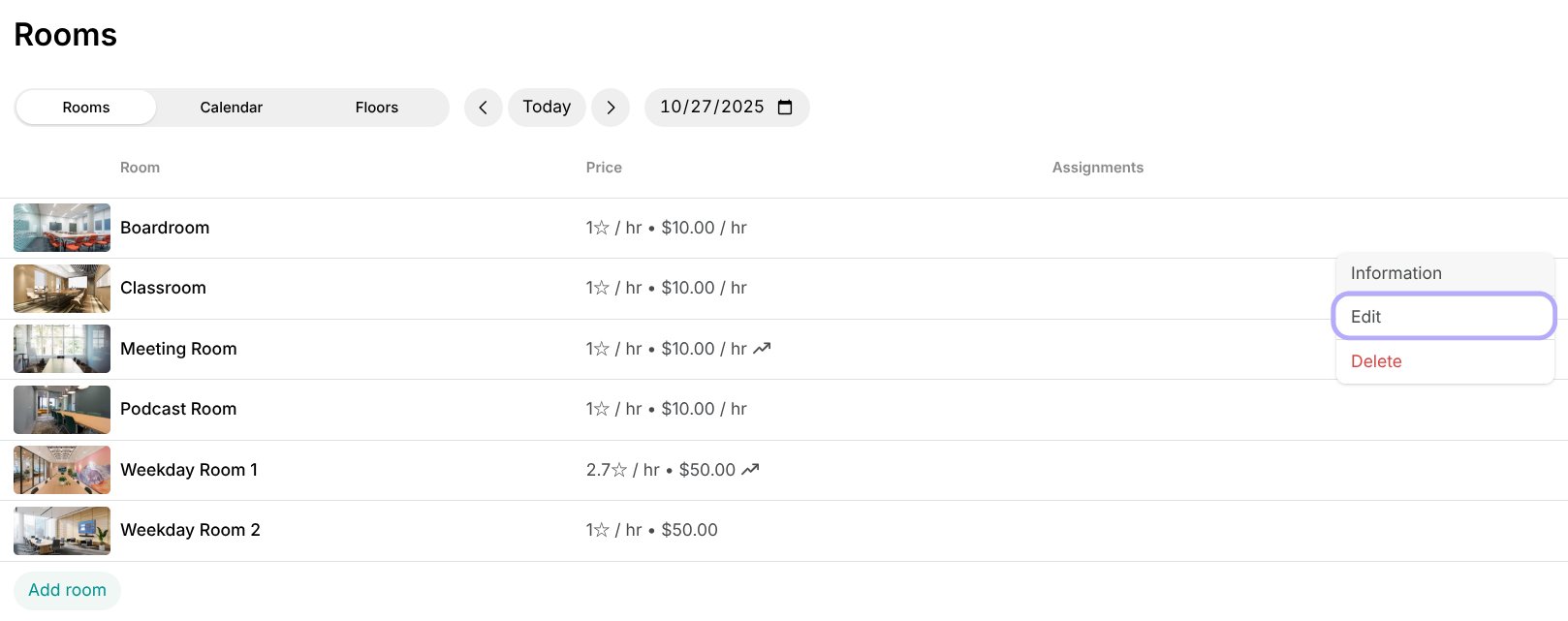
- Find the room you need to edit and hover over it > click the menu (…) next to it >
Edit.
- Navigate to Resources > Rooms.
- Find the room you need to edit and hover over it > click the menu (…) next to it >
Edit.
- Adjust the room settings as needed.
- Press
Savein the top right corner.
Changes to the price in any price tier and the rescheduling policy will apply only to future bookings created after the update.
Delete a room
To permanently delete a room from Spacebring, follow these steps:- Navigate to Resources > Rooms.
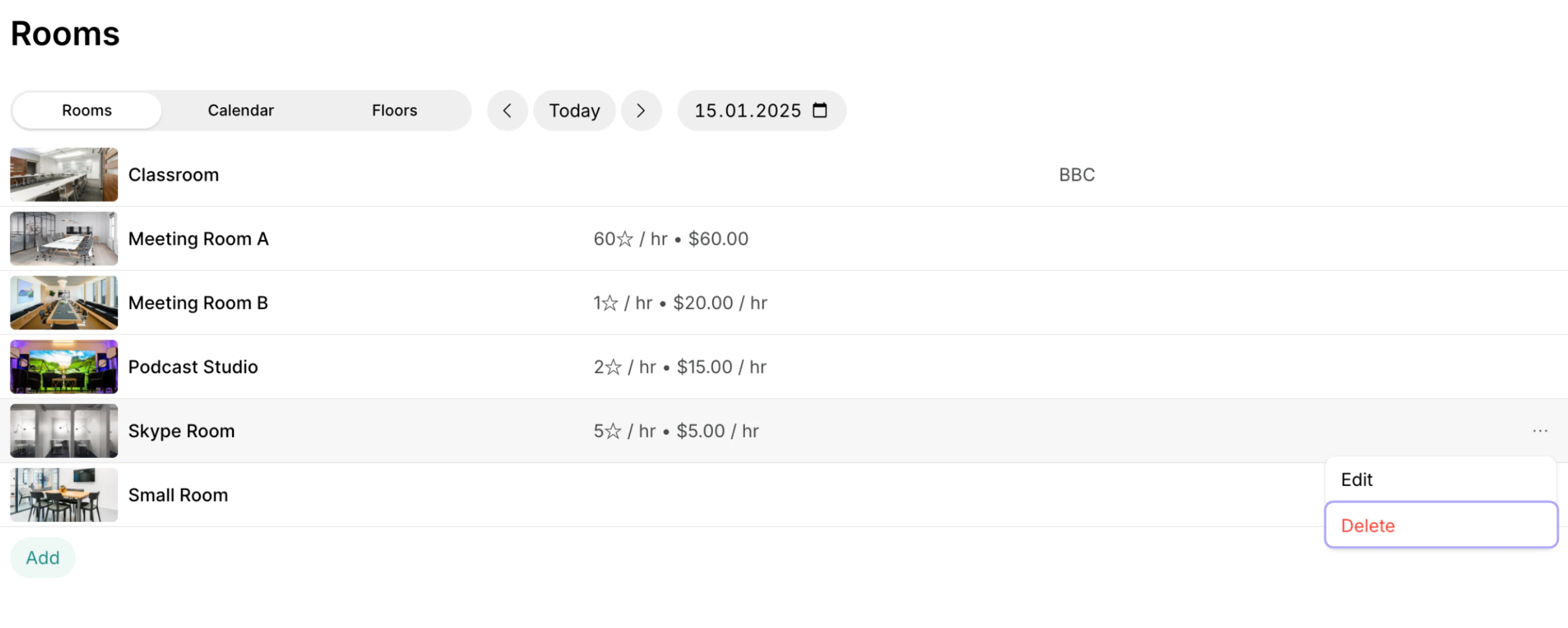
- Find the necessary room and hover over it > click the menu (…) next to it > select
Deleteand confirm your choice. - Adjust the room settings as needed.
- Press
Savein the top right corner.
Changes to the price in any price tier and the rescheduling policy will apply only to future bookings created after the update.
Delete a room
To permanently delete a room from Spacebring, follow these steps:- Navigate to Resources > Rooms.
- Find the necessary room and hover over it > click the menu (…) next to it > select
Deleteand confirm your choice.
Deleting a room is irreversible. All associated bookings will be permanently deleted without a refund and cannot be restored. Booking analytics for the deleted room will also no longer be available.
What should I add to the Rooms?
What should I add to the Rooms?
The Rooms page serves for your meeting and conference rooms, phone booths, and Skype rooms. If you have any photo or podcast studios, offer them on the Rooms page too.
How can I block off all rooms from bookings for several days?
How can I block off all rooms from bookings for several days?
If you are having an event in the space or holidays are coming, mark the corresponding dates as closed in your location schedule so that all resources are unavailable for bookings by your customers on those dates.To block only rooms while keeping other resources available, mark the corresponding dates as closed in each room’s custom schedule. Configure the schedule
How to define the room booking schedule for members and nonmembers?
How to define the room booking schedule for members and nonmembers?
You can either configure a location-wide schedule that applies to all resources or configure a custom schedule for a specific room if it needs different availability. Configure the schedule
Why can’t a customer see a certain room?
Why can’t a customer see a certain room?
The customer might not see a room for the following reasons:
- The customer’s role may not meet the room’s visibility requirements. For example, if the room is visible only to “Location members” but the customer is a nonmember, it won’t appear for them. Check both the room’s visibility settings and the customer’s role.
- The room may be assigned to a specific customer, making it visible and bookable only for them. On the Rooms page, see if a member or company name appears next to the room. To remove the assignment, edit that customer’s subscription.
- The customer may have logged in with a different email. If they are a member and should see the room, check the email tied to their member profile on the Customers page.
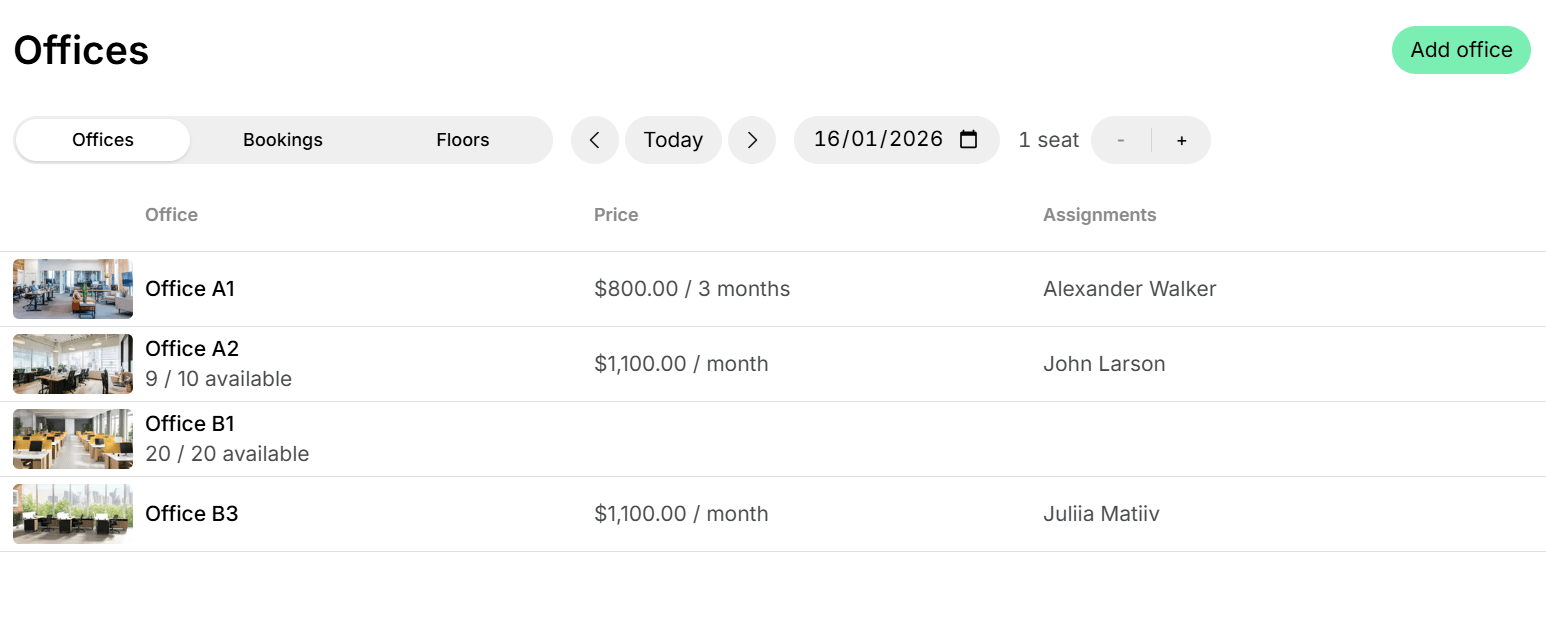
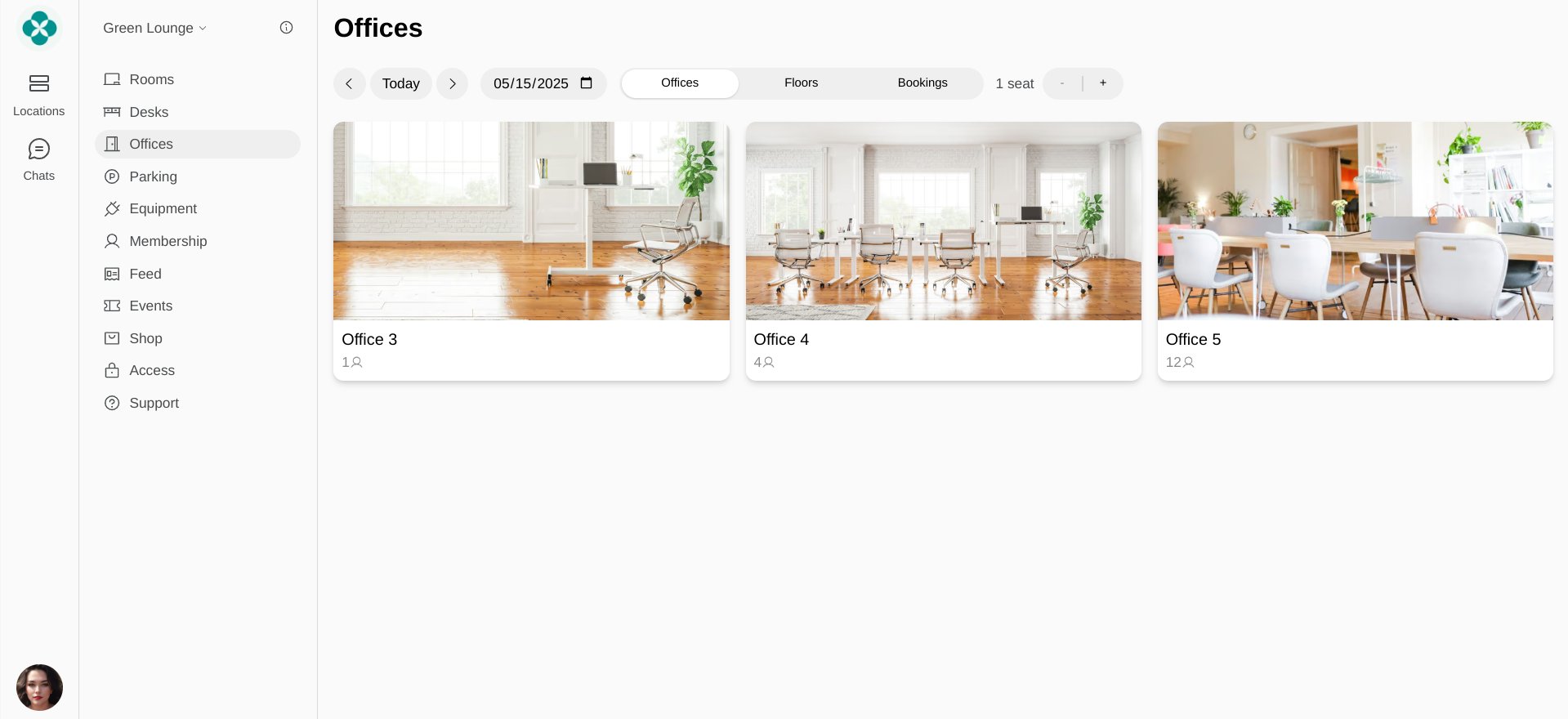
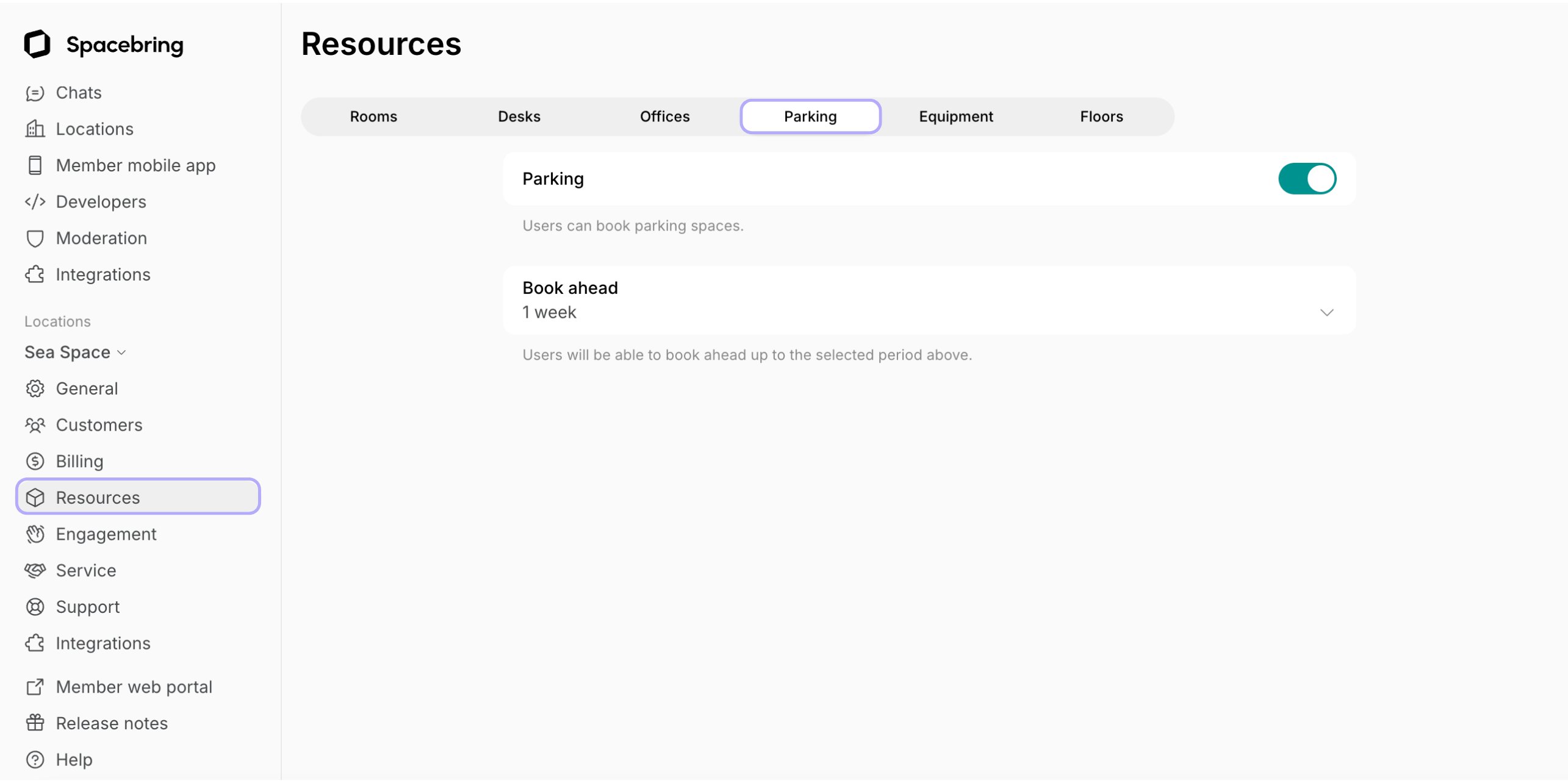
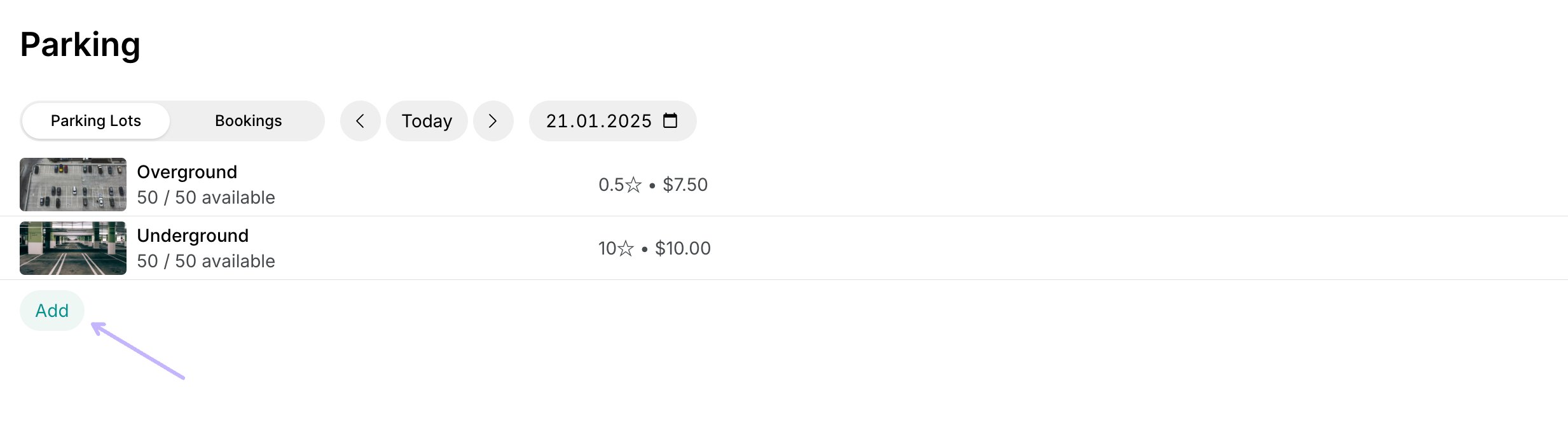
How can I change the order of rooms, desks, offices, parking lots, or equipment for customers?
How can I change the order of rooms, desks, offices, parking lots, or equipment for customers?
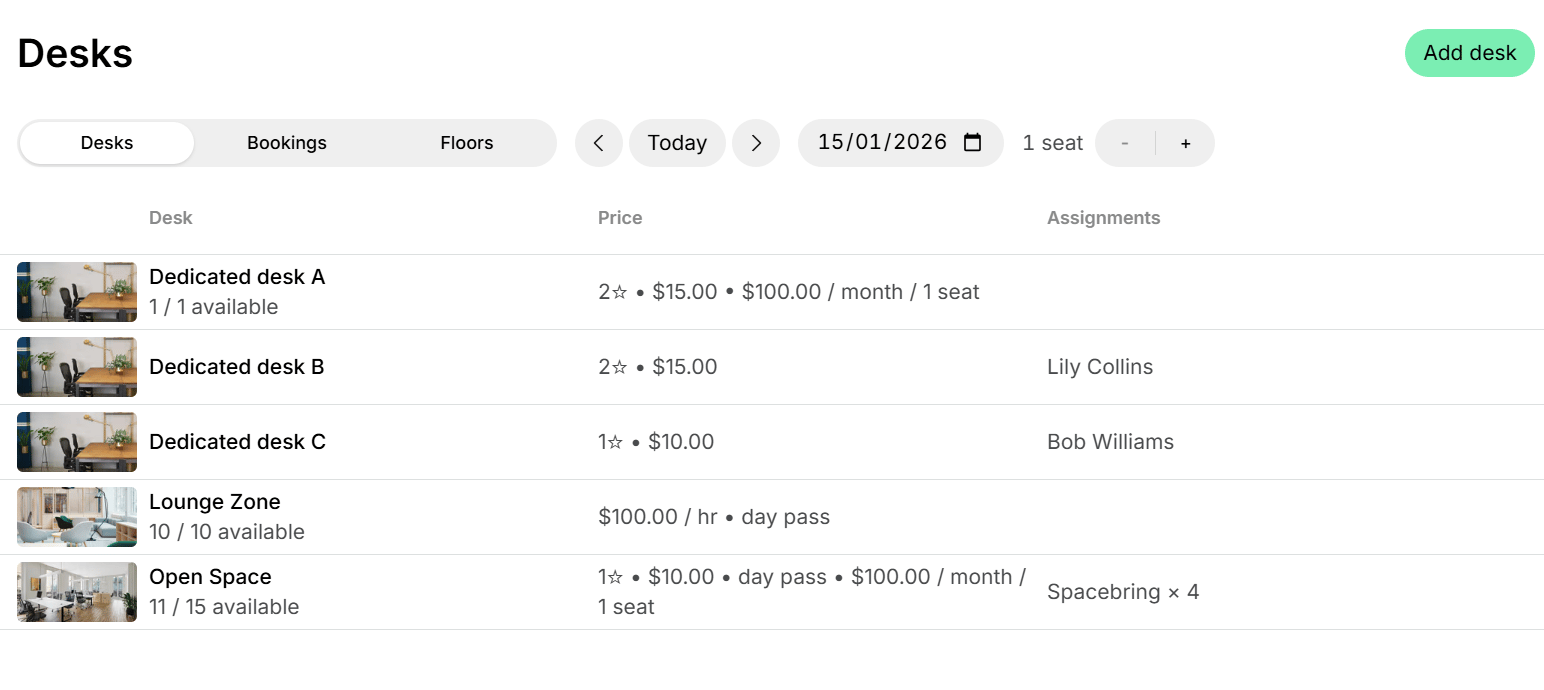
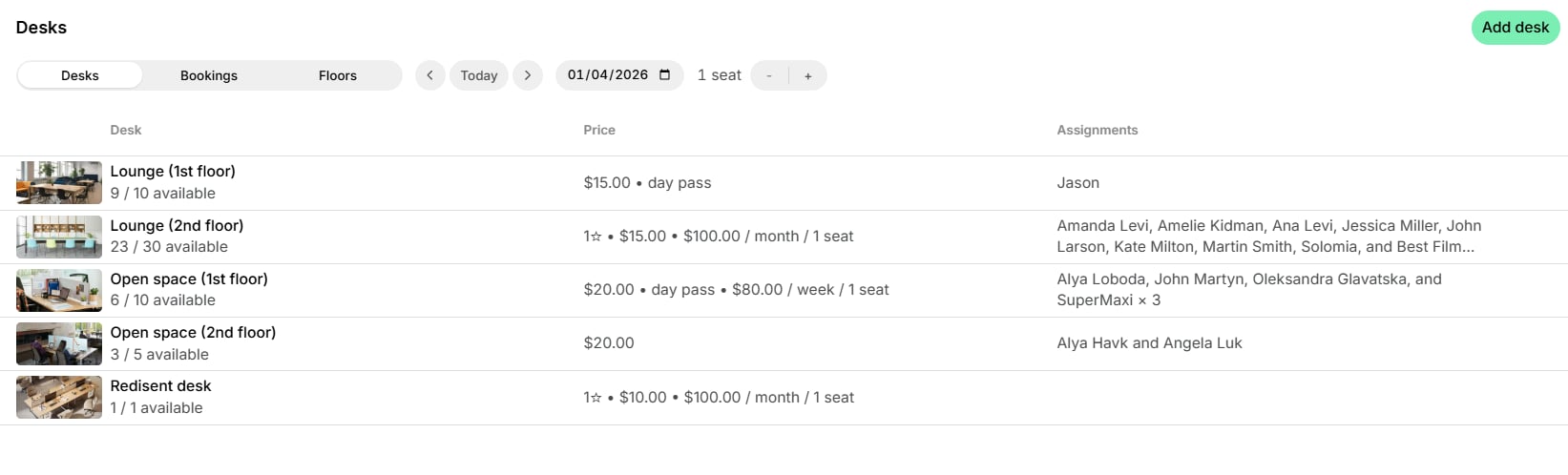
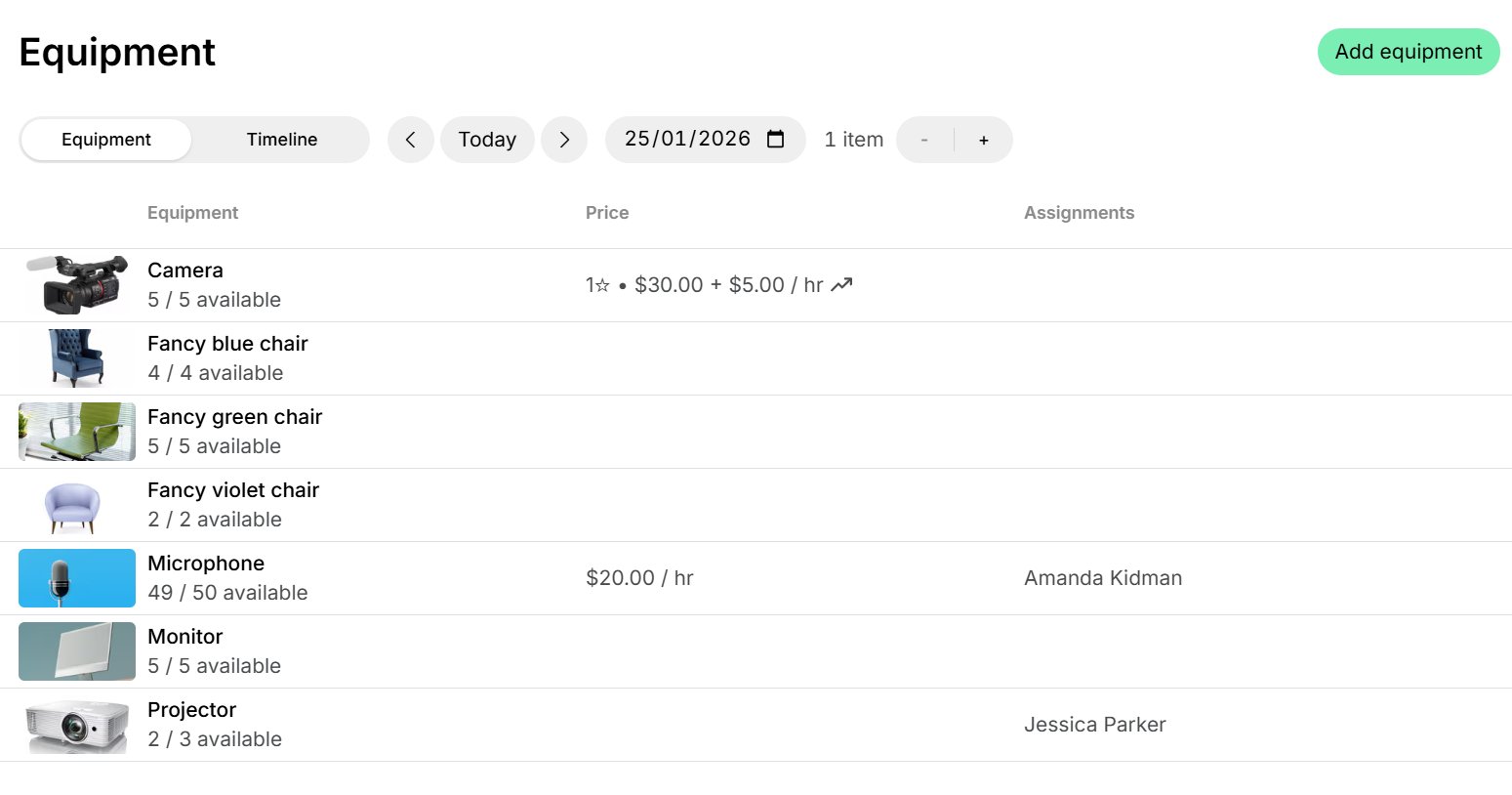
If you need to change the order in which rooms, desks, offices, parking lots, or equipment appear, add numbers to the beginning of their titles—for example, rename Large office to 01. Large office and Big office to 02. Big office to make Large office appear first.