

- Change a customer’s plan, resource, or tier
- Adjust subscription products or quantities when company members join or leave
- Add extra plans or resources, and more.
Edit a subscription
- Go to Customers > open the customer’s profile.
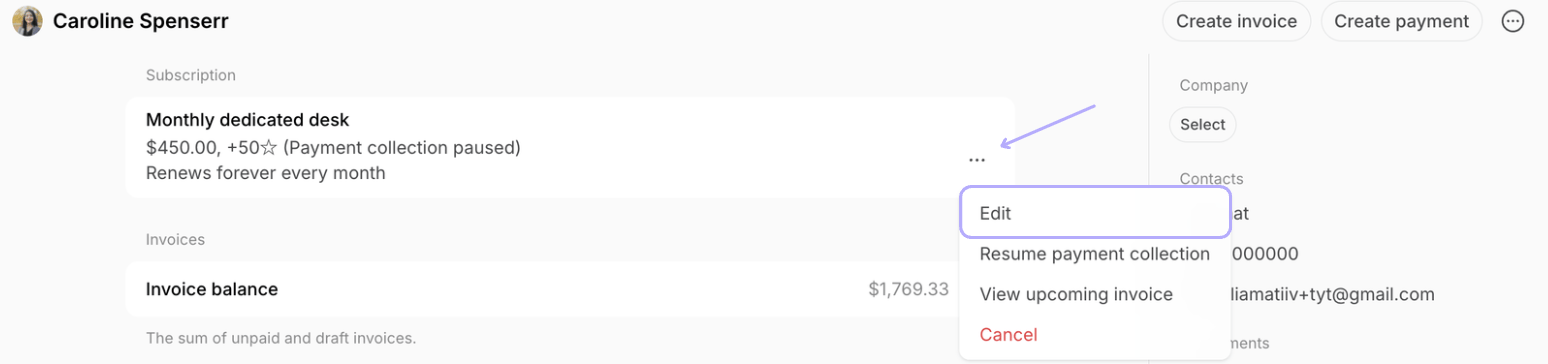
- Press (…) next to the relevant subscription >
Edit.
- When the change should take effect:
- Immediately
- On the next renewal date
- On a specific future date
- Whether the customer is staying on the same billing cycle or switching to a different one.
Subscriptions with the same cycle
This applies when a customer keeps the same renewal cycle (e.g., remaining on a weekly, monthly, or annual subscription).Schedule changes for a specific future date
If you want changes to take effect on a specific date or month, follow these steps: Change plan, resource, tier, price, quantity, credits, or day passes- Click the existing subscription item.
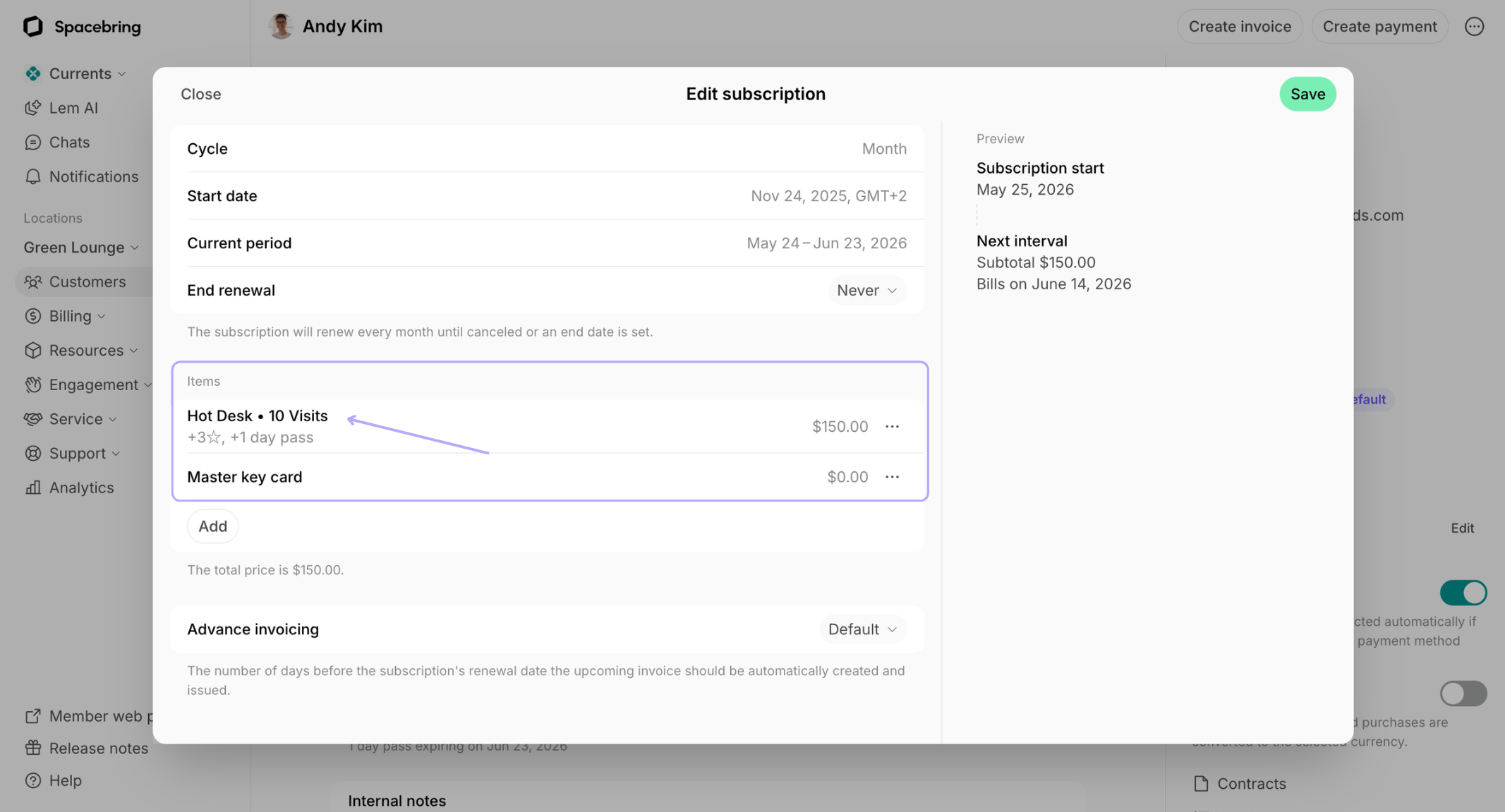
- Set its “End date” to “Custom”.
- Choose the date until which the current subscription item should remain active.
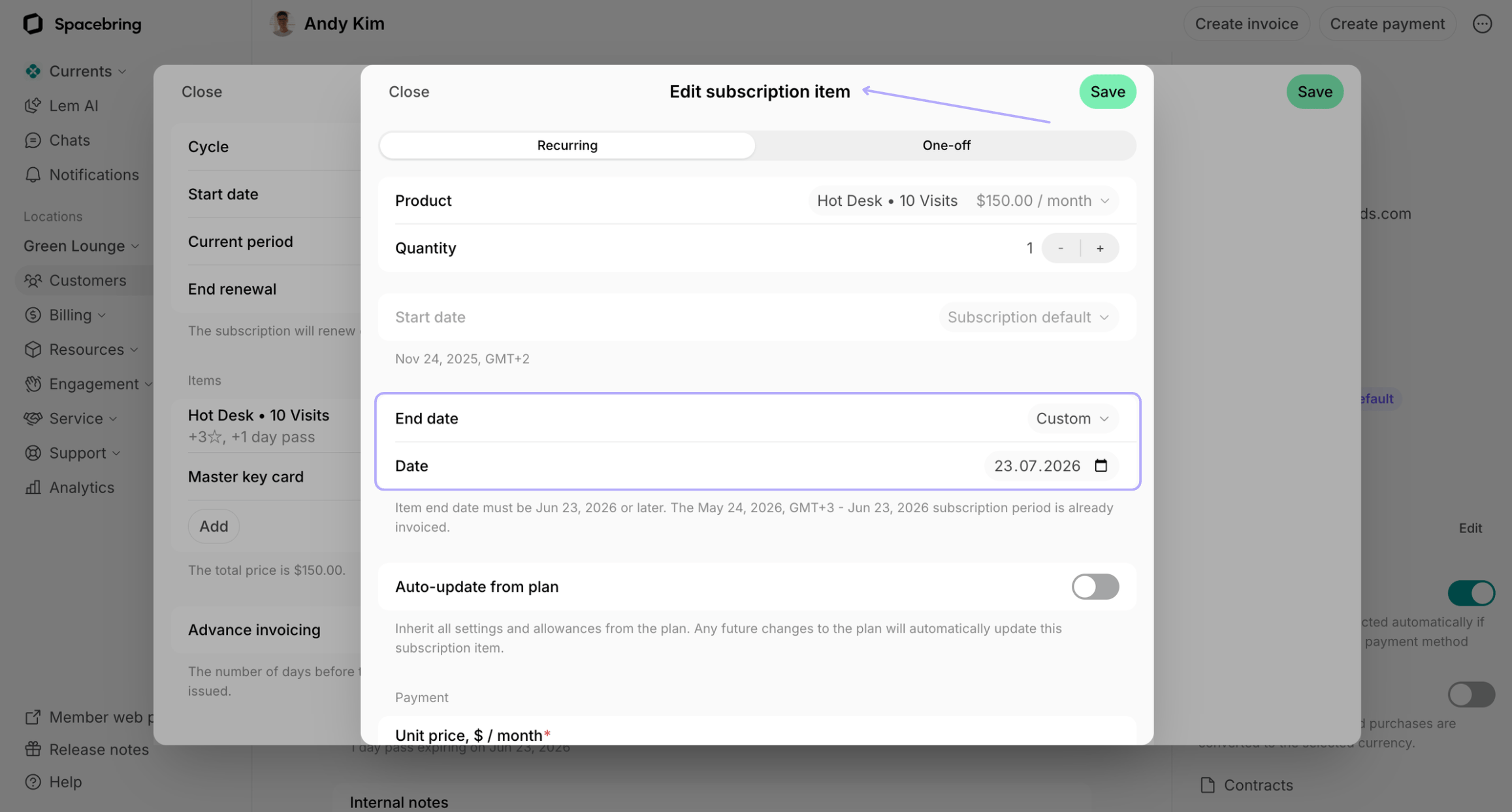
- Add a new subscription item.
- Set up the updated subscription details, and set its “Start date” to “Custom”.
- Choose when the change should take effect (e.g., the day after the old item’s end date).
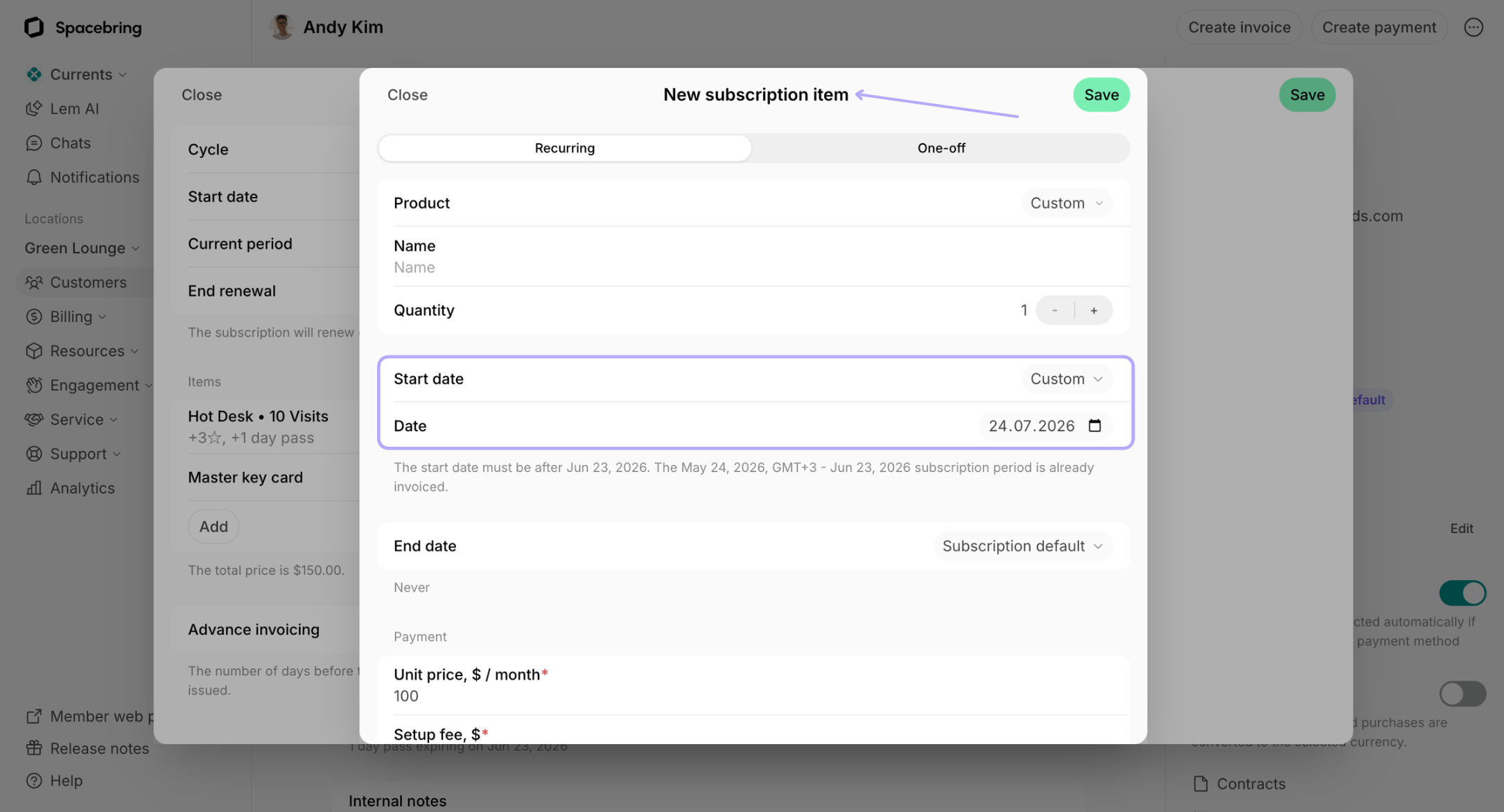
- Click to add a new subscription item.
- Select the new plan or resource, and set its “Start date” to “Custom”.
- Choose when the new product should take effect.
- Click on a subscription item.
- Set its “End date” to “Custom”.
- Choose when the product should be removed from the customer’s subscription.
- An existing item’s end date can’t be set earlier than the last day of the current subscription period.
- A new item’s start date can’t be set earlier than the first day of the next subscription period. How to apply an immediate change
- If the next period has also already been invoiced (by advance invoicing or manually by an administrator):
- The existing item’s end date can’t be earlier than the last day of the next period.
- The new item’s start date can’t be earlier than the first day of the period after next.
- If you set an item’s start or end date to mid-cycle, charges are prorated.
Schedule changes for the next renewal date
If the subscription products remain the same, and you only need to update the price, credit, or day pass allowance, tax rate, or apply a discount coupon starting from the next renewal:- Click the existing subscription item and edit it directly.
- These changes will take effect at the next subscription renewal by default.
Apply an immediate change
If you need to apply changes to the customer’s subscription to take effect immediately today, follow these steps:- Edit the existing subscription item, or add/remove a subscription item.
- If adding a new item, keep the item’s “Start date” set to “Subscription default”.
- Resource assignment, discounts, door, printing, and exclusive resource access are updated immediately.
- Price, credits, and day passes are updated since the next cycle.
- If pricing, credits, or day passes must change immediately:
- If it’s an upgrade, issue a one-off invoice for the remaining part of the month, or add an extra charge to the upcoming invoice.
- If it’s a downgrade, issue a credit note for the current month’s invoice to refund the necessary amount.
- Manually add or deduct credits or day passes in the customer’s profile.
Subscriptions with different cycles
If a customer wants to switch to a subscription with a different billing cycle (for example, from monthly to annual), you should schedule the old subscription to end and create a new subscription. It is not possible to directly change a subscription’s billing cycle.- Click (…) next to the necessary subscription >
Edit. - Set “End renewal” to “On date” and choose the date until which the current subscription should remain active.
- Save the change.
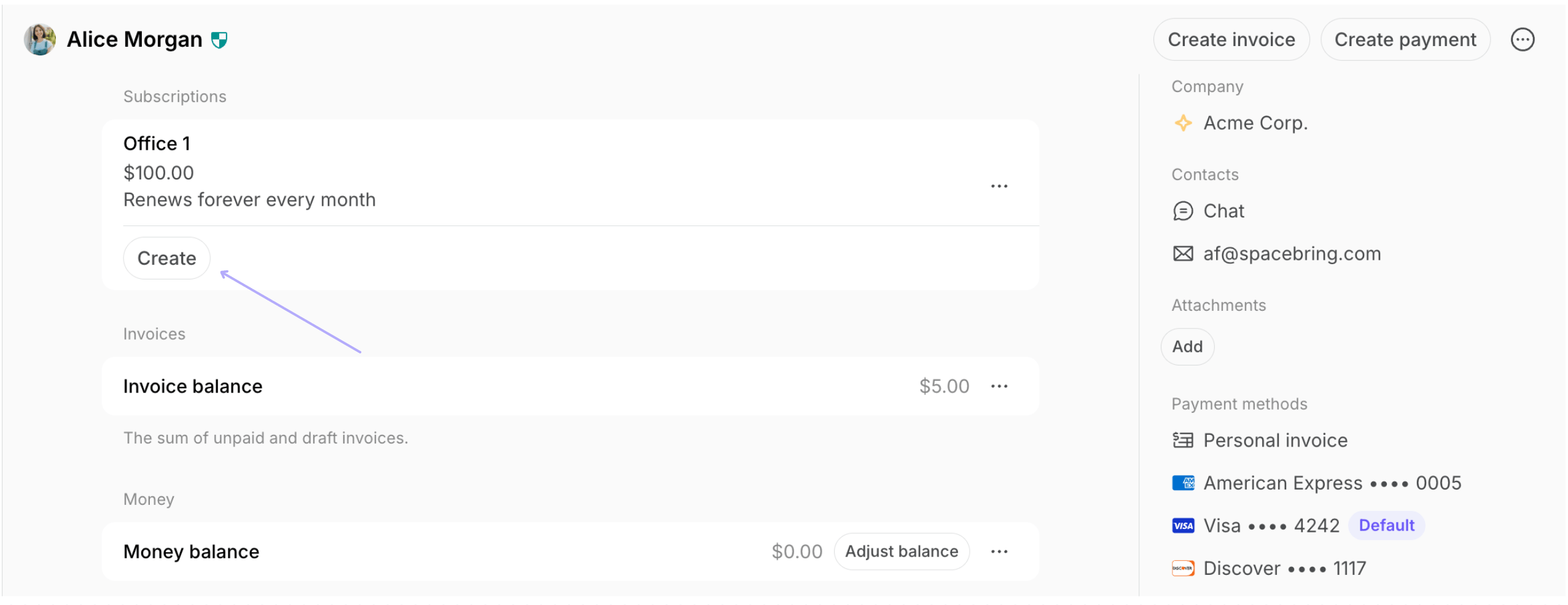
- In the “Subscriptions” section, click
Createto set up a new subscription. - Set the date when the new subscription should take effect.
Other changes
| Change | How it takes effect |
|---|---|
| Start date | Can only be changed if the subscription has yet to start and the first invoice hasn’t been issued. Otherwise, cancel the subscription and recreate it. |
| End renewal | Can be set or changed at any time. End date can’t be earlier than the last date of the current subscription period. To end immediately, cancel the subscription. |
| Commitment period | Reflects immediately. |
| Auto-update from plan | Takes effect immediately and defines if all the subsequent plan changes apply to this subscription. |
| One-off item | When adding a one-off item to an existing subscription, the charge applies to the upcoming invoice. The item will be automatically removed from the subscription once the invoice is issued. |
| Advance invoicing | Takes effect immediately and affects all the next subscription invoices. |
| Pause payment collection | Takes effect immediately and affects all the next subscription invoices. |
Why do I get an error when adding a subscription item with another date?
Why do I get an error when adding a subscription item with another date?
You may get an error when adding a subscription item with another date because of the following rules:
- A new item’s start date cannot be set earlier than the first day of the next subscription period. If the next period has already been invoiced, the new item’s start date can’t be earlier than the first day of the period after next.
- If you want to schedule a change (like switching plans or resources), you must end the current item and add the new one with a start date that follows the end date of the previous item.
- Subscription item dates must fall within the general subscription period; to schedule a change, set an end date for the specific item only, not the entire subscription.
Why is the customer's invoice prorated?
Why is the customer's invoice prorated?
This happens when you add a subscription item and the start or end date does not align with the full billing cycle (for example, not starting on the first of the month or ending before the cycle completes), the invoice is automatically prorated. This means the customer is only charged for the portion of the cycle during which the subscription item is active.For example, if the subscription is set for a 5-day period on a weekly plan (which is normally 7 days), the system calculates a partial charge for those 5 days instead of the full week.
How can I automatically apply a surcharge or additional fee to a member's subscription starting from a specific future date (e.g., after a commitment period ends)?
How can I automatically apply a surcharge or additional fee to a member's subscription starting from a specific future date (e.g., after a commitment period ends)?
You can schedule their subscription change as follows:
- Add a new subscription item for the desired percentage of surcharge to their subscription.
- Set this item’s “Start date” to “Custom” and choose the necessary date. (Detailed guide)