

Zoho Books is a distinct company not affiliated with Spacebring. For any inquiries regarding Zoho Books’s solutions, services, or pricing,
reach out to Zoho directly. We do not have the authority to provide information or support on behalf of Zoho.
Prerequisites
- Have your Zoho Books organization ready, with a user who can manage contacts, invoices, and credit notes in it.
- Set the organization you want to connect as your default organization in Zoho Books. Spacebring connects the default organization of the Zoho user who connects.
- Set up the same tax rates in Zoho Books as in Spacebring. Every tax rate you charge must exist among the organization’s taxes in Zoho Books.
- If you invoice in a currency other than the organization’s base currency, add that currency in Zoho Books. Multiple currencies need the Zoho Books Professional plan or higher.
- Set up the income accounts in Zoho Books where Spacebring should post invoice items.
Connect the Zoho Books integration
- Click the menu (…) next to the location’s name > go to Integrations.
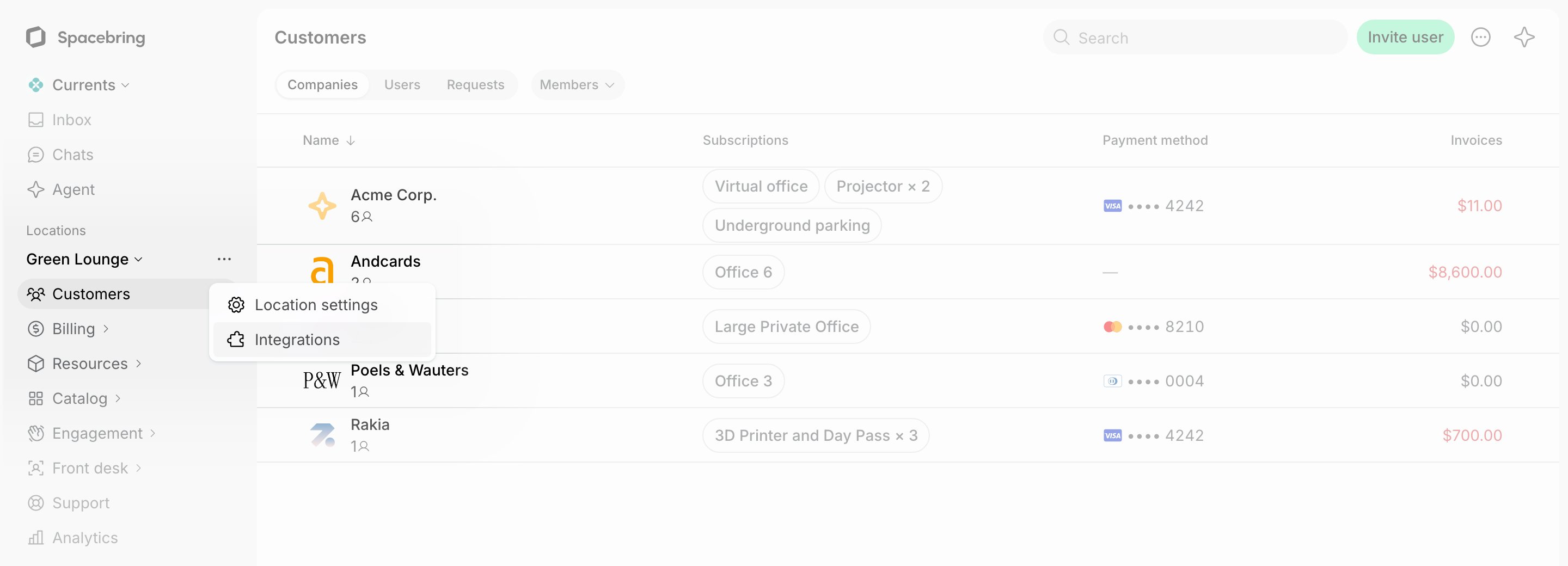
- Open the Zoho Books integration page and click Connect.
- Log in to Zoho and grant Spacebring access to Zoho Books. You return to Spacebring, and the page shows the connected Company.
- Accounts for invoice item sync — for each invoice item type, select the Zoho Books account where Spacebring should post invoice items of that type: Bookings, Event tickets, Shop products, Packages, Subscription items, and Custom.
Only active income accounts are available to select.
How Zoho Books integration works
Once connected, Spacebring syncs newly issued invoices to Zoho Books in real time as drafts. Credit notes for unpaid invoices sync as drafts once you have marked the invoice as sent in Zoho Books.Voiding an invoice in Spacebring doesn’t sync to Zoho Books. To correct an invoice, issue a credit note
in Spacebring.
How invoices sync
The integration maps Spacebring invoice data to Zoho Books as follows:
Zoho Books bills each customer in one currency. A customer you invoice in a currency other than the organization’s base currency gets a separate Zoho Books customer in that currency, named with it, such as Acme (GBP). Spacebring sends the exchange rate the invoice was issued at, so Zoho Books records it in the base currency at the same rate.
Zoho Books requires customer names to be unique, so two of your customers with the same legal name share one Zoho Books customer. When a name is taken by a contact that can’t be invoiced, such as a vendor, Spacebring creates the customer with its tax ID added to the name, such as Acme (GB123456789).
How credit notes sync
Spacebring syncs a credit note issued for an unpaid invoice to Zoho Books as a draft under its own number, with the invoice number as its reference. Review it in Zoho Books, convert it to open, and apply it to the invoice there. The credit note syncs only when the invoice is already marked as sent in Zoho Books. Otherwise it fails to sync, and the notification asks you to mark the invoice as sent first.Disconnect the Zoho Books integration
- Click the menu (…) next to the location’s name > go to Integrations.
- Select Zoho Books > press Disconnect and confirm your choice.
Troubleshoot Zoho Books sync errors
When an invoice or a credit note fails to sync, administrators get a notification that ends with the error in quotes. Spacebring doesn’t retry it on its own, so once you fix the cause, open the invoice and click Sync to Zoho Books."A Zoho Books account is not selected for every invoice item type."
"A Zoho Books account is not selected for every invoice item type."
What it means: The connection is incomplete, because at least one invoice item type has no Zoho Books account.How to fix it: Go to Integrations > Zoho Books and select an account for every invoice item type, including the types you don’t sell.
"Zoho Books has no [rate]% tax. Add it in the Zoho Books tax settings, or change the tax rate on the location."
"Zoho Books has no [rate]% tax. Add it in the Zoho Books tax settings, or change the tax rate on the location."
What it means: An invoice item uses a tax rate that isn’t among your Zoho Books organization’s taxes.How to fix it: Do one of the following:
- In Zoho Books, add a tax with that rate in the tax settings.
- In Spacebring, change the tax rate to one that exists in Zoho Books.
"The currency [currency code] is not set up in Zoho Books. Add it in the Zoho Books currency settings."
"The currency [currency code] is not set up in Zoho Books. Add it in the Zoho Books currency settings."
What it means: The invoice’s currency isn’t added to your Zoho Books organization.How to fix it: Add the currency in the Zoho Books currency settings.
"Your current plan does not support creating Contacts with any currency other than your organizations base currency."
"Your current plan does not support creating Contacts with any currency other than your organizations base currency."
What it means: The invoice is in a currency other than your Zoho Books organization’s base currency, and your Zoho Books plan doesn’t support multiple currencies.How to fix it: Upgrade to the Zoho Books Professional plan or higher, or invoice in the organization’s base currency.
"The Zoho Books invoice must be marked as sent before a credit note can be issued against it."
"The Zoho Books invoice must be marked as sent before a credit note can be issued against it."
What it means: The credit note’s invoice is still a draft in Zoho Books, and Zoho Books can’t credit a draft.How to fix it:
- Open the invoice in Zoho Books and mark it as sent.
- In Spacebring, open the invoice and click Sync to Zoho Books.
"The invoice this credit note belongs to has not been synced to the connected Zoho Books organization."
"The invoice this credit note belongs to has not been synced to the connected Zoho Books organization."
What it means: The credit note’s invoice never reached Zoho Books, or it was synced to an organization the location is no longer connected to.How to fix it: Open the invoice and click Sync to Zoho Books. The sync sends the invoice first and the credit note after it.
FAQs
Why is nothing syncing after I connected Zoho Books?
Why is nothing syncing after I connected Zoho Books?
The connection stays incomplete, and nothing syncs, until an account is selected for every invoice item type on the Integrations > Zoho Books page: Bookings, Event tickets, Shop products, Packages, Subscription items, and Custom. Missing even one stops invoices syncing, including item types you don’t sell.If a specific invoice fails rather than everything, the notification names the cause. The most common ones are a tax rate or a currency on the invoice that isn’t set up in your Zoho Books organization.
Spacebring connected the wrong Zoho Books organization. How do I change it?
Spacebring connected the wrong Zoho Books organization. How do I change it?
Spacebring connects the organization that is set as default for your Zoho user. Disconnect Zoho Books in Spacebring, make the right organization your default in Zoho Books, and connect again.