

Give discounts with plans and subscriptions
You can give your members discounts on specific products and services as part of their membership, down to selected rooms or other individual items. These discounts are then automatically applied for them at checkout.Give a discount to a specific member or company
To give a discount to a specific member or company, grant coupons directly in their subscription.- Go to Customers and open the user or company profile.
- Open their existing subscription or create a new one.
- Open the subscription item.
- Locate the Discounts section and, in the Granted coupons field, select the discounts to give the customer.
- Press Save twice.
This is different from applying a coupon directly to a subscription item’s price, which discounts that item itself (e.g., the rent for a desk or office). Granted coupons doesn’t discount the item — it makes the customer eligible for automatic discounts on other eligible products and bookings at checkout.
Give a discount to all subscribers of a plan or resource plan
To give the same discount to every member who signs up for a plan or resource plan, add coupons to it directly.- Open the plan or resource plan you want to include discounts with:
- For a plan — go to Billing > Plans and open the plan.
- For an office, desk, or other resource — offices, desks, and other resources are rented through a resource plan created inside the resource itself, so open the resource on its Resources page (for example, Offices or Desks) and edit the resource plan you want.
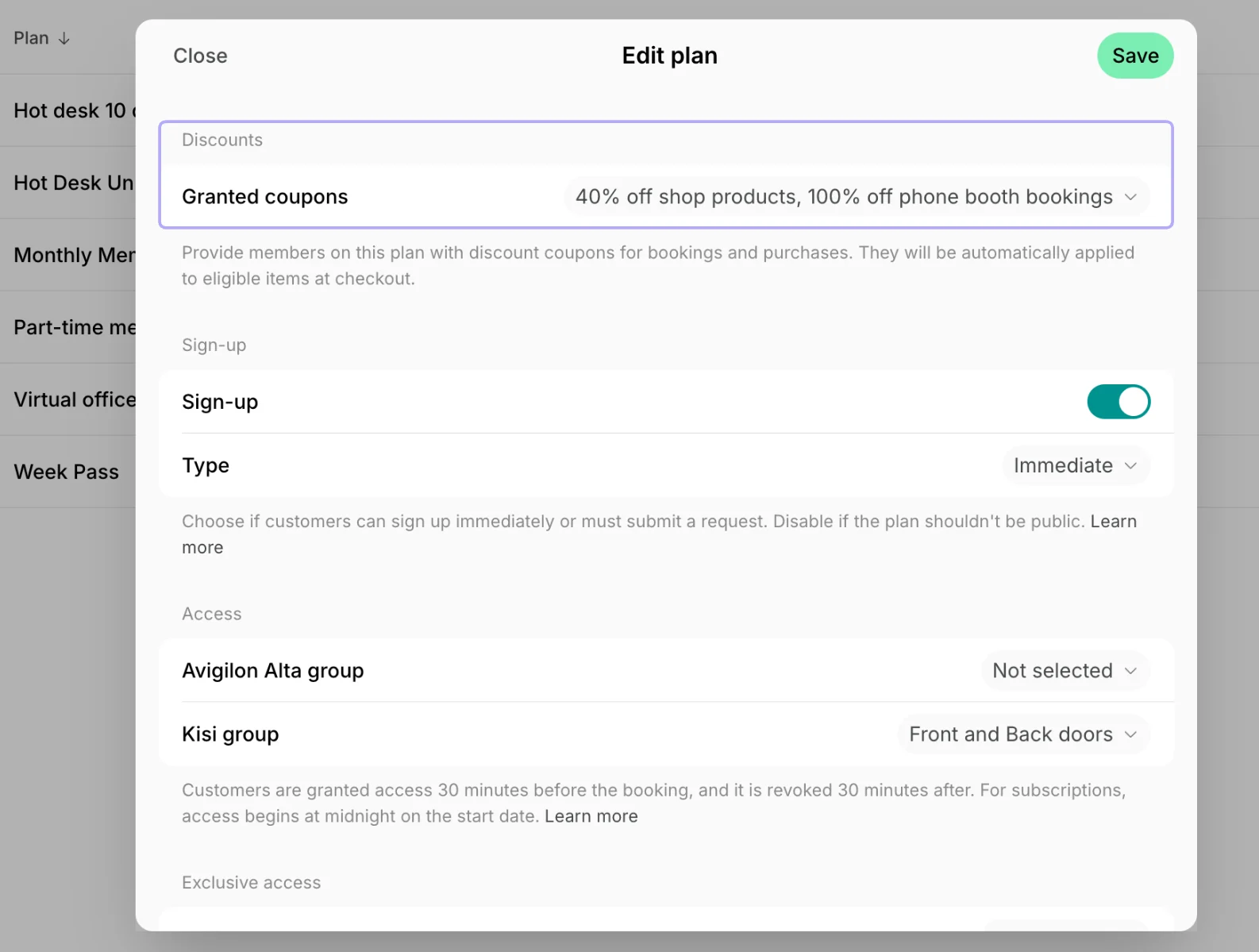
- Locate the Discounts section.
- In the Granted coupons field, select the discounts that members on this plan or resource plan are eligible for.
How granted coupons apply at checkout
- Customers see full, standard prices for all products in the member portal.
- At checkout, if the customer has any coupons for that product in their subscriptions, the Coupon field applies Highest discount available by default. No promo code or other action is needed to receive the discount, and the discount and discounted total are shown before the customer confirms payment.
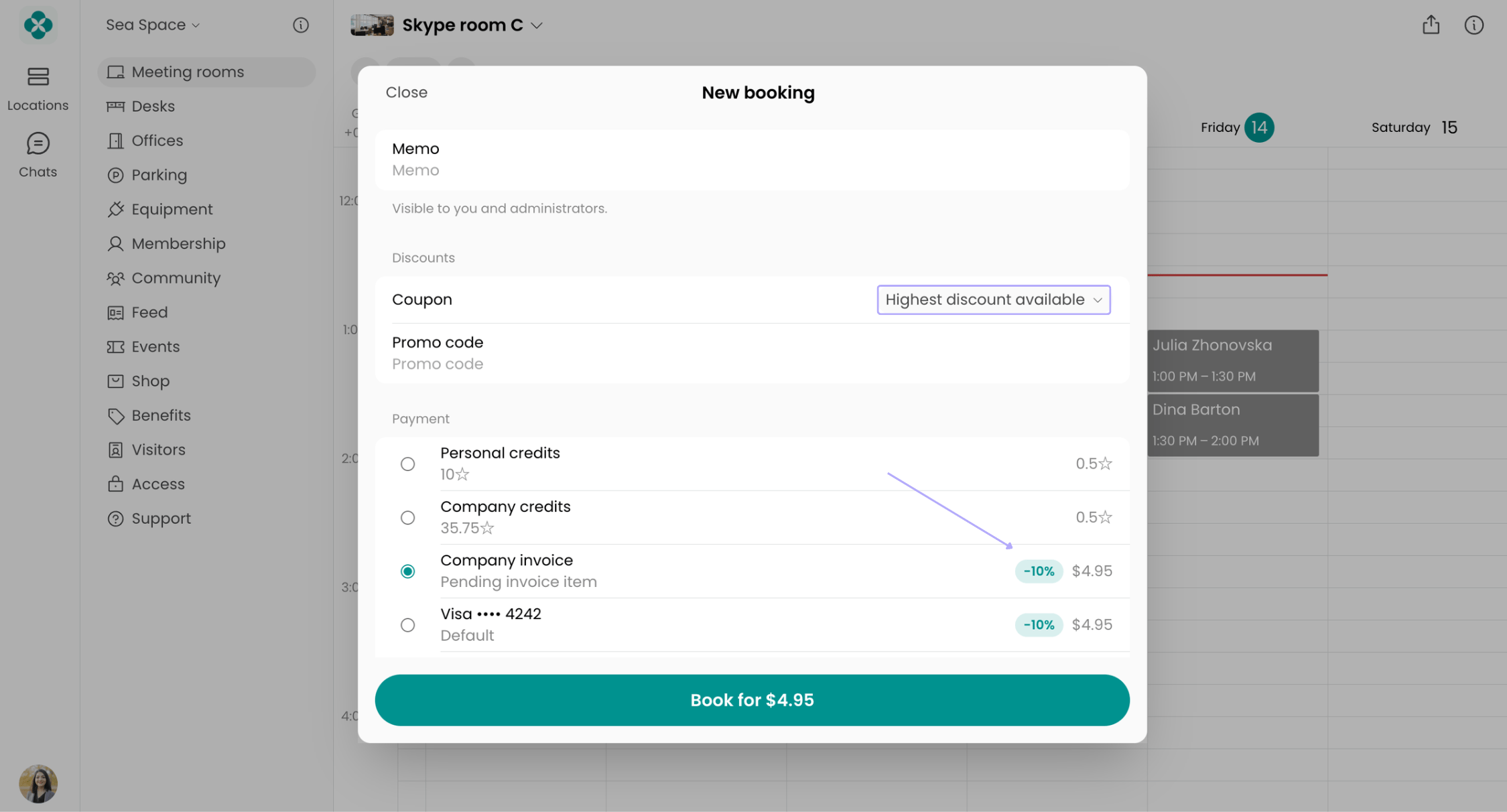
- With Highest discount available, the highest discount is selected for each payment method separately. For example, if the customer has one coupon that discounts only monetary payments and another that also applies to credits, each payment method gets the largest discount available for it.
- The field includes the coupons granted in the customer’s personal subscription and in their company subscription, so the highest discount across all their subscriptions in this location is selected and the customer pays the lowest price.
- Each payment method shows a badge with the discount applied to it, for example -10% or -$5, so the customer sees the discount before choosing how to pay. A payment method without any applicable discount shows no badge.
- Select a specific coupon in the Coupon field if they have a few.
- Enter a promo code. If a promo code is entered, it takes priority over any coupon and replaces it for that transaction. The promo code and the granted coupon do not combine; only the promo code discount applies.
Apply discounts to specific customers’ bookings and subscriptions
To bookings
To apply a discount when making a booking for the customer:- Go to the Rooms, Desks, Parking, or Equipment page and start a booking.
- Select the customer in the Booker field.
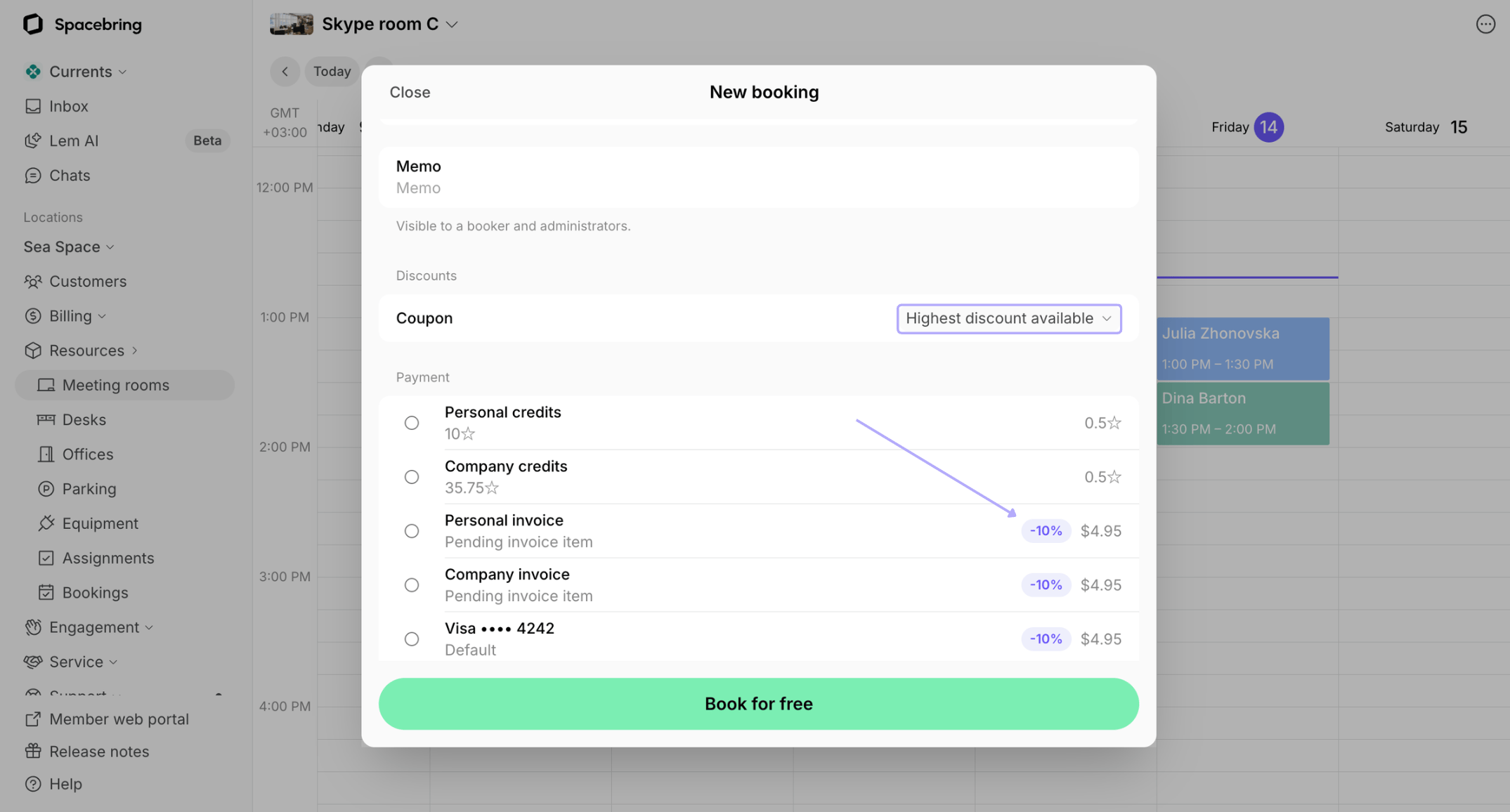
- Check the Coupon field:
- Highest discount available applies by default. It checks whether the customer has any coupons granted for this product in their subscriptions and applies the highest one to each payment method. A discount badge appears next to every payment method the discount applies to. If no badge appears, the customer has no coupons granted for this product.
- Select any other coupon in the field to apply it instead.
- Review the discounted price and confirm the booking.
To subscriptions
To apply a discount to the customer’s subscription price:- Go to Customers and open the user or company profile.
- Open their existing subscription or create a new one.
- Click the subscription item to apply the discount to.
- Choose a coupon in the Coupon field. Press Save twice.

You can apply a different coupon to each item within a subscription — discount only one specific item, or apply different discounts to different items.
Create promo codes
A promo code is a unique code — for example, SUMMER20 — linked to a coupon. You can create and share promo codes with specific customers or distribute it broadly for a promotion or marketing campaign. To create a promo code:- Go to Billing > Discounts.
- Select the coupon the promo code should be linked to.
- Click Create promo code.

- Configure the promo code properties.

Once created, a promo code cannot be edited. Archive the promo code and create a new one if changes are needed.
- Share the promo code directly with customers or publish it in your marketing campaign. Customers enter it at checkout to redeem the discount.
How customers apply promo codes
Customers can apply promo codes in the member portal during checkout:- Start a booking, subscription sign-up, or other purchase.
- Enter the promo code in the Promo code field.
- Review the discounted price and confirm payment.
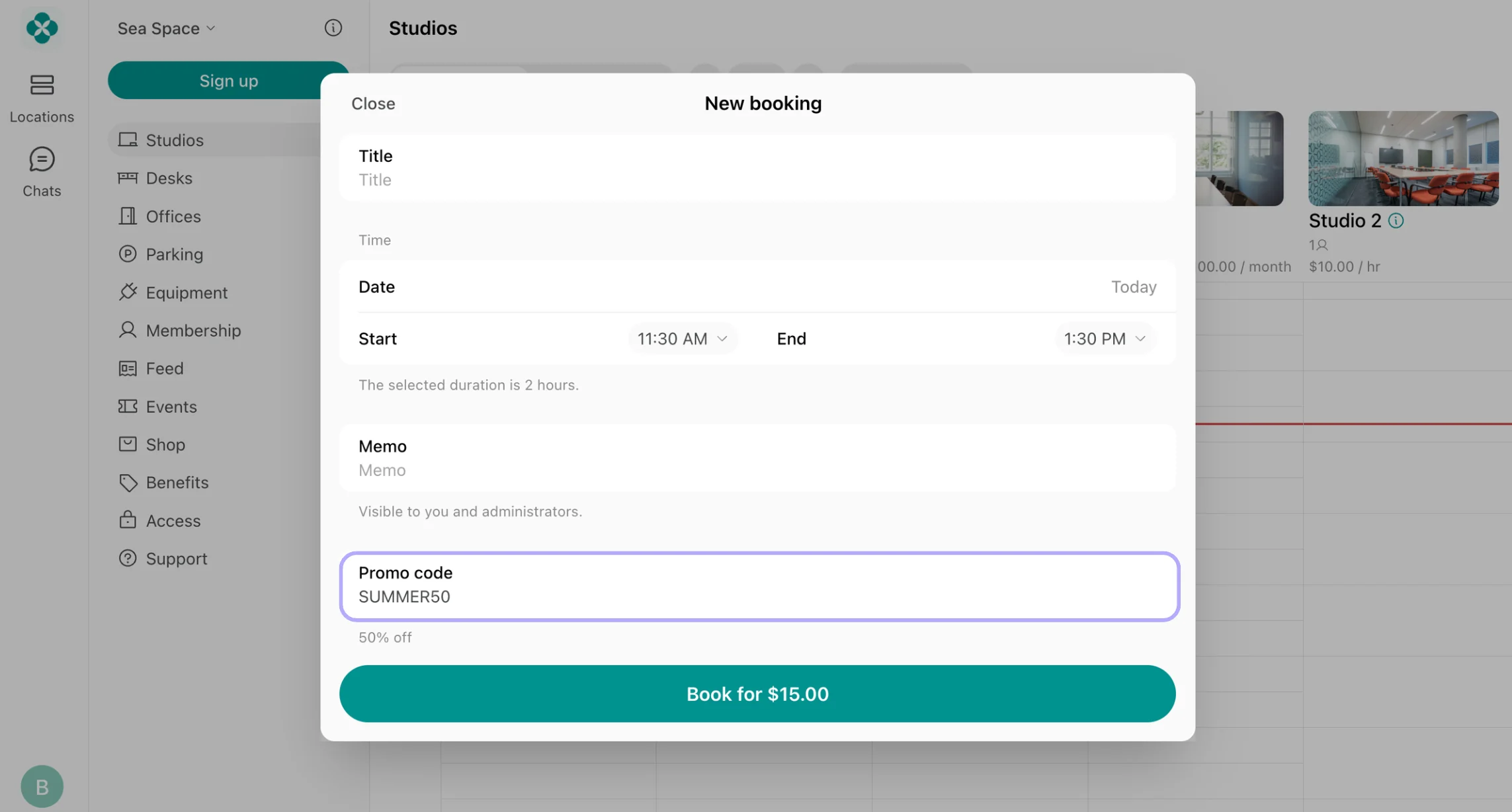

Only customers without an active subscription can apply promo codes during subscription sign-up. For customers with an existing subscription, only administrators can apply coupons to their subscription items directly.
Track coupon and promo code usage
To see how many times each discount has been redeemed, who redeemed it, and when:- Go to Billing > Discounts.
- Open a coupon or promo code to view:
- Total redemptions
- Customer name
- Product the coupon or promo code was applied to
- Redemption date
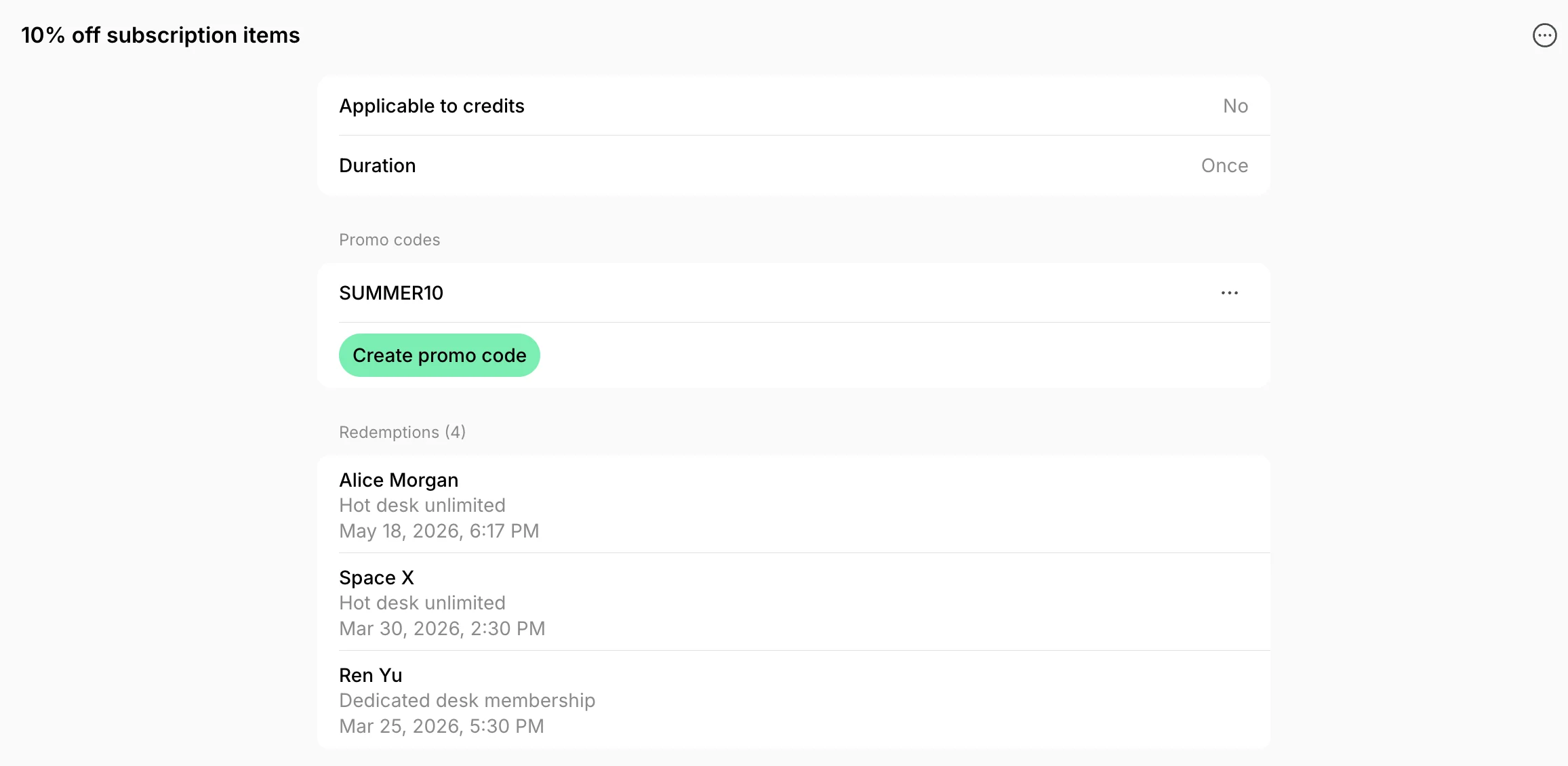
For broader analytics, export the invoice items report to analyze discount usage. The report provides information about all the discount applications.
Delete a coupon
Delete a coupon when you no longer want the discount to be redeemable. For this:- Go to Billing > Discounts.
- Click (…) next to the coupon > Delete.
Archive a promo code
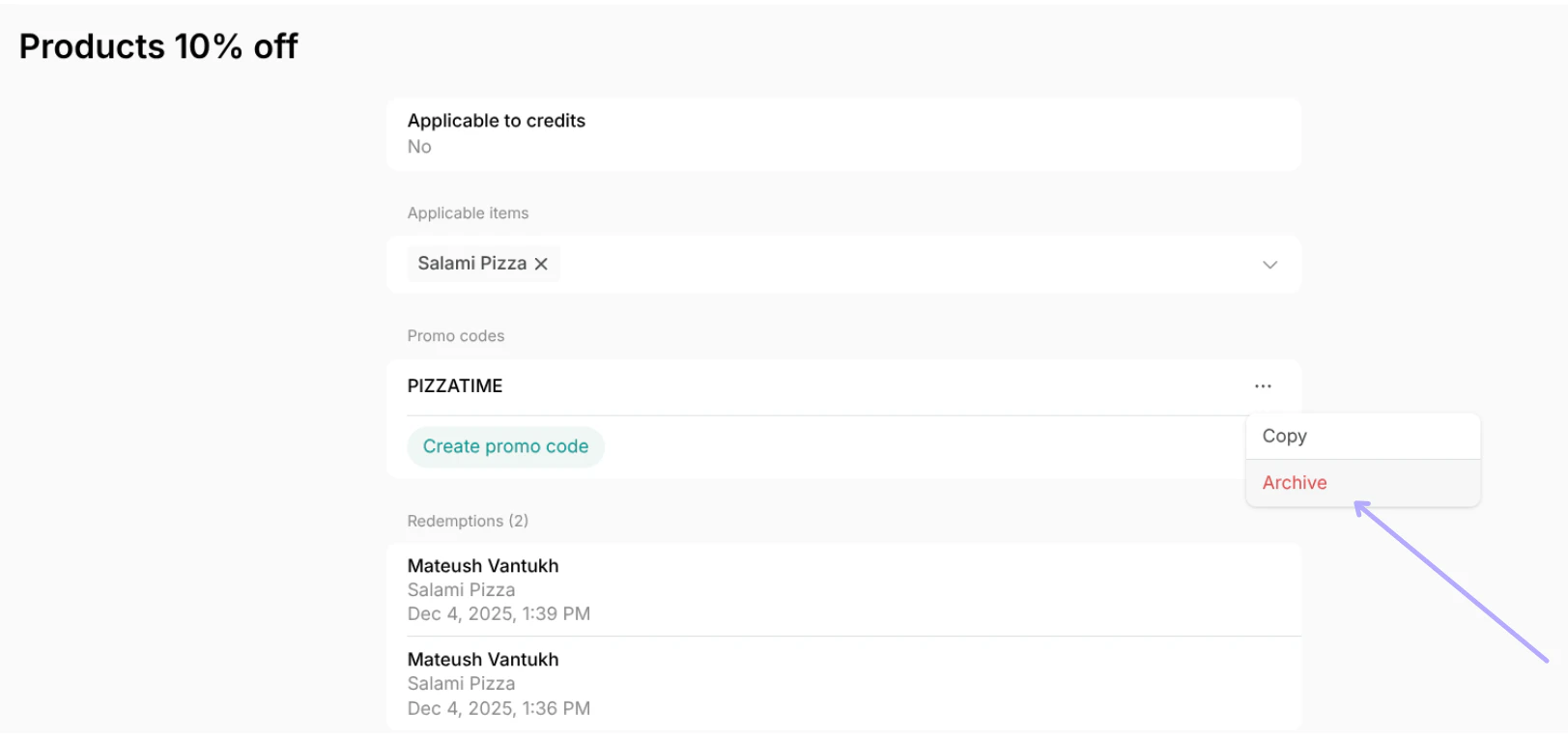
Archive a promo code when a promotion ends or the discount is no longer available. For this:- Go to Billing > Discounts.
- Select the coupon associated with the promo code.
- Click (…) next to the promo code > Archive.
FAQs
How to change or remove a discount granted in a customer's subscription?
How to change or remove a discount granted in a customer's subscription?
If the customer’s discount applies to specific items (for example, specific rooms) and you need to change to which items it is applicable:For any other change — the discount amount or percentage, or the applicable products — create a new coupon with the rules you need, because coupons cannot be edited. Then swap it in the subscription:
- Go to Billing > Discounts and open the coupon.
- Edit the list in the Applicable items section and save. The change applies immediately to every customer who has this coupon granted in their subscription.
This is only possible for discount coupons created with Apply to specific items enabled.
- Go to Customers and open the user or company profile.
- Open the subscription and click the subscription item.
- Click the Granted coupons field, remove the tick next to the current coupon, and tick the new one.
- Press Save twice.
Why does a customer's booking cost less than the resource price?
Why does a customer's booking cost less than the resource price?
A discount might have been applied when the booking was created. Open the booking > the Payment section and look at the Discount and Promo code fields:
- Discount means the customer has a discount on that resource or service type through their personal or company subscription. Open the subscription to adjust it if needed.
- If the booking shows a discount but the customer’s subscription no longer does, the discount was active only when the booking was created and has since been changed or removed.
Why is the user seeing the 'Promo code is not valid' error?
Why is the user seeing the 'Promo code is not valid' error?
This error typically appears for one of the following reasons:
- The code might have been entered with a typo or extra spaces. Please double-check it.
- The promo code might be Limited by first purchases, and the user might have already purchased this product type previously. You can verify the user’s previous purchases in their profile under Customers.
- The promo code might be redeemable for product types different from what the user is trying to purcase. Check the promo code and its associated coupon to confirm its eligible products types.
- The coupon might be limited to specific items, and the selected item is not eligible. Review the Applicable items section for the relevant coupon.
- The promo code might have expired. Check its expiration date.
- The promo code or associated coupon might have reached the redemption limit.
- The promo code might have been archived or the associated coupon was deleted.
How does a discount for subscription items take effect?
How does a discount for subscription items take effect?
- For new subscriptions, the discount takes effect on the subscription start date and applies to their first subscription payment.
- For existing subscriptions, the discount takes effect on the next renewal date.
- For coupons with the Repeating duration type applied to a non-monthly subscription, the discount applies to all invoices generated during the configured number of months.
- A coupon with a 3-month duration applied to a yearly subscription discounts only the first yearly invoice, since only one invoice is generated during that period. The discount applies to the full yearly subscription price, not a prorated 3-month amount.
- A coupon with a 3-month duration applied to a weekly subscription discounts all 13 weekly invoices generated within the first 3 months.