

Eurofaktura is a distinct company not affiliated with Spacebring. For any inquiries regarding Eurofaktura’s solutions, services, or
pricing, reach out to Eurofaktura directly. We do not have the authority to provide information or support on behalf of Eurofaktura.
Prerequisites
- Have your Eurofaktura organization ready on the PREMIUM plan, the only plan that includes API web services. Contact Eurofaktura to activate it.
- In Eurofaktura, enable web services in the organization settings. Eurofaktura issues the organization’s API token there.
- In Eurofaktura, create an API user for Spacebring only under the company settings’ API web services, with access to the Invoicing API and the Partner API. Its credentials window shows the API username, the API password, and the organization’s API token.
- Note your organization’s API URL. It depends on your country edition, for example
https://e-racuni.com/WebServicesSI/APIfor Slovenia. - To sync tax, make sure your Eurofaktura organization is registered for VAT in its organization data, and use the VAT rates it knows in Spacebring, for example 22%, 9.5%, and 5% in Slovenia. Eurofaktura drops the tax of a document in an organization that isn’t registered for VAT, and refuses a document with any other rate.
Connect the Eurofaktura integration
- Click the menu (…) next to the location’s name > go to Integrations.
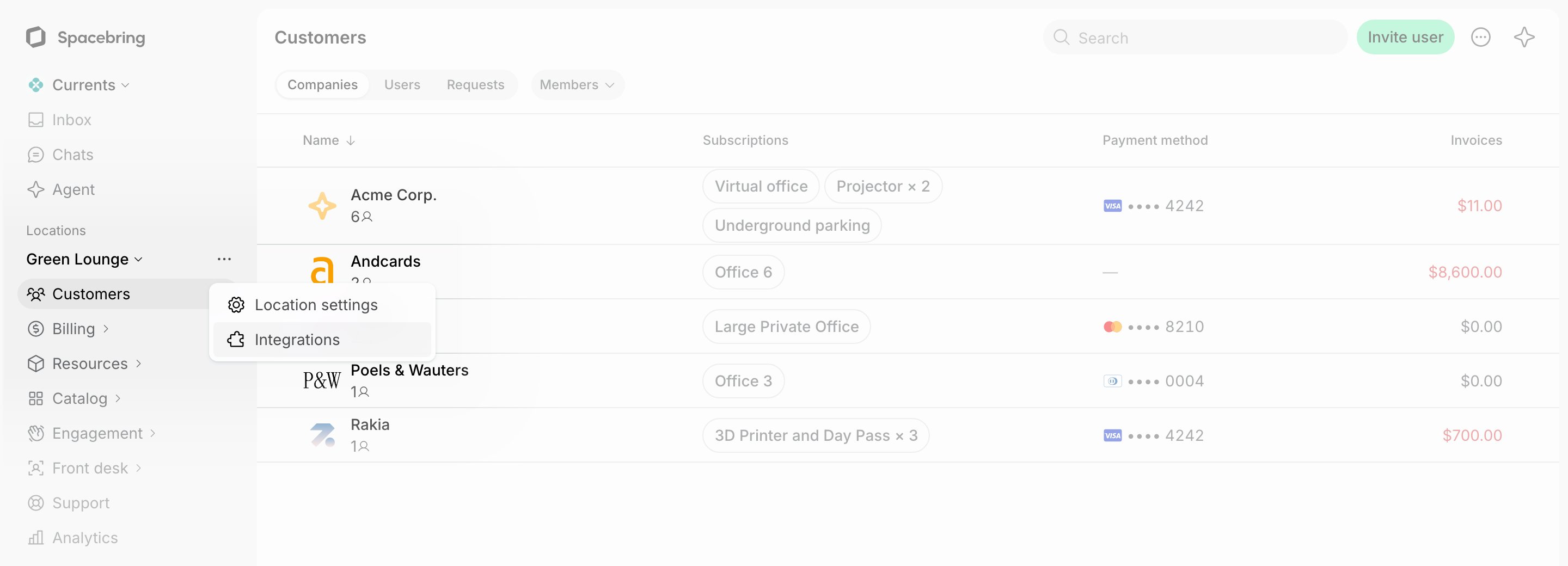
- Open the Eurofaktura integration page and click Connect.
- Enter the API URL, the API user’s Username and API password, and the organization’s API token, then click Connect. Spacebring checks the credentials with Eurofaktura and shows the connected account.
Spacebring accepts only an API URL on a Eurofaktura or e-računi address, so your credentials are never sent anywhere else.
How Eurofaktura integration works
Once connected, Spacebring syncs newly issued invoices to Eurofaktura in real time as drafts, and credit notes for unpaid invoices as drafts linked to their invoice. Nothing else needs to be set up: each document carries its own VAT rates and currency, and Eurofaktura applies your organization’s defaults.Voiding an invoice in Spacebring doesn’t sync to Eurofaktura. To correct an invoice, issue a credit note
in Spacebring, which syncs as a draft linked to the invoice.
How invoices sync
The integration maps Spacebring invoice data to Eurofaktura as follows:How credit notes sync
Spacebring syncs a credit note issued for an unpaid invoice as a draft credit note in Eurofaktura that is linked to the invoice, with the credited items, the same buyer, and the Spacebring credit note number as its order reference. You don’t have to issue the invoice in Eurofaktura first. The credit note syncs only once its invoice is in Eurofaktura; otherwise the credit note fails to sync, and the notification says so.Disconnect the Eurofaktura integration
- Click the menu (…) next to the location’s name > go to Integrations.
- Select Eurofaktura > press Disconnect and confirm your choice.
Disconnecting stops the sync but doesn’t remove the API user or token in Eurofaktura. To revoke Spacebring’s access, delete the API user
or disable web services in Eurofaktura.
Troubleshoot Eurofaktura sync errors
When an invoice or a credit note fails to sync, administrators get a notification that ends with the error in quotes. Spacebring doesn’t sync that invoice or credit note again on its own, so fix the cause and sync it again from the invoice’s (…) menu, or create it in Eurofaktura yourself."The invoice this credit note belongs to has not been synced to Eurofaktura."
"The invoice this credit note belongs to has not been synced to Eurofaktura."
What it means: A credit note was issued for an invoice that Eurofaktura doesn’t have, for example an invoice issued before you connected Eurofaktura or one that failed to sync.How to fix it: Open the invoice and click Sync to Eurofaktura in the (…) menu. The sync creates the invoice draft and then its credit notes.
"The invoice has no customer name to sync to Eurofaktura with."
"The invoice has no customer name to sync to Eurofaktura with."
What it means: The invoice’s billing details carry no customer name, and Eurofaktura needs a buyer name on every document.How to fix it: Add the customer’s name or legal business name in their billing details, then sync the invoice again.
Any other error, in Eurofaktura's own words
Any other error, in Eurofaktura's own words
What it means: Eurofaktura refused the document and the notification carries its reason, for example a buyer address it requires or a VAT rate it doesn’t recognize.How to fix it: Fix the cause in Spacebring or in Eurofaktura, then sync the invoice again from its (…) menu.
FAQs
Why does the invoice get a different number in Eurofaktura?
Why does the invoice get a different number in Eurofaktura?
Spacebring creates the document as a draft, and Eurofaktura numbers it from your own sequence when you issue it. The number Spacebring
issued the invoice with is on the draft as its order reference, so you can match the two.
Can I connect several locations to one Eurofaktura organization?
Can I connect several locations to one Eurofaktura organization?
Yes. Each location holds its own copy of the credentials, and its documents sync to the organization those credentials belong to.
Eurofaktura runs one API request at a time per API user, so locations sharing one API user sync one after another.