Documentation Index

Fetch the complete documentation index at: https://www.spacebring.com/docs/llms.txt

Use this file to discover all available pages before exploring further.

Integrating Spacebring with the Stripe gateway allows you to seamlessly accept payments for all products and services. When a user makes a booking or purchase and completes a payment, Stripe handles the transaction, and Spacebring updates the payment status accordingly. However, transaction success can be influenced by several factors, including the performance of the Stripe payment gateway, the user’s bank, etc. If the transaction has been unsuccessful, you cannot find a specific payment, or need to understand the reason for a payment failure, follow these steps.
To troubleshoot payments, you need administrator access to the Spacebring location where the payment has been initiated and access to your Stripe dashboard.

1. Check the transaction status in Spacebring

When the payment doesn’t go through, it’s essential to understand the reason for this to assist your customer. Spacebring reflects clear statuses for each transaction, helping you identify the next steps. To see the payment status:
  1. Go to the Billing > Transactions page > “Money” tab.
  2. Filter by company or user > hover over the status near the necessary transaction.
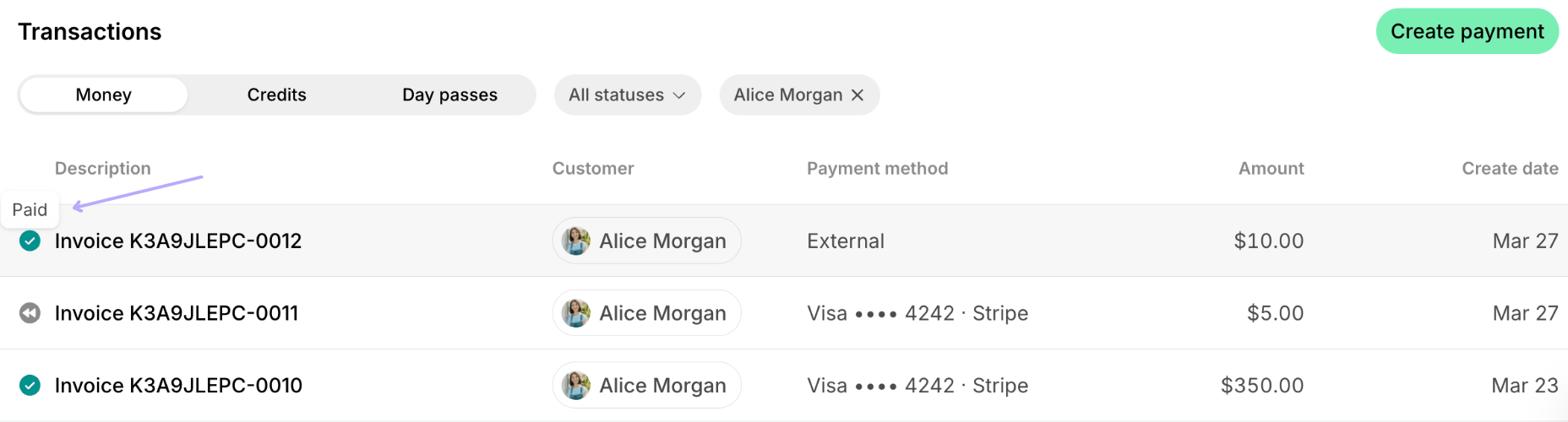
You will see one of the following statuses for each transaction:
Transaction statusDescriptionYour actions
PaidThe payment has been successfully completed.You can verify it in Stripe using the receipt number.
FailedThe payment was declined by Stripe or the customer’s bank for some reason, e.g. insufficient balance or card restrictions like “Your card does not support this type of purchase.”
  1. Open the transaction and check the specific error message returned by Stripe.
  2. Proceed to steps 2 and 3 to get more details about the failure reason from Stripe.
  3. Inform the user and follow the resolution steps that Stripe recommends.
CanceledThe user initiated the payment but closed the payment page without completing the transaction.Ask your user to complete the payment.
PendingThe user has opened the payment page but still needs to complete the payment. If 15 minutes expire and the user doesn’t complete it, this transaction status will automatically change to “Canceled”.Ask your user to complete the payment.
ProcessingThe payment attempt has been completed by the user, and Spacebring is awaiting payment confirmation from Stripe.Wait for the transaction to be processed and check its status then.
DisputedThe user disputed the payment with their bank. The “Transactions” report will show the transaction status as “Paid,” and the disputed amount will be reflected in the “Amount Disputed” column.Manage disputed payments

2. Check the transaction details in the Stripe dashboard

If a payment has a status of “Failed,” “Processing,” or “Disputed,” or if you need more information about the error or failure reason, the next step is to check your Stripe dashboard. To do this:
  1. Open the specific transaction in Spacebring.
  2. Click View in Stripe.
This will take you directly to this transaction’s page in your Stripe dashboard, where you can access detailed information about the payment status, error messages, and failure reasons. For example, errors such as “Your card does not support this type of purchase” often indicate restrictions set by the card issuer and require specific troubleshooting steps. Alternatively:
  1. Navigate to the Analytics page > tap Create report at the top right corner > create a report with “Transactions” type and download the report.
  2. By checking the amount, time, or status of the transaction, find the one you’re looking for and copy its ID from the “ID” column.
  3. Go to your Stripe dashboard and use the copied transaction ID to find the specific payment and reveal more details about it.
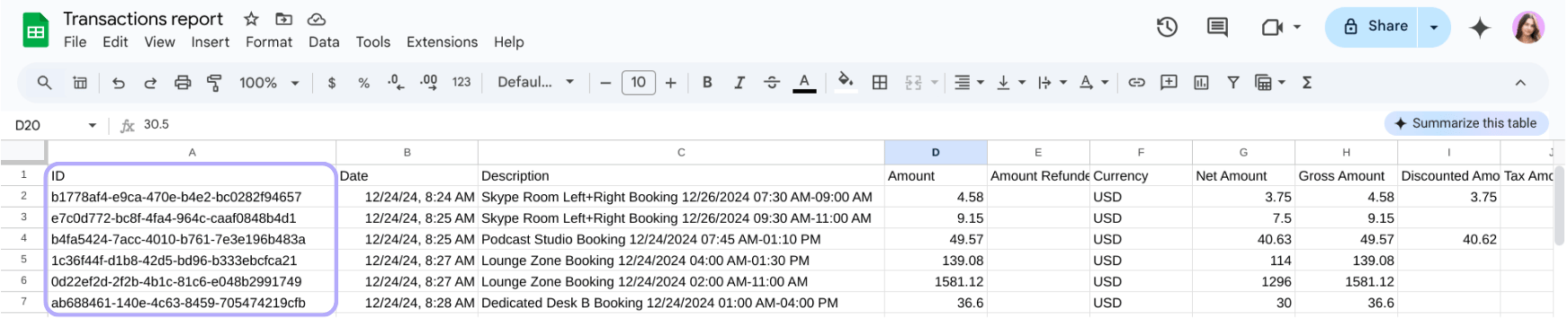
In Spacebring, the transaction ID serves as the distinct identifier for the transaction. Always use this ID to search for transactions in Stripe, as user names or emails can sometimes be changed, making them unreliable search criteria.

3. Reach out to the Stripe team for help

If the previous steps have not clarified the payment issue, or if you encounter an error message from Stripe that you don’t understand, it’s time to contact Stripe support. Provide them with the transaction ID and ask for further assistance or clarification of the error message.