

- Sell flexible access plans, such as “10 day passes per month” or a “20 day passes per 3 months”.
- Sell one-off day pass packages
- Let the system handle automatic member balance reduction upon each booking
- Give expiring or non-expiring day passes to customers as a promotion.
Set up day passes
- Click the (…) menu next to your location name on the left-side panel.
- Go to Location settings > Resources > Desks.
- Enable “Day passes” and configure “Usage limit”.
- If you have multiple locations, set cross-location day pass usage.
- Go to the Desks page and add your hot desks.
- Enable the “Day passes” switch to let members book this desk with day passes.
- Set monetary price for nonmember bookings or if members run out of day passes.
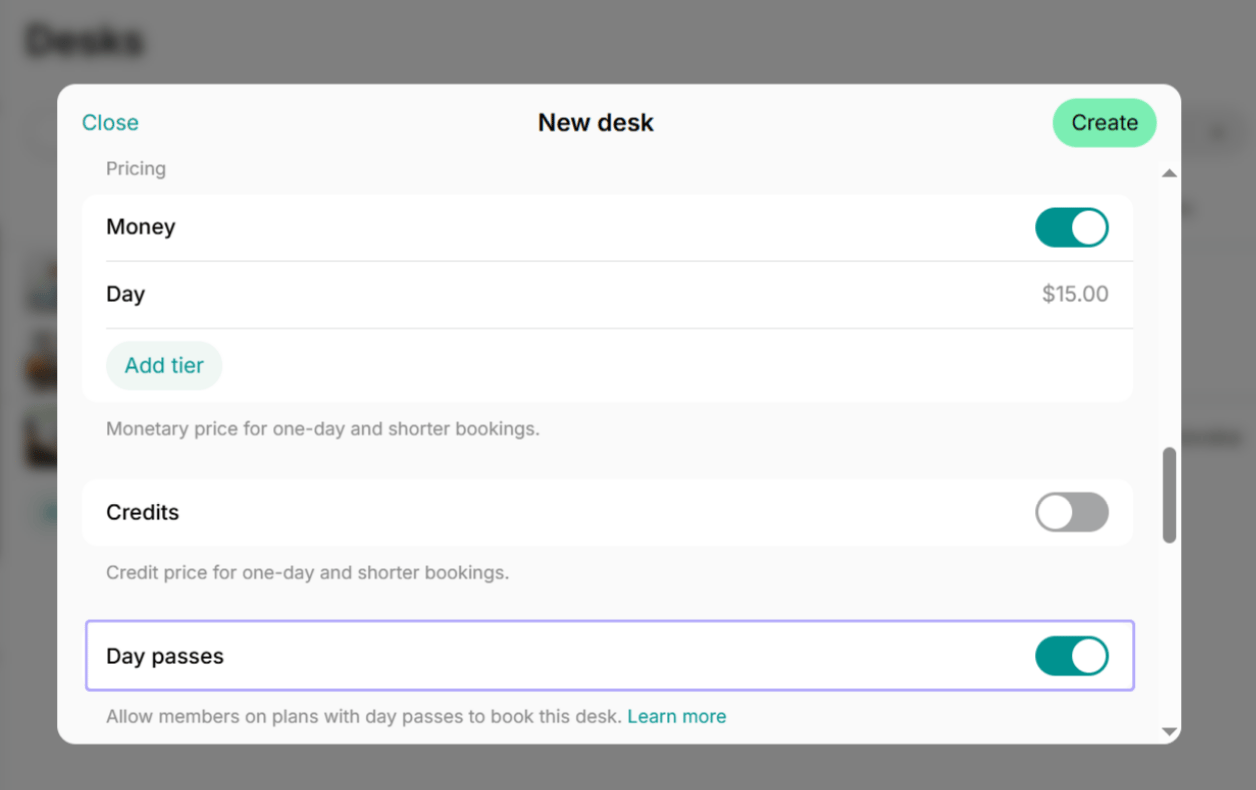
Only resources with the “Hot desk” type can be booked with day passes.
Sell day passes to customers
With recurring plans
- Create or edit a plan.
- Add a specific number of day passes to it.
- Once users sign up for a plan with day passes or administrators create a subscription for them, they receive day passes to their balance.
- They use day passes to book a hot desk on the Desks page on the dates they visit the space. The system automatically reduces their balance.
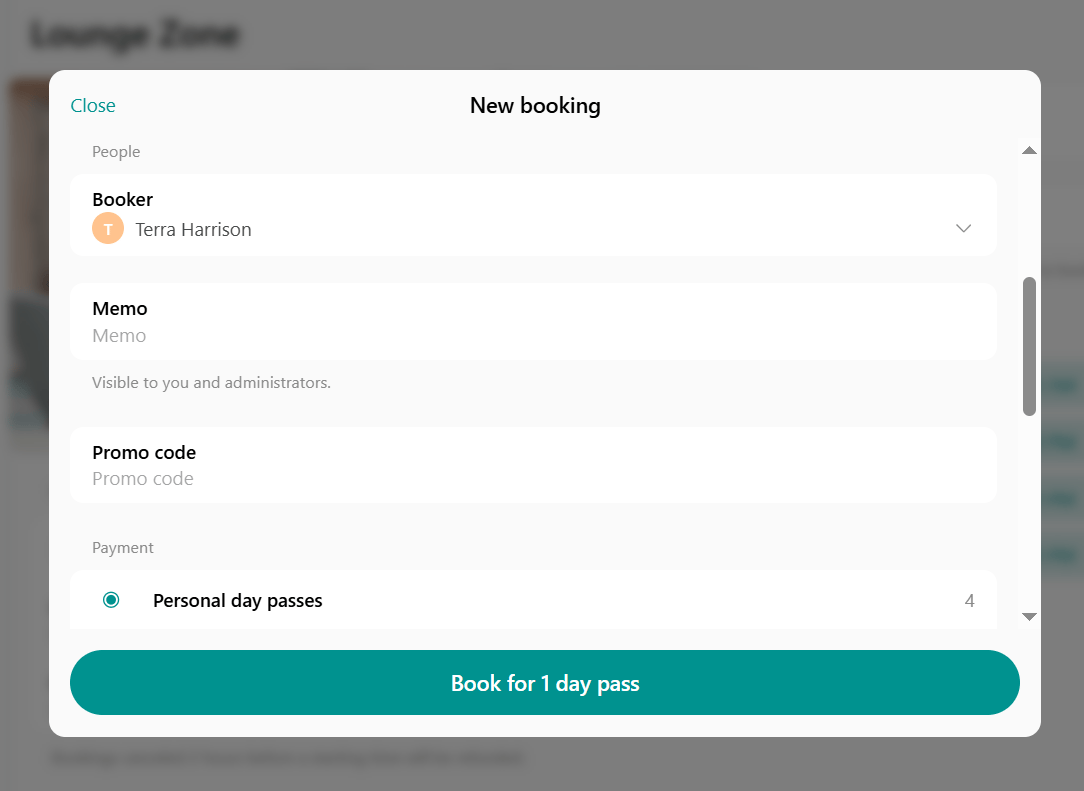
- Any unused day passes expire at renewal and the new balance accrues.
- If a subscription ends or is canceled, all remaining day passes expire.
One-time packages
Offer to purchase non-recurring day pass packages for customers who need additional or occasional usage.- Create standalone packages.
- Members can discover and purchase them on Membership > Day passes.
- They receive day passes immediately upon purchase and can use them until the package expiration date (if there is any).
1 day pass is the cost of 1 desk booking regardless of duration.
Only members can receive, purchase and book with day passes. Nonmembers book and pay for the hot desks with money.
View customer’s day pass balance
- Go to the Customers page.
- Open the user or company profile.
- Locate the “Day pass balance” section.
- See the customer’s current balance
- Review day pass expiration details below.
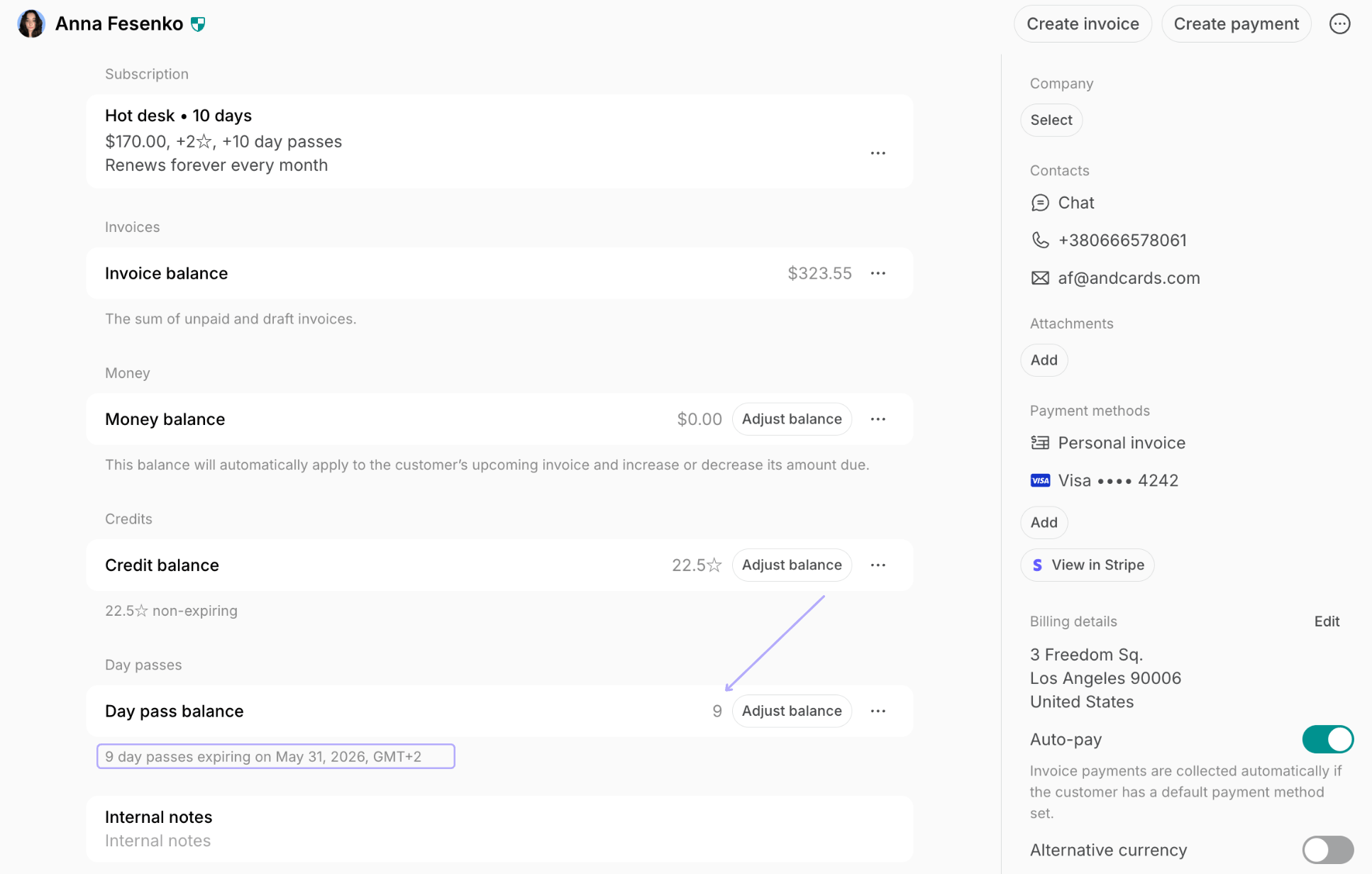
Add day passes
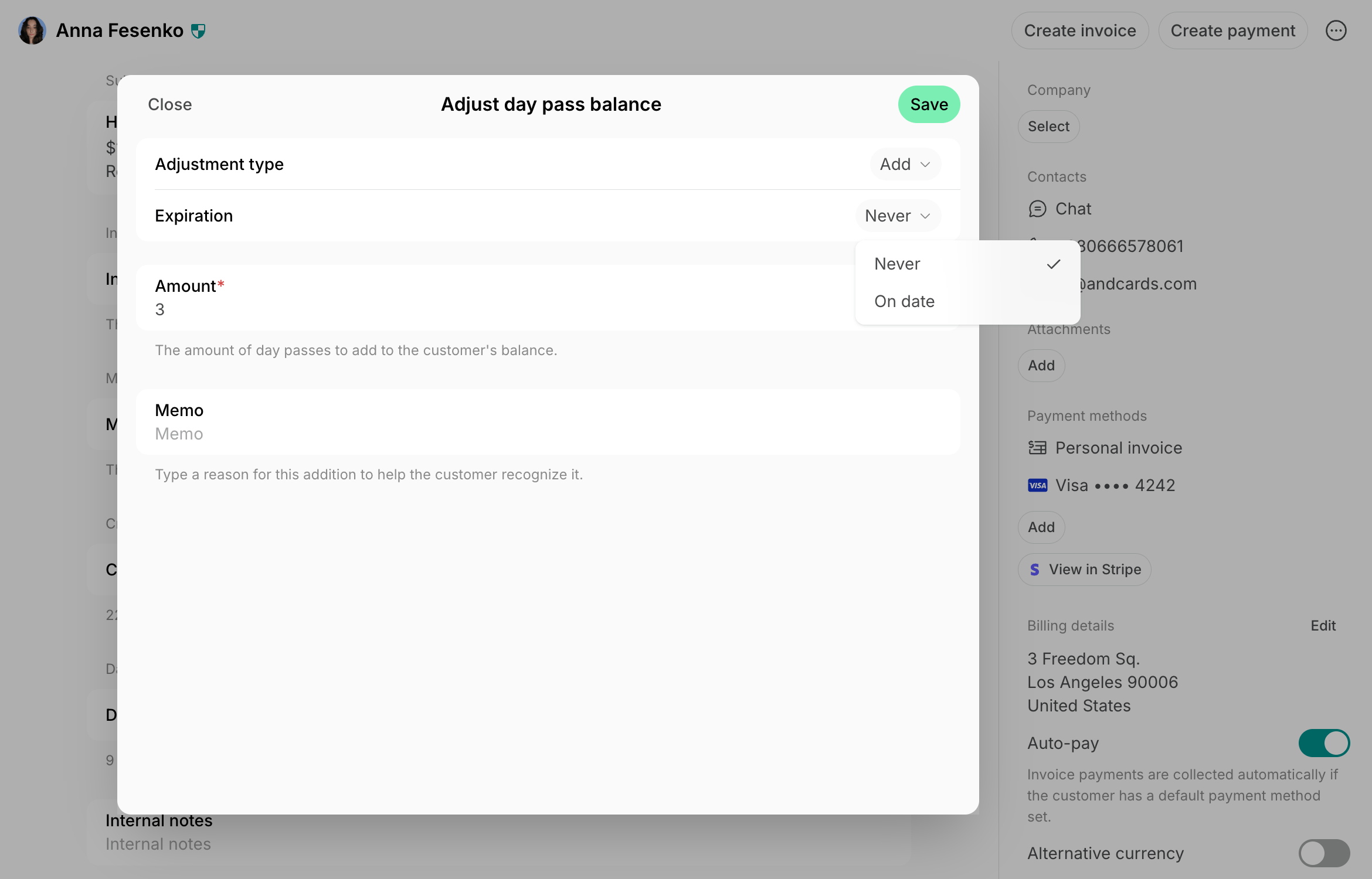
- Open the user or company profile.
- In the “Day pass balance” section**,** click
Adjust balance. - Adjustment type — choose
Add. - Expiration
- Choose “Never” to give non-expiring day passes, or
- Select a specific expiration date
- Enter the amount.
- Optionally, add a “Memo” to help the customer identify the adjustment.
Deduct day passes
- Open the user or company profile.
- In the “Day pass balance” section, click
Adjust balance. - Adjustment type — choose
Deduct. - Enter the amount.
- Optionally, add a “Memo” to help the customer recognize the deduction.
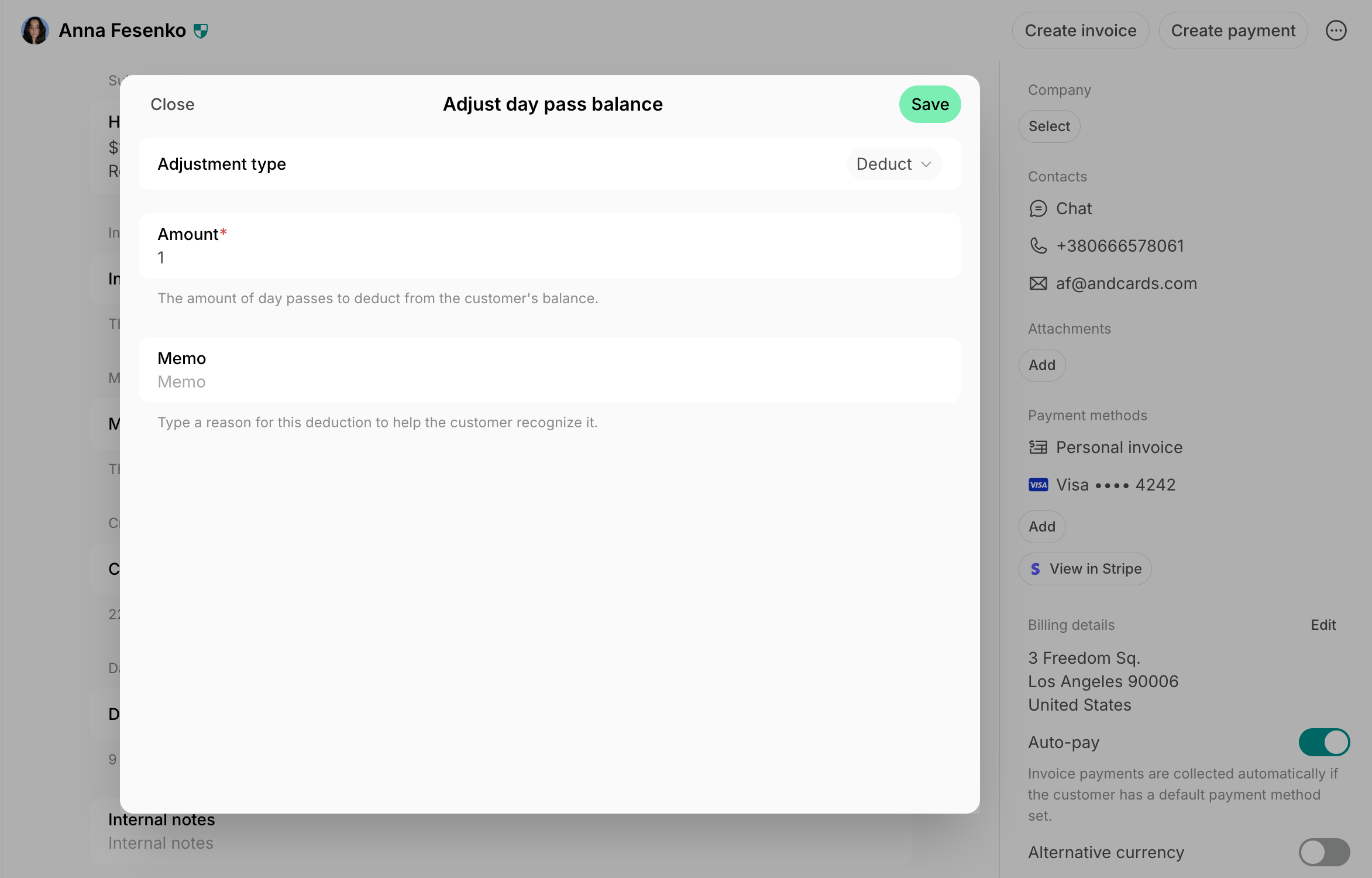
If a customer has expiring and non-expiring day passes or day passes with different expiration dates, the system will deduct day passes with the earliest expiration date first.
Track day pass usage history
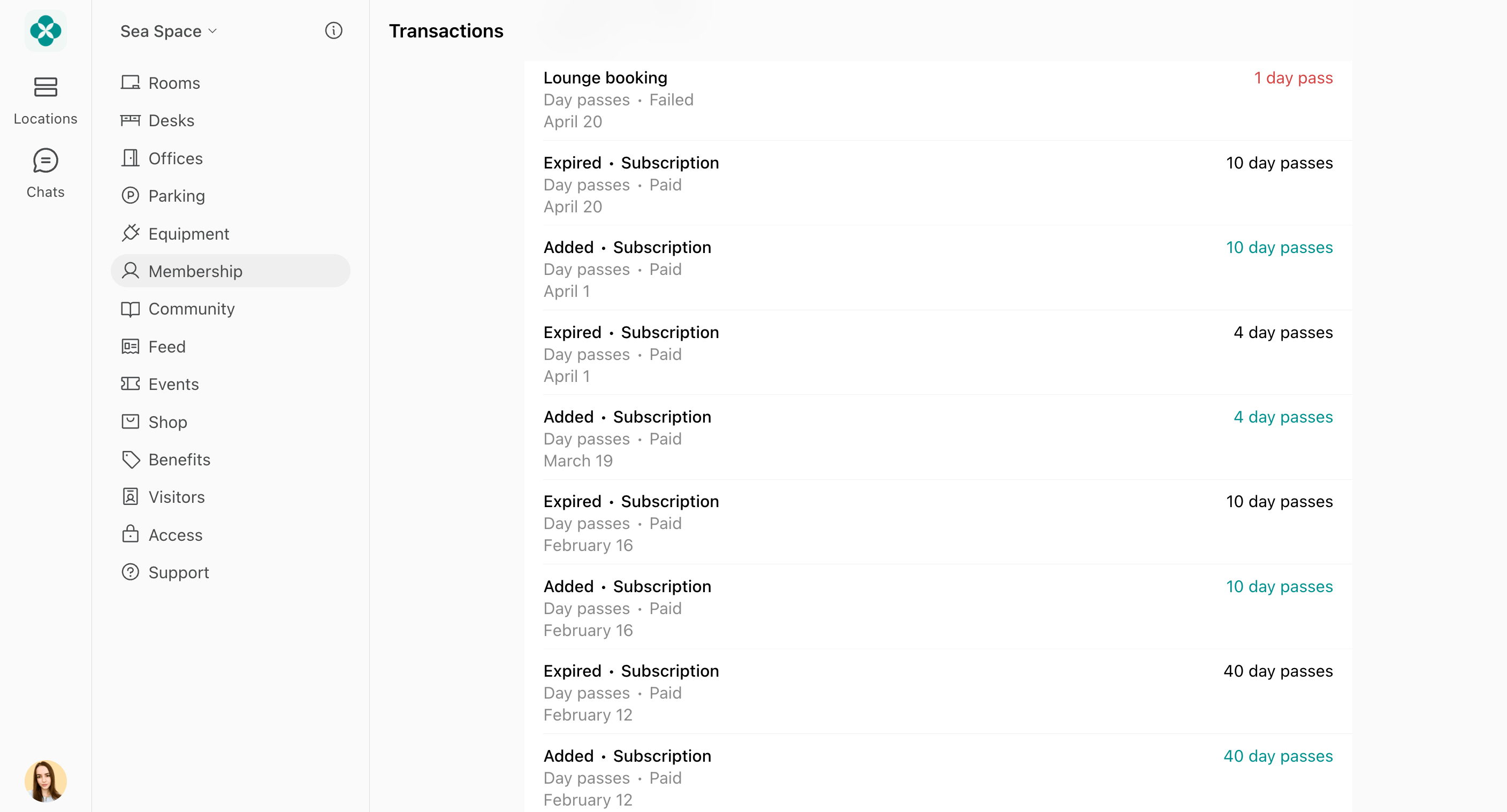
Both administrators and members can view day pass transaction history to track additions and usage. Administrators:- Go to the Customers page.
- Open the user or company profile.
- Next to the “Day pass balance” section > click (…) >
View transactions.
- Go to the Membership page.
- Under the personal or company section, select Day passes > Transactions.
How can users book one day pass?
How can users book one day pass?
If a user customer to book one day pass for a specific date, they must book a hot desk directly on the Desks page and pay the required monetary amount. Meanwhile, if they want to buy multiple day passes, they can:
- Sign up for a recurring plan with day passes, or
- Purchase a one-off package of day passes.
For a user with an annual 'Unlimited day pass' subscription, do I still need to assign 365 day passes?
For a user with an annual 'Unlimited day pass' subscription, do I still need to assign 365 day passes?
It depends on whether you want to give the user a dedicated desk or allow flexible access:
- Dedicated desk: Assign one seat to the customer in the “Assignments” section of their subscription. This desk becomes theirs exclusively, reducing overall desk availability. They won’t need to book it daily, and others won’t be able to use it.
- Flexible access: Provide the customer with 365 day passes in their subscription and ask to check in by booking a desk each day they visit, using one pass from their balance. This allows the desk to stay available for others when they’re not using it.
Can I manage member's expired day passes?
Can I manage member's expired day passes?
When a member’s subscription expires, managing their day passes becomes not possible because day passes are directly tied to an active subscription. Once the subscription ends, day passes expire as well.To regain day passes, your member can re-subscribe to a plan that includes them, or you can create a subscription for them.
How can I give a promotion for one-time use, free trial day or a discounted desk booking to new customers?
How can I give a promotion for one-time use, free trial day or a discounted desk booking to new customers?
You can invite this customer as a member and add one or a few day passes for free to their balance.Alternatively, create a coupon and promo code and enable the “Limited by first purchase” setting, then add the desired discount for all or a specific desk in your app. Give the promo code to the customer. They can redeem their discount directly at checkout when booking a desk in your member portal.