

🌍 Xendit is available in Indonesia, Malaysia, the Philippines, Singapore, Thailand, and Vietnam.
Xendit is a distinct company not affiliated with us. For any inquiries regarding Xendit’s solutions, services, or pricing, please reach out to Xendit directly. We do not have the authority to provide information or support on behalf of Xendit.
Connect Xendit
To activate Xendit, follow the next steps:- Generate a Secret Key from your Xendit dashboard. Learn more
- Go to Spacebring > Integrations page by pressing the menu (…) next to the location’s name.
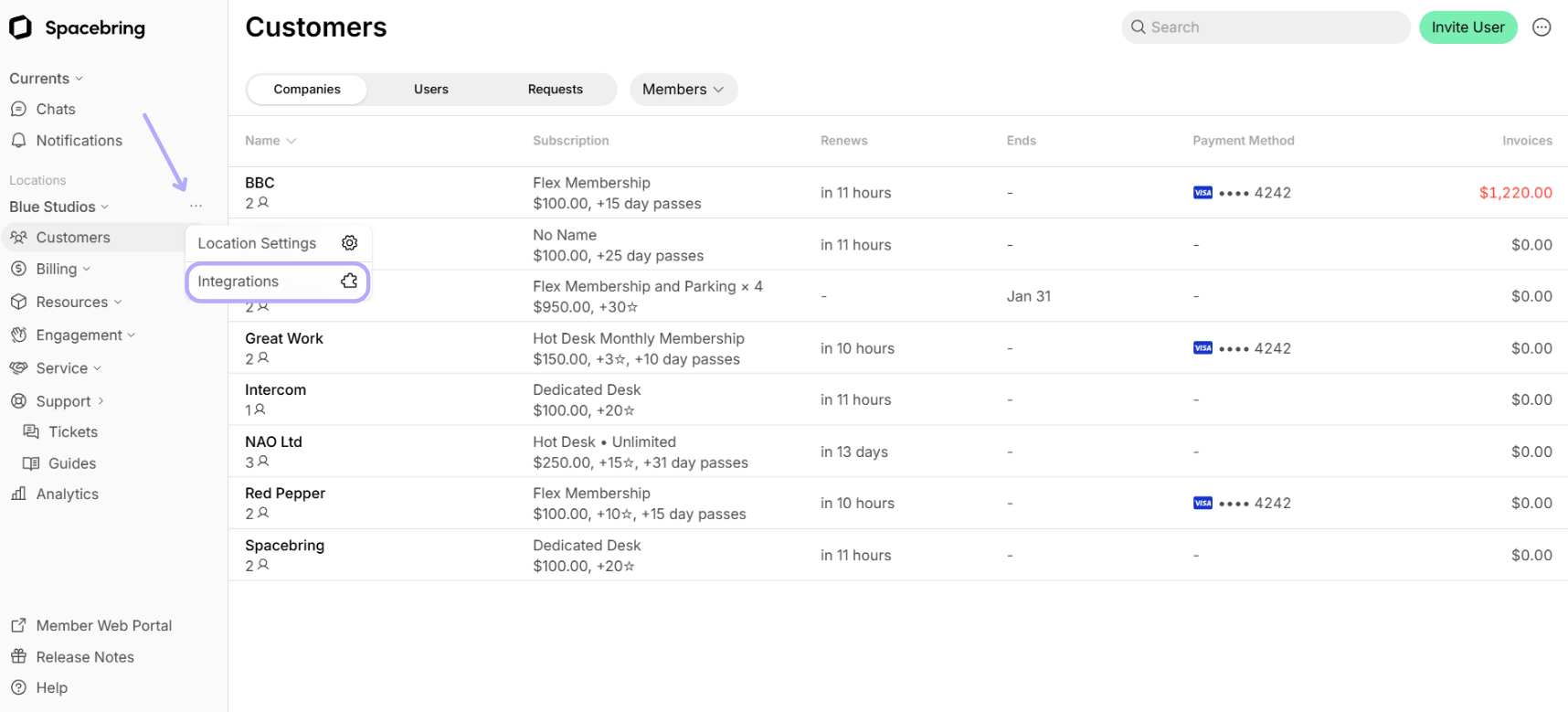
- Find the Xendit integration page.
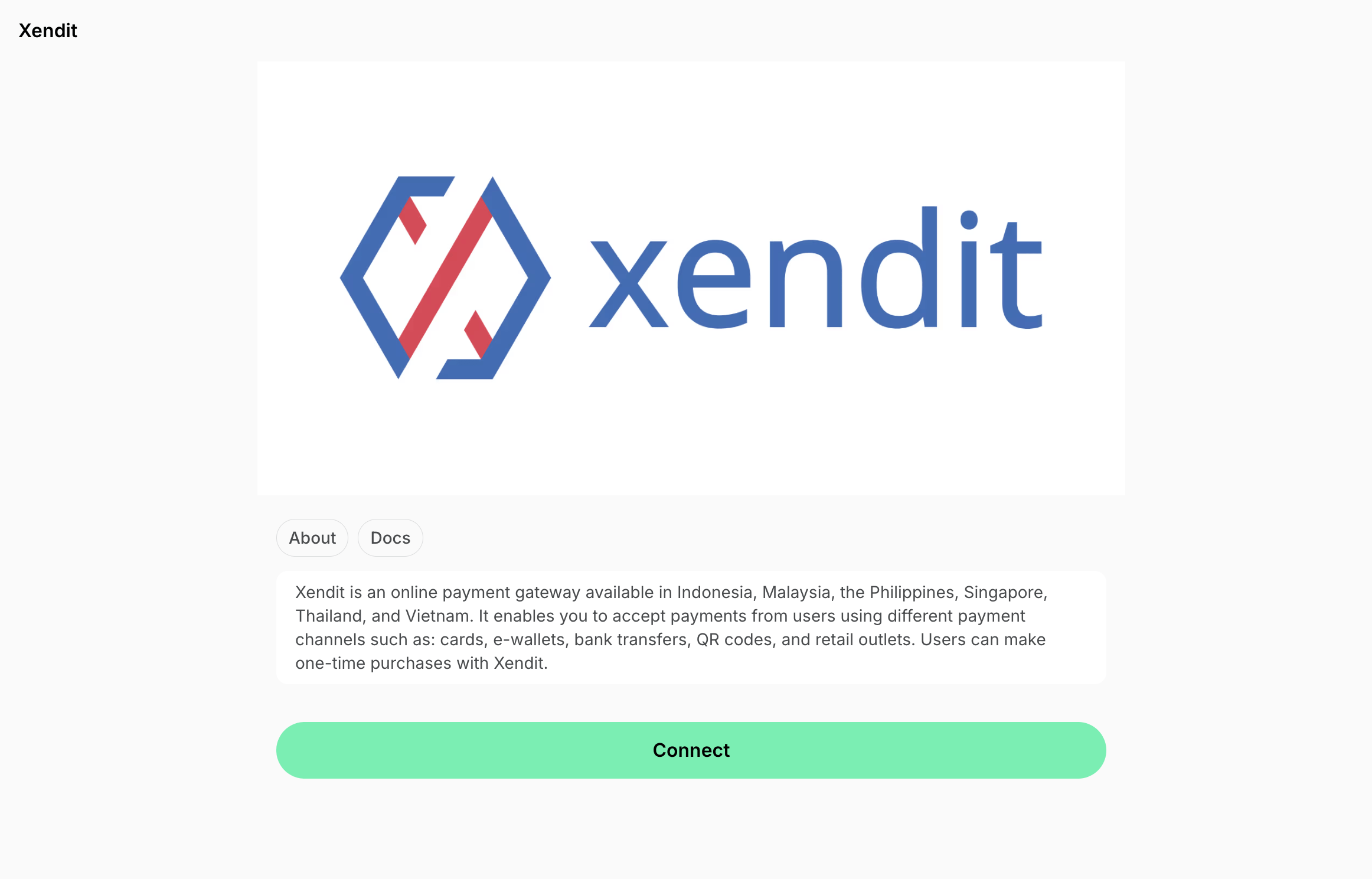
- Press Connect.
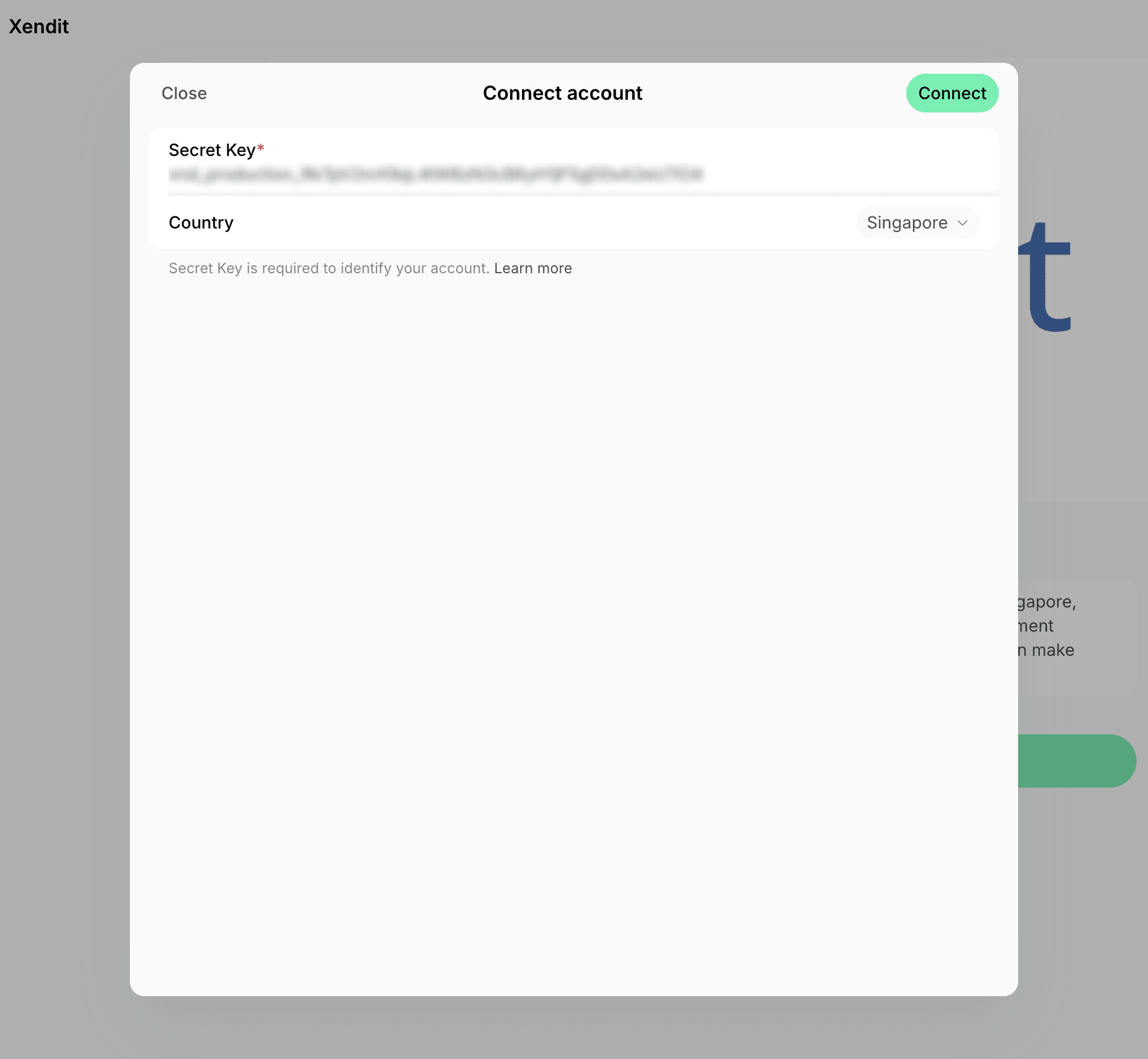
- Paste your Secret Key, select your Country, and press Connect. The country must match your Xendit account’s country of operation.
- Activate the payment channels you want to accept — such as e-wallets, bank transfers/virtual accounts, QR codes, and retail outlets — in your Xendit account. Refer to Xendit’s Available Payment Channels documentation.
Configure Xendit
You can activate payments for the following:- Bookings
- Event tickets
- Shop products
- Packages
- Invoices
How Xendit works
The integration adds a New payment method to the checkout section around the member web portal and mobile app. Users selecting the New payment method are redirected to the Xendit checkout page, where they can pay using any of the payment channels you activated in your Xendit account.Identify users’ transactions in Xendit
You can find users’ transactions in the Xendit dashboard using the following unique identifiers:- Reference ID — coincides with the Booking/Event ticket/Order/Membership ID.
- Time — coincides with the date and time of the transaction in the Xendit dashboard.
Disconnect Xendit
To disconnect Xendit integration, follow these steps:- Go to Spacebring > Integrations page by pressing the menu (…) next to the location’s name > Xendit.
- Press Disconnect and confirm your choice.