

🌍 PayTabs is available in the United Arab Emirates, Saudi Arabia, Oman, Jordan, Egypt, Kuwait, Qatar, Iraq, and Morocco.
PayTabs is a distinct company not affiliated with us. For any inquiries regarding PayTabs’ solutions, services, or pricing, please reach
out to PayTabs directly. We do not have the authority to provide information or support on behalf of PayTabs.
Connect PayTabs
To activate PayTabs, do the following:- In your PayTabs merchant dashboard, go to Developers > Key management and copy your Profile ID and Server Key.
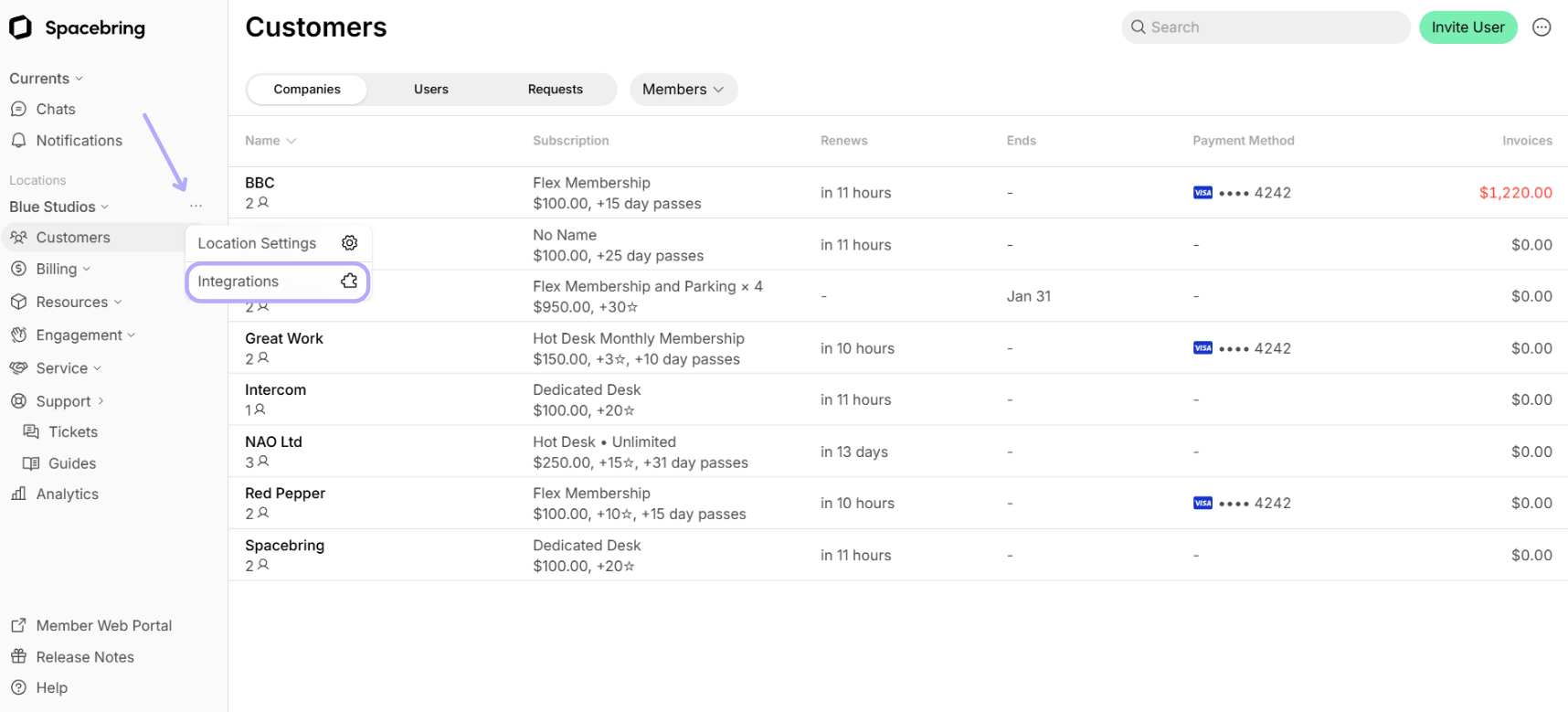
- In Spacebring, go to the Integrations page by pressing the menu (…) next to the location’s name.
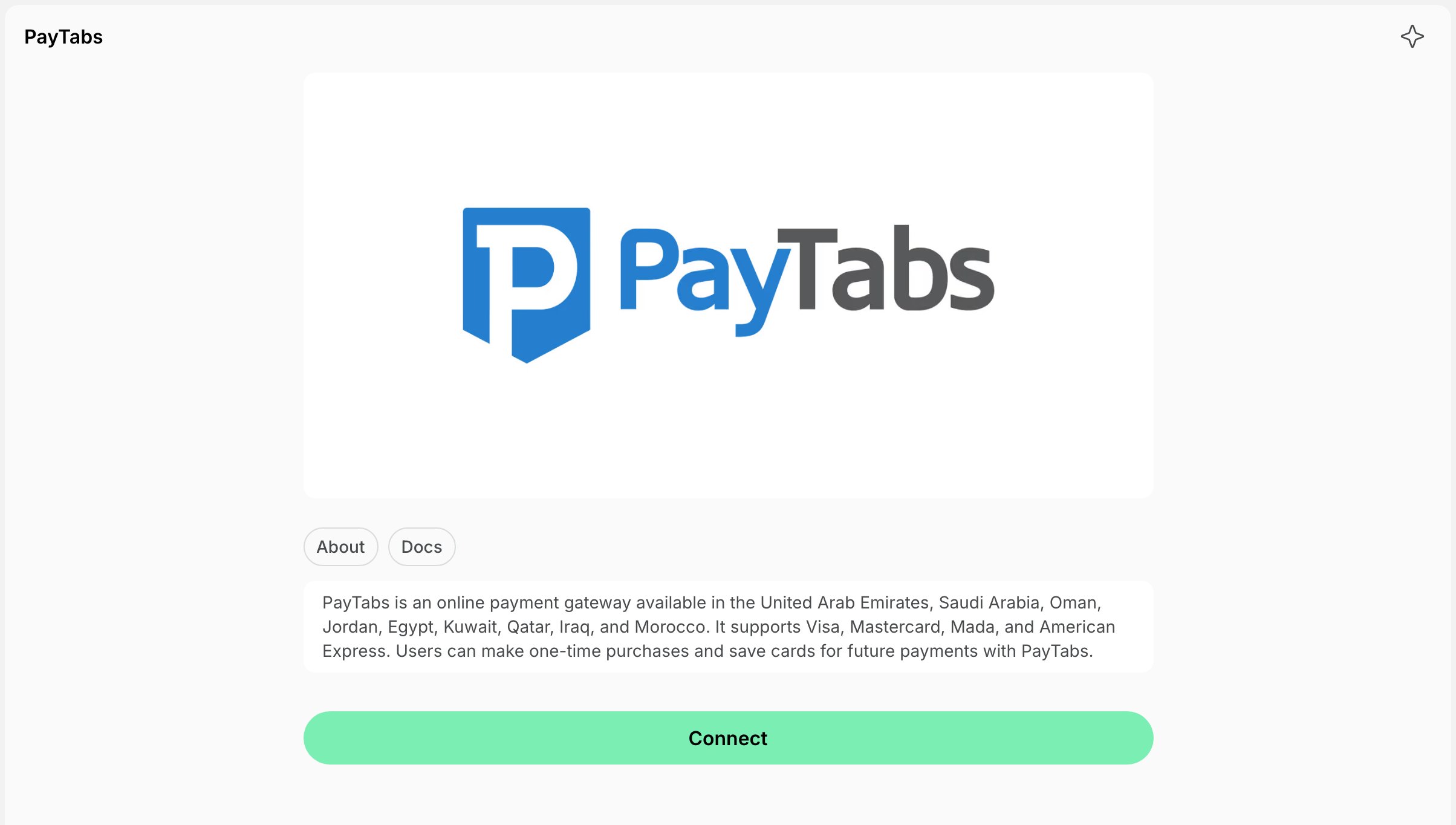
- Find the PayTabs integration page and press Connect.
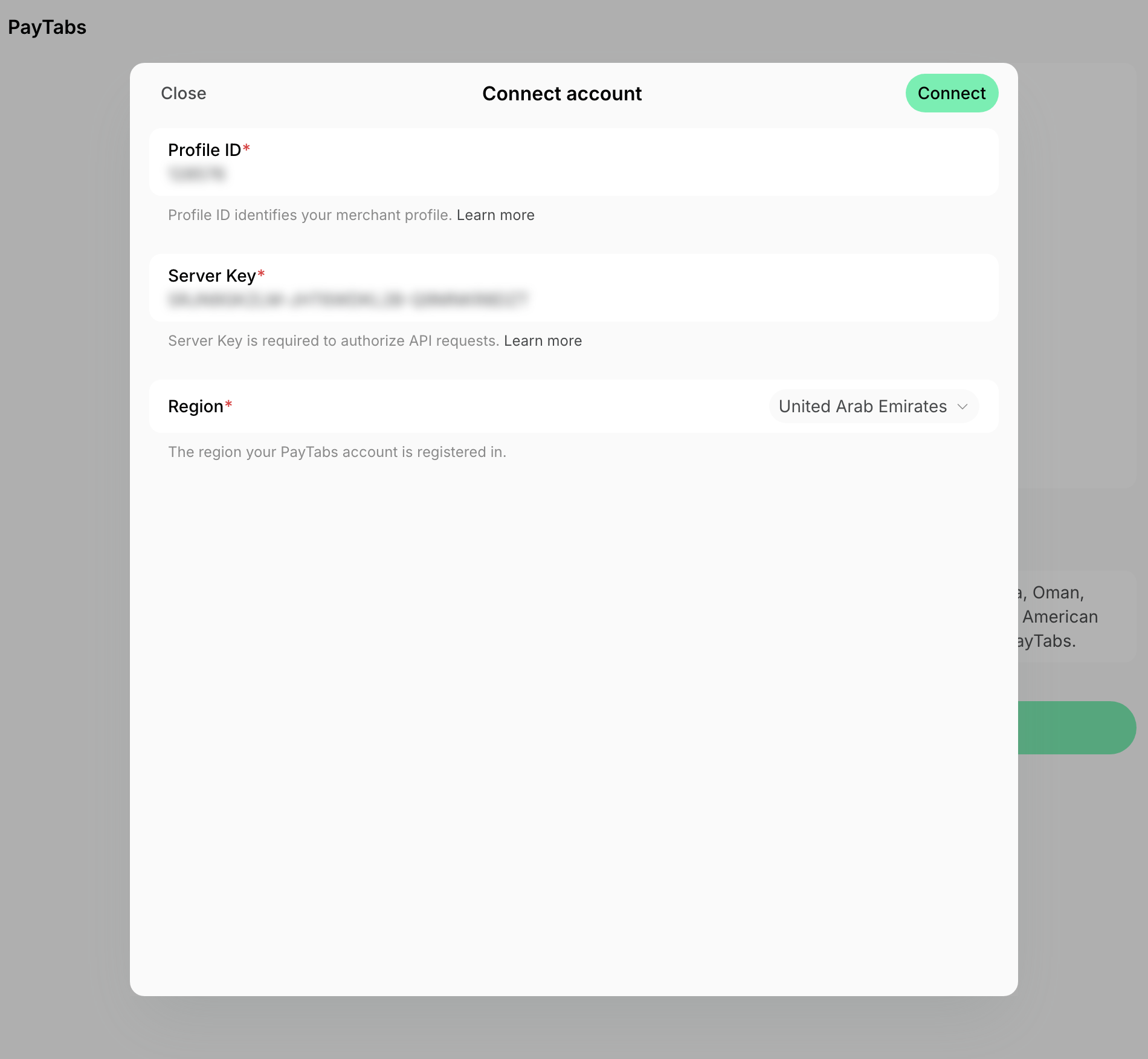
- Paste your Profile ID and Server Key, choose the Region your PayTabs account is registered in, and press Connect.
Configure PayTabs
Payments are active for all products and services once you connect the account. To turn any of them off, press the menu (…) next to the location’s name > Integrations > PayTabs, and use the switches in the Payments section:- Bookings
- Event tickets
- Shop products
- Packages
- Invoices
How PayTabs works
The integration adds New payment method to the checkout section around member web portal and mobile app. Users selecting the New payment method are taken to the PayTabs payment page, where they enter their card details and confirm the payment with their bank. PayTabs accepts:- Mada, Visa, Mastercard, and American Express cards.
- Payments in AED, BHD, EGP, EUR, GBP, IQD, JOD, KWD, MAD, OMR, QAR, SAR, and USD, as long as the currency is enabled on your PayTabs profile.
Saved cards and automatic charges require the recurring mode on your PayTabs profile. To enable it, contact your PayTabs account manager.
Disconnect PayTabs
To disconnect PayTabs integration, follow these steps:- In Spacebring, press the menu (…) next to the location’s name > Integrations > PayTabs.
- Press Disconnect and confirm your choice.