

- Draft and upcoming invoices can be edited directly.
- Finalized invoices (unpaid or paid) must be corrected using credit notes.
Edit a draft invoice
Edit invoice items or due date
- Go to the Billing > Invoices page.
- Locate the required draft invoice.
- To remove an item, click (…) >
Deletenext to it. - Manually created custom items can also be edited directly. Click (…) >
Editnext to it. - To add an item, click
Create item.- Select a one-off product or service from the “Product” list.
- Or add a “Custom” item.
- Manage the “Payment due” date in the right-side panel.
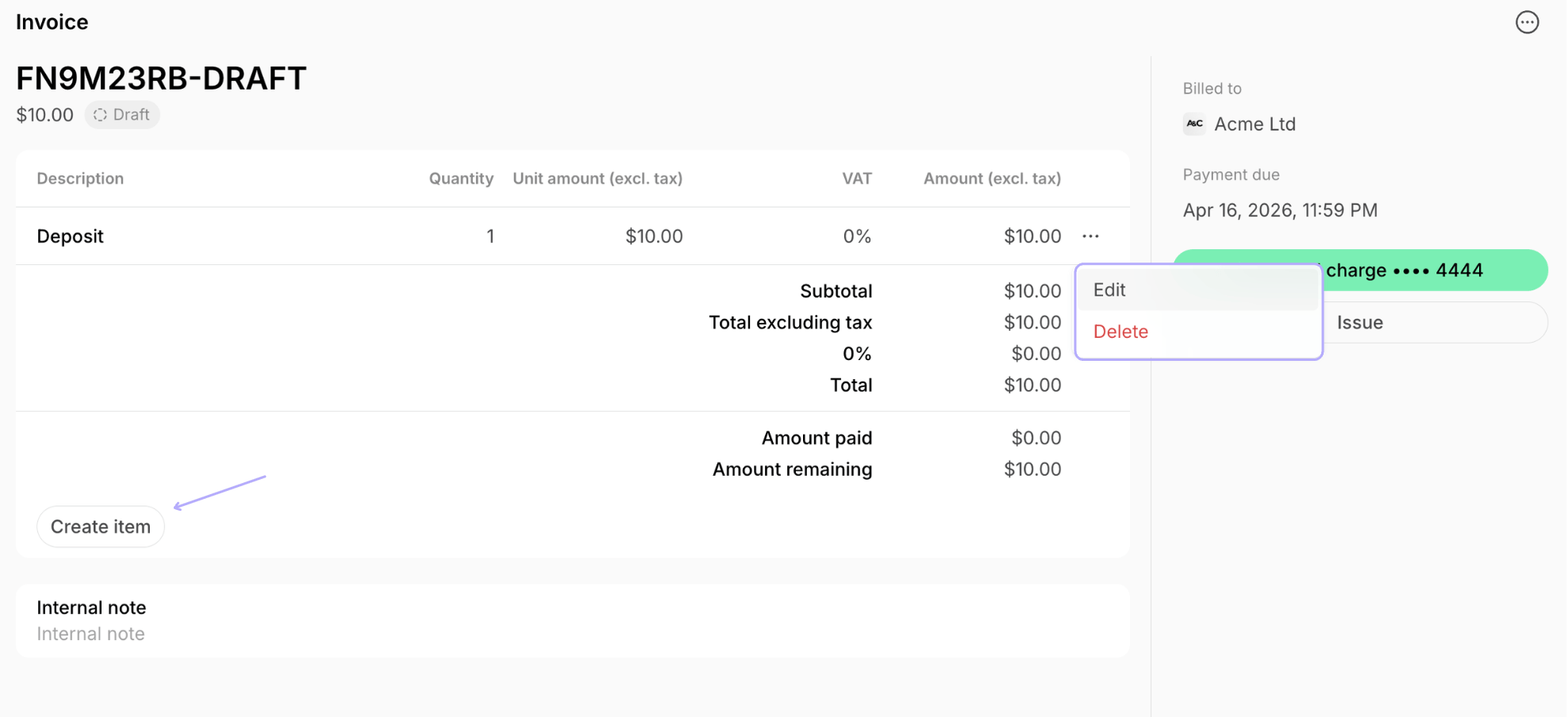
The invoice date format is standardized for all users and appears as **February 17, 2025.**
Edit billing details
To update your space’s billing details:- Tap the (…) next to the location name > Location settings.
- Go to General > “Billing details” tab to update your billing details.
- Go to Billing > “Invoices” tab to update “Footer”.
- Issue the invoice. It will reflect the updated details.
Updating the tax rate or option doesn’t affect existing invoice items. Delete them and create new items.
- Go to Customers > customer profile.
- In the right-side panel, locate the “Billing details” section > click
Edit. - Add or update the customer’s billing details.
- Issue the invoice. It will reflect the updated details.
Apply a discount
The administrator or customer should apply a discount when creating a subscription, booking, or another purchase, rather than adding a discount inside the invoice later. This ensures the discount is automatically reflected on the invoice. If needed:- Delete the draft invoice.
- Recreate the booking/subscription, and apply a coupon during creation.
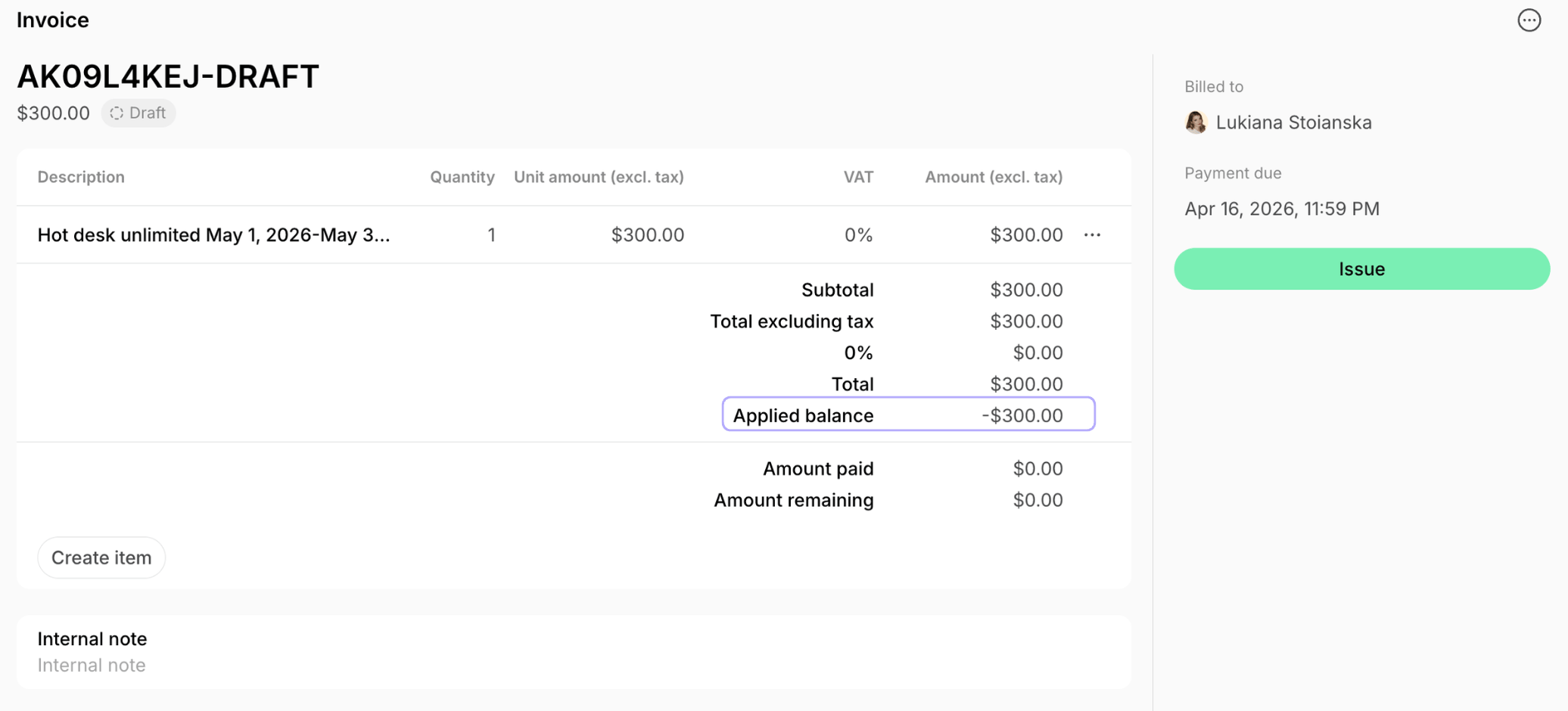
- In the customer’s profile, add the discount amount to “Money balance”.
- It will appear as “Applied balance” on the invoice and reduce the amount due.
Edit a finalized invoice
Once an invoice is issued or paid, it becomes a finalized financial record and cannot be edited directly. To make changes, you can:- Issue a credit note
- Void the invoice
- Duplicate (if applicable), update, and reissue it.
Edit invoice items, amount, or apply a discount
- Open the issued or paid invoice.
- In the “Credit notes” section, create a credit note.
- Adjust the amount or quantity for specific or all items and specify the reason.
- For paid invoices, this creates a proper correction record.
- For unpaid invoices, this changes the amount due.
Edit billing details
For an unpaid invoice:- Void this invoice.
- Update customer or location billing details.
- Duplicate or recreate the invoice and issue it.
- The new invoice will include updated billing details.
- Open the invoice.
- In the “Credit notes” section, create a credit note for the full amount.
- Choose “Customer balance” as a credit option.
- Update customer or location billing details.
- Duplicate or recreate the invoice.
- The system will apply the balance and set the new invoice total to 0 and mark it as paid immediately once issued.
- The updated billing details will appear on the new invoice.
Other changes
You may encounter situations such as:- You marked an invoice as paid by mistake
- You marked the invoice as fully paid while it’s partially paid
- You marked an invoice as refunded by mistake
- You need to void a paid invoice
- Customer paid with the wrong card and wants to pay with a different one
- Issue a credit note for this invoice.
- Select the appropriate credit option.
- If needed, duplicate or recreate the invoice and issue it.
- Record the payment or let the customer pay correctly.
Duplicate invoice
You can duplicate manually created one-off invoices for faster corrections. Automatically generated subscription invoices, however, cannot be duplicated, and you need to recreate them manually. To duplicate a one-off invoice:- Open the necessary invoice.
- Click (…) top right >
Duplicate.
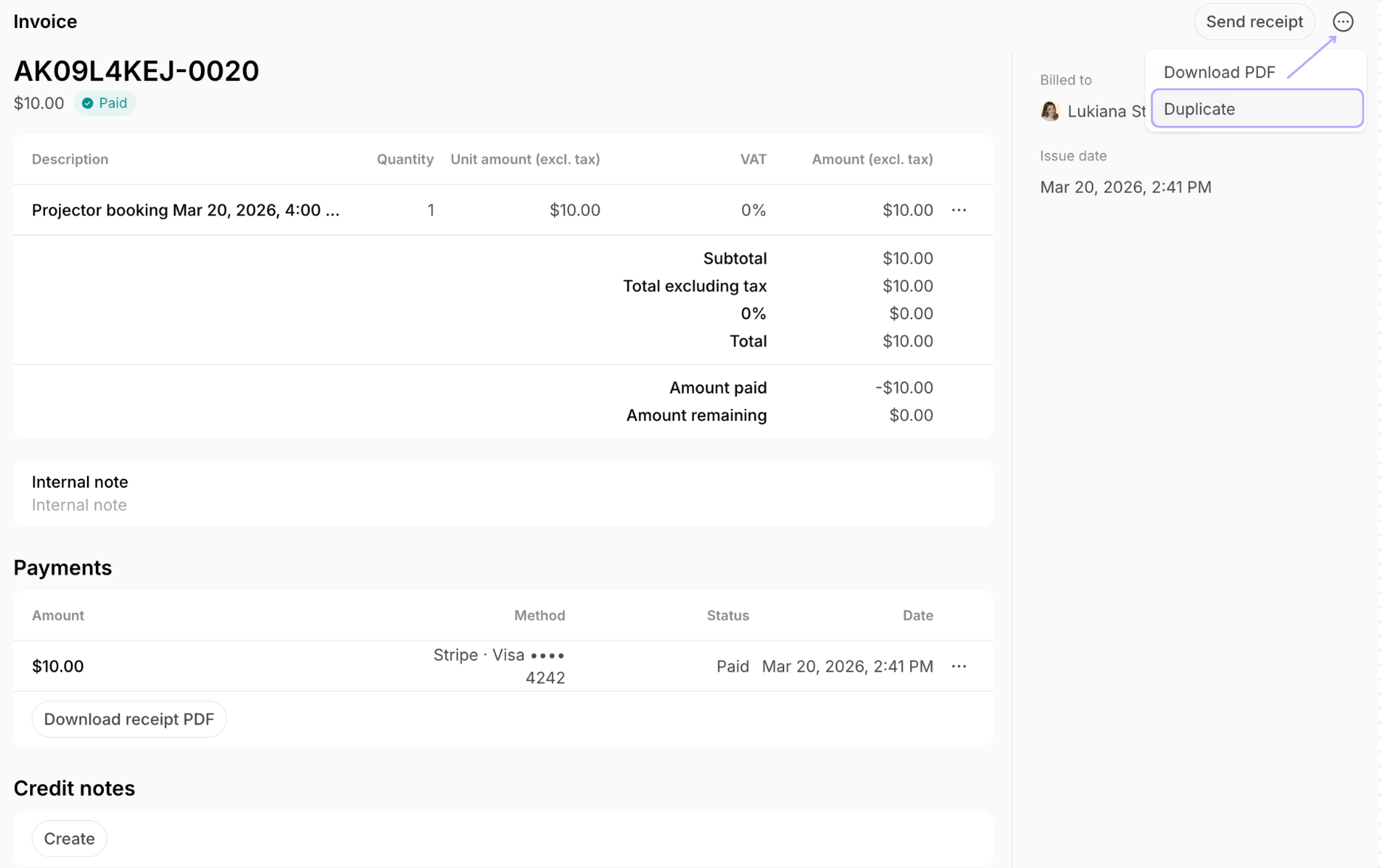
- The system creates a copy in “Draft” status. Press
View invoiceto open it. - Apply the necessary change and issue the invoice.
Invoices duplicate without any discounts.
Why can't I duplicate the invoice?
Why can't I duplicate the invoice?
Only manually created one-off invoices are eligible for duplication. Automatically generated invoices for subscription or bookings cannot be duplicated. If you are trying to duplicate such an invoice, the
Duplicate option will not appear in the menu.How do I add bookings/products to a customer's invoice?
How do I add bookings/products to a customer's invoice?
When managing a customer’s invoice, the method to add charges depends on the specific category of the product or service. Follow these guidelines to ensure the invoice is accurate:
- Bookings — to add a booking to an invoice, make a booking on the Resources page, select the customer as a booker, and choose the “Invoice” payment method.
- One-off products or services from Shop — open an existing draft or upcoming invoice > press
Create item> in the “Product” section, select the necessary product. - Event tickets — it is not possible for an administrator to add event tickets to the customer’s invoice at this time. Customers can only purchase them themselves.
- Other charges — add any custom fees to the customer’s invoice by pressing
Create itemand selecting “Custom” in the “Product” field.