

Use cases
- Record partial invoice payments when a member chooses not to settle the full balance immediately.
- Register payments received outside of the online payment gateway (e.g., cash, checks, bank transfers).
- Manually retry failed payments to speed up your revenue collection process for unpaid invoices.
Create invoice payments
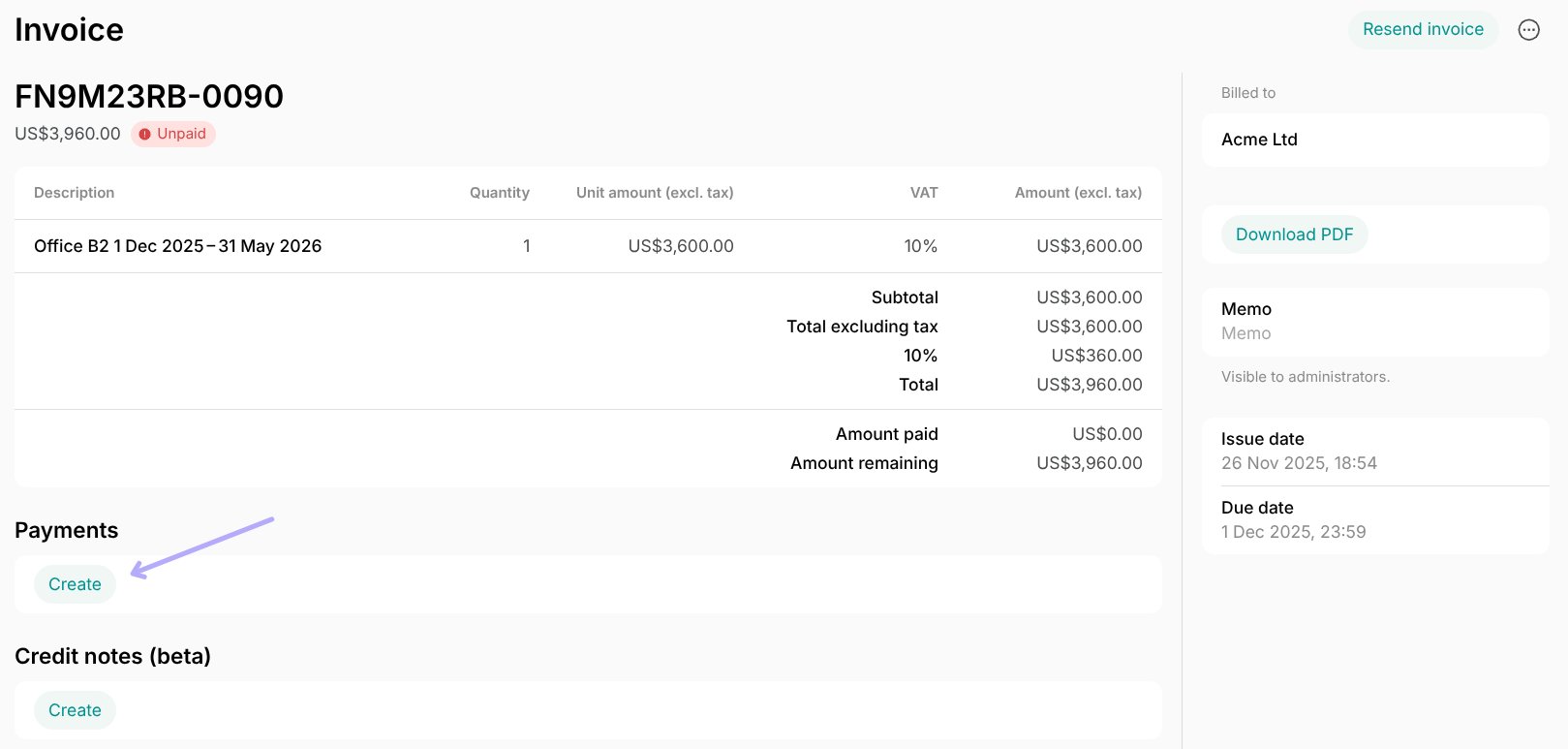
- Go to Billing > Invoices page > open the necessary invoice.
- In the “Payments” section, press
Create.
- Enter the amount to charge and select the payment method:
- Choose the customer’s saved payment method if you need to charge them now for this payment.
- Choose “External” if the customer has already paid with cash, check, or bank transfer.
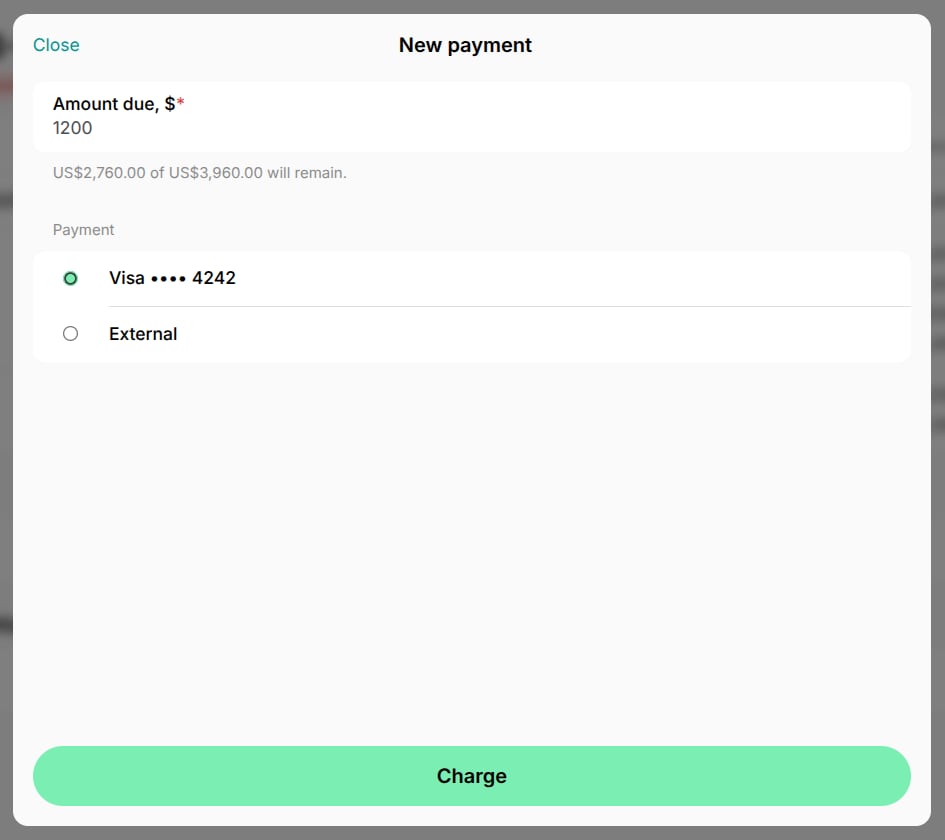
- Press
Charge.
Charging the invoice is possible only if the customer has any saved payment methods.
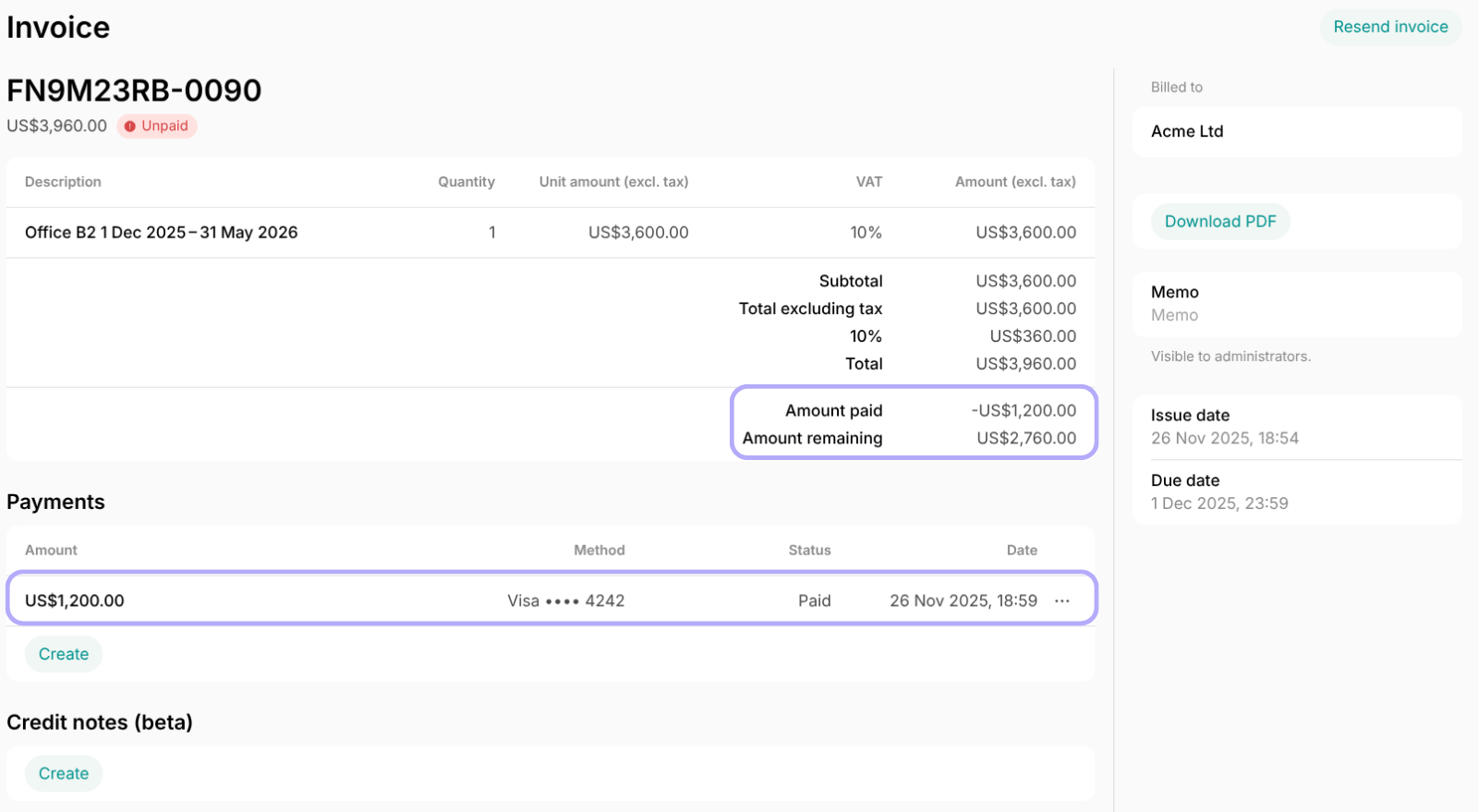
Control and adjust invoice payments
Customers can pay the remaining invoice amount online via the member web portal or mobile app. If you have recorded a payment by mistake, you have a few options to handle it:- Process an immediate refund:
- Press the menu (…) button near the payment >
Refund. - Set the necessary amount and press
Refund. If the payment was originally made through a payment gateway, the refund is automatically processed back to the original card.
- Press the menu (…) button near the payment >
- Reduce the total invoice amount by issuing a credit note. This is useful for writing off a portion of the balance.
- Adjust the customer’s money balance to officially record the overpayment amount, holding the funds as credit for future invoice.