

Salto KS is a distinct company not affiliated with Spacebring. For any inquiries regarding Salto KS’s solutions, services, or pricing, please reach out to Salto KS directly. We do not have the authority to provide information or support on behalf of Salto KS.
Prerequisites
- Set up your Salto KS account with all locks configured and added to access groups created exclusively for Spacebring.
- Have access to the Salto KS administrator account.
Connect Salto KS integration
- Press the menu (…) next to the location’s name > go to the Integrations page.

- Find the Salto KS integration page and click Connect.
- Give permission to connect Salto KS with Spacebring.
- Select a Site. You will see all Salto KS sites where you have an administrator role.
- Set the digital key Visibility. This controls which user roles can see the digital key option in your member mobile app.

You can connect a separate Salto KS account to each location in Spacebring.
Configure Salto KS integration
The integration allows granting access based on:- Subscription
- Room booking
- Desk booking
- Office booking
- Equipment booking
- Parking booking
Access based on subscriptions
For future new members- For membership plans, open the plan settings > Access section > select the appropriate Salto KS access group.
- For resource rentals, open the resource settings > Access section > select the appropriate Salto KS access group.
- When you create subscriptions for customers or customers sign up by themselves, the user is automatically synced to the selected Salto KS access group for the duration of their subscription.
For existing members
- Open member’s subscription > open a specific item.
- In the Access section, select the appropriate Salto KS access group.

Access for resource bookings
To automate access for resource bookings:- Go to Resources > Rooms, Desks, Offices, Parking, or Equipment page.
- Open the resource settings and select the appropriate Salto KS access group in the Access section.

Access for plans with day passes
Customers on a plan with day passes come to the space only on the days they book a desk, so tie their access to the booking rather than to the subscription.- In the plan settings > Access section, keep Not selected.
- Open the hot desk resource settings > Access section > select the appropriate Salto KS access group.
How Salto KS integration works
Access based on subscriptions
- When a user gets a subscription, they are synced to the assigned access group for the entire subscription period.
- Company subscriptions grant access to all users within the company, regardless of how many plans or seats the subscription includes, including employees added to the company later.
- Customers are synced to the access group at midnight (00:00) on their subscription start date.
- When a subscription expires or is canceled, access is automatically revoked.
Access remains active from the subscription start date until its end or cancellation date, regardless of the customer’s invoice payment status. To revoke access, schedule a subscription end, or cancel it.
Access based on bookings
- Users receive access to the assigned access group for the full duration of their booking.
- Invitees to room bookings also receive access.
- Users have a 30-minute grace period before and after the booking time:
How users unlock doors
If you have the member mobile app
The Get digital key button appears at the top of the main Locations page in the member mobile app:- Users who have already had at least one booking or subscription with Salto KS access always see the button.
- Users without prior access see the button only when they get their first booking (30 minutes before it starts) or subscription (on its start date).
- Users tap Get digital key at the top of the main Locations page.
- They see the Activating digital key… message. Spacebring redirects them to Salto KS and automatically authenticates them within a few seconds—no action required from users.
- Once authentication is complete, the button changes to Unlock.

- When users want to open a door, they click Unlock.
- During the first unlock, the app will request them to grant Bluetooth permission.
- Then, the app prompts them: Ready to unlock. Tap your phone on the lock reader.
- The user taps the phone on the lock reader and sees the message: Signal sent. Try opening the door.

- If a user is not eligible to unlock this door, the lock will indicate this with a sound or a red LED.
Users can use the digital key only in the member mobile app, not in the member web portal.
If you don’t have the member mobile app
Spacebring still grants and revokes access automatically, but users unlock doors with the Salto KS app:- When a user gets a booking or subscription with Salto KS access, Spacebring creates them in Salto KS with their email address.
- Salto KS emails the user an invitation to activate their Salto KS account.
- The user installs the Salto KS app and unlocks the doors of the access groups assigned to their booking or subscription.
Disconnect Salto KS
- Press the menu (…) next to the location’s name > go to the Integrations page > Salto KS.
- Press Disconnect and confirm your choice.
Troubleshoot Salto KS access issues
Here are a few common errors you may encounter and how to resolve them:Lock compatibility
Lock compatibility
- Not all Salto KS locks support digital key unlocking. Test each of your locks individually.
- If a lock does not support digital keys, contact Salto KS for assistance.
Low-power locks
Low-power locks
- Some locks operate in low-energy (sleep) mode.
- In these cases, simply holding the phone near the reader may not work—users should firmly tap their phone on the reader.
Apple Wallet behavior on iOS smartphones
Apple Wallet behavior on iOS smartphones
- On iOS devices, tapping the phone on the lock may trigger Apple Wallet to open. This does not interfere with unlocking.
- If you want to prevent this behavior, the owner of your Apple Developer account can contact Apple to request suppression of Apple Wallet for your app.
- Apple may require additional information or agreements, so it’s best for the account holder to handle this request directly.
"Enable Bluetooth and Location permissions to unlock doors"
"Enable Bluetooth and Location permissions to unlock doors"
- During the first unlock using the digital key, the member portal or mobile app requests users to grant Bluetooth/Location permissions to unlock doors.
- If they reject any of these permissions, the user is asked to enable Bluetooth and/or Location permissions when they press Unlock.
- To solve this, the user needs to navigate to their device settings > select your member mobile app and enable the required permissions for it.
"Could not grant access"
"Could not grant access"
Administrators may see a Could not grant access error in their members’ profiles. This error occurs when the user’s data fails to synchronize to Salto KS, and the user, therefore, doesn’t receive access based on their subscription. The issue can happen due to the temporary unresponsiveness of the API on the side of Salto KS while syncing data.To solve this issue: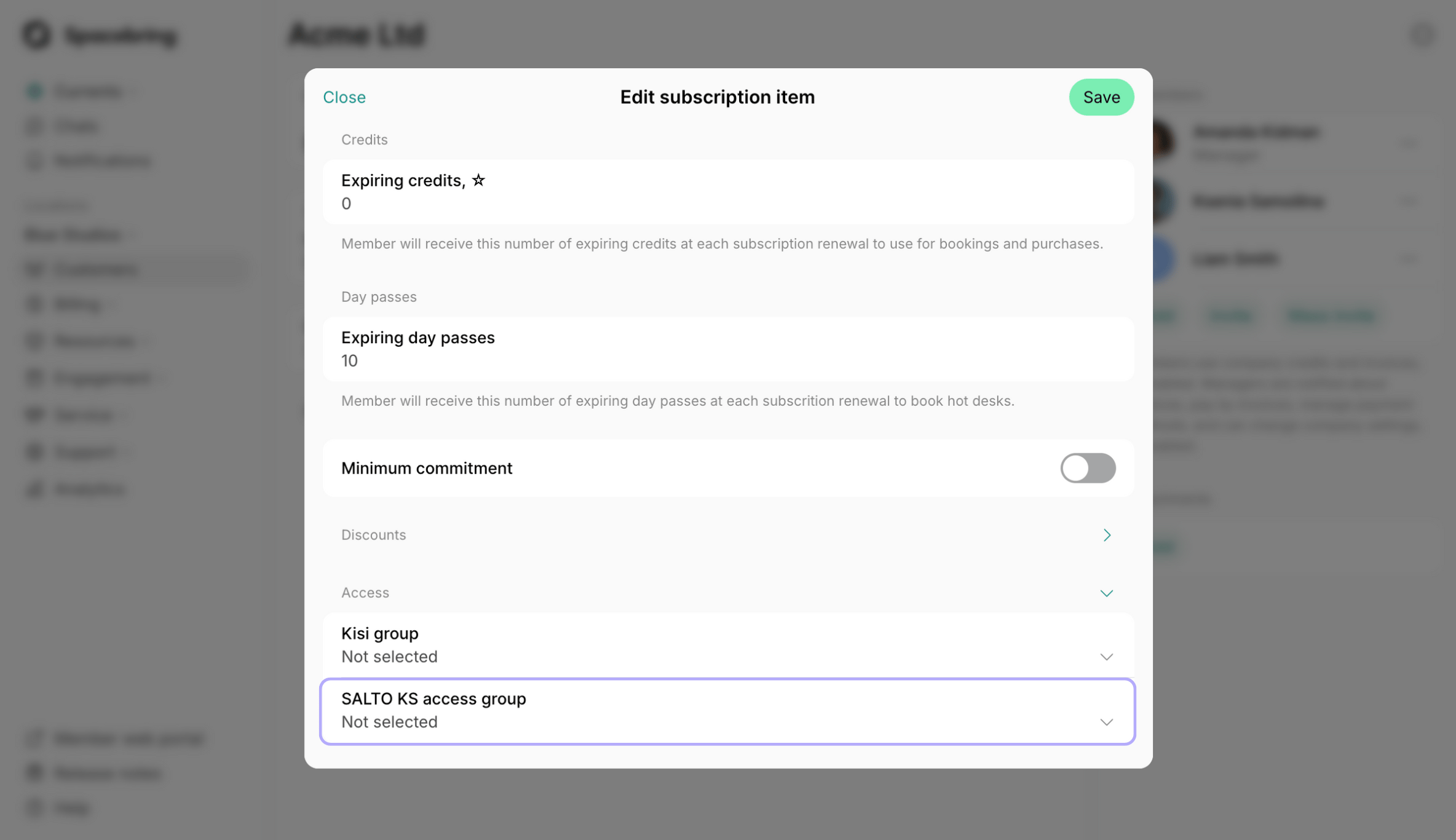
- Navigate to Spacebring > Customers > select the necessary customer.
- Tap on the subscription in the Subscription section.
- Scroll down and locate the Access section > choose Not selected from the drop-down list > press Save.
- Reopen the subscription > in the Access section, select the necessary Salto KS access group again > press Save.
FAQs
How do I add a digital key for a customer?
How do I add a digital key for a customer?
There is no separate step or extra setup to add a digital key. Make sure the customer has a subscription (personal or company) or a booking that has a Salto KS access group selected. The Get digital key button then appears in their member mobile app on the subscription start date, or 30 minutes before the booking starts.
How do I manage access granting for company members who rotate coming to the space?
How do I manage access granting for company members who rotate coming to the space?
To ensure that only the members who are actually coming in get access, follow these steps:
- Do not assign an access group to the company’s subscription. This prevents all company members from receiving access by default.
- Include the required number of day passes in the company’s subscription. Company members need to use these day passes to book a seat when they plan to come in.
- Assign an access group in the desk settings. This ensures that only those company members who have an active desk booking for the current day will be granted access.
How to set up access groups for different doors?
How to set up access groups for different doors?
To ensure a seamless flow for your members, create multiple access groups in Salto KS based on your space layout and then link them to the specific resources or plans in Spacebring:
- Front door lock: If you only have one main door, create a single access group and link it to all your resources and plans.
- Front door lock and Private offices locks: To give office tenants private access, create separate access groups for each individual office. Each group should include the Front door lock plus that Specific office lock. Link each unique group to its corresponding office resource.
- Front door lock and locks for certain rooms:
- Create groups for each Room + Front door. Link each room to the access groups you created for it so users only access the specific room they booked.
- To provide access to desks, open spaces, or lounges, you only need one access group containing the Front door lock.
- Tiered access: For members on different plans, create groups with the same locks but different time restrictions. Link these groups to the corresponding plans — for example, a “9 AM – 6 PM” group for regular members and a “24/7” group for those on exclusive plans.