

Brivo is a distinct company not affiliated with us. For any inquiries regarding Brivo solutions, services, or pricing, please reach out to Brivo directly. We do not have the authority to provide information or support on behalf of Brivo.
Prerequisites
- Set up your Brivo account.
- Add all the necessary locks under a single Site in Brivo.
- Create access groups in Brivo specifically for Spacebring and add all the necessary locks to them.
- Have access credentials to your Brivo account and Brivo developer portal.
Connect Brivo integration
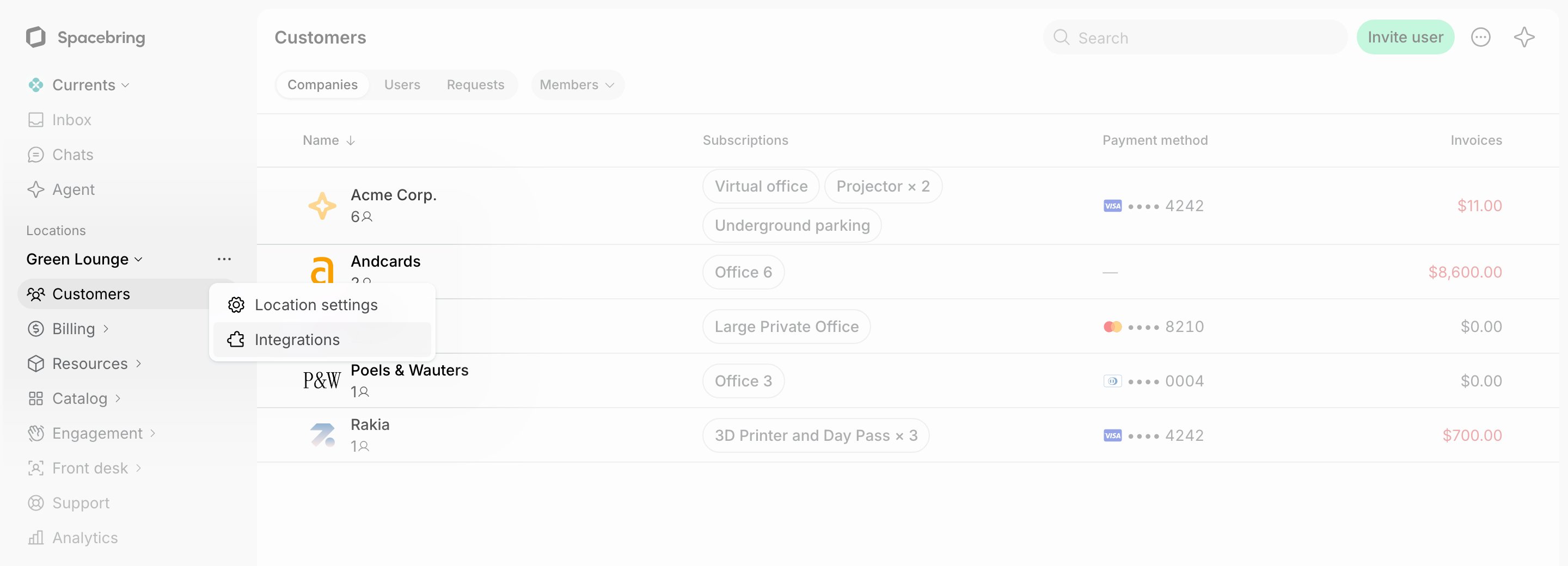
- Press the menu (…) next to the location’s name > go to the Integrations page.
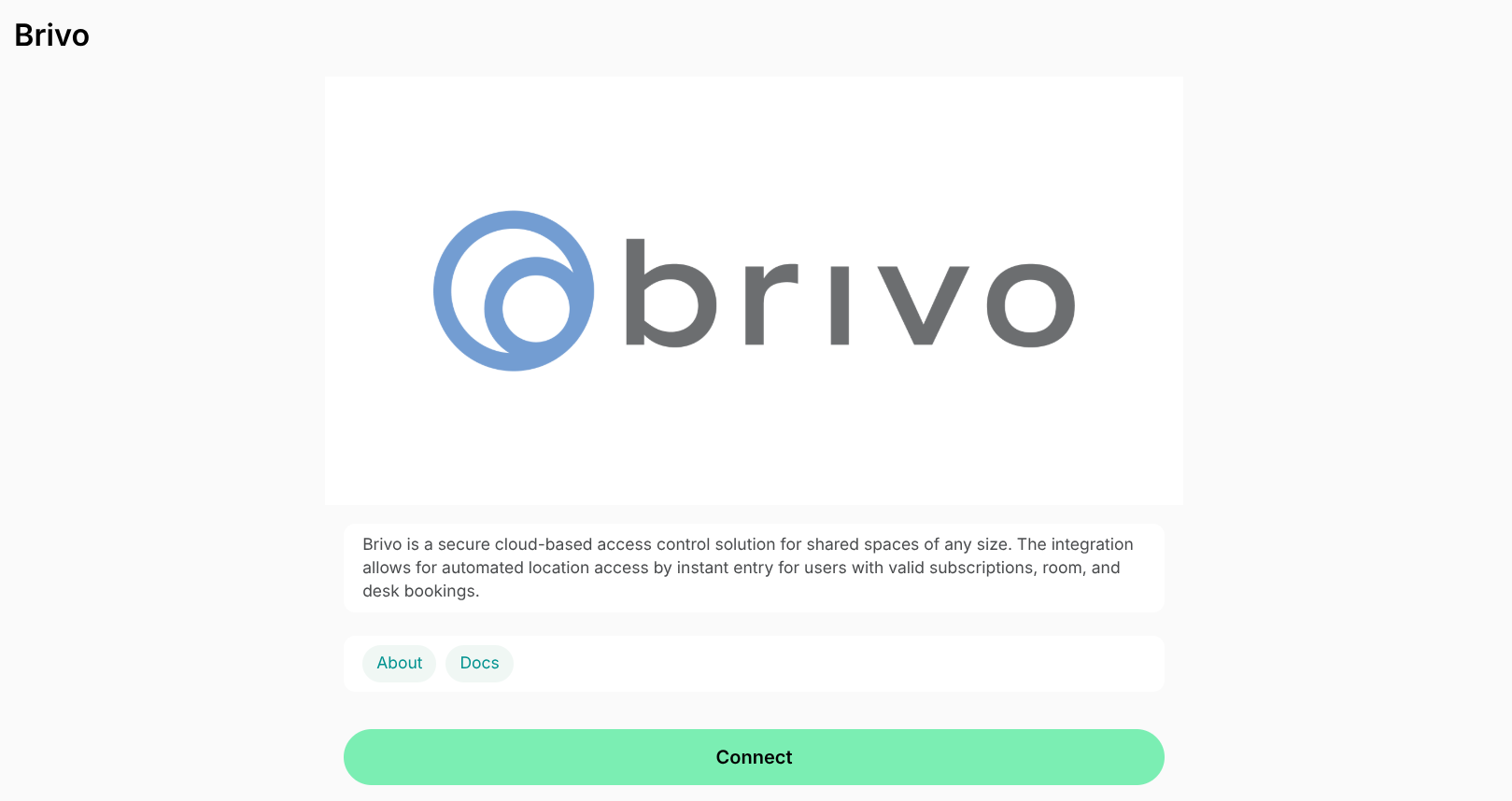
- Find the Brivo integration page and click Connect.
- Log in to your Brivo account.
When logging in, in the Username field, enter your Brivo Admin ID.
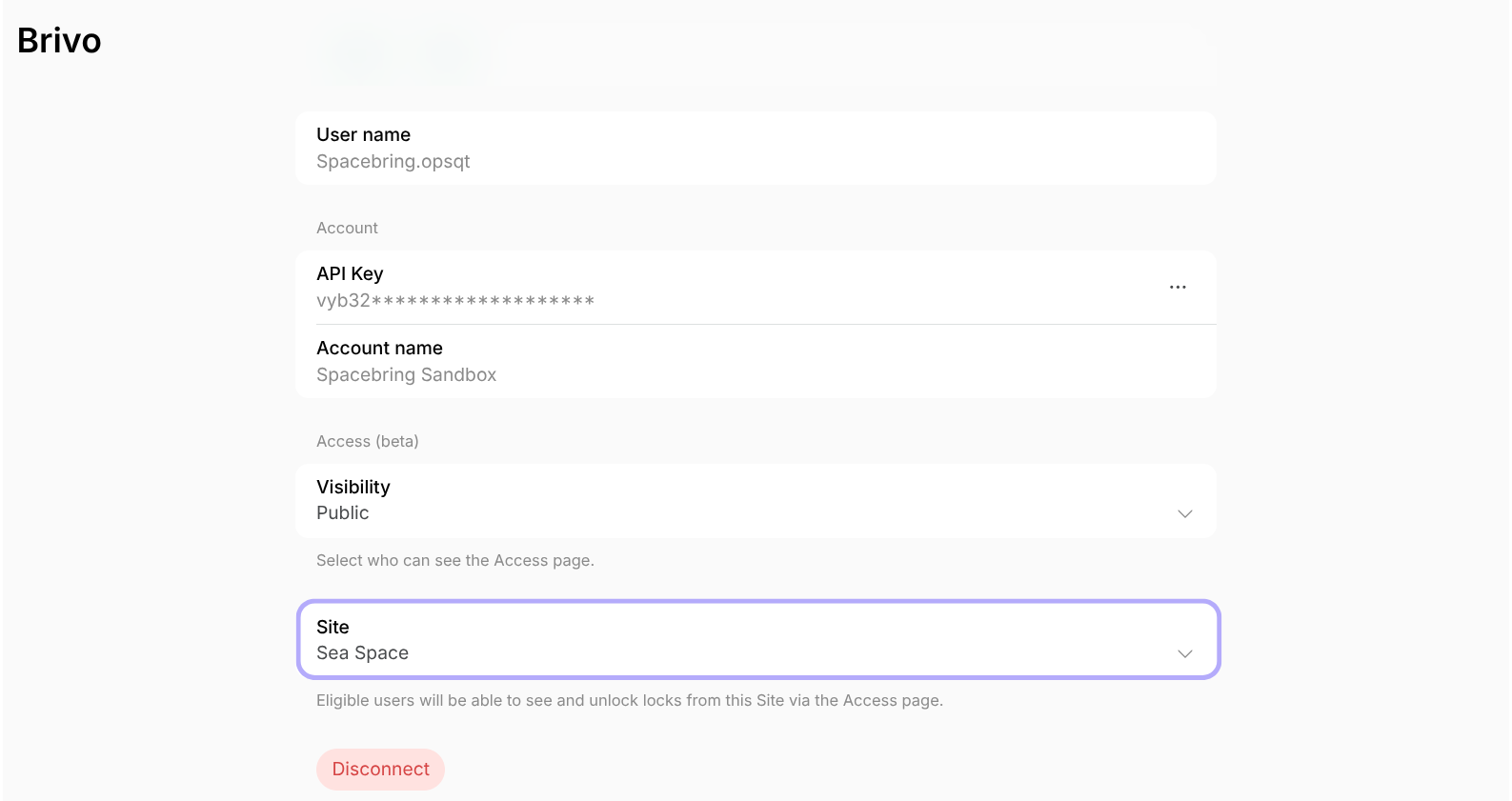
- Upon logging in, press Connect in the Account section, and enter the API key from your Brivo developer portal.
- Configure the Access page visibility.
- Select the Brivo Site where your locks are added. Eligible users will see and unlock these locks via the Access page.
You can connect a separate Brivo account to each location in Spacebring.
Configure Brivo integration
The integration allows granting access based on:- Subscription
- Room booking
- Desk booking
- Office booking
- Equipment booking
- Parking booking
Access for subscriptions
For future new members
- For memberships, open the membership settings > Access section > select the appropriate Brivo access group.
- For resource rentals, open the resource settings > Integrations tab > Access section > select the appropriate Brivo access group.
- When you create subscriptions for customers or customers sign up by themselves, the user is automatically synced to the selected Brivo access group for the duration of their subscription.
For existing members
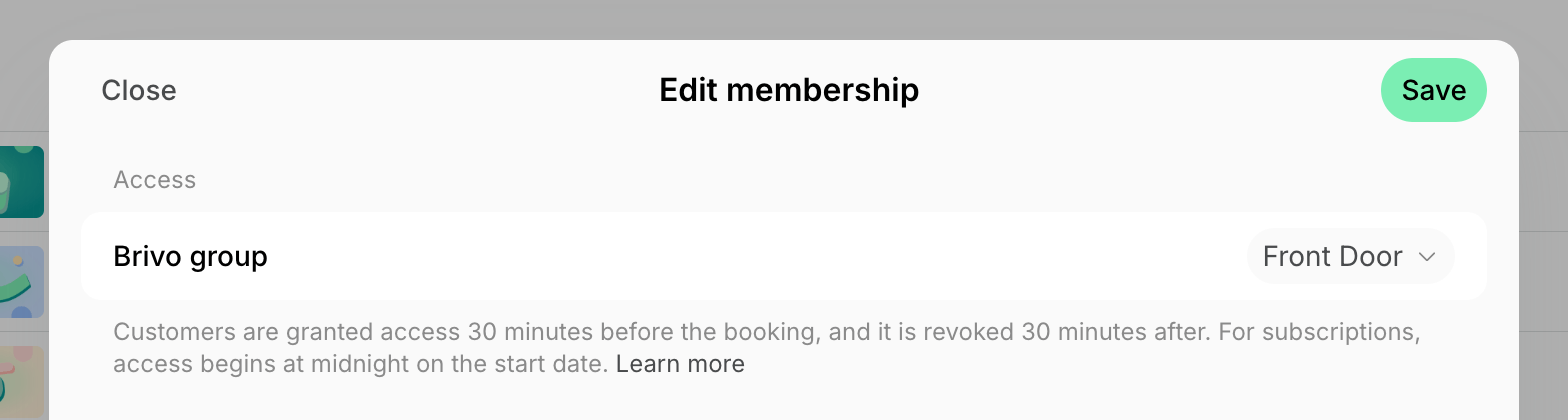
- Open member’s subscription > open a specific item.
- In the Access section, select the appropriate Brivo access group.
Access for resource bookings
To automate access for resource bookings:- Go to Resources > Rooms, Desks, Offices, Parking, or Equipment page.
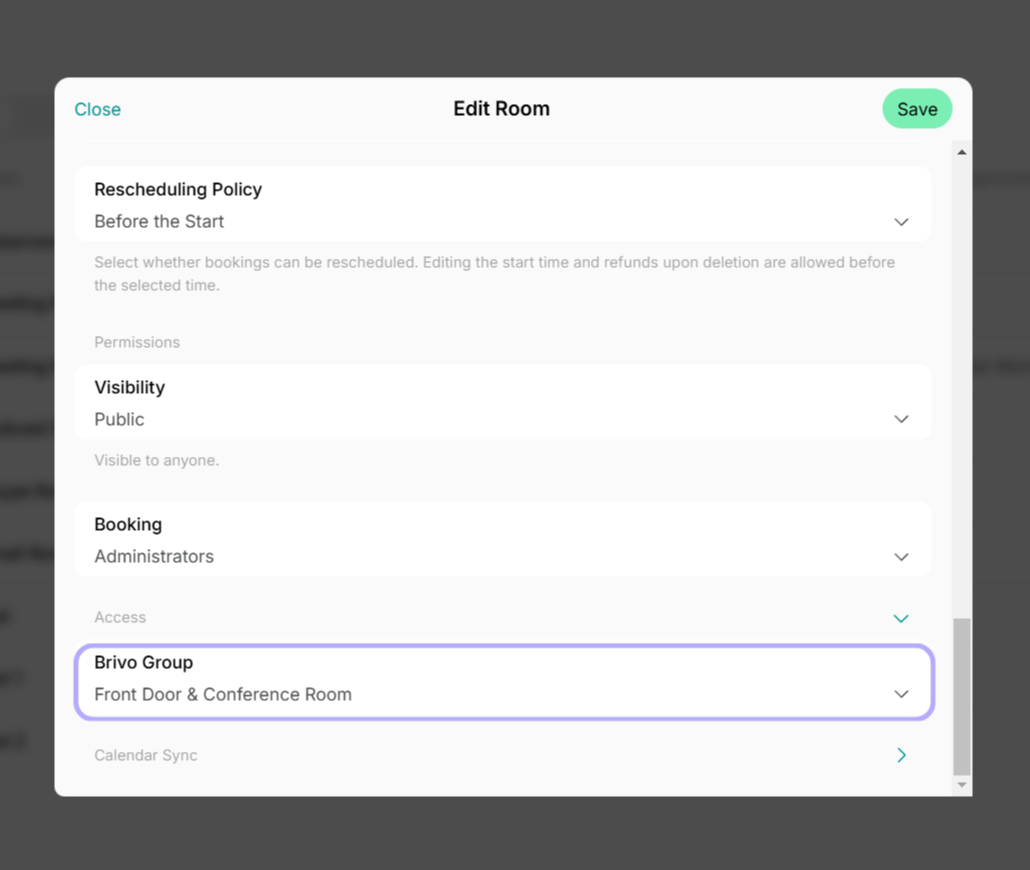
- Open the resource settings > Integrations tab > select the appropriate Brivo group in the Access section.
Access for memberships with day passes
Customers subscribed to a membership with day passes come to the space only on the days they book a desk, so tie their access to the booking rather than to the subscription.- In the membership settings > Access section, keep Not selected.
- Open the hot desk resource settings > Integrations tab > Access section > select the appropriate Brivo access group.
How Brivo integration works
Access based on subscriptions
- When a user gets a subscription, they are synced to the assigned access group for the entire subscription period.
- Company subscriptions grant access to all users within the company, regardless of how many memberships or seats the subscription includes, including employees added to the company later.
- Customers are synced to the access group at midnight (00:00) on their subscription start date.
- When a subscription expires or is canceled, access is automatically revoked.
Access remains active from the subscription start date until its end or cancellation date, regardless of the customer’s invoice payment status. To revoke access, schedule a subscription end, or cancel it.
Access based on bookings
- Users receive access to the assigned access group for the full duration of their booking.
- Invitees to room bookings also receive access.
- Users have a 30-minute grace period before and after the booking time:
How users unlock doors
- Users who have an active subscription or booking open member web portal or mobile app.
- Go to the Access page.
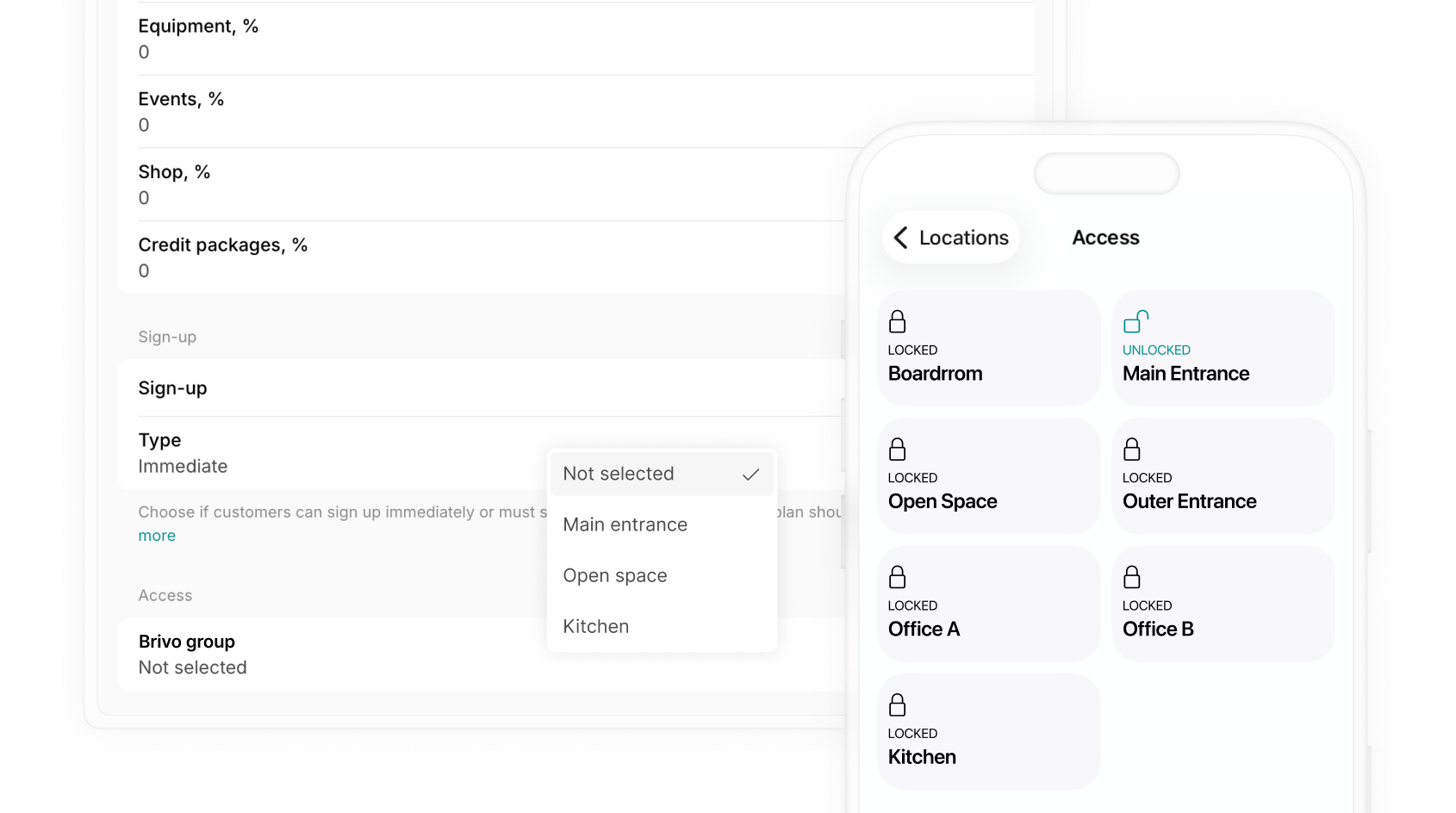
- They see the locks they are eligible to access based on the access group in their booking or subscription.
- Tap the lock to unlock the door.
It is not currently possible to limit door unlocking by a user’s geolocation. Users can open doors from the member portal regardless of their physical location.
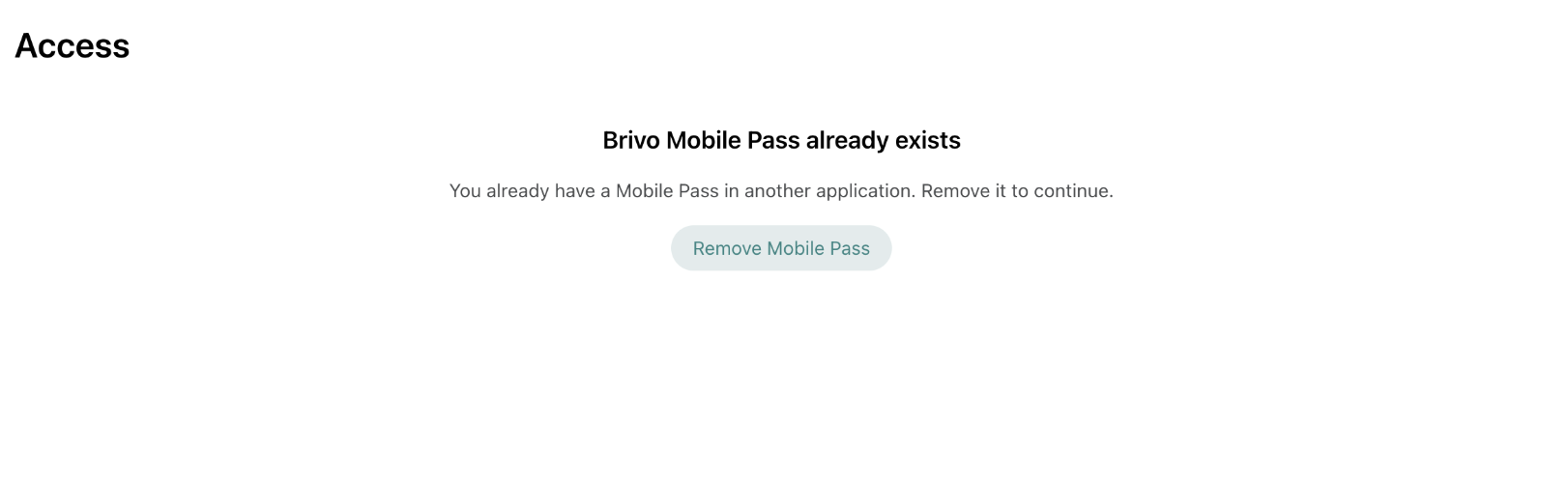
- To unlock via Spacebring, they must click Remove Mobile Pass.
- Once removed, locks will become available on the Access page.
Inform customers how to unlock doors
Users do not receive automated emails from Brivo about access. Guide your customers how to unlock doors:- Add custom booking confirmation emails in resource settings (e.g., for nonmembers). Explain them that upon arrival, they can unlock doors via the Access page in your member web portal or mobile app.
- Create a How to enter the space guide. This way, all customers will be able to find instructions on unlocking doors on your Information and Support pages at any time.
Disconnect Brivo
- Press the menu (…) next to the location’s name > go to the Integrations page > Brivo.
- Press Disconnect and confirm your choice.
Troubleshoot Brivo access errors
"Offline"
"Offline"
The lock does not accept unlocking over the network, which is how Spacebring opens doors.To fix, enable remote unlocking for that door in your Brivo dashboard.
"No locks"
"No locks"
If a customer can see the No locks message on the Access page, this could be happening due to the following reasons:
- Wrong Brivo Site selected in integration settings: The integration is configured to show locks from a specific Brivo Site. If you selected the Site different from the one where your locks are added, users will see no locks. To fix:
- Go to the Integrations page > Brivo in Spacebring.
- In the Site dropdown, select the Brivo Site where your locks are added.
- No access groups in memberships or resources: Once you connected the Brivo integration to Spacebring, make sure to select Brivo access groups in memberships’ and resources’ settings. Without a linked access group, no locks will appear for the customer.
- Customer has no booking or subscription, or it doesn’t include a Brivo access group: For a customer to be eligible for access and see locks, they must have an active resource booking or subscription with a Brivo access group linked to it. To fix:
- Go to Customers > open the customer profile > open their subscription or booking.
- In the Access section, make sure the appropriate Brivo access group is selected.
- Locks have not been added to the access group in the Brivo dashboard: If your Brivo access group linked to customer booking or subscription does not contain any locks, the customer will see no locks on the Access page. To fix:
- Open the Brivo dashboard > go to the relevant access group > add the required locks > save changes.
- In Spacebring, go to Customers > open the customer profile > open their subscription > in the Access section, confirm the correct Brivo group is selected and press Save to trigger a re-sync
- Subscription or booking hasn’t started yet: If a customer’s subscription or booking has a future start date, it is not yet active. Access to Brivo is granted only once the subscription or booking start date is reached — specifically, customers with subscriptions are synced to the Brivo access group at midnight (00:00) on the start date. For bookings, access is granted 30 minutes before the booking. The customer will gain access automatically at that time and will see the locks on the Access page from that moment on. No action is needed — access will be granted automatically when the date arrives.
- Customer logged in with the wrong email: Access to Brivo is tied to the email address associated with the user’s account. If a user signs in with a different email than the one on their subscription or booking, they will not receive access. To fix:
- Ask the customer to log out and sign back in using the correct email address — the one associated with their subscription or booking.
- If needed, verify the correct email under Customers > customer profile.
FAQs
How to set up access groups for different doors?
How to set up access groups for different doors?
To ensure a seamless flow for your members, create multiple access groups in Brivo based on your space layout and then link them to the specific resources or memberships in Spacebring:
- Front door lock: If you only have one main door, create a single access group and link it to all your resources and memberships.
- Front door lock and Private offices locks: To give office tenants private access, create separate access groups for each individual office. Each group should include the Front door lock plus that Specific office lock. Link each unique group to its corresponding office resource.
- Front door lock and locks for certain rooms:
- Create groups for each Room + Front door. Link each room to the access groups you created for it so users only access the specific room they booked.
- To provide access to desks, open spaces, or lounges, you only need one access group containing the Front door lock.
- Tiered access: For members with different memberships, create groups with the same locks but different time restrictions. Link these groups to the corresponding memberships — for example, a “9 AM – 6 PM” group for regular members and a “24/7” group for those with exclusive memberships.