

Tap to Pay is in beta and is enabled for selected locations only. To try it out, contact our support team.
Tap to Pay is currently available on Android devices only.
Prerequisites
- Have the Stripe integration connected in Spacebring.
- Have the admin mobile app installed on an Android phone with an NFC reader.
- Set up a terminal location in your Stripe dashboard. It tells Stripe the address where you accept in-person payments.
Enable Tap to Pay
- Press the menu (…) next to the location’s name.
- Go to the Integrations page > Stripe.
- In the In-person payments section, enable the Tap to Pay switch.
- In the Terminal location field, select the terminal location you created in Stripe.
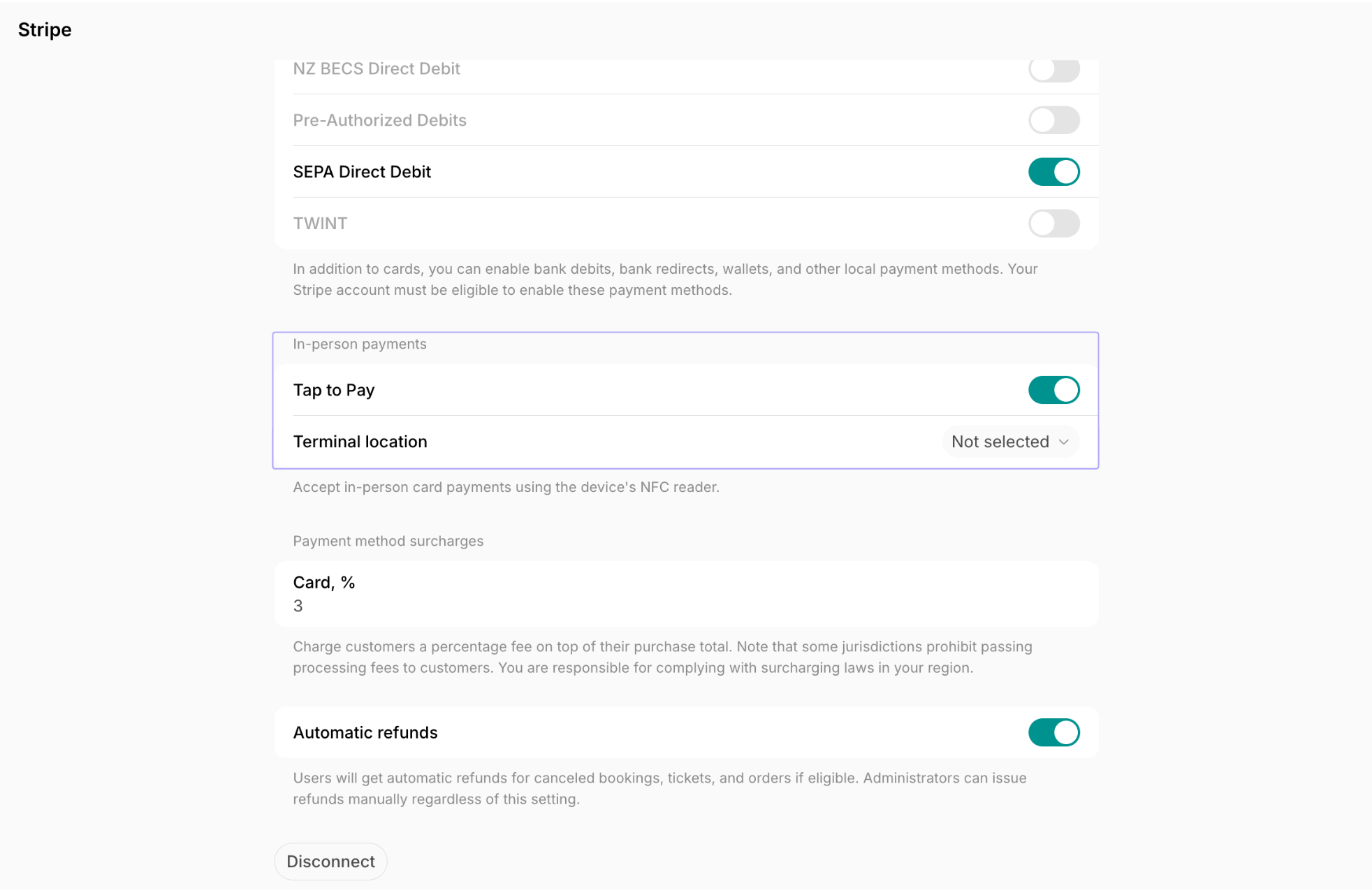
Tap to Pay appears as a payment method only after you select a terminal location.
Charge a customer with Tap to Pay
- In the admin mobile app, go to the Customers page and open the customer’s profile.
- Press the menu (…) top right > Create payment.
- Enter the payment details the same way as for any other one-off payment.
- In the Payment method field, select Terminal.
- Confirm the payment. The Tap to Pay screen opens.
- Ask the customer to hold their card or phone against the back of your phone until the payment is confirmed.
- Spacebring creates the transaction and the invoice for this payment.
Allow location access if the app asks for it. Stripe requires it to accept in-person payments.
How Tap to Pay works
- Tap to Pay is available only for one-off payments that an administrator creates. Customers cannot select it themselves for bookings, orders, or invoice payments.
- The card surcharge you set for the Stripe integration also applies to Tap to Pay payments. The customer sees the total on the payment screen before they tap.
- The transaction is recorded as a Stripe payment, so you can find it in your Stripe dashboard, too.