- Automatically generating eInvoices and credit notes in the format required by the Zakat, Tax and Customs Authority (ZATCA)
- Submitting them for real-time clearance via ZATCA’s FATOORA platform
- Adding ZATCA QR codes to the PDF invoices sent to customers, allowing them to verify invoices with the ZATCA app
- Tracking sync status for every invoice.
This feature is currently in beta. Its functionality and appearance are subject to change, and it may not be fully stable. We welcome your feedback at support@spacebring.com.
Prerequisites
To activate ZATCA Fatoorah eInvoicing, ensure the following requirements are completed.Complete location billing details
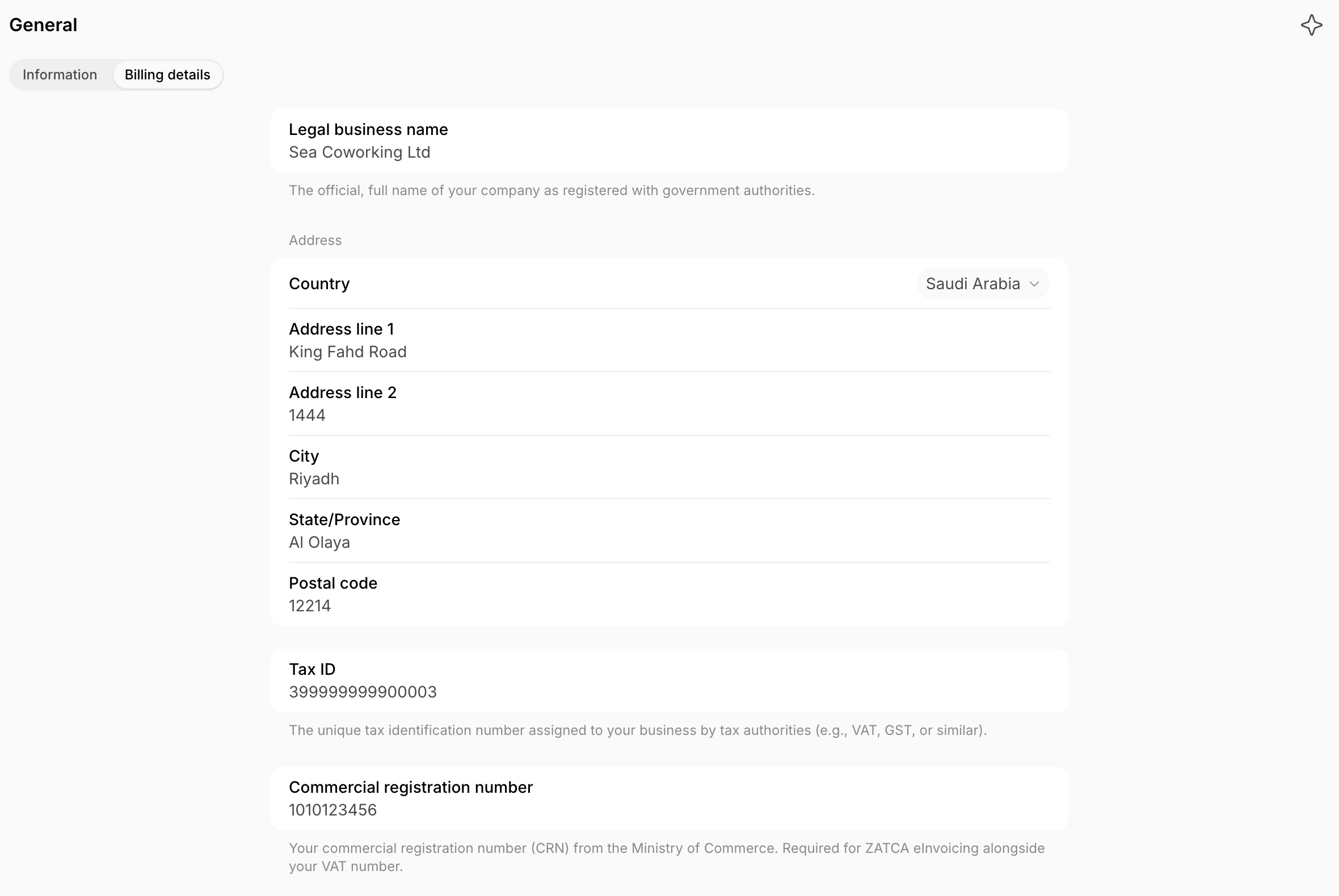
Your location billing details, tax, and currency must be complete and accurate.- Go to Location settings > General page > Billing details tab.
- Fill in your location’s billing details.
- Legal business name
- Address — Country (Saudi Arabia), Address line 1, Address line 2 (building number, max 4 digits), City, State/Province, and Postal code (5 digits).
- Tax ID (VAT) — must be exactly 15 digits, starting and ending with
3. - Contact details — Email is mandatory.
- Commercial registration number — enter your CRN issued by the Ministry of Commerce. This is required for ZATCA Fatoorah eInvoicing alongside your VAT number.
- Go to Location settings > Billing page > Taxes tab.
- Set the Tax type to VAT and enter 15% in the Tax rate field (required by ZATCA).
- Go to Location settings > Billing page > Currencies tab.
- Make sure your main location currency is set to SAR, Saudi Riyal.
- If your primary location currency is different, add SAR Saudi Riyal as an alternative currency and apply it to all customer profiles for whom you want to generate eInvoices.
Only invoices issued in SAR can be synced to ZATCA’s FATOORA platform.
Complete customer billing details
Each customer must also have accurate billing details.-
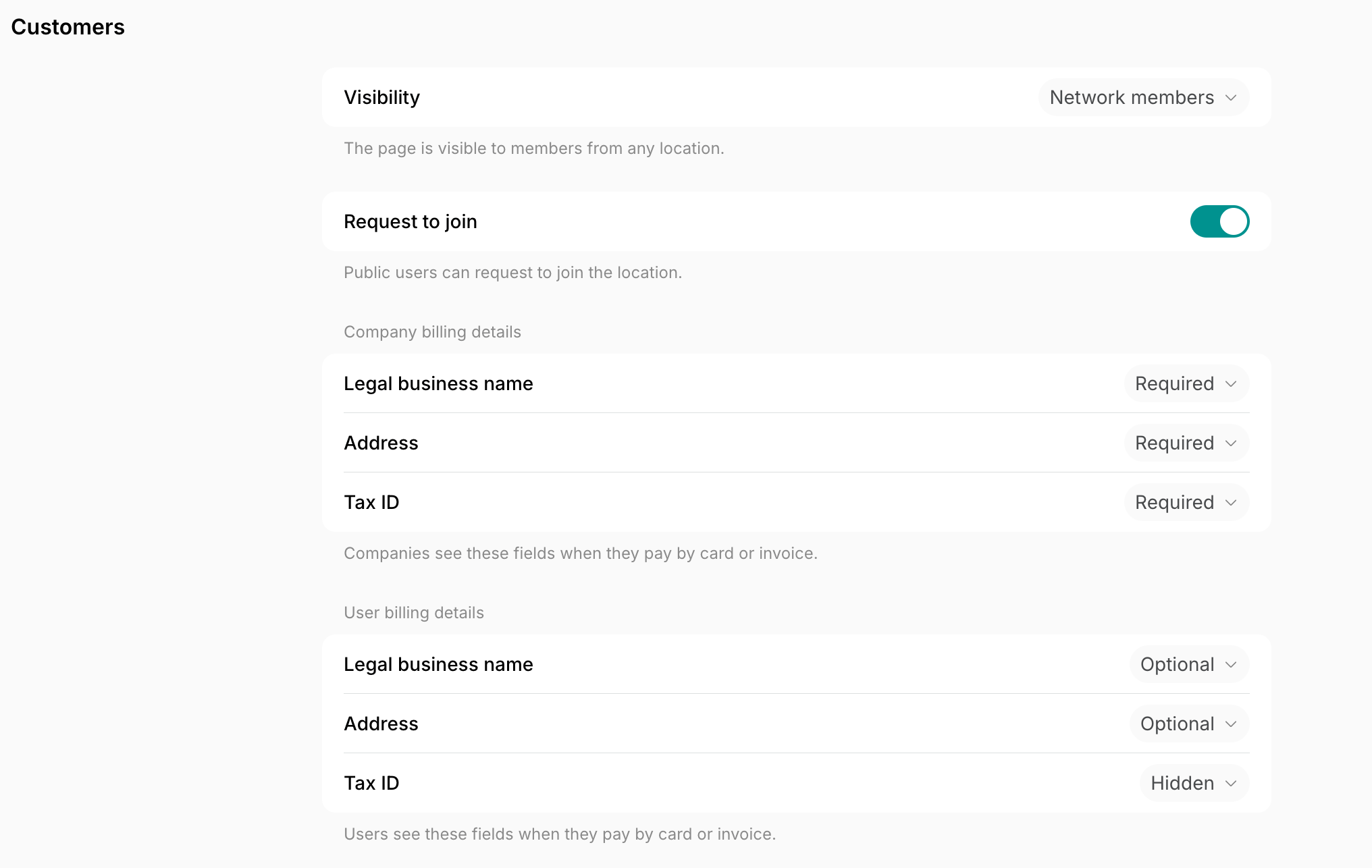
Go to Location settings > Customers and manage the billing details settings depending on your needs:
- Set the company billing details fields to Required.
- Set the user billing details fields to Required too, if you need to generate eInvoices for individual users.
- New customers will be prompted to fill out their billing details at the first payment.
- Existing customers missing billing details will be prompted to update their details during their next payment.
- To review or update customer details manually:
- Go to the Customers page > open each customer profile > locate the Billing details section on the right side panel. Fill in any missing billing details as an administrator.
- Alternatively, ask customers to update billing details on their own under Membership > Billing.
Requirements for companies
For companies, complete billing details are required for eInvoices to be generated and submitted. If a company’s billing details are incomplete or invalid, invoices for that company will remain in Draft status with a warning and cannot be issued.Requirements for individual users
For individual members, only fill in billing details if you want their invoices generated as eInvoices and submitted to ZATCA’s FATOORA platform.- If you do not want to generate eInvoices for individual members, leave their billing details, especially the Legal business name and Tax ID, empty.
- If at least one of these fields is filled for an individual member, Spacebring will attempt to sync their invoices as eInvoices to ZATCA’s FATOORA platform.
Activate ZATCA Fatoorah eInvoicing
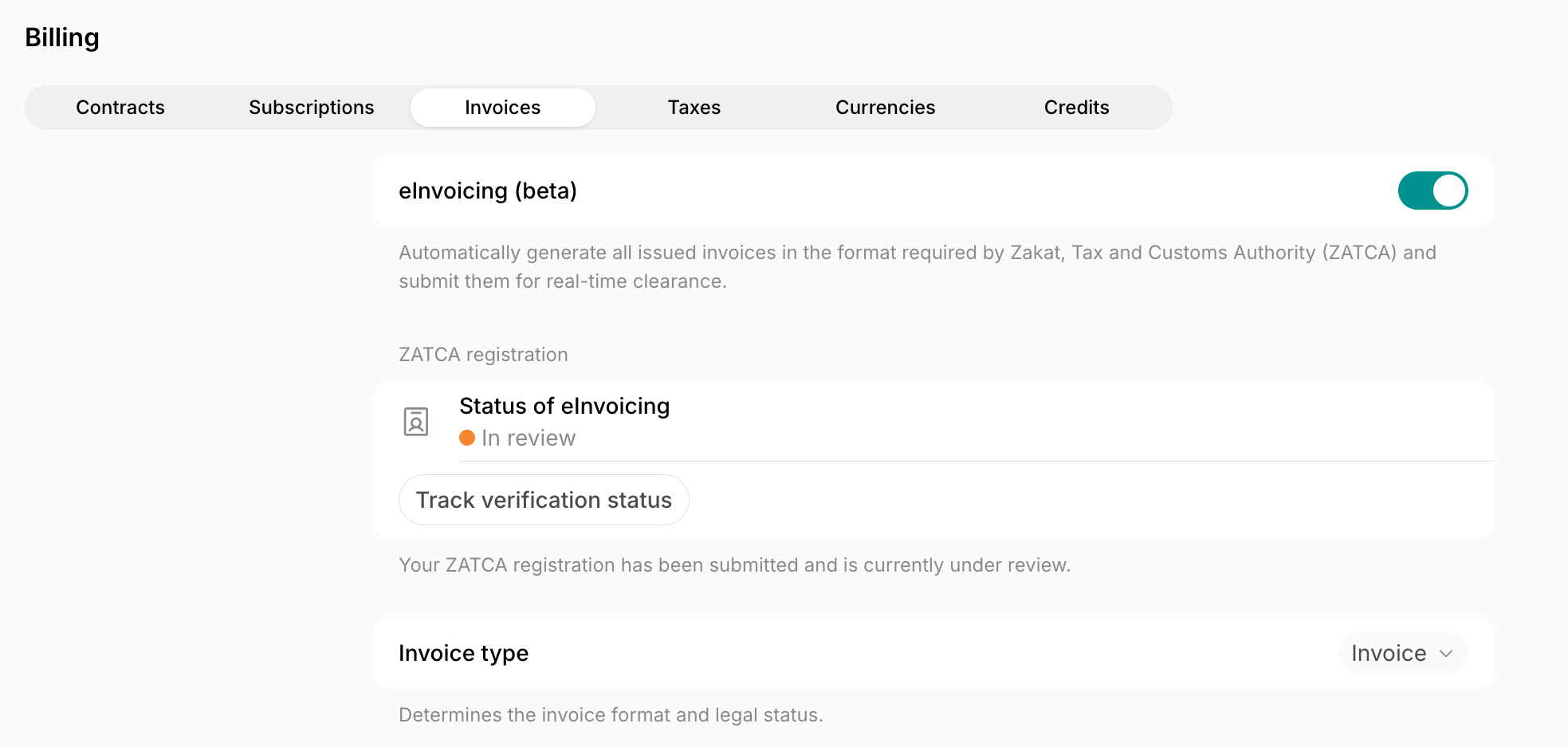
- Go to Location settings > Billing > Invoices tab.
- Enable the eInvoicing switch.
- In the ZATCA registration section, click Start verification process.
- Follow the instructions in the registration form to configure your ZATCA Fatoorah eInvoicing credentials.
- For Invoice type, select Standard only or Standard + Simplified. Spacebring syncs only standard invoices.
- Your registration will be submitted to ZATCA for verification.
- You can monitor the status using the Track verification status button, which opens the ZATCA FATOORA portal where you can follow the process.
- Verification may take some time. Once approved, your registration status will update to verified.
- If verification fails, click Restart verification to retry.
If the connection fails, administrators with the Integrations > Failures notification enabled are notified on the Inbox page, by push, and by email.
How ZATCA Fatoorah eInvoicing works
After ZATCA Fatoorah eInvoicing is activated:- All invoices for customers with valid billing details are automatically generated in the ZATCA-compliant eInvoice format.
- During issuance, invoices are also submitted to ZATCA’s FATOORA platform for real-time clearance.
- After clearance is confirmed, customers receive the standard PDF invoice, which includes a ZATCA QR code they can scan with the ZATCA app or compatible scanners to verify the invoice.
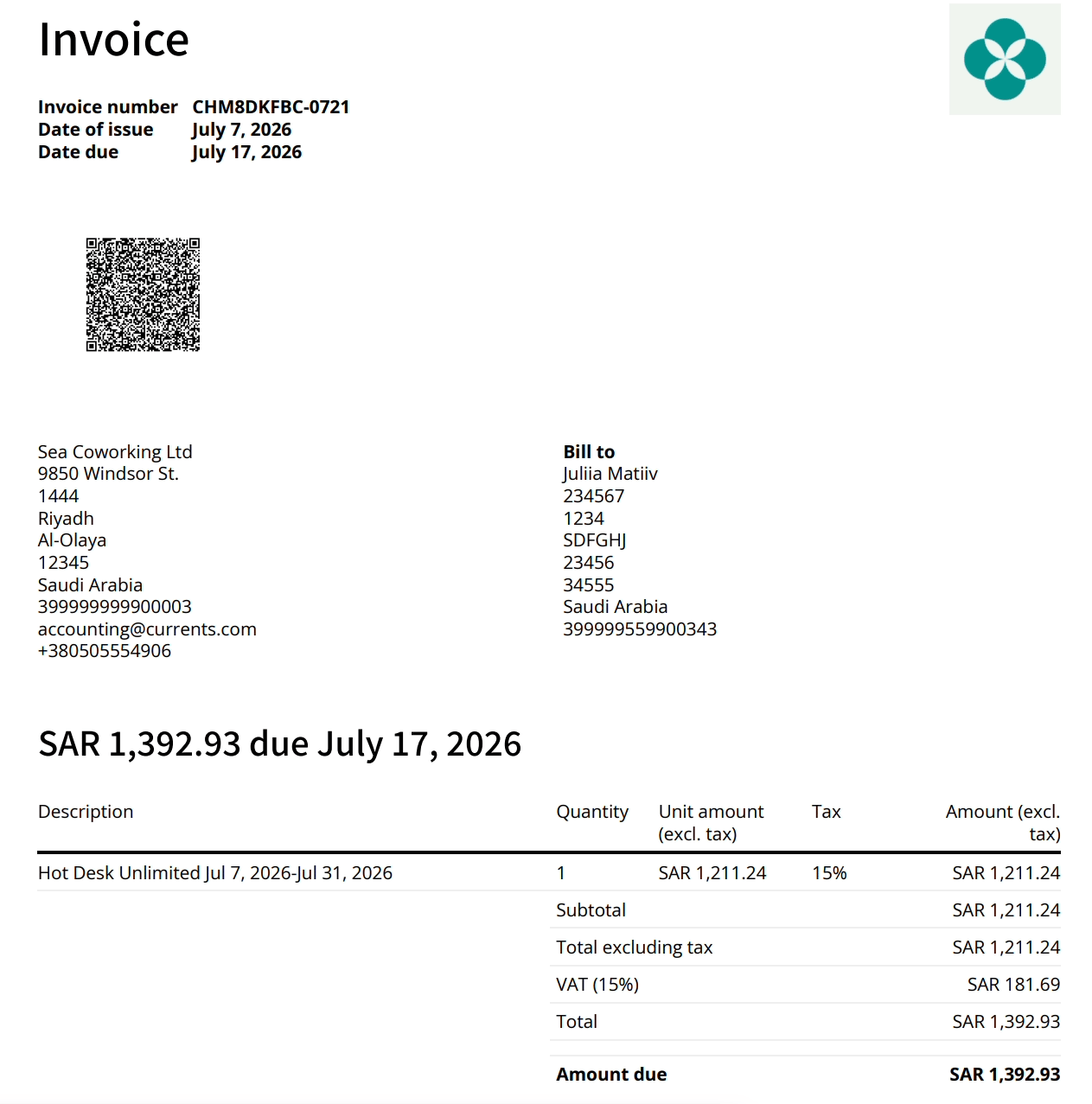
- Credit notes are also submitted to ZATCA if their original invoice was successfully cleared.
- When ZATCA Fatoorah eInvoicing is active, voiding invoices and credit notes is not supported, because ZATCA does not allow it. Instead, you can:
- Issue a credit note to correct the invoice.
- If necessary, issue a credit note for the full invoice amount to cancel it.
Track eInvoice syncing
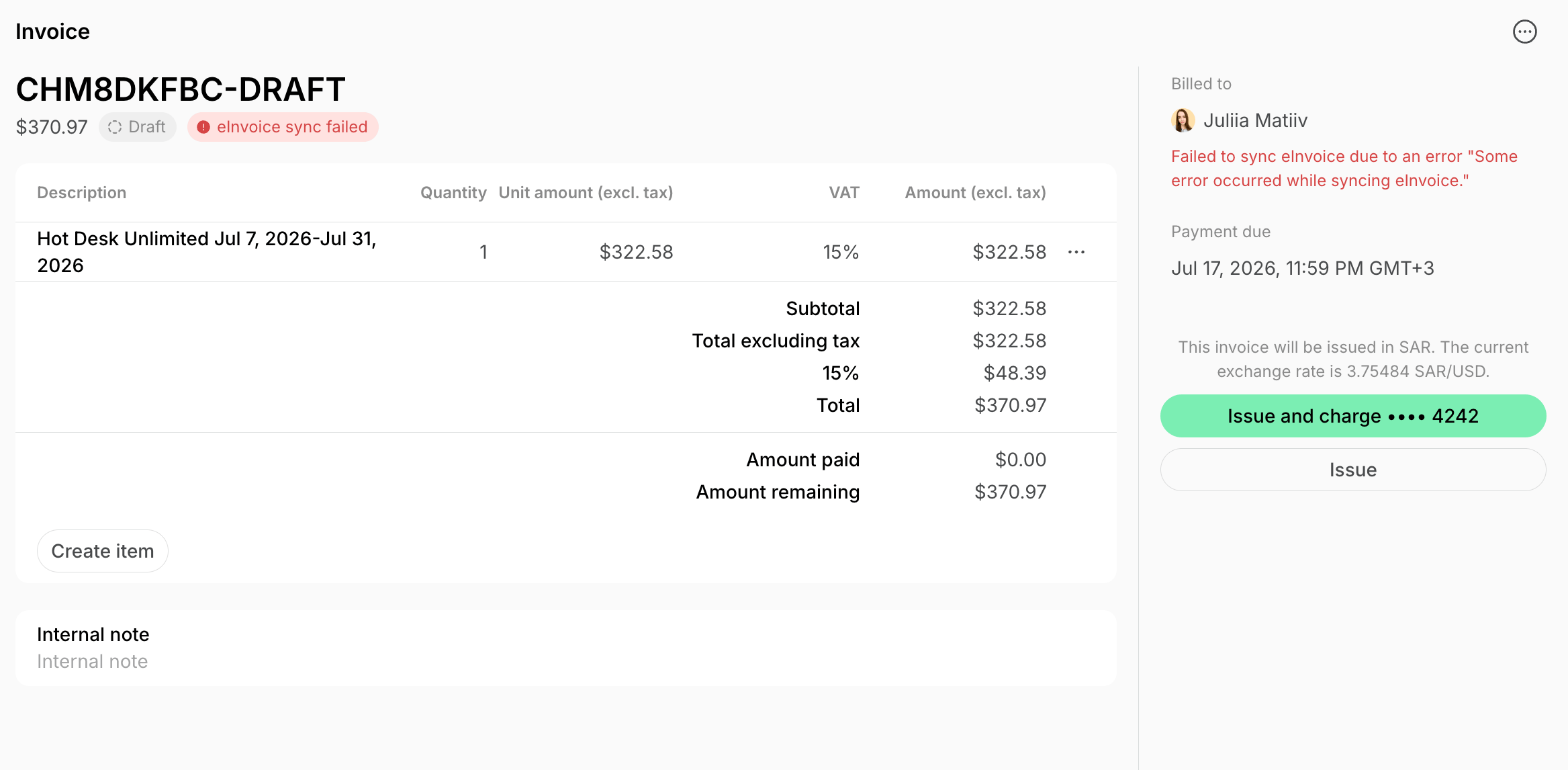
Each invoice has the eInvoice sync status indicated.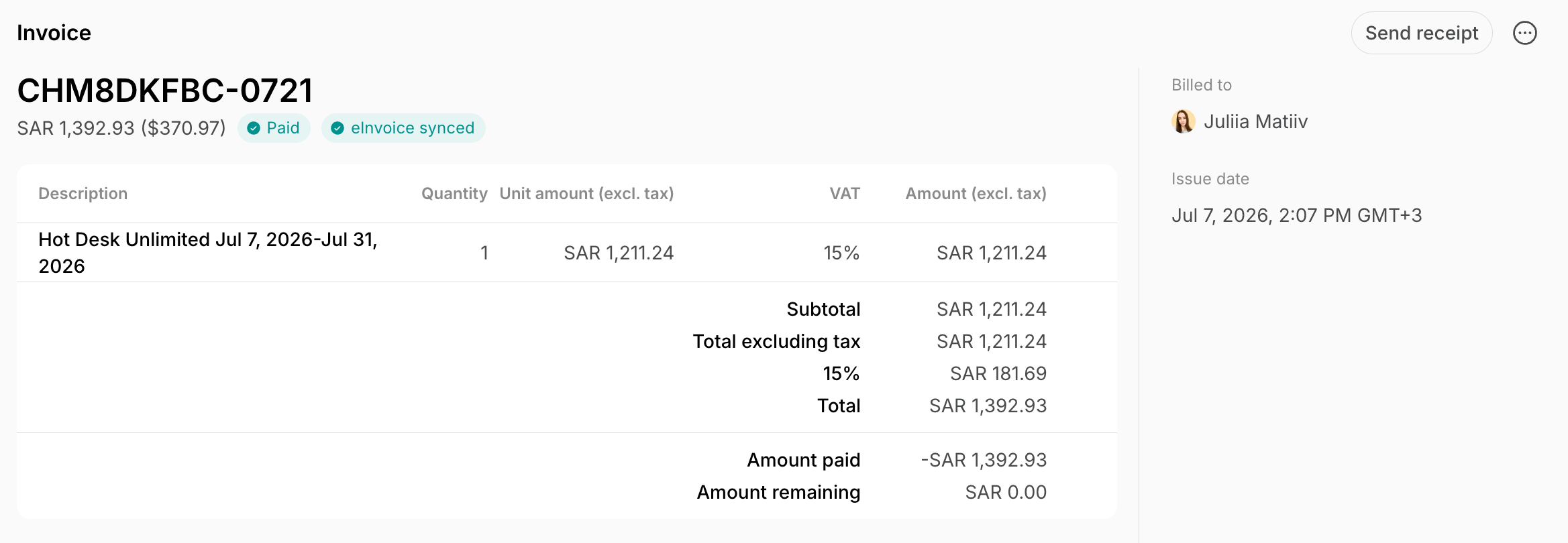
- The invoice will not be issued.
- The system will display:
- “eInvoice sync failed” status
- A red warning triangle next to the affected invoice
- A red warning triangle next to the customer’s name on the Customers page.
- A notification to administrators with the Integrations > Failures notification enabled, on the Inbox page, by push, and by email.