

- Sign contracts with tenants
- Automate rental payments
- Auto-update resource availability — helping you track occupancy and plan sales.
Prerequisites
- In the settings of each resource available for long-term rentals, enable the Plans switch on the Pricing tab and add rental plans.
- In each plan, set the sign-up Type:
- Request — if you need to verify tenants, sign contracts, or perform other checks before confirming a rental.
- Immediate — if you want to let customers sign up for office rental without verification, and pay or sign a contract right away.
- Integrate the necessary pages into your marketing site so potential tenants can browse and request a rental or sign up instantly.
How rental requests work
If a resource has the Request sign-up type:- Customers browse available resources on the Rooms, Desks, Offices, Parking, and Equipment pages, or on the location’s Plans page behind the Sign up button.
- Open a resource they’re interested in and click Rent, or Book or rent when the resource also has an hourly or daily price.
- After Book or rent, switch to Rental at the top. Choose the Start date, the Renewal switch, and the plan. A resource that can be rented in parts also offers the Entire resource switch and a Seats or Quantity field. To rent as a business rather than as an individual member, they turn on I’m purchasing as a company.
- Describe what they need in the Comment field, click Continue, check their name and phone number, and click Send request.
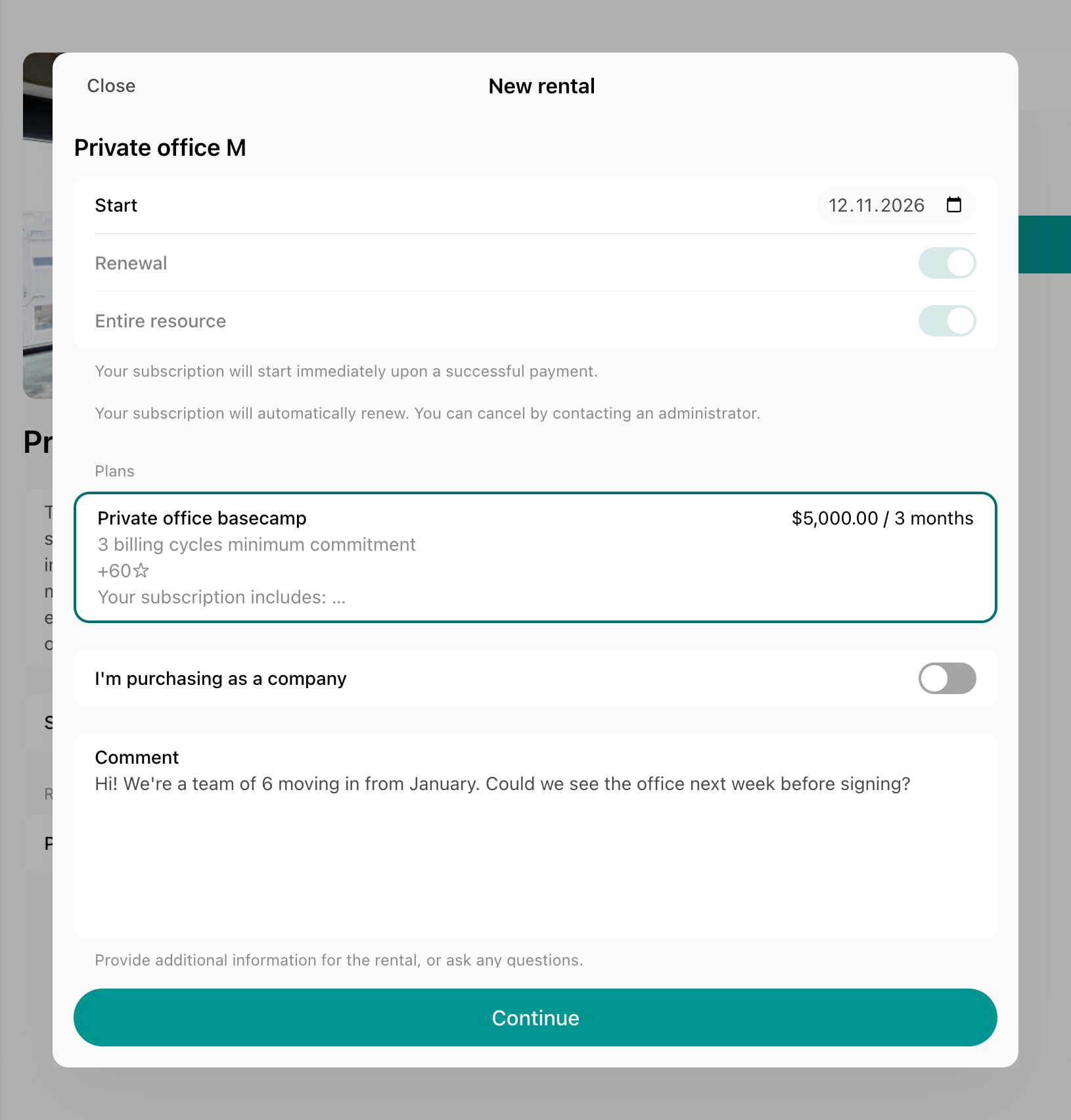
- The request appears in Billing > Subscriptions with the Requested status. It doesn’t hold the resource, so other customers can still rent it until you approve the request.
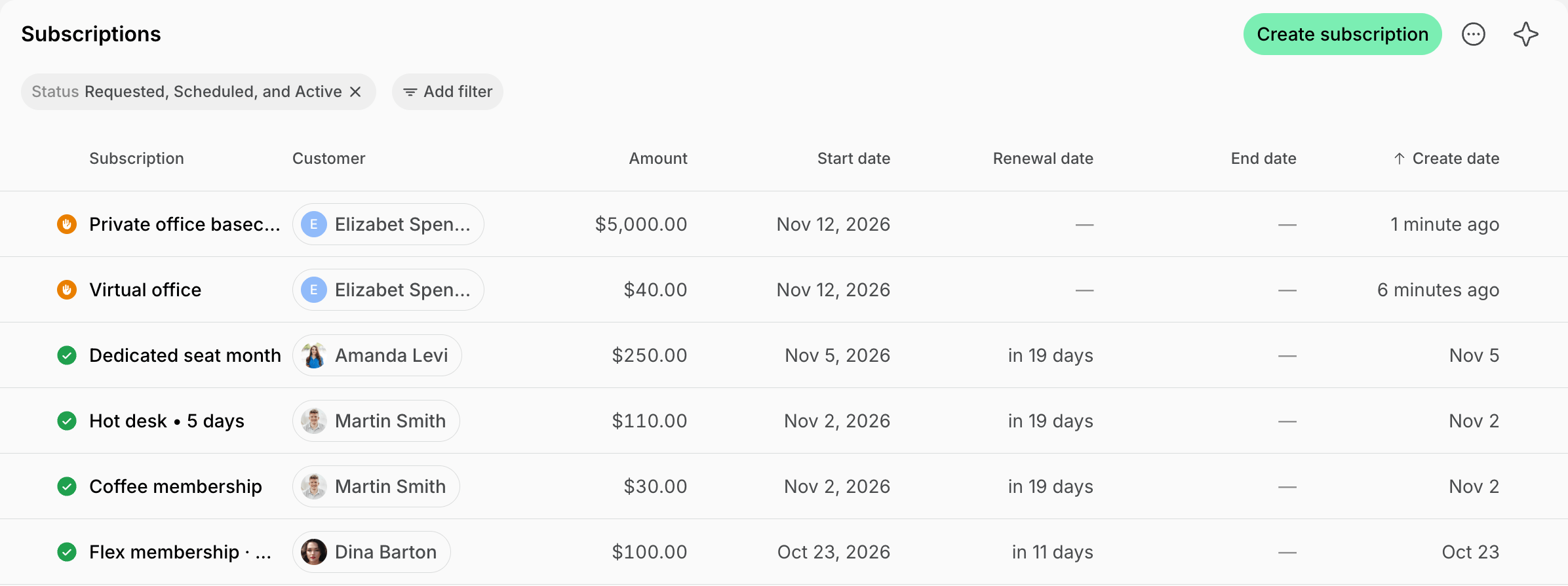
- Open the request to answer it:
- Write to the customer in its Activities section to answer questions, share additional photos, or arrange a tour.
- If you need a signed contract first, issue a contract to the customer with the Create subscription from contract switch turned off, and approve the request once it’s signed.
- Press Approve to create the subscription, or Decline to turn the request down.
- Once the request is approved:
- The customer becomes a member, and will automatically receive and pay invoices for the rental.
- The entire resource (e.g., an entire office) or a selected number of seats (e.g., a dedicated desk) is assigned to the customer.
- If the tenant is a company, add other company members, or ask the user to invite their colleagues.
How immediate sign-ups work
If a resource has the Immediate sign-up type:- Customers browse available resources on the Rooms, Desks, Offices, Parking, and Equipment pages, or on the location’s Plans page behind the Sign up button, and click Rent, or Book or rent when the resource also has an hourly or daily price.
- Complete the sign-up and make the first rental payment, or sign the contract when the plan has one.
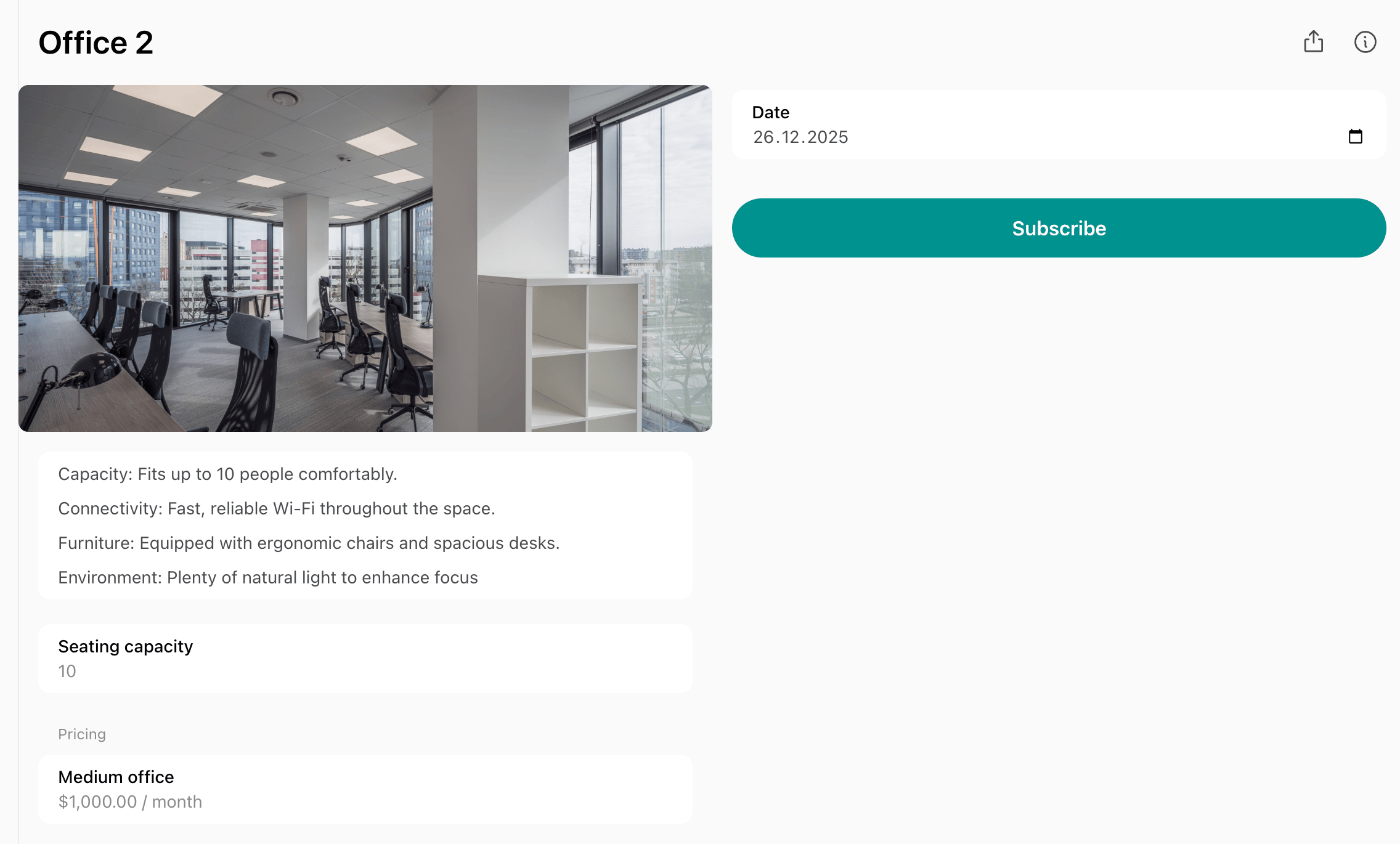
- Administrators receive a notification about each new sign-up, or about the signed contract when the plan has a Contract.
- A subscription is automatically created for the customer.
- The customer will receive and pay invoices for rental.
- The entire resource (e.g., an entire office) or a selected number of seats (e.g., a dedicated desk) is assigned to the customer.
FAQs
How can I reserve a resource for a customer for a week or longer period of time?
How can I reserve a resource for a customer for a week or longer period of time?
Create a subscription for the customer with the required dates and add this resource as a product. This will automatically assign the resource to the customer for the selected time period and update its availability.
How do customers pay for rentals?
How do customers pay for rentals?
Customers pay for rentals through a recurring subscription with automatically issued invoices.
How do I allow interested customers to request already occupied offices?
How do I allow interested customers to request already occupied offices?
A rented office stays visible to all customers on the Offices page with the Fully assigned label. Interested customers get a Join waitlist button on it.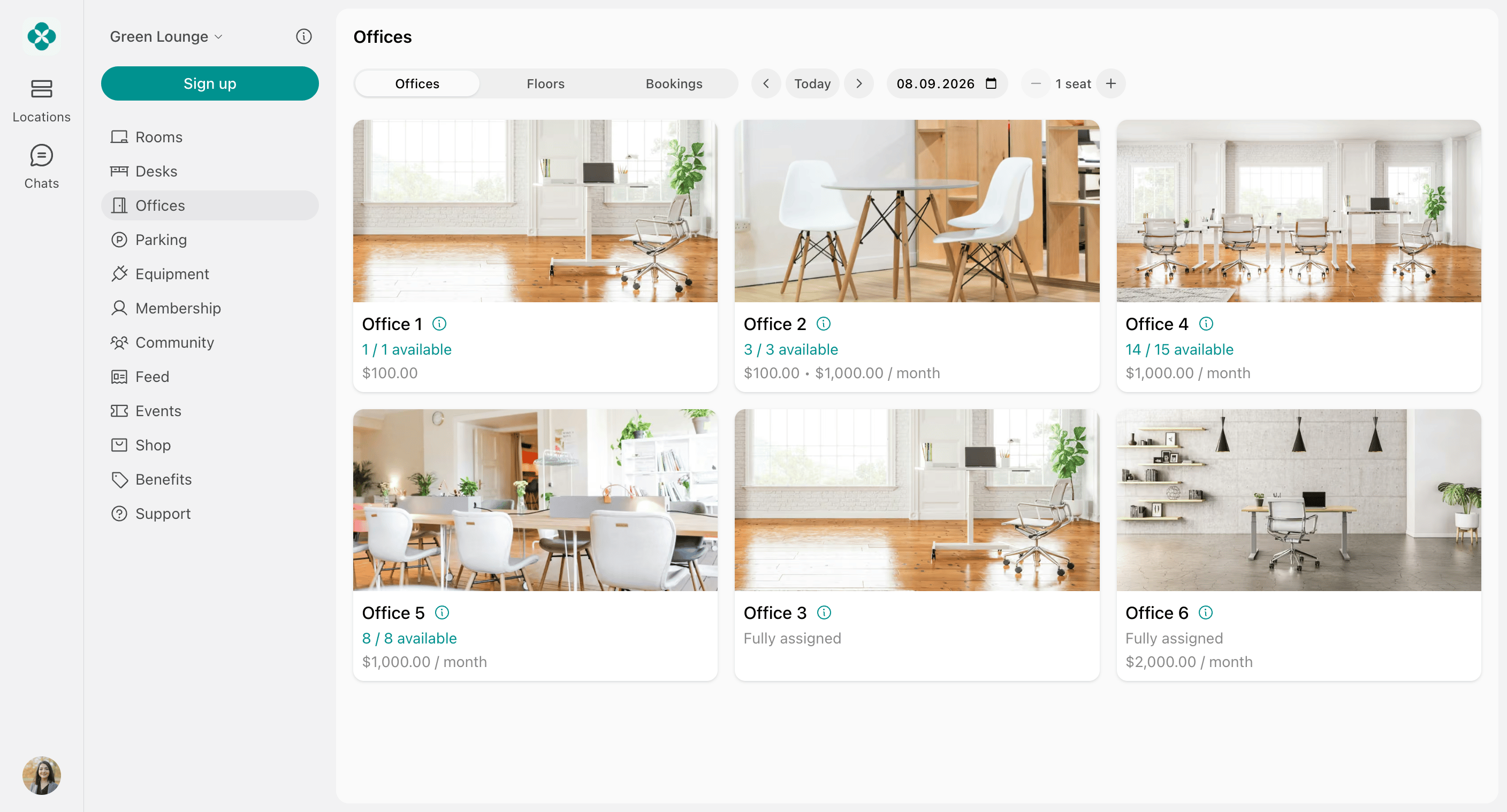
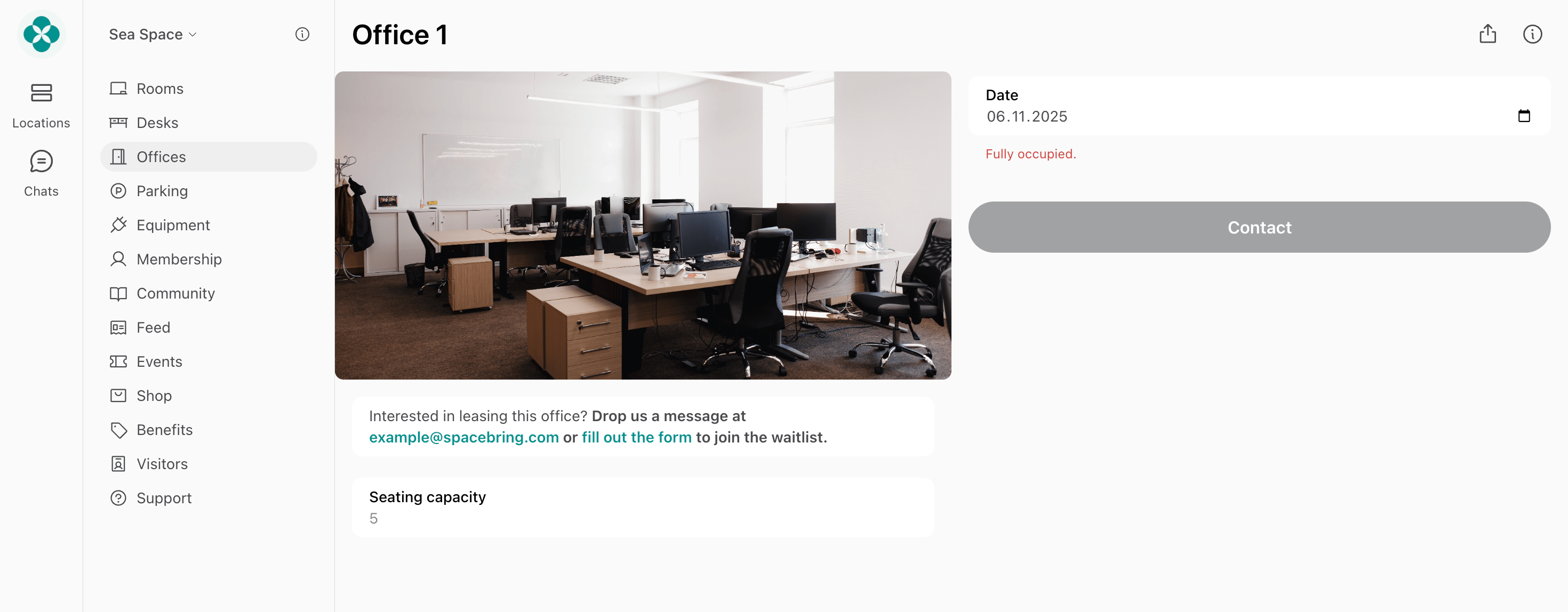
- The customer clicks Join waitlist and describes what they need.
- Their request arrives as a new ticket in Support > Tickets, where you answer them and offer the office when it frees up.